- Canva and Wakelet Partner to Enhance Content Curation
Canva and Wakelet Partner to Enhance Content Curation
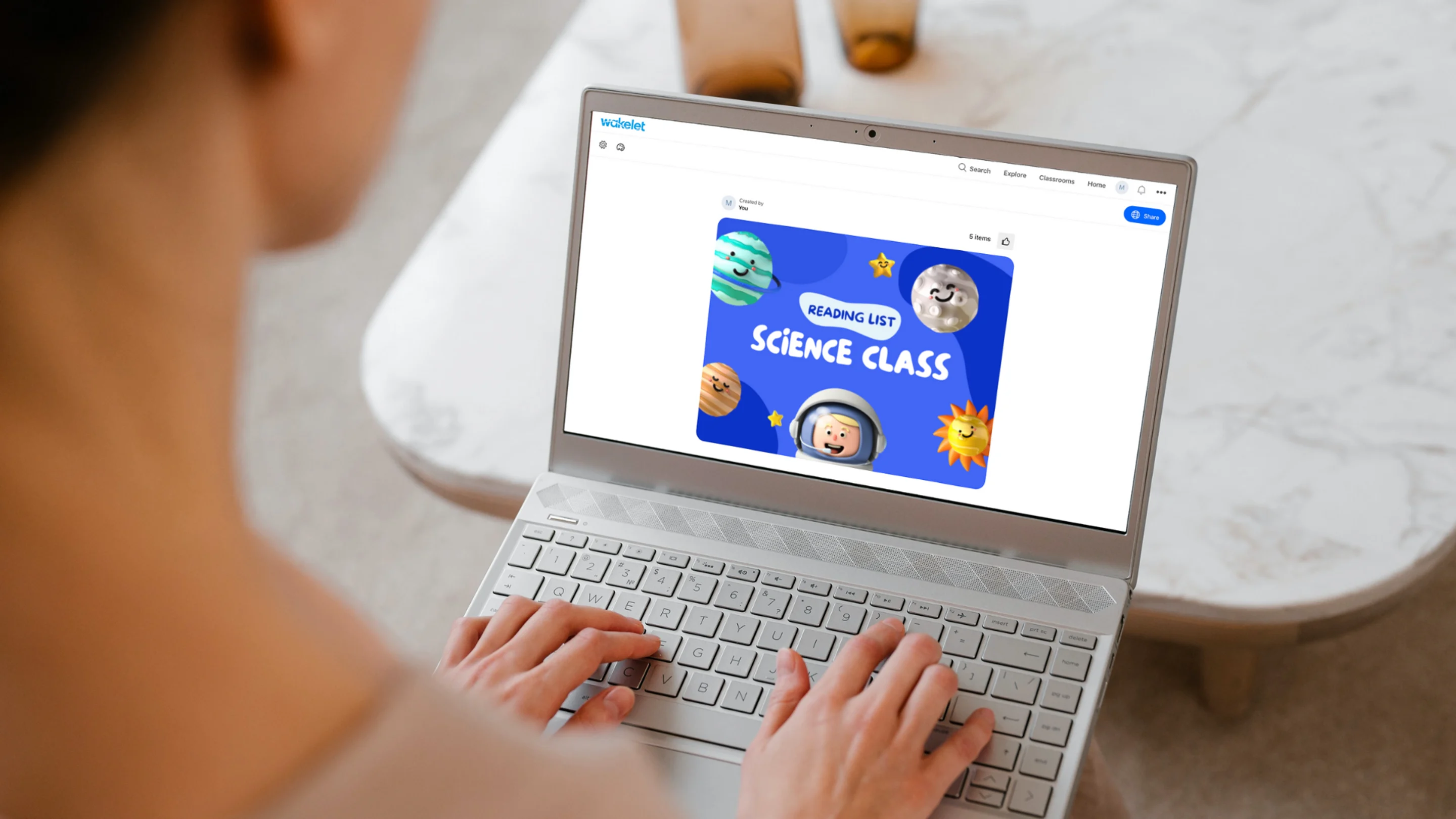
We’re excited to announce our new integration with Wakelet(opens in a new tab or window), a powerful curation tool—think Pinterest for education. Students use Wakelet for all sorts of individual assignments and group projects ranging from digital portfolios to book reports. Teachers compile reading lists, share information with parents, organize professional development(opens in a new tab or window) resources, and collaborate directly with students on Wakelet collections. As students learn how to better curate and organize information, they’ll develop an important life skill to navigate our information-packed world.
We know teachers have already been importing designs created on Canva Education(opens in a new tab or window) into Wakelet. Now, we’re introducing a formal integration where you can easily add eye-catching and educational Canva designs directly to Wakelet(opens in a new tab or window).
Check out the templates for your next Wakelet collection(opens in a new tab or window):

Get started adding your Canva designs to Wakelet:
- Login to Wakelet. Educators can create a free account!
- To start, click Create a New Collection. Add a title and description.
- Next, start making your Wakelet Collection. Under Image, you can select Canva!
- This will open the Canva editor where you can select a Canva template for your collection! Edit using Canva’s elements, text, photos, and other graphics.
- Once you’ve finished, click “Publish”, and you’ll be taken back to the Wakelet platform.
- On Wakelet, keep adding more links, images, and other resources till you’re done building your collection.
- Want to add a professional and engaging cover image? Click on the palette icon in the top left corner. Click “Add a cover image” and select Canva.
- When you’re finished, choose to keep your collection private or click Share to make your collection public.
Canva Education and Wakelet Power Tips:
- Power Tip: You can invite students to collaborate and add their own ideas to a Wakelet collection! Click on the “Share” button and add their emails.
- Power Tip: Already have something on Canva you’d like to share on Wakelet? We recommend adding your Canva designs as “view only” links so students can take a look without accidentally editing!
12 Ways to Use Canva Education and Wakelet in your Class
Here are a dozen ways for teachers and students to get started with Wakelet and Canva Education(opens in a new tab or window):
Teacher Led-Activities:
1. Virtual Led-Activities - Take time to explore! It’s not always possible to go on a field trip, so why not bring the field trip to you! Use Canva headers on Wakelet to organize the parts of your trip – from getting on the bus, driving across town, exploring the area on Google maps, picking a lunch menu, to watching videos of your chosen aquarium, farm, national park, or museum. Why not go on an adventure through Ancient Egypt or the Great Wall of China? Visit We Are Teachers for a list of 31 virtual field trip ideas!(opens in a new tab or window)
2. Choice Boards - Choice boards give students autonomy over the ways they demonstrate their learning. Use Canva designs to describe the options. Here are some choice board ideas: advertisement, book cover, chart, detailed illustration, diary entry, infographic, and poem(opens in a new tab or window).
3. Curated Reading Lists - Make your own reading lists! Whether you’re studying Social Studies, Science or something else, gather the most important articles, videos, and other resources in one place. Use Canva headers to label and organize your Wakelet reading lists. Guide students to create their own reading lists when they kick off a new research project. Encourage them to reflect on why they chose to include a particular resource.

4. Parent Newsletters - Send your parents a monthly update on Wakelet! Use Canva to organize the sections of your newsletter and textboxes with the details. Here are some ideas to include in your parent update: important dates, celebrations, upcoming projects and themes, tips for helping your child at home, and recommended books.
5. Save Professional Development Resources - Have a PD Day? Why not make a Wakelet collection to save all of the amazing new things you’re learning? When a teaching friend asks for advice, you’ll be ready to share.
Student Assignments and Projects:
6. Digital Portfolios - Create a digital portfolio and show what you know! Student portfolios can serve all sorts of purposes from showcasing growth to highlighting a student’s best work. Use Canva headers to create digital portfolios organized by date or subject.

7. Short Story Time - Explore the components of a great story. Prompt students to identify a story’s elements by using Canva to organize each section: characters, setting, problem, key events, and solution. After, ask students to write their own short stories using Canva to organize the parts of a story: exposition, conflict, rising action, climax, falling action, and resolution. Add Wakelet textboxes to write each section.
8. Show and Tell - Why not digitize your show and tell when you’re tight on time? Students can collaborate on a digital show and tell by adding a section about their object using a Canva header. Students can even add a Flipgrid video and text to describe their special item.
9. Science Reports - Add a new twist to your science reports. Use Canva headers to create sections for your hypothesis, materials, procedure or method, findings, and conclusion. Add textboxes and import photos to describe each part. Don’t forget, students can also find ready-to-use Science Report templates(opens in a new tab or window) on Canva.

10. Collaborative Book Reviews - Build a community of readers in your classroom with Canva and Wakelet. Collaborate with classmates to generate crowd-sourced book reviews. Try a 5-star scale and use Canva on Wakelet to organize reviews into chapters or themes. At the end, consider sharing your class feedback with the author.
11. Self-Directed Lesson Plans - Self-directed learning fosters initiative and builds students’ confidence in their ability to learn. Before starting a large, self-directed unit, scaffold student learning and start small with a specific topic or theme. Create an outline for your students using Canva headers on Wakelet. Together, with your students, identify their learning goals or objectives, their plan to demonstrate learning, materials needed, their activity or project, a self-assessment, and ideas on how they could further extend their learning.
12. How-to-Guides - Step-by-step—oooh yeaaah! Creating visual how-to-guides provides students an opportunity to master new topics and practice clear communication. Students can break down the steps needed no matter how seemingly simple or complex –from how to peel a banana to how to make a career as a YouTube influencer.
Summary
The Canva Education(opens in a new tab or window) and Wakelet partnership is a promising step towards making assignments and projects more exciting for students and teachers. With Canva’s visually engaging educational content and Wakelet’s curation platform, the educational possibilities are infinite!