- Easily make banners for your business and social media
Easily make banners for your business and social media
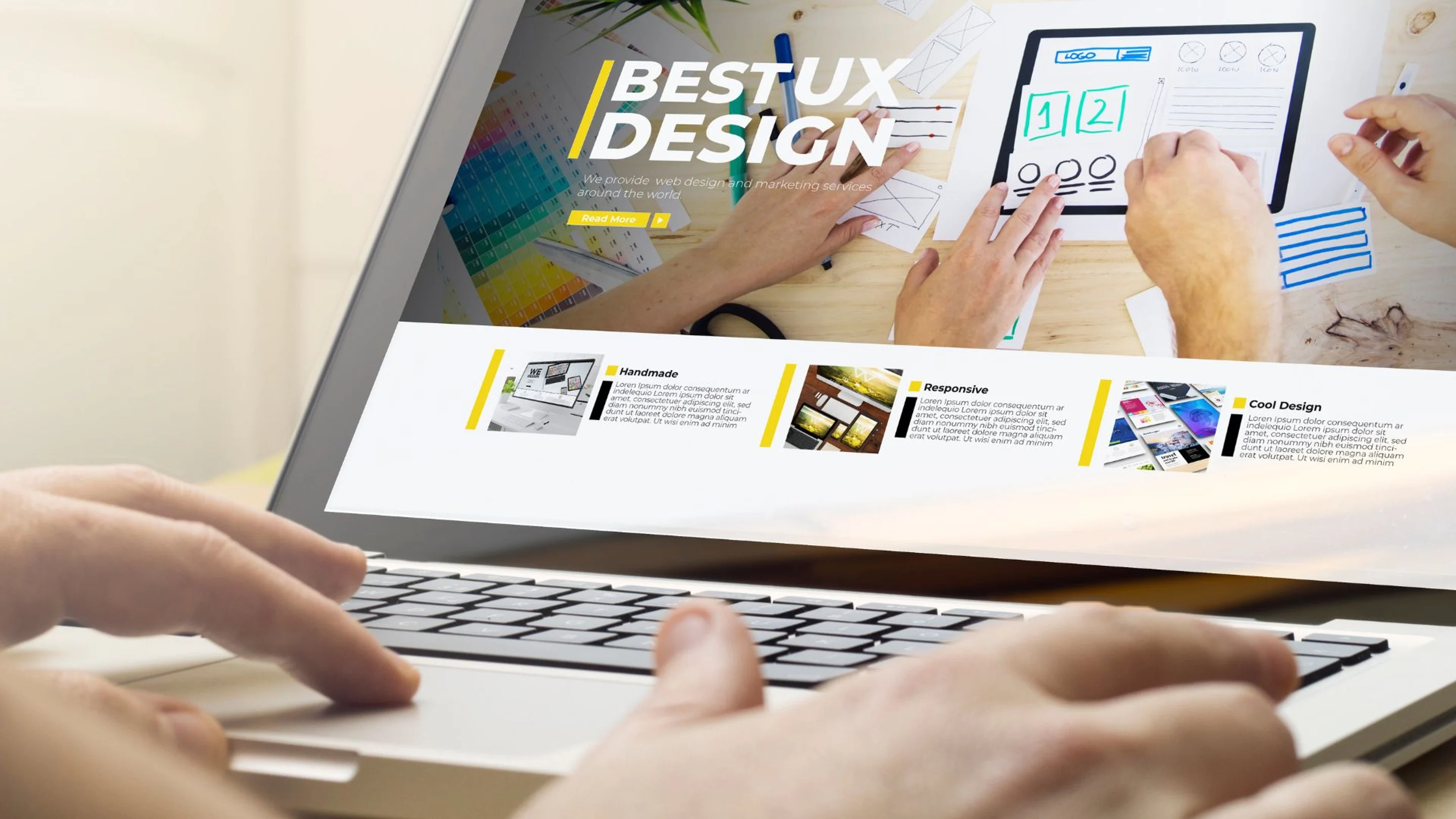
Create eye-catching designs
Online banners are the first thing your audience sees on your social profiles, so it’s important that you make a great first impression if you intend to generate new business.
Whether you want to dress up your Facebook, X (Twitter), YouTube or LinkedIn profile, Canva’s drag-and-drop editor allows you to customize thousands of free banner templates to match your brand’s visual identity.
With preset template sizes for every online platform, you’ll get the perfect banner dimensions every time. The best part? Banners take less than 10 minutes to design.
Getting started with digital banners
Using Canva, you can discover templates in various sizes for social media headers, or design for a theme. On your template search, you’ll encounter two types of templates: those with a crown symbol, indicating they are for Canva Business or Pro subscribers and those without — indicating they’re free for everyone to use.
There are literally thousands of banner templates to choose from. To narrow down your search, start from the Canva home page. Search for a specific use, like ‘Facebook banner’ or ‘cover photo.’ This will surface templates in the exact dimensions needed for each social platform.
Whatever template you choose, it will be much more efficient than starting from scratch.
To customize your template, upload your own images to the Elements tab and drag-and-drop them into the template of your choice. Simply delete the pre-existing image from the template, revealing the image frame underneath and drag in your photography. Change applicable text, add in your call to action and modify template colors to be in line with your brand.
The last step is sharing your design with your followers so business can come flooding in. Go to ‘Share', click ‘Download’ and ‘Download as PNG(opens in a new tab or window).’ Simple!
Easily resize online banners with the Magic Switch tool
Now that you have your head wrapped around how to start your design, take things one step further by resizing your design for all of your social media platforms.
Canva’s Magic Switch tool is a Canva Pro feature, and it’s available if you sign up for a free trial(opens in a new tab or window).
To use Magic Switch, go to your navigation menu and click ‘Resize.’ Search for the social platform you’ll be resizing for. For example, ‘LinkedIn Career Page Background’ and click ‘Copy and resize.’ All you’ll need to do from here is adjust your original design elements to make better use of the space as dimensions will differ slightly from platform to platform.
Check out the video above to see how you can easily turn a Facebook banner into a Medium Rectangle Ad or Leaderboard banner ad using Magic Switch.
How to create animated banners to make an impact
Sometimes, creating a double page banner allows you to relay more information. This is especially helpful for the main header on your website. For events that require you to make an impact consider creating an animated banner.
Start by duplicating your Canva design and deleting repetitive information. Your title banner should include your call to action, logo and event details. The second page might include a catchy tagline, or organizations you’re partnering with.
To animate, click on the background of the first page in the Canva editor, and hit the animate button in the navigation menu. You can cycle through various animation styles and select one that appeals. ‘Pan’ and ‘Pop’ animations are useful for making your call to action standout. You can also extend the timing of your animations so your text is more legible.
The last step is saving your animated banner as a GIF or MP4. Go to ‘Share,’ click ‘Download’ and select your file format.
Still curious about how you can make an impact on your audience? Learn how to embed a Canva presentation or video on your website here(opens in a new tab or window). For a versatile option, check out our guide on designing an eye-catching retractable banner(opens in a new tab or window) that's perfect for in-person events.