- How to turn your text into images with Canva’s AI-powered image generator
How to turn your text into images with Canva’s AI-powered image generator
Instantly generate unique pictures with Canva's free AI-powered Text to Image app(opens in a new tab or window). You'll save hours of concepting and searching for the perfect image with this intuitive and intelligent tool.
It's easy to use. Just write a description of what you want to see, then hit generate — you can create virtually anything in seconds. Learn more about incorporating Text to Image(opens in a new tab or window) into your creative workflow with our top tips and hacks on how to write effective text prompts.
With Text to Image(opens in a new tab or window), you can generate up to 100 images daily, free of charge. Whether you have a Free or Pro account(opens in a new tab or window). Generate conceptual images to add to any Canva design, or add text behind images(opens in a new tab or window) for creative layouts. The possibilities are endless.
Let's get started.
How to use the AI-powered Text to Image app
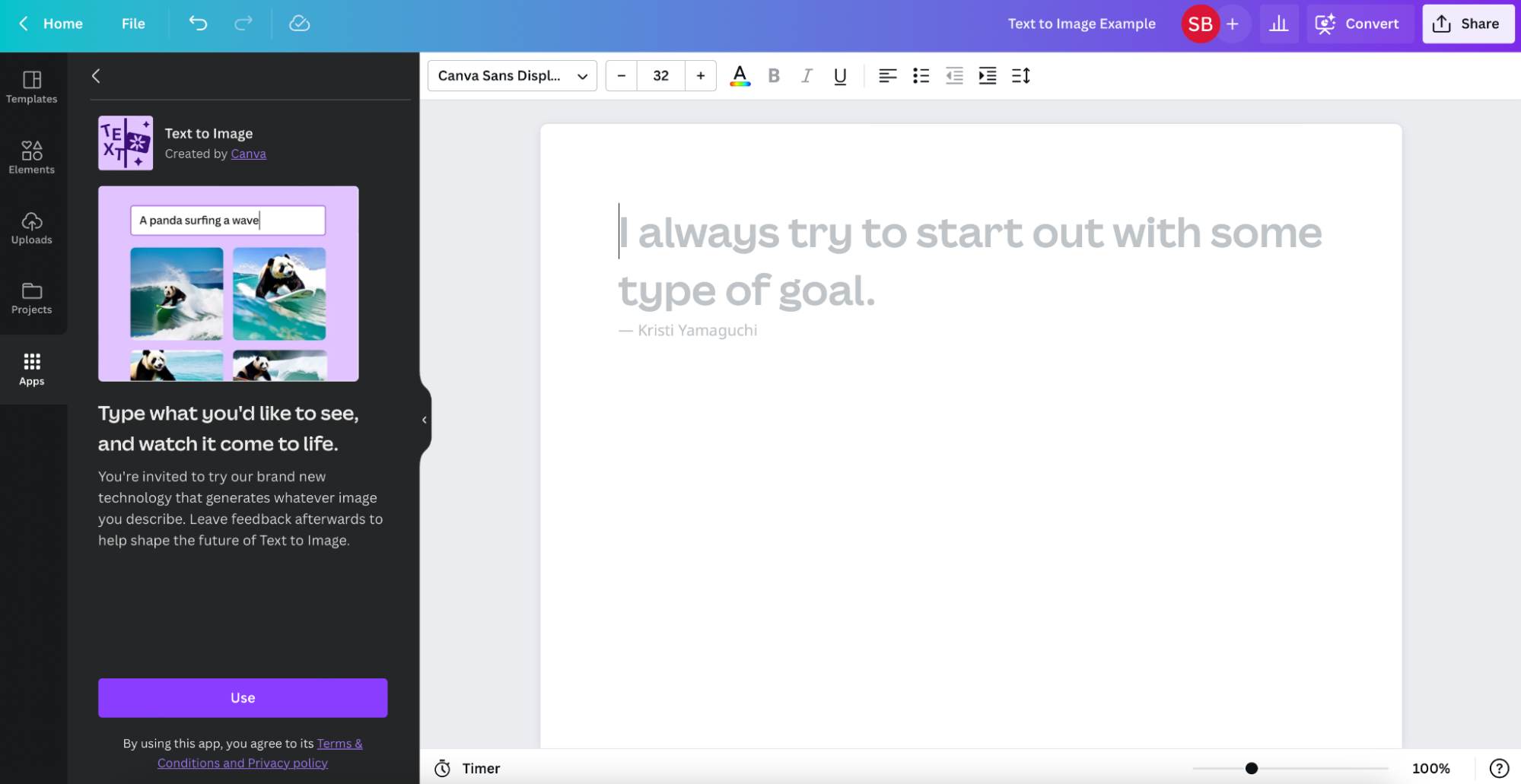
From the Canva homepage, go to the App Marketplace. When you click on the Text to Image app(opens in a new tab or window), you’ll be given the opportunity to create in an existing design or to start from scratch in a new document(opens in a new tab or window). If you already have a design open, you can find Text to Image by going to the Apps tab within the Editor, and clicking Text to Image in the left-side navigation menu.
Don’t forget, you can use Text to Image in any Canva design type. Whether you’re brainstorming on a whiteboard, putting together a presentation, creating social media content, or designing a visual doc, Text to Image is always an option.
Once you’re in the app and ready to start, describe what you’d like to create. This is the hardest part about AI image generation or AI face generation(opens in a new tab or window) because you can literally create anything. How do you choose?
How to write prompts for AI image generation
Prompt writing is a delicate art. Canva’s Text to Image app has pre-canned prompts for times when you’re feeling stuck. These responses act as more of a ‘surprise me’ button, and are a great way to jumpstart the creative process.
The more descriptive you are with your prompts, the better the outputs. It helps to be specific with your descriptions when submitting to the Text to Image app(opens in a new tab or window), including the style, genre, angle, lighting, color or image resolution. For example, you might write a text prompt like: “Fantasy landscape with a castle and dragon in the background, at dusk,” or “abstract artwork of London at night with a huge moon over the cityscape.” The world is your oyster!
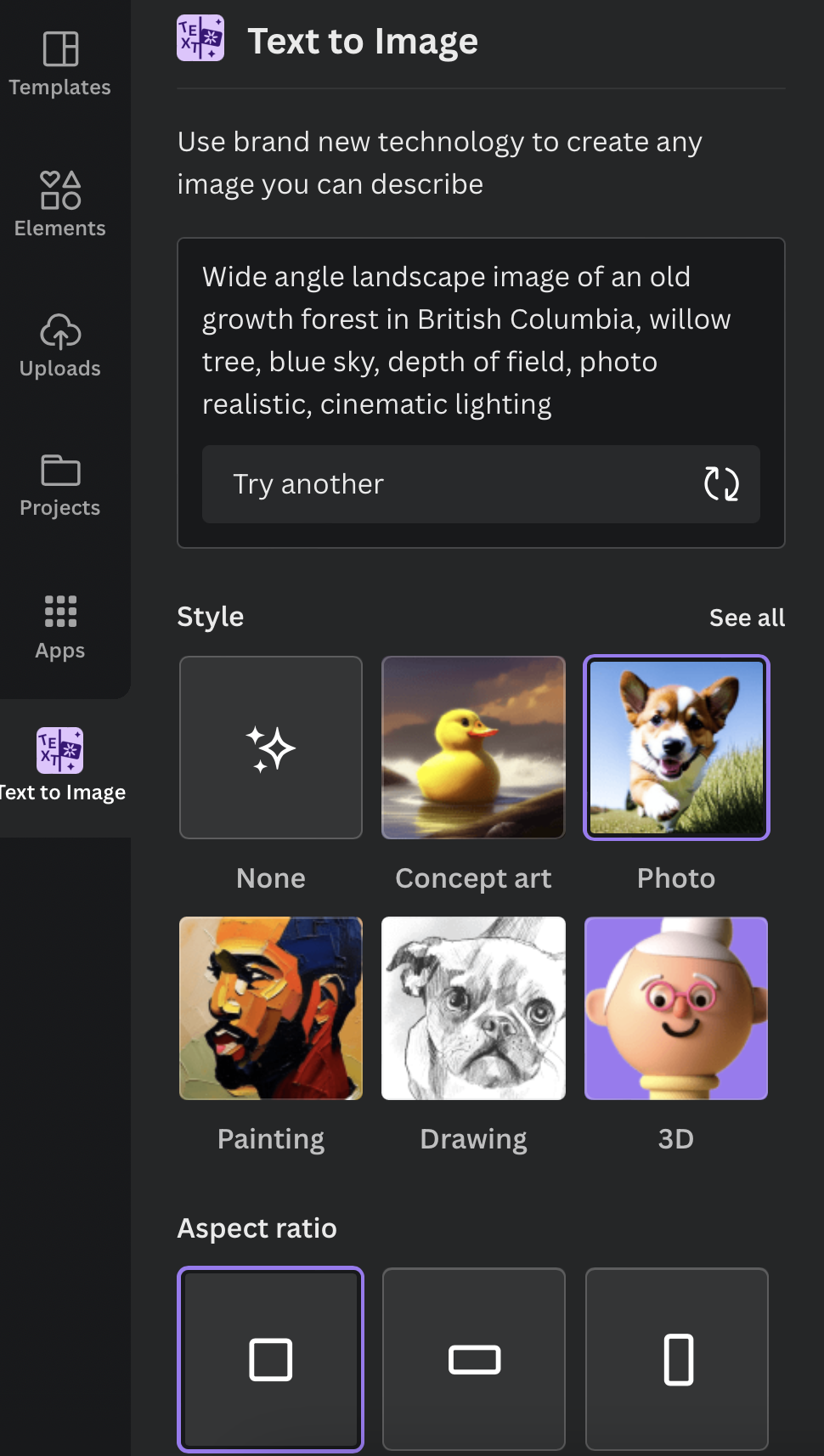
The style panel also allows you to generate unique illustrations, as well.
Then, sit back, relax and hit the ‘Generate’ button.
The app works so quickly. Within seconds, the app will give you a few results to review. Any images you like, simply click on them and they'll appear within your document. Don’t like them? Not a problem, just ask the app to generate more, or adjust your text prompt.
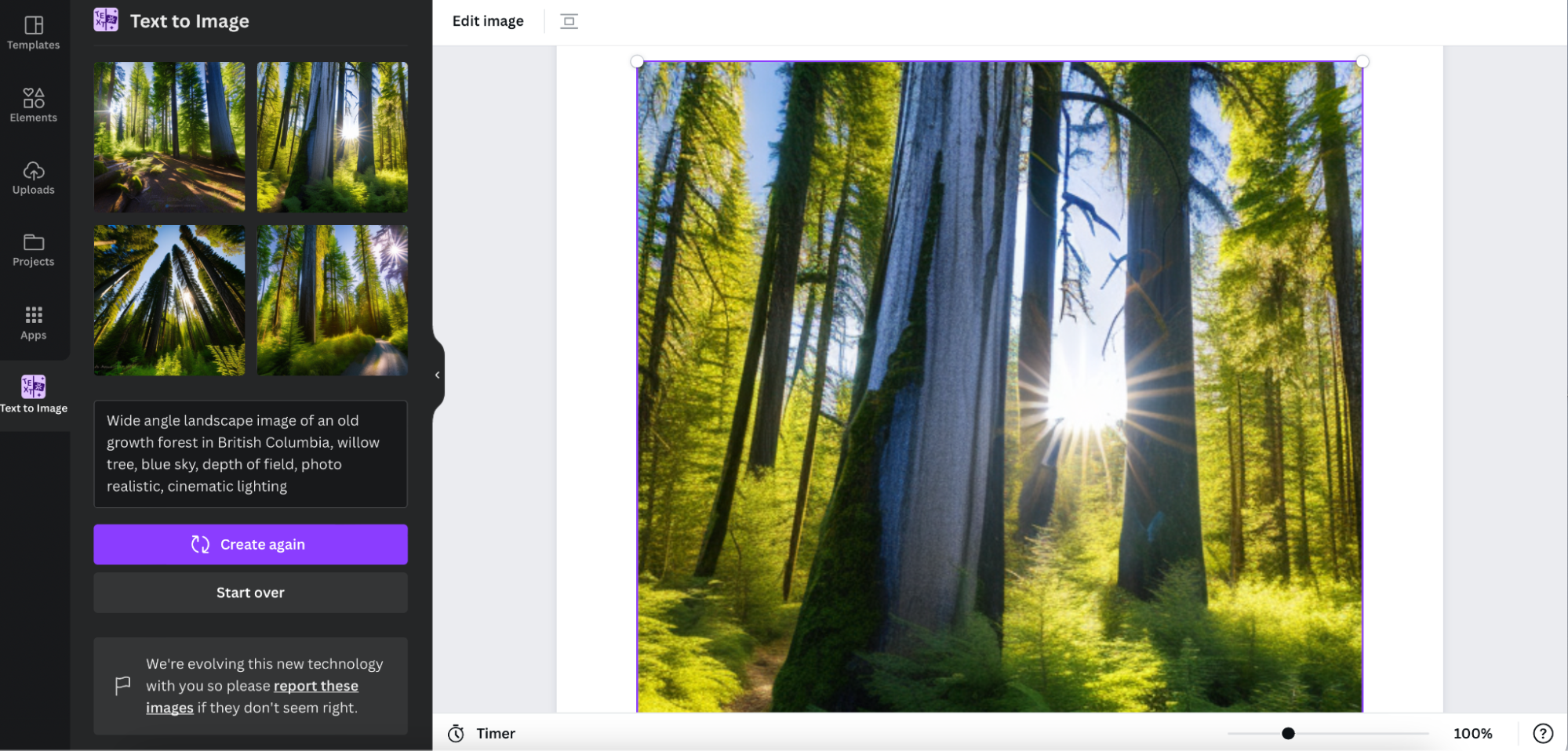
Learn the best practices of using Text to Image’s AI-generated images to advance your brand’s online presence.
What about copyright and the ethics of AI image generation?
Currently Canva doesn't make any copyright claim over the images you create with Text to Image(opens in a new tab or window). However, this doesn't mean you're the copyright owner of the images, nor have exclusive rights to them.
Be aware, while you can use the images you create on the Text to Image app both in your Canva designs for print and for sharing on social platforms, other people can also use the same text prompts and might end up with similar work.
If you use the Text to Image app to create recognizable characters or brands, these images are often protected by copyright, or trademarks(opens in a new tab or window). If you plan to use images using recognizable characters, just like any other image, you will need to get permission from the rights owner.
One of Canva's values is 'be a good human.' The best practice when using the Text to Image app(opens in a new tab or window) is to be transparent about the artwork and disclose it has been AI generated. Passing images off as your own creations is insincere, and it could cause you problems in the future. We suggest disclosing your images AI-generated status in your social post description, or by adding a watermark in the bottom right-hand corner. These options are subtle without misleading anyone.
Still want to customize your designs further? It's easier than ever to come up with inspiring words for your projects with Canva's AI-generated Magic Write app(opens in a new tab or window). With the app, you're just a few clicks away from unleashing the potential of the written word. Learn more about this fantastic tool by watching the video to find out how you can use it to help bring your ideas to life. You can also enhance your designs with creative text effects(opens in a new tab or window) generated by AI.