- Text Behind Image
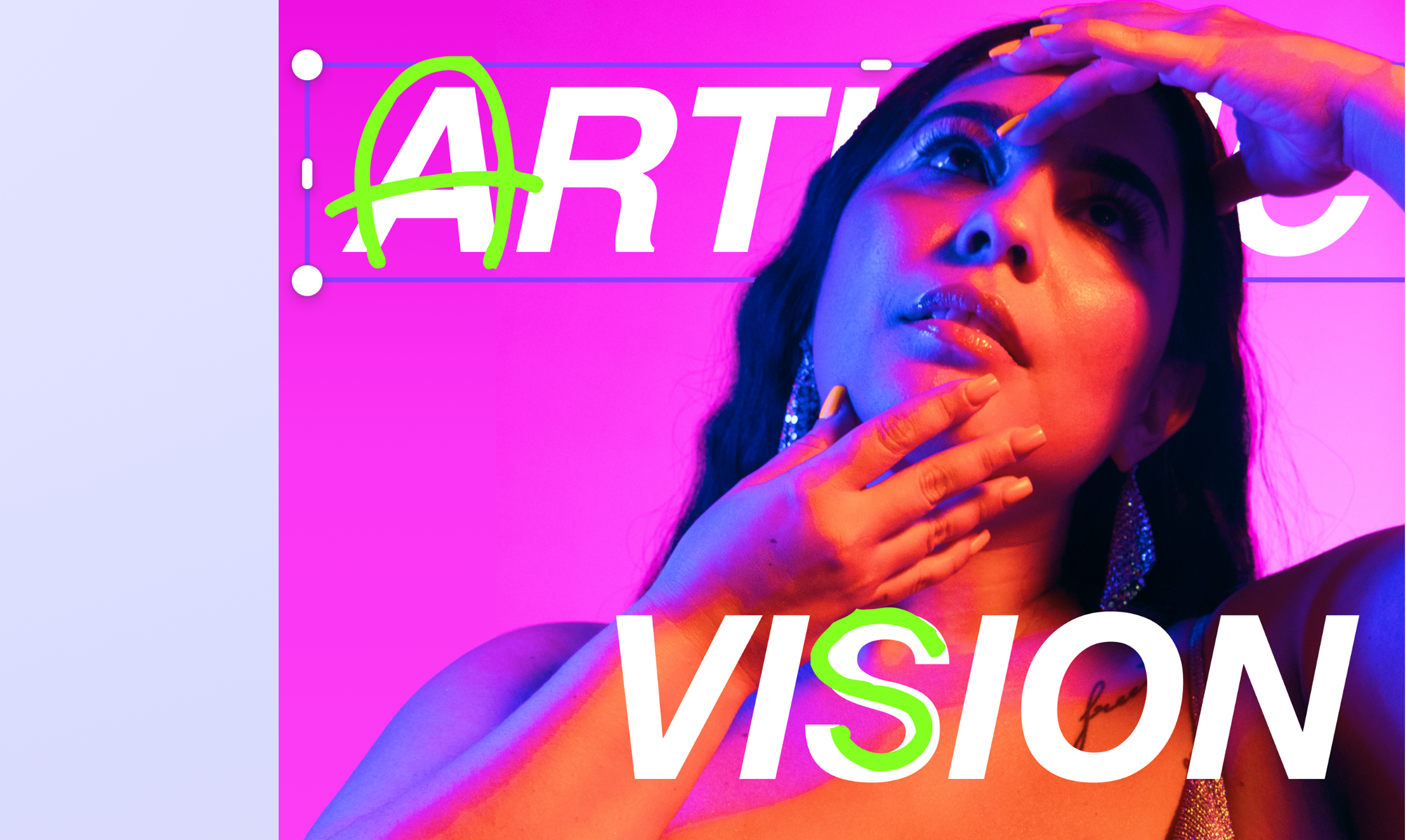
Add text behind an image online
Make your photos stand out when you add text behind your images! Use the free Text Layer app on Canva to instantly create image and text overlays—no design experience or complicated software necessary.
How to add text behind an image
Upload your photo
Select the “Upload your image” button or easily drag and drop your files into the section.
Add text behind image
Separate layers and add your text to the text box. Adjust the font, size, and color. Drag the text to position it properly in the image and click the Add to design button.
Download your design
Finally, download your design as a JPEG, PNG, or other file formats or share it online with just a click.
Design without guesswork

Take the guesswork out of your designs. With the free text-behind-image editor, you can add text behind an image in a snap. Whether you’re designing a poster, magazine cover, or social media post, make your designs more impactful with just a few clicks.
Endless tools and elements to inspire creativity

Browse our media library for hundreds of free and premium design elements—like graphics, icons, photos(opens in a new tab or window), and fonts. Drag and drop shapes, stickers, and frames, and add more text(opens in a new tab or window) to complete your design. Want to visualize your layout in a real-world setting? Convert your design into a realistic mockup(opens in a new tab or window).
One platform for all your design needs

Effortlessly edit your photos from start to finish. After adding text behind your image, you can refine your photo further with our built-in photo editor(opens in a new tab or window). Tweak the white balance, color, and texture, add filters and effects, resize your image(opens in a new tab or window), and crop or extend your photos in any direction with Magic Expand (Pro).(opens in a new tab or window) You can also edit text in your image(opens in a new tab or window) to perfect your design.
Power up the design process with a dash of magic

Make edits without the fuss with our AI tools. Magic Edit (Pro)(opens in a new tab or window) lets you add or replace elements in a photo with just a simple prompt, while Magic Grab (Pro) lets you brush over or click any design element and refine, reposition or resize it. Remove unwanted details seamlessly with Magic Eraser (Pro)(opens in a new tab or window) or remove the background altogether with Background Remover (Pro)(opens in a new tab or window).
How to add text behind an image

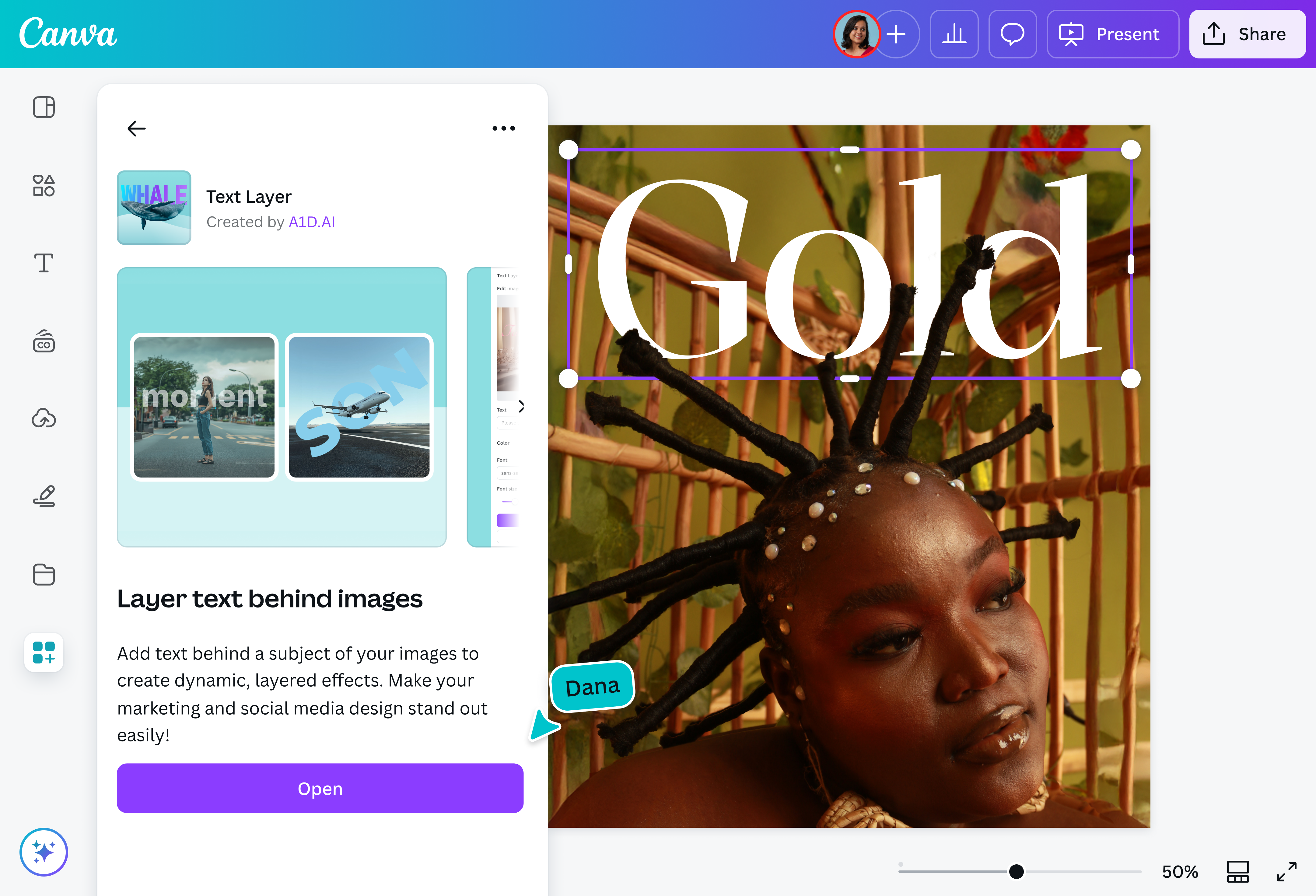
Frequently asked questions
- Adding text behind an image creates visual depth. It draws the eye and emphasizes specific elements in the photo. This storytelling technique adds context or mood to the image and is often used in art, marketing, and social media.
- Adding text behind an image is easy when done in Canva. With the Text Layer app, you can do this in a few clicks. Make sure you use bright or contrasting font colors to make your text pop. Reposition it properly to make sure it’s readable as well as visually captivating.
- In Canva, you can download your photo as a high-resolution JPG, PNG, SVG, or PDF, as well as a high-quality MP4, GIF, or PPTX file. You can also use your image within Canva for further editing, especially when creating videos or reels.

@navneet4