- How to find music on Canva
How to find music on Canva
Countless hours of music at your fingertips
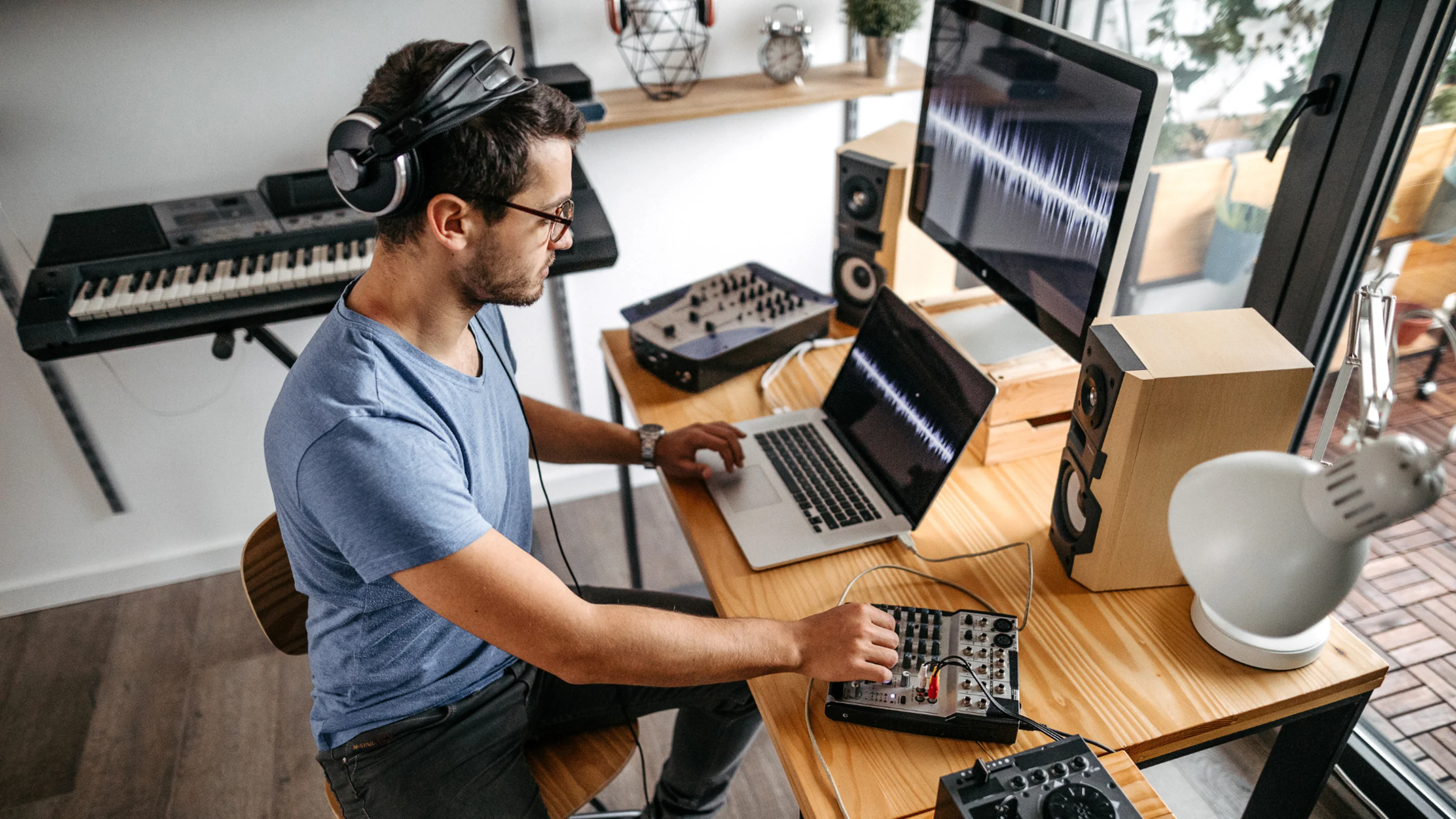
Music is one of the most impactful creative decisions to make when creating a video. And finding the right music at the right price can be super time consuming. We’re going to show you how to find and use hours of high quality music tracks in Canva. Canva’s audio library is full of hundreds of tracks across all sorts of genres to add just about any kind of mood to your videos.
How to choose the right track for your video
There are a few factors to consider when finding the perfect music for your video in Canva. The first and most obvious is pace. Faster, more upbeat music is great at keeping people interested so works well for how-to and explainer videos.
If your video has a lot of voice over, an instrumental track will help your audience focus on the message (instead of getting distracted by any lyrics). If you’re creating a branding video or a hype reel to show off your work, you can expand your search horizons and focus more on what vibe fits best.
Searching for music in Canva
Okay, let's find some music in Canva. In the side bar of the editor, if you can't see audio as an option, click on 'apps' down the bottom then 'audio'. You can already see there are multiple ways of discovering music.
Type some keywords in the search bar at the top to find some options for your video. Or scroll through the different genres or vibes. The audio tracks with a crown next to them are available free to Pro or Teams users.
Or, you can pay a one-off fee to use that music.
You can even search for audio effects and foley such as 'laugh' or 'cheer' although most will have the Pro user crown. You can also extract audio from video(opens in a new tab or window) if you need to use sound from existing footage.
Filtering and adding music
To filter search results, click on the icon on the right side of the search bar. You can filter by ‘vocals’, ‘instrumentals’ and ‘effects’. Use this to narrow your search and find the right track faster. Click on the track album art to preview the track.
Or double-click to see the music file appear above the editor, this can be helpful if you’re searching for a track with a big drop or crescendo to align with a moment in your video. Once you’ve found something you like, simply click on the title and it’ll add to your video automatically.
Adjusting your audio track
To adjust your audio track, use the zoom slider to display the audio and visuals side by side in a timeline. To adjust the start and end point of your track, click on it then click at the start or end of the slider. Make the music fade in or out at the beginning by clicking the track, then at the top of the editor ‘audio effects’.
You can set the length of the fades in the side panel to the left. You can modify the volume of the track by clicking the audio icon in the top right of the editor.And when you’re happy with your video, and how the audio sounds, you can download it by clicking share, then download.
Watch our video guide
For a comprehensive guide, watch our video tutorial about how to add music on Canva(opens in a new tab or window).