- Extract Audio
Seamlessly extract audio from videos
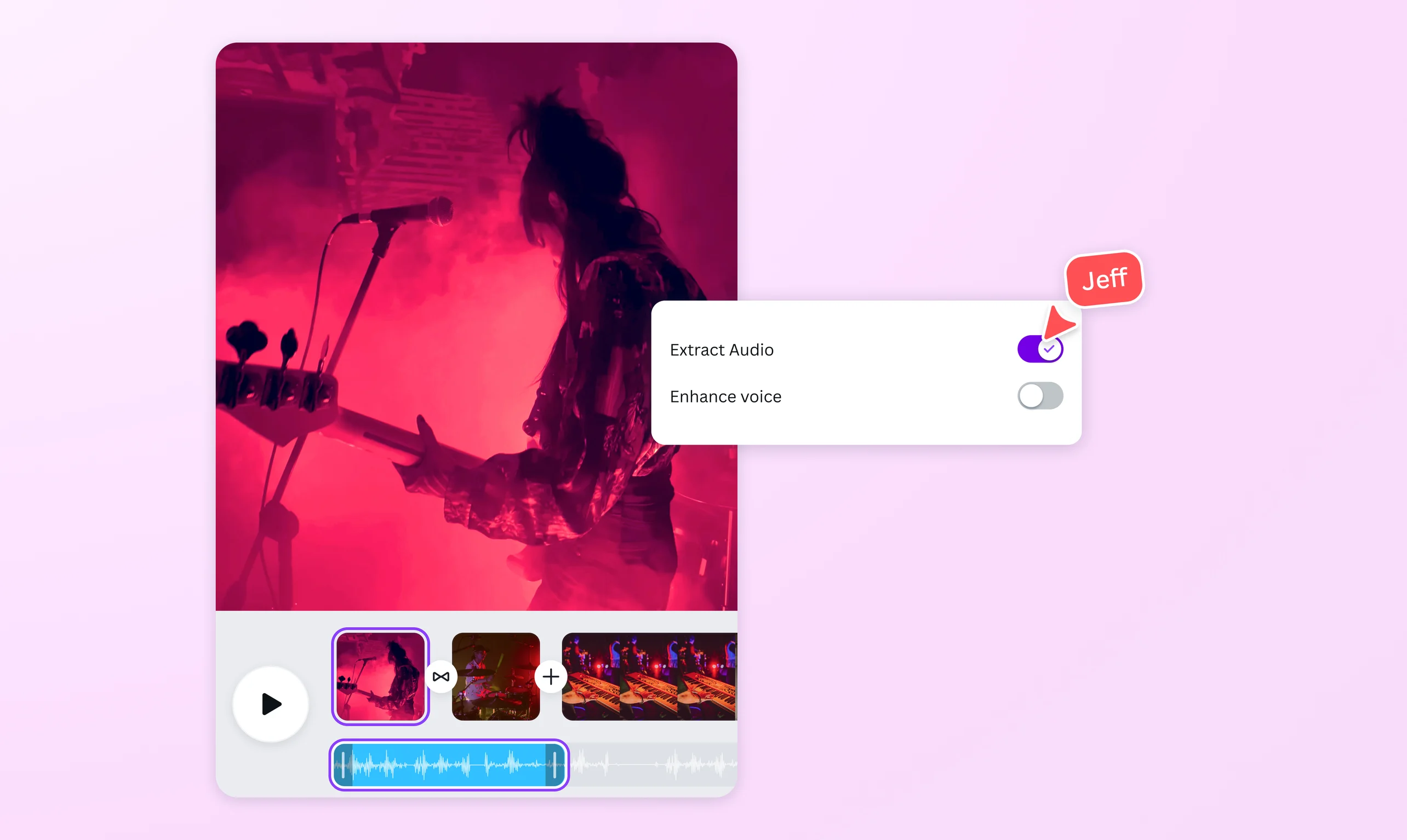
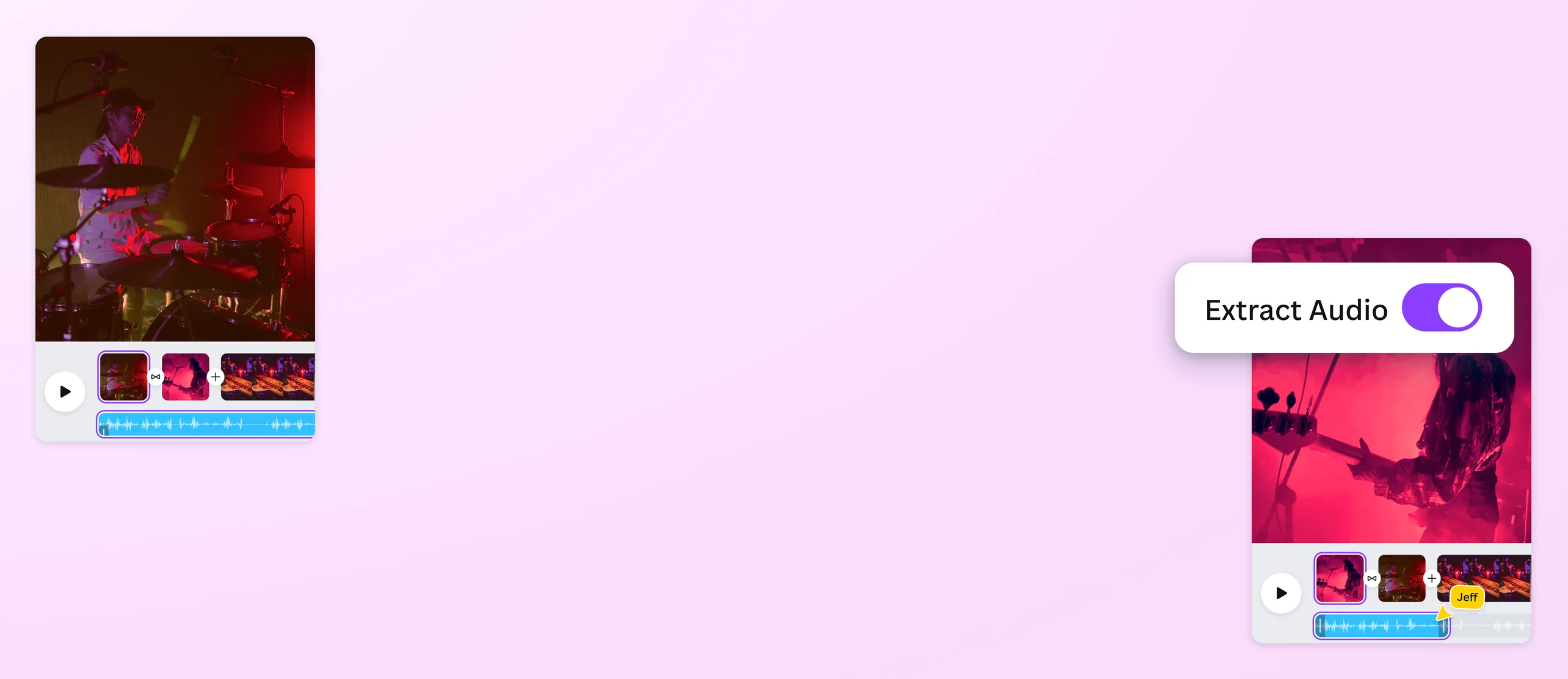
Repurpose your video audio with the extract audio feature of Canva's video editor. Separate music, narration, or sound effects in seconds, and use it for any creative project.
or drop it here
Learn about Canva's upload formats and requirements. See how we use your content in our Privacy Policy.
How to extract audio from video
Upload your video
Select the “Upload your video” button or easily drag and drop your file into the section.
Extract and edit
Select the video, click “Audio Tools” on the toolbar, then click the “Extract” button beside “Extract audio”. Trim, adjust, or enhance your audio track as needed.
Download your design
Once you’re satisfied with your edits, download your design or share it directly from Canva.
Extract audio in a jiffy

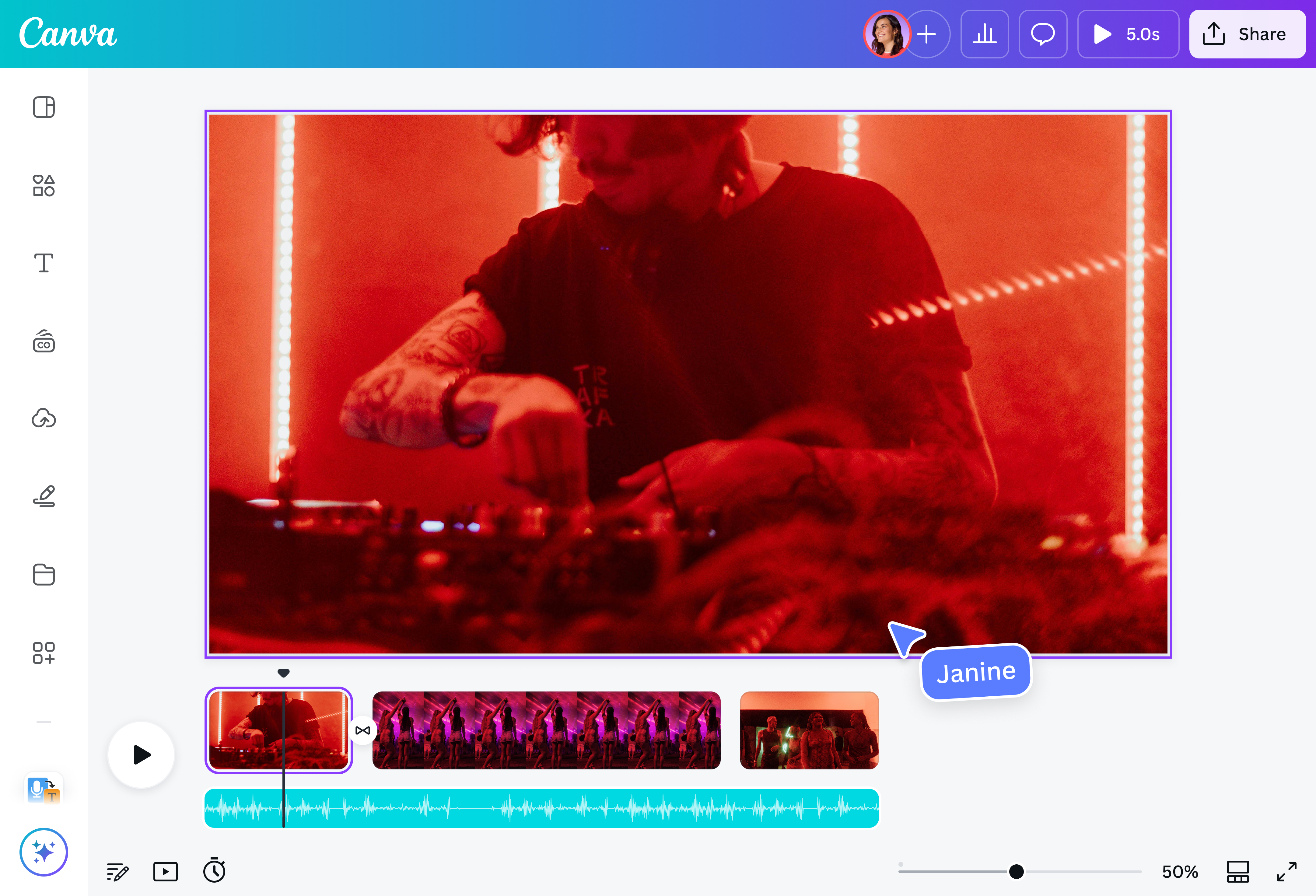
Get clear, high-quality audio from your clips in seconds, all without complex software or tedious sign-ups. Canva's intuitive video editor(opens in a new tab or window) makes extracting and editing your audio quick and easy. Simply upload your video, extract the audio in one click, and enhance the track with our built-in audio tools.
Reuse extracted sounds for different projects

Got a design that could use audio from another video? Easy! Use our extract audio feature to isolate voices, music, or sound effects and replace the video with new visuals. Perfect for content creators who need voiceovers for reels, students working on a creative project, or marketers looking to add sound bites on social media posts.
Remix, reimagine, and reinvent your sound

Once you separate the audio from your video, you can get as creative as you want. Split the audio to rearrange sections, play with the fade in and out settings, and sync your soundtrack(opens in a new tab or window). You can also explore Canva's audio library(opens in a new tab or window) to give your design an added layer of fun. Everything you need for the perfect audio clip is within reach—no design experience needed!
Access our all-in-one editor

Do more than just pull sound from your clips. Refine your audio and transform it into video captions and subtitles(opens in a new tab or window) with custom colors, fonts, and animations. Create fresh footage for your extracted sounds with the help of Magic Media (Pro)(opens in a new tab or window). Enhance your clips with automatic highlights and background noise removal. The best part? You can do all of these and more on Canva, so there’s no need to switch between apps.
How to extract audio from video

Frequently asked questions
- To extract sound from a video on our platform, upload your video and click the “Extract Audio" button or right-click on the video itself. The sound will automatically be on a separate track on your timeline, so you can effortlessly refine, edit, and enhance to fit your design or project. Go beyond the basics by combining it with new or stock videos, fading sections in or out, adding sound effects or background music, and more.
- Yes, you can extract audio from an MP4 file using online tools like our video editor, converters, and media players.
- To extract audio from a YouTube video, you can use a free online tool that converts YouTube URLs to MP3 files. Then, you can upload it on our platform to edit and add to your video.
- Yes, you can trim the video to your desired length, or delete parts that you don’t need. Then, extract the audio from the shortened video. You can do both of these steps using our video editor.
- Our editor extracts the entire audio of the video you upload, but you have the option to trim your track and delete any portions that aren’t relevant to your design.
- When you extract audio from a video, you can download it as an MP4 file. This format makes it easier to edit or pair with visuals. But if you are only after the audio, you can convert the downloaded MP4 file with the extracted audio to an MP3 using an online MP4-to-MP3 converter. Stick with MP4 for video-based edits, but convert it to MP3 if you only need the audio file.

@navneet4