AI Image Generator
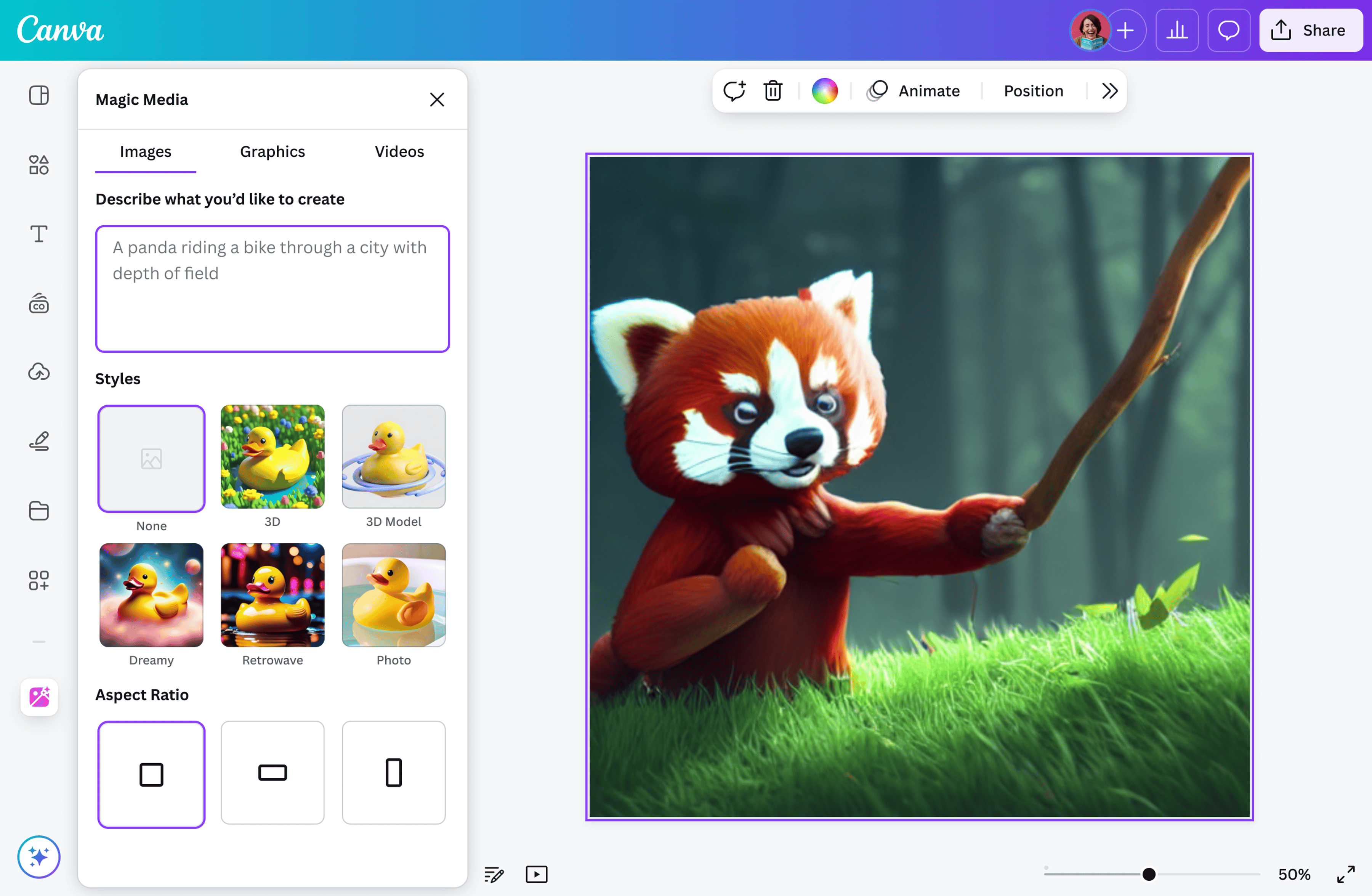
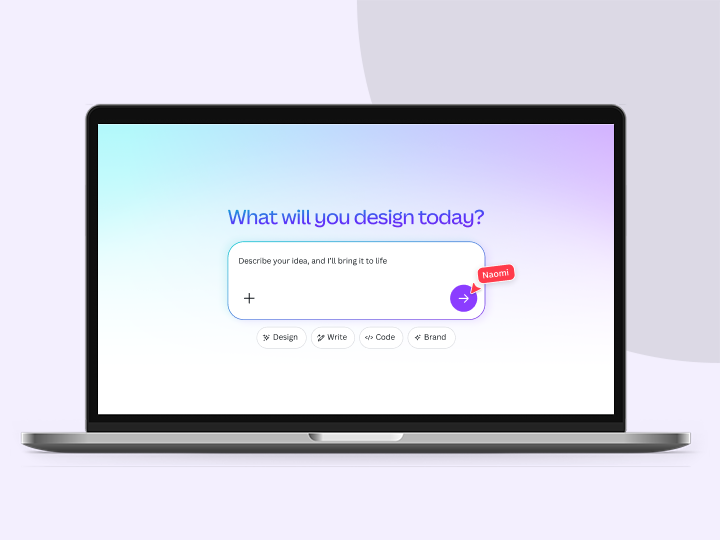
Dream it up, describe it, and watch it appear. Canva’s AI Image Generator turns your prompt into an image right on the page, in the style and aspect ratio you choose. Refine and regenerate until it matches the picture in your head.
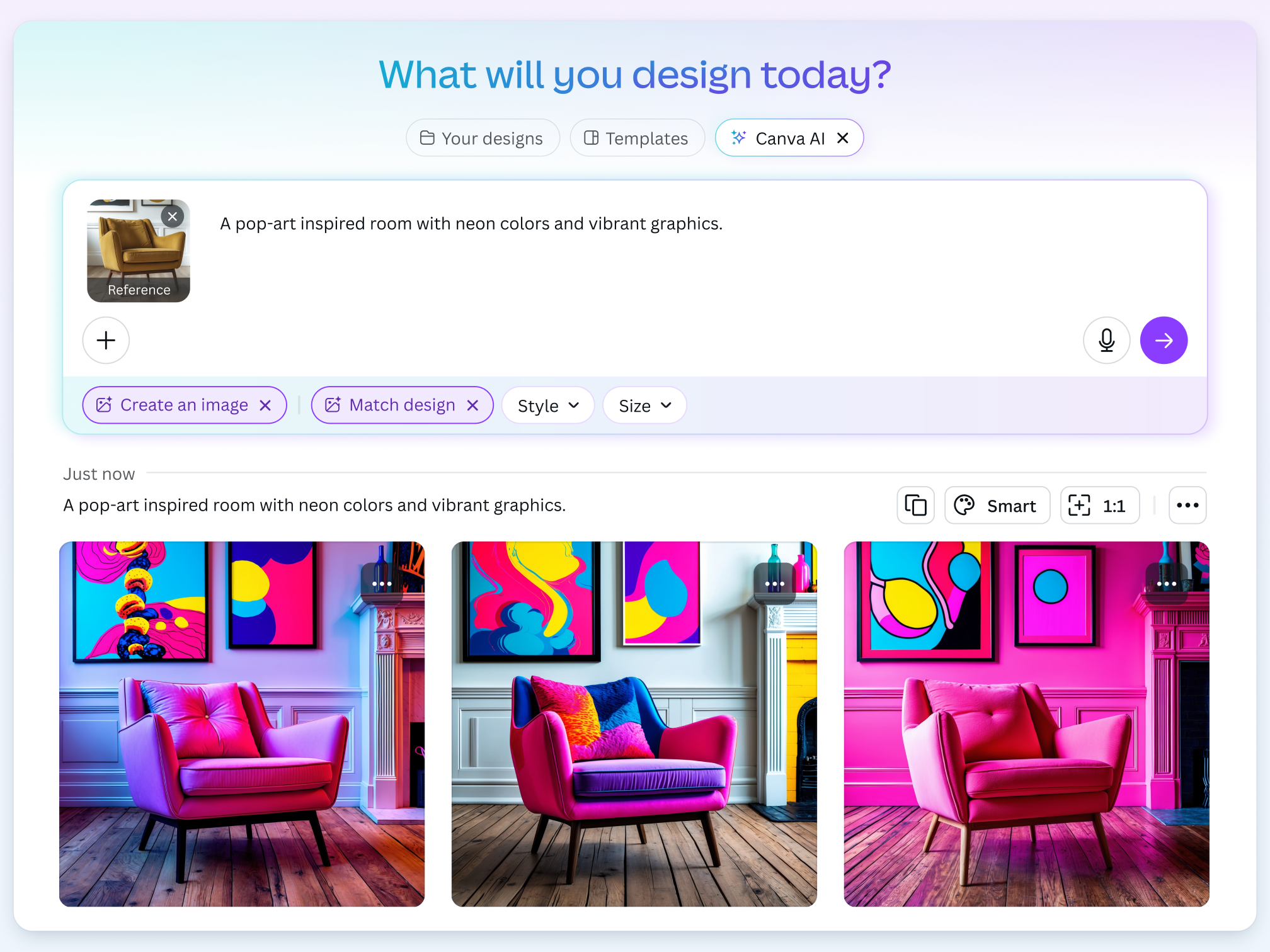
Introducing Canva’s AI Image Generator
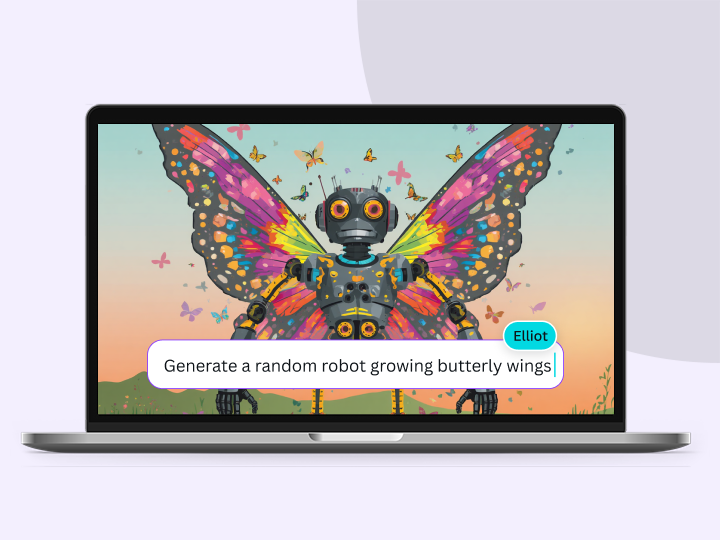
The perfect image is always at your fingertips with Canva AI. Use the AI image generator to quickly visualize ideas, sketch out creative concepts, or push the limits of what's possible. Watch your words transform into beautiful images and photos you can use on your presentations, social media posts, and other creative projects.
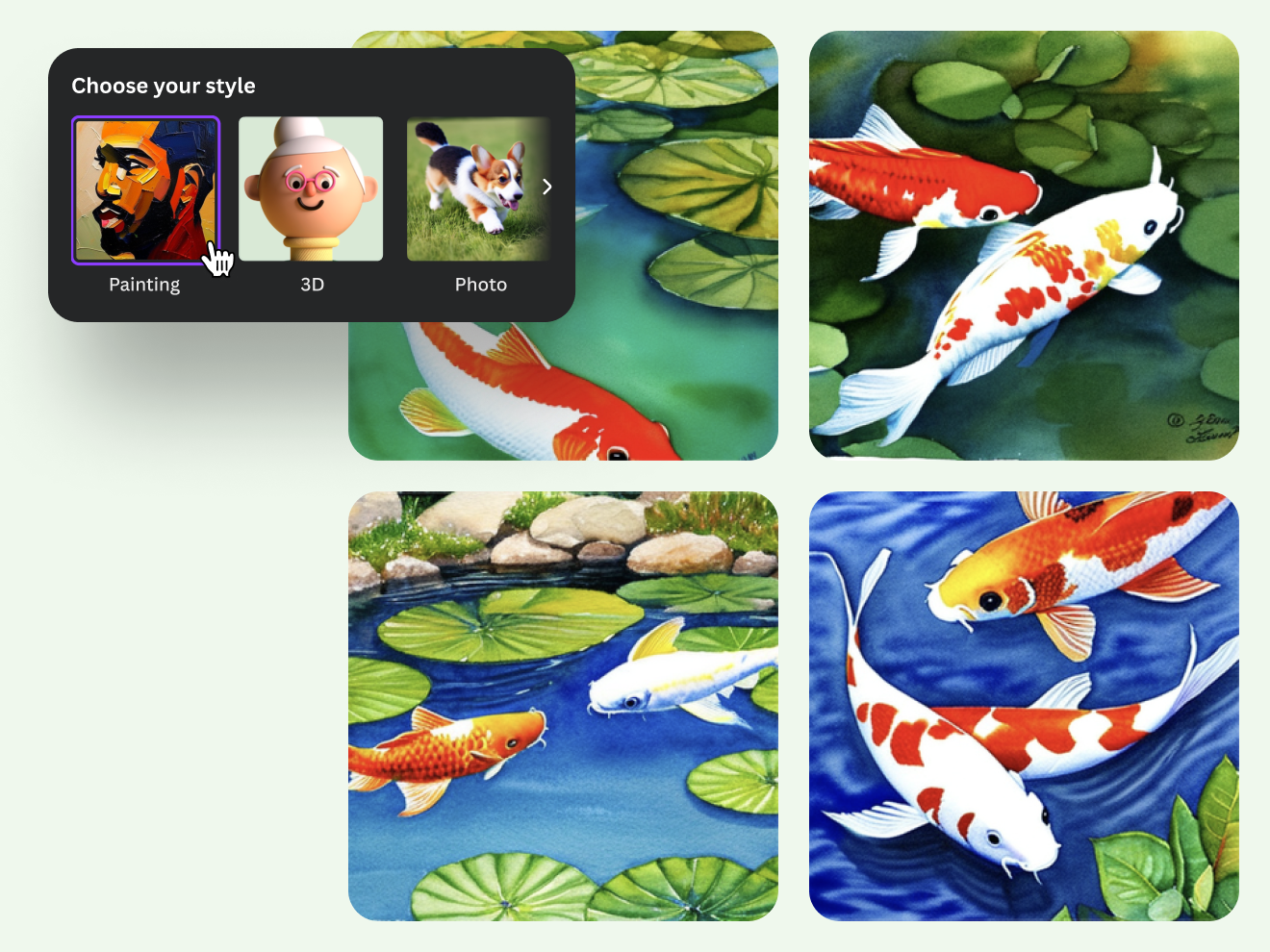
Explore a wide range of image styles
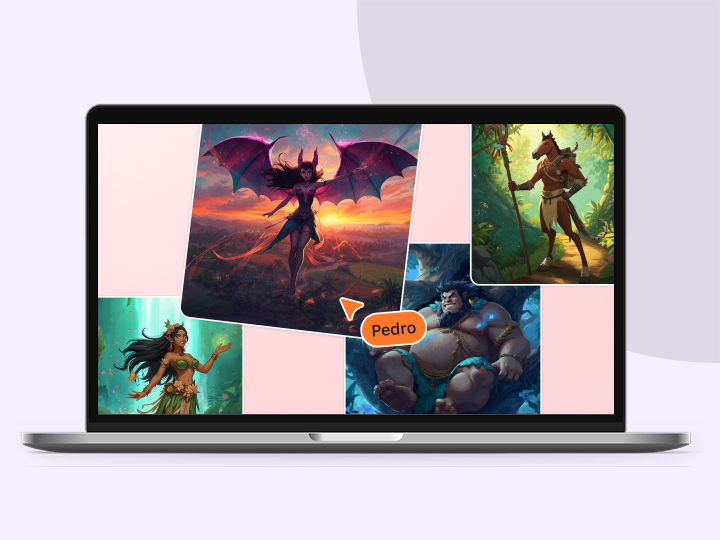
Experimentation is a big part of creation. Test out different modes for your AI-generated images with Canva AI’s Text to Image. Choose from 10+ prebuilt style options like Photo, Vibrant, 3D Render, Cinematic, Pop Art, Bokeh, Sketch, Vector, Minimalist, and a lot more.
Select a specific style and image size to match the concept you’re going for. With our AI photo generator, easily turn text prompts into art that captures your thoughts and presents options you can place on your poster or storyboard.
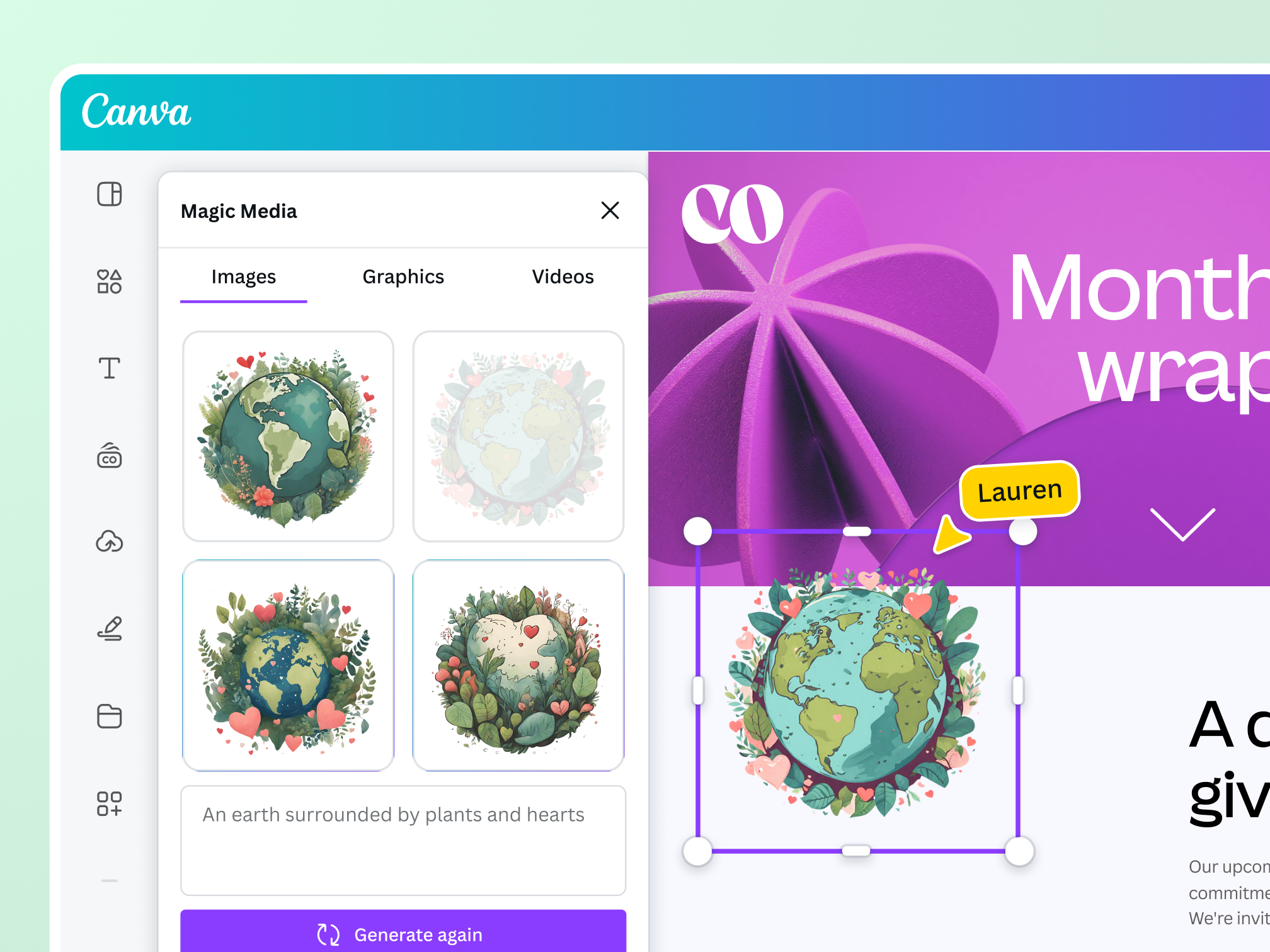
Unlock more generative image options for captivating designs

Transform ideas into images
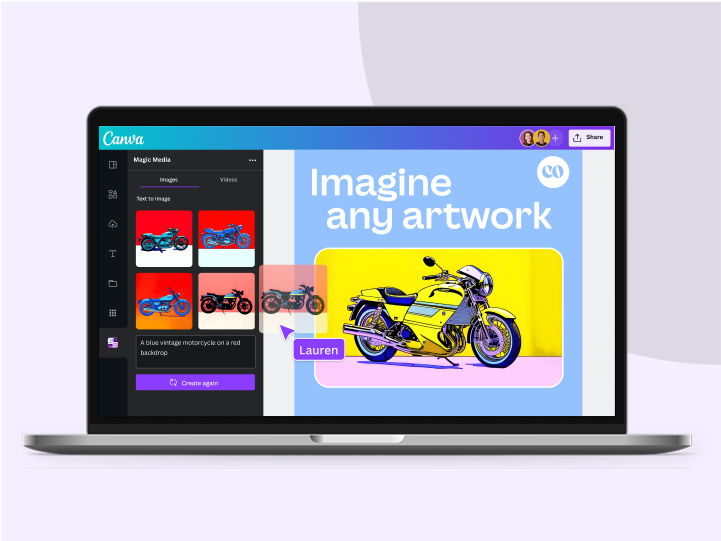
With Canva AI’s Text to Image, you can start with a text prompt or a reference photo and generate a new image that fits your design. Customize your image with various styles, aspect ratios, and all the photo editing tools available in Canva.

Find the perfect graphic for any project
Canva AI’s Text to Graphic gives you the confidence you’ll always find the perfect graphic for your project. Describe your vision, and it'll generate unique graphics, icons, stickers, and illustrations matching your style or brand.

Storytelling made easy with AI-generated videos
Describe your video with a simple text prompt, and watch as Canva AI’s Text to Video generates it for you. Customize it further with video filters, transitions, and more.
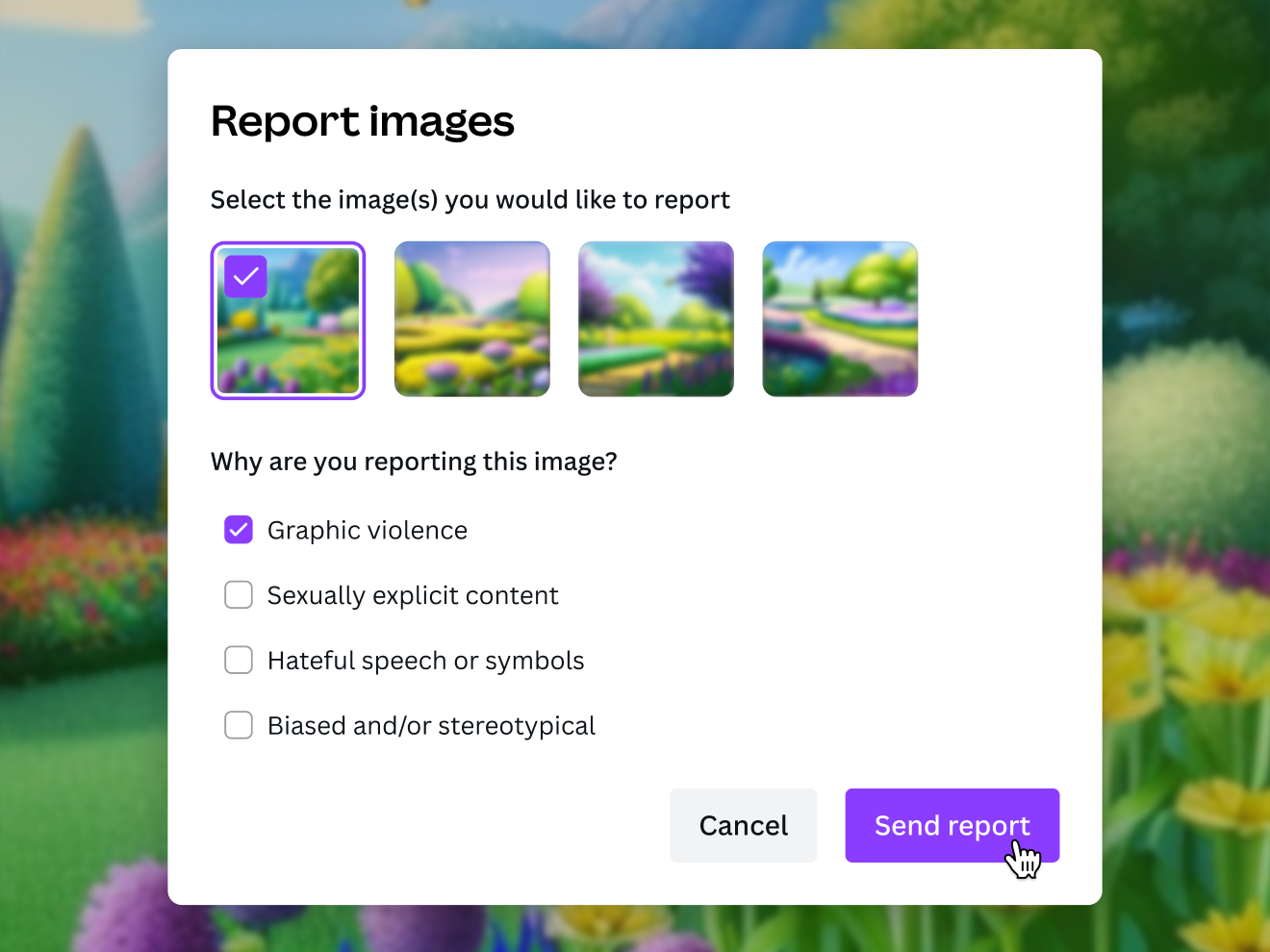
Creating is fun and safe
Fun is at the core of building new visual ideas. Add your creativity, and our AI art generator will kickstart your concepts and let artful inspiration flow. To help you use Text to Image safely and responsibly, we’ve put layers of safety measures in place, including automated reviews of input prompts for terms that might generate inappropriate content. If you do come across unsafe content, let us know: you can report it right in Canva.
AI-generated images for all creatives

For content creators
Stand out and grow your audience with perfectly tailored content.
For entrepreneurs
Generate captivating branding materials in a cost-efficient way.
For budding artists
Experiment and get inspiration while embarking on a creative project.
All the features you need
Canva’s drag-and-drop design tools make it easy to create any design, fast!

Friendly by design
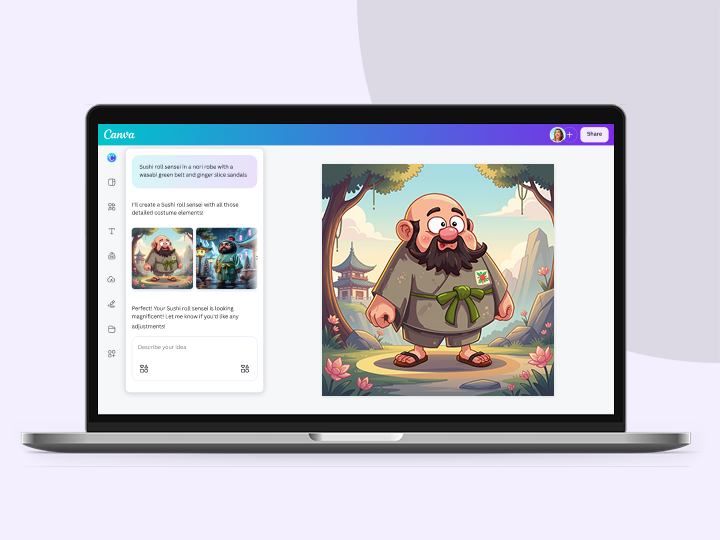
Chat naturally with Canva AI, like you would with a teammate. Its friendly, informative personality makes every task feel simple and intuitive.

Generate images from text
Create AI images that visualize a product or idea, draft a creative concept, or push the limits of what's possible.

Various art styles available
Render your AI-generated images in stunning art styles like Watercolor, Filmic, Neon, Color Pencil, Retrowave, and more.

Magic Edit
Want to change the color or texture of an object? Or swap the background for something else? Magic Edit lets you add to, replace, or edit your image with a short written prompt.
Magic Eraser
Instantly clean up your image and remove any unwanted distractions with Magic Eraser—no manual editing needed.

Enhance your images
Use Canva’s Photo Editor to fix your photo’s focus, lighting, and coloring with easy-to-use sliders.

Photo effects & filters
Choose from our selection of adjustable color filters and fun photo effects to remix your photo.
Add Text to Photo
Easily add text to your photo or image to tell a story. Font combinations, colors, and styles available.

One-click background remover
Remove image backgrounds, perfect for product photos, headshots, or transparent PNGs.
Magic Expand
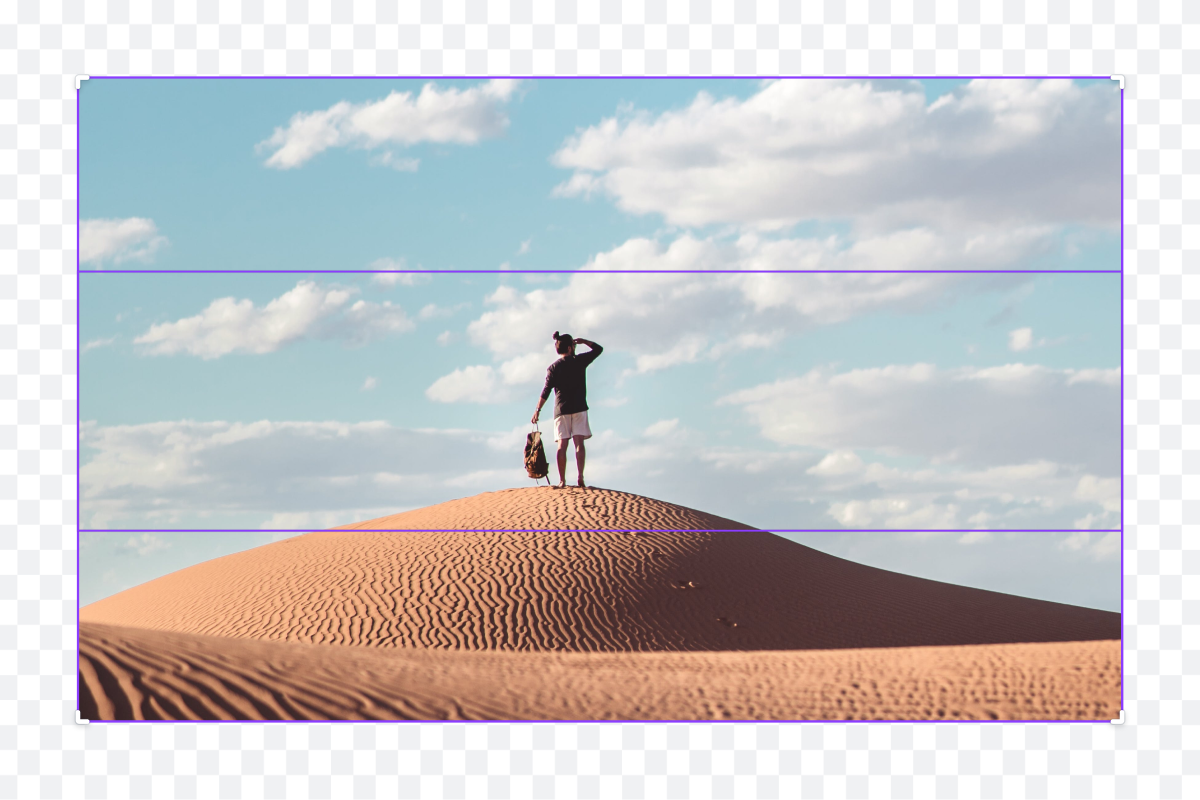
Extend an image in any direction. Magic Expand lets you fix awkward framing, save zoomed-in images, or turn a vertical shot into a horizontal one.

AI Photo Editing
Quickly erase, add to, edit, and enhance your photos using AI-powered photo editing tools.
Millions of free images, icons, and graphics
Get access to our entire library of millions of photos, icons, graphics, media elements, audio, sound effects, and more.

Access anywhere and autosave
Jump from device to desktop—design how you work best! Canva autosaves your progress along the way.
Easy sharing and exporting tools
Share and export designs as a JPG, PNG, PDF, and PPTX. And when you embed a doc, you can customize which page will be displayed.
Content planner (Pro)
Create and schedule content to your favorite social media accounts directly from Canva.
How to use Canva’s AI Image Generator
Add your prompt
In the AI image generator's prompt box, describe a detailed prompt name the subject, the setting, and the mood. The more specific your text, the more captivating the result.Pick an art style and aspect ratio
Choose from different art styles like Vibrant, Sketch, Pop Art, Photo, and more. Set your aspect ratio to your desired image size.Generate your AI image
Click the "Generate AI image" button to start using the AI image generator. Log in or sign up when prompted. Your image will appear in seconds.Preview and refine the image
Browse through the generated image variations. Then, tweak your prompt and tap “Regenerate” until one nails your desired look.Download or keep designing in Canva
Save your image as a PNG, JPG, or PDF file on your device. Or click "Open in editor" to add text, layers, and effects for a finished design in the Canva editor.
Your questions, answered
Be specific. The best AI image prompts name the subject, the setting, and the style you want, like lighting, mood, color, or medium. Instead of “a dog,” try “a golden retriever puppy in a sunlit park, painted in watercolor.” If the result isn’t quite right, add more detail to your prompt and regenerate until it matches what you pictured.
More resources
How to turn your text into images with Canva
Learn to generate unique pictures with our AI image generator.

Turn a prompt into a profile picture that fits your style and vibe.
Expand images instantly with AI
Extend images in any direction with AI Image Expander on Canva Pro.

Fill and extend photos with Generative Fill
Add new objects to any photo with a simple AI prompt.

AI Image Generator
Dream it up, describe it, and watch it appear. Canva’s AI Image Generator turns your prompt into an image right on the page, in the style and aspect ratio you choose. Refine and regenerate until it matches the picture in your head.