Free questions slide maker
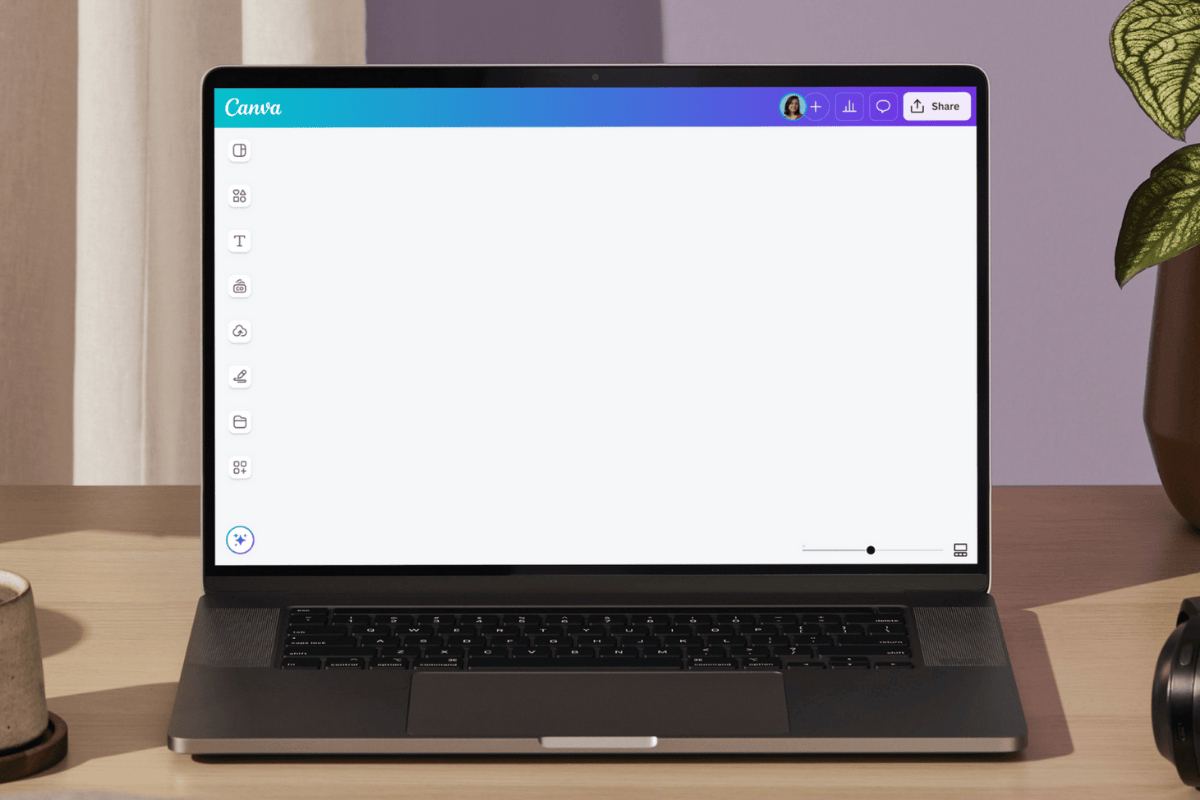



Easy drag-and-drop editor

1M+ professionally-designed templates

Generate content and media with AI

Download or share designs easily
Make any presentation more engaging with Canva's questions slide maker. Simply choose a template, customize it, and add it to your presentation.
How to make a questions slide
1
Start with Canva
Open Canva, then search for “questions slide” to access presentation templates. Pick one that's perfect for your needs and customize using our questions slide maker.
2
Customize your questions slide
Personalize your questions slide with Canva's intuitive editor. Change the text, match the fonts and colors with your brand, and add icons and graphics to make it more interactive.
3
Share with ease
Share your questions slide however you want. Present it straight from Canva, send it as a link, or download it as a high-quality file to add to any presentation.
Benefits of a questions slide maker
Keep every questions slide effortlessly on-brand
Wrap up your presentation with a questions slide that looks as good as the rest of your deck. Start with a professionally designed questions slide template, then use your Brand Kit (Pro) to add in your logo, brand colors, and fonts in with ease. Whether you need a simple “Any questions?” slide or a bold “Open for questions” screen, you have full control over the look and feel of your design. Plus, you can collaborate with teammates in real time, leave comments, and update shared templates so that everyone's on the same page.
Turn your questions slide into a live conversation
Want to create an open environment with your audience? It's possible with Canva Live. Turn a simple “Do you have any questions” slide into an interactive space where people send questions, vote, and react in real time. Drop a questions and answers slide into your deck, ask people to scan the code or follow the link, and watch their ideas flow in—no extra apps needed. Instead of awkward silences, you guide a smooth, connected Q&A where every question feels welcomed and every answer lands clearly.
Discover and present the magic of AI
Explore countless AI tools that can help enhance your presentation in just a few clicks. Use Magic Design™ for Presentations to generate layouts that match your topic and style, then fine-tune your questions slide however you want. Or, create an animated questions slide with smooth transitions using Magic Animate™, so your shift into your Q&A portion feels natural and engaging. From sales pitches to classroom lessons, you design a slide for questions that clearly signals the conversation is on—and keeps everyone's attention.