- An intro to white balance and why it's so important to your photography
An intro to white balance and why it's so important to your photography
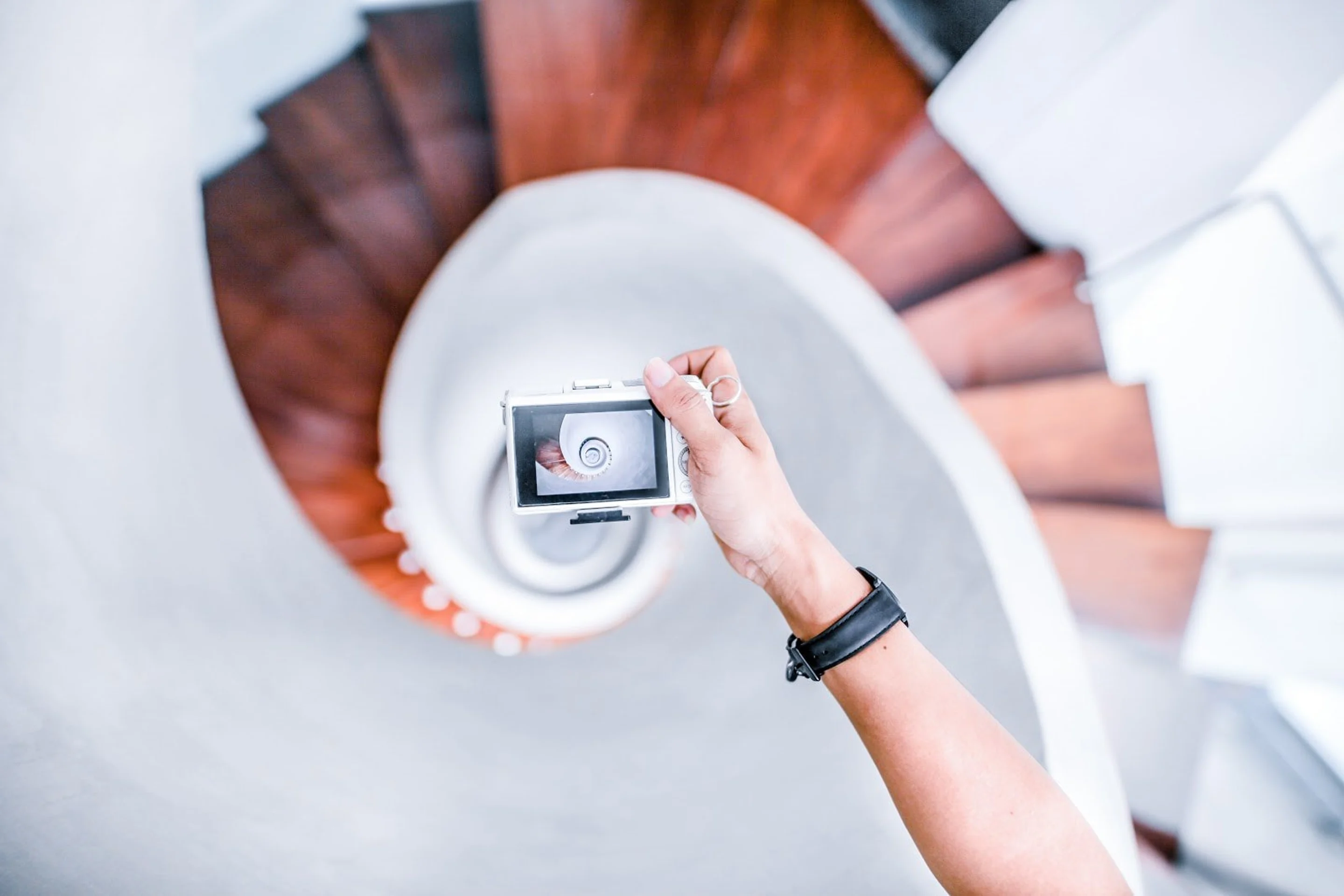
Have you ever tried taking a photo of something, only to find that the colors are more than a little off? As humans, it’s easy for us to notice how colors change in different lighting situations. However, cameras don’t necessarily possess the same ability. Instead, they have white balance settings. Read on to get a better understanding of white balance and how to adjust your settings accordingly.

Photo by Fahrul Azmi
The best these devices can do is to guess what we see and try to emulate it electronically. While it works in most situations, inaccurate colors inevitably show up once in a while.
This is when adjusting white balance comes into play. By modifying a photo's white balance, you get to cool down colors when the light is too warm (or yellowish) or, alternatively, warm them up when the light appears too cool (or bluish). These subtle adjustments result in more accurate color representations.
01. Why do I need to set white balance?
By default, most cameras automatically set the white balance without the user knowing it. This is why it's unsurprising that some photographers don't even know what it is, even though they’ve been shooting for years. The question is: if it's so effective without user input, why bother learning how to adjust it manually?

Photo by Greg Tockner
The truth is, your camera won’t always get it right. In the same way that manually focusing or setting the exposure sometimes produces more accurate results, there are times when your camera's default settings just won't cut it. In these cases, the best way to address the problem is to set the white balance yourself.

Photo by Jaredd Craig
You can also make use of white balance to create artistic enhancements. For instance, you can adjust it to intentionally make a picture look warmer or cooler than in real life, accentuating its colors. Admittedly, this particular method isn’t necessarily used by photographers regularly, but it’s still good to know that it’s at your disposal if you wish to use it.
02. What are the different white balance settings?
As mentioned, your camera conveniently sets an automatic white balance (or AWB) based on the type of light available. While some terms may vary slightly from one brand to another, these are the most common white balance presets in cameras (and when to use them):

Photo by Chad Verzosa
- Auto: actively works in the background, adjusting automatically to the temperature of the light source
- Daylight: best used outdoors when the sun is shining brightly
- Cloudy: also used outdoors but when overcast / for warming colors
- Shade: mostly used indoors but with natural lighting mixed in / for warming colors
- Fluorescent: used indoors where fluorescent bulbs are the dominant light source / for warming colors
- Flash: best used for flash and strobe lights / for warming colors
- Tungsten: also employed indoors but with tungsten light as the main light source / for cooling colors
Each preset is straightforward to use since they’re named after the best light source for each individual setting.

Photo by Ryoji Iwata
Of course, if you’re going for something more experimental, just remember how each preset affects color temperatures, and pick one based on the outcome you'd like for your photo.

Photo by Laura Vinck
For example, if you want an exaggeratedly orange photo when it’s dark outside, you can choose a preset that doesn't correspond with this light setting to enhance rather than capture it realistically .
03. How do I adjust white balance?

Photo by Sarah Dorweiler
To change your settings, all you have to do is go to the menu and look for white balance. The camera then shows the different presets mentioned above, and all you have to do is choose the one that is appropriate for the lighting condition. For instance, if it’s cloudy outside, simply select cloudy, and you're done.

Photo by Mihnea Stoian
However, there are times when the preset you choose may still provide inaccurate results. If that’s the case, you should try using custom white balance. For this process, you’ll need a white balance card (or a white sheet of paper) to take an accurate reading of the scene. Just place the card in front of the camera, zoom in until it fills the frame, and press the shutter.
Once you’re done, go to your white balance menu and select custom (or PRE depending on the camera). When it asks you to choose an image, pick the photo of the card. Your device will then adjust the setting according to the information in the picture.

Photo by Dave Dugdale
Another method you can try is adjusting the temperature manually. You can do this by selecting color temperature in the white balance menu, which will allow you to pick a specific Kelvin value between 2,500 K (warm) to 10,000 K (cool).
If you’re not sure how these numbers affect your photo’s color temperature, you can refer to the list below.
- Candlelight: 1,000-2,000 K
- Lightbulb: 2,500-3,500 K
- Clear sky: 3,000-4,000 K
- Fluorescent lamp: 4,000-5,000 K
- Flash: 5,000-5,500 K
- Sunlight: 5,000-6,500 K
- Cloudy: 6,500-8,000 K
- Shady: 9,000-10,000 K
If you're shooting using RAW format, you can change the white balance conveniently in post.

Photo by Joseph Pearson
You’ll often find white balance settings in a panel among the different color and exposure tools. It offers similar (if not the same) presets that your camera has. All you have to do is click on the one that you think is appropriate for your image, and it will apply the changes to your file right away.
04. Which setting should I use?
In most situations, the AWB does a great job producing accurate colors on its own. However, it is by no means perfect, and can still get confused, especially when lighting is particularly bad.

Photo by Prasanna Kumar
When this happens, simply choose from one of the presets depending on the lighting condition. Just keep in mind that colors will adjust based on the expected color of the preset. For instance, fluorescent will try to make colors warmer because fluorescent bulbs emit a cool, bluish color, and tungsten will make colors cooler because incandescent lighting is warmer.

Photo by Patrick Tomasso
Now, if you happen to find yourself in a situation where there are different light sources (such as daylight + tungsten bulb), then use custom. Since you let the camera read the light bouncing off a white balance card, it effectively offsets the temperature difference for a more precise outcome.

Photo by Natalya Letunova
There are also times when you want your photos to look cooler or warmer than what the presets allow. In this case, select the color temperature manually, allowing you to precisely match what you see in real life and what the camera reads.

Photo by Jordan Bauer
White balance is a flexible tool that lets you get the most out of your camera. It may seem pointless to tinker with at first, but it’s indispensable once you see what you can do with it. So, experiment with it as much as you can by taking photos using different presets and color temperatures. In time, you’ll be able to determine which settings to use for the best color representations.

Written by
Chad Verzosa