- How to use Canva’s approval process workflow to improve team collaboration
How to use Canva’s approval process workflow to improve team collaboration

In a recent study, 65% of respondents worldwide reported that they’re permanently working either fully or partially remotely. Alongside the benefits of working from home, or collaborating with a global team, comes the risk of chaos.
If your team members don’t know who to get approval from, how to get it, or if they even need it at all, they get blocked. And delays lead to missed due dates. As someone in charge of a team, you’re left explaining the failure to higher-up stakeholders, plus you have to deal with frustrated and stressed-out team members.
A strong approval workflow is the foundation of effective collaboration. If you’re in charge of a remote team, you should set up an approval process workflow with Canva Business. It helps everyone to understand their responsibilities and streamlines the approval process.
Design the structure of your approval process workflow
Before you get into the details of an approval process, you need to develop an overall structure that’s logical and efficient.
Assign responsibilities
When ownership is unclear, people don’t have the confidence to take action(opens in a new tab or window), and things get delayed. When a team knows who owns which tasks and decisions, they can work autonomously and take responsibility for their results(opens in a new tab or window).
Start by figuring out what your current approval process looks like. Make sure you talk to your team and ask what things are like from their perspective.

Use Canva Business collaboration tools features to set up design workflows with easy commenting, reviews, and approvals.
For each stage a piece of content goes through, define who’s responsible. For instance:
- The team lead creates a brief and sends it to the designer
- Junior designers create the first draft of a design
- The head designer reviews and approves or rejects the design
If more than one person has the power to approve or make decisions, specify how to determine who has responsibility in different situations. For example:
- Designer A and designer B both have the power to approve or reject designs
- You should only send content to be reviewed by designer B if designer A is OOO
Create an approval process flow chart
A flow chart is a clear and visual way of communicating the steps your team has to go through and their responsibilities. When you lay out your process in a flow chart, you can easily spot unnecessary steps.
Map out the stages of your approval workflow process and the responsibilities in a flow chart or funnel chart(opens in a new tab or window) like this:
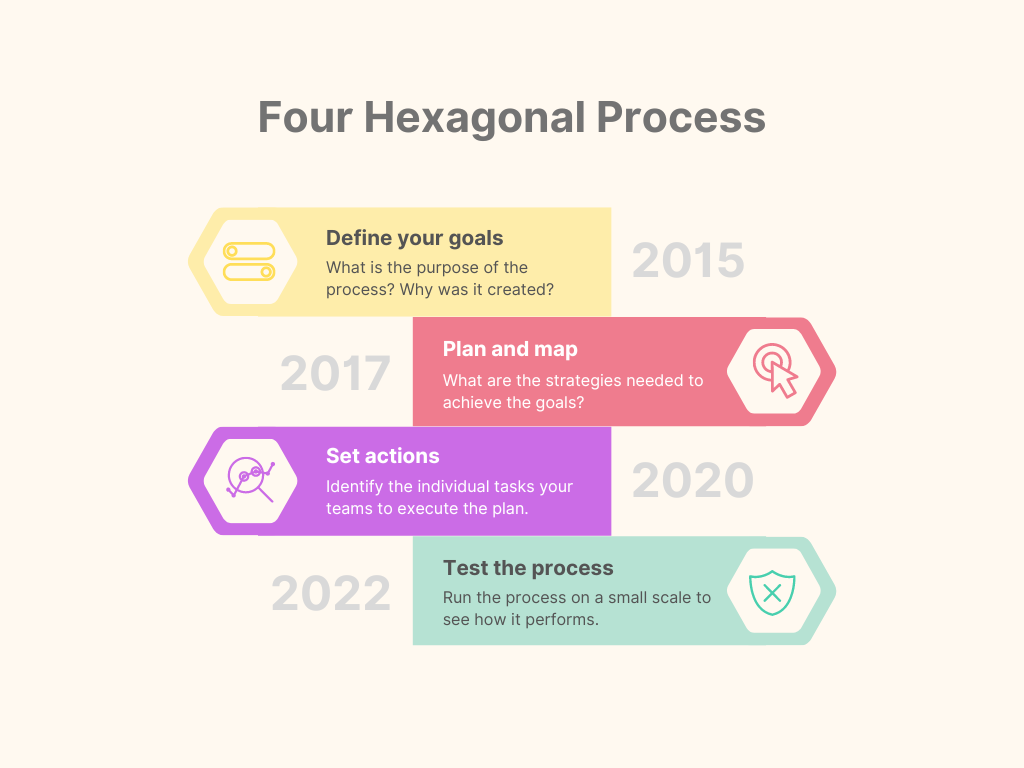
Canva’s whiteboard feature allows you to collaborate with your team in real-time to design processes that work for everyone on the team.
Next, share the flow chart with your team and have them offer feedback by leaving comments.

Use the ‘share’ button in Canva to share your designs with your team members.
Your team members are the ones who use the approval process most often, so it’s important to get their opinion. They’re also more likely to support the process if they feel part of it rather than if you impose it on them without consultation.
Then, adjust the flow chart in response to their feedback, and streamline the process by removing unnecessary stages.

When everyone is happy, use manage your digital assets(opens in a new tab or window) in team folders so everyone has access and can refer to it day-to-day.
Do everything in one place
Context switching is harmful to productivity. Imagine you’re a designer working on a poster. You have to go to your email inbox to download the latest version of the logo you need to use. As your unread emails load, you’re instantly distracted and end up replying to your colleagues. Fifteen minutes later, you’ve completely forgotten about the poster design you were working on.
If people need to access multiple different platforms to create content, their work slows down. With Canva Business(opens in a new tab or window), you have everything you need to create, share, edit, review, and approve designs, all without switching tabs.
Store brand assets in team folders

Create your brand kit to ensure you are always on brand.
Keeping all your files organized in team folders on Canva means everyone can easily find what they need. There’s no risk that files will get misplaced on individual computers, and it saves people time downloading and unzipping files.
Add your fonts, color palettes, and logos to your brand kit(opens in a new tab or window). Store digital assets like images and templates in your team folders. Organize your assets(opens in a new tab or window) by team, client, or project.
Create a team in Canva(opens in a new tab or window) and invite your team members. They’ll receive an email notification where they can accept the invitation.
Configure the permission levels of different folders for your team, allowing them to have view-only permissions, edit permissions, or edit and approval permissions. Your team can access the different folders from the easy-to-navigate dashboard, and each team member can add up to 1TB of content(opens in a new tab or window).
Collaborate on designs in Canva
Canva has all the functionality you need to implement your approval process workflow. A single platform makes it easier for your team to focus. It also reduces any confusion about which version is the most up to date and which designs have sign-off.
Tip: Our Design School has put together a video series on Youtube(opens in a new tab or window) on everything you need to know about collaborating on design in Canva.
Multiple team members can share designs and work on content collaboratively(opens in a new tab or window) in real time. They can add comments, reply to them, and resolve them when they’re addressed.

Tag team members to notify them about your comment.
As a team administrator, you can set up design approvals that determine who’s able to approve designs. Based on who has responsibility in your flow chart, assign permissions. Use brand control to encourage or require your team to get approval on designs before they’re published.
When a draft is ready for document approval, team members select “get approval” on a design to send an approval request. People who are responsible for reviewing the design can approve it or follow up with feedback.
If you opted to require approvals in your brand control settings, the publish option is only available when a design is approved. After every modification, it’ll need new approval.
Integrate Canva with your publishing tools
Another way to avoid forcing your team to context switch is to integrate Canva with your publishing tools. It’ll also reduce the risk of files getting lost or of corrupted files.

Canva has integrations with all the apps you’ll need to publish content—for instance, X (Twitter), Instagram, and Pinterest. You can also integrate with Slack, so team members get notifications about designs.
With Canva, once a design has approval, there are many options for you to share and publish your designs.
Publishing automation is possible with the Canva content planner.

Schedule content for publication(opens in a new tab or window) in the calendar, and Canva will publish it when the day arrives. As with design editing, you can adjust your settings to allow different team members to use the planner.
Get everyone on brand by default
To help your approval system run more smoothly, use brand kits and templates in Canva. They’ll eliminate the need for time-consuming, repetitive tasks like checking image dimensions and brand colors. Templates will also speed up your team because no one will need to create content from scratch.
Before using Canva, HubSpot struggled with brand discrepancy(opens in a new tab or window). Sometimes members of their team accidentally used outdated guidelines and brand assets. Brand kits and templates remove those discrepancies by keeping everything uniform and on brand.
When you’ve added your brand logos, fonts, and colors to your brand kit(opens in a new tab or window), everyone on your team will be able to access them within the design editor.

Restrict your team to using only branded fonts and colors by setting up brand kits.
Create branded templates(opens in a new tab or window) for content that your organization repeatedly creates (like presentations or social media posts). To speed up the process, customize these Canva business templates(opens in a new tab or window) to create branded versions for your organization. If you already have templates, you can simply upload them to Canva.
Templates empower non-designers because it makes it easy for them to create content that looks good. They just need to drag and drop different elements, no Photoshop skills required.
“[Canva is] really brilliant for people like me who aren't design savvy.” says Alex Dawson, a Community Manager at Yelp(opens in a new tab or window). “I can design something that's on brand and aesthetically pleasing in a short amount of time.” Fewer ad-hoc requests for things like branded presentations also removes design bottlenecks and takes the pressure off the design team.
Refine, evolve, and grow
The ideal process for your team will change over time. Check in with your team every few months on how the approval process is working. Identify blockers and unnecessary steps or anything that’s missing from the process. Update and optimize the approval flow accordingly.
A solid approval process detailed workflow visuals — like a swimlane diagram(opens in a new tab or window) or a BPMN diagram(opens in a new tab or window) — will help your team to be more successful. As you grow, Canva will grow with you. Canva Business gives you enough storage for all your files, with flexible billing and pricing, so you can keep adding new members to your team and pay as you grow(opens in a new tab or window).