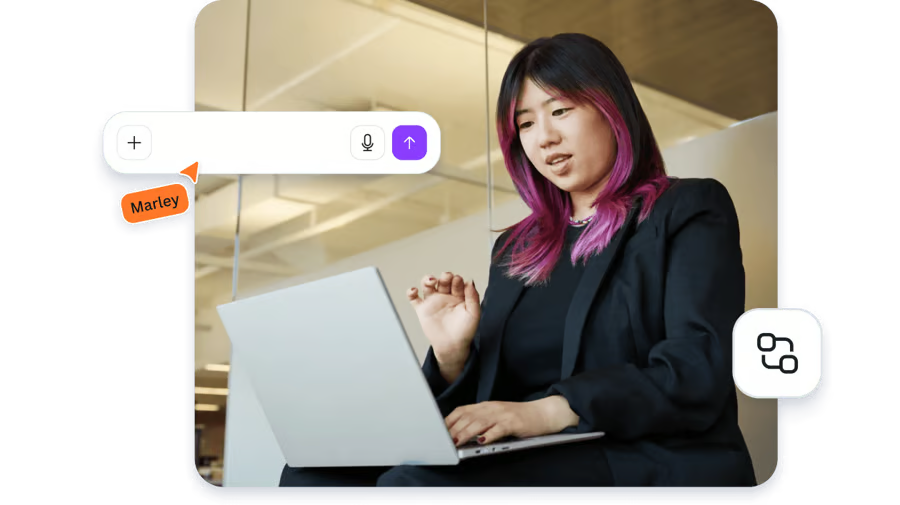
Design with Canva, right from your AI chat
Use Canva inside your favorite AI assistants. Generate, edit, manage, and search content – straight from any chat, with the right context. Our AI connector, powered by the Canva MCP Server, works with ChatGPT, Claude, and more coming soon.
Connect Canva to AI tools you love
Integrate Canva into your AI assistant chats and bring smart, editable design to where you’re already working.


From vision to visuals, at AI speed
Converse to create your way, with our AI connector. Whether you’re generating an editable deck with one prompt, autofilling charts with fresh campaign data, or resizing visuals to share, Canva fits right into your AI workflow. Discover how to connect Canva and your AI tool.(opens in a new tab or window)

Unlock design at scale across teams
Boost productivity with tools you already use. Connect Canva to your AI assistant to create in sync, stay on-brand, search with ease, and keep content secure across your organization.


AI images, now fully editable
Turn AI visuals into editable layers. Generate designs, then move, tweak, and refine every detail. It’s real, flexible editing right inside your chat. Available in select tools, including Gemini and ChatGPT.
Start with a prompt like this:
Make an Instagram post for the upcoming sale using product photos from our previous launch. Then separate each visual and text element in the design so I can rearrange the layout.
Resize content for any platform
Repurpose one design everywhere. Canva instantly adjusts your content and layout so it’s ready to use whenever, wherever – without the need to create from scratch.
Start with a prompt like this:
Turn last lesson’s presentation into a printable A3 poster.
Autofill templates with fresh data
Canva autofills your brand templates with real-time data from any source. Save time and autotag designs, so your AI assistant can populate data fields in future templates. Streamline workflows, scale creation, and keep designs on-brand, accurate, and ready to share.
Start with a prompt like this:
Create a copy of our monthly report with the latest analytics data.
Explore what you can do with Canva’s AI connector
Unlock powerful, editable design without leaving your AI chats. Turn every conversation into a creative flow.
Get a design
Repurpose or pull all text and images from a design using its design ID.
Stay on-brand every time
Apply your Brand Kit to skip redesign work and keep your message front and center.
Import a design from URL
Turn file URLs into fresh Canva designs, from PDFs, PowerPoints, and more.
View and reply to comments
Keep track of comments with easy filters for unresolved or specific feedback.
Search a design
Find any design effortlessly. Simply search by design ID, title, or content.
List folder items
See what’s inside any folder – filter and list items without having to open them one by one.
All you need to connect, converse, and create
Easily connect your AI assistant to Canva, or learn more about the integration.
Frequently asked questions
No, all Canva plans connect to AI assistants, including Canva Free. Some AI connector features are limited to specific Canva tiers:
- Resize is only available to paid Canva plans.
- Autofill and Brand Templates are only available to Enterprise plans.
Specific features may vary depending on your AI assistant. Your AI assistant may also require a paid tier to connect with Canva. See Canva pricing(opens in a new tab or window) and compare your plan options.
Open AI assistant settings, choose Canva, then follow the authorization prompts. And that’s it! You’re ready to create and edit designs from your AI chat. Specific steps may vary depending on your AI assistant. Go to our help guide(opens in a new tab or window) to learn more or find connection steps for specific AI assistants.
Anyone with a Canva plan can use our AI connector. See Canva pricing(opens in a new tab or window) and compare features unlocked with every plan.
AI connector features may be limited for people using Canva for Education. Only teachers and students in higher education levels can access capabilities unlocked by our AI connector. See Canva for Education plans.(opens in a new tab or window)
Boost productivity and creativity without leaving your AI chat. Search and summarize your Canva content, generate editable designs, autofill templates, resize, and more using natural language. Simply enter a prompt and let Canva and your AI assistant work together in flow. Discover capabilities(opens in a new tab or window) unlocked by our AI connector through the Canva MCP Server. Some capabilities may be limited to functionality your AI assistant allows.
The Canva AI connector generally allows access to Canva projects that you have permission to view. This includes presentations, docs, and other text-based content.
Yes, as long as the folder is shared with you. Account administrators can disable or limit access at any time.
Yes, your Canva content remains private and secure. AI assistants can only access what you’ve explicitly chosen to share or view within your existing permissions. Canva’s enterprise-grade security and your organization’s policies apply. View Canva’s privacy policy(opens in a new tab or window).
From your Canva settings, go to Your profile, then Integrations connected to Canva. Select Disconnect next to Canva AI Connector. Or, remove the integration from your AI assistant’s settings.
The AI assistant loses access immediately, but your designs stay in Canva. Learn more about disconnecting our AI connector(opens in a new tab or window).
Our AI connector is powered by the Canva MCP Server. See technical documentation(opens in a new tab or window) to learn more.