Set up and manage your Classroom
6m
Create and manage classes, invite students and keep track of classroom activity and student work in one place.
Set up and manage your Classroom
6m
Create and manage classes, invite students and keep track of classroom activity and student work in one place.
What you’ll learn
- Exploring the main areas of Classroom
- Creating and managing classes
- Inviting students to join a class
- Tracking student work
- Connecting supported platforms

Classroom is your central space for managing classes, accessing teaching tools and keeping track of student work. Use this guide to create and organize classes, invite students, monitor assignments and connect Canva with the classroom platforms your school already uses.
Explore your Classroom
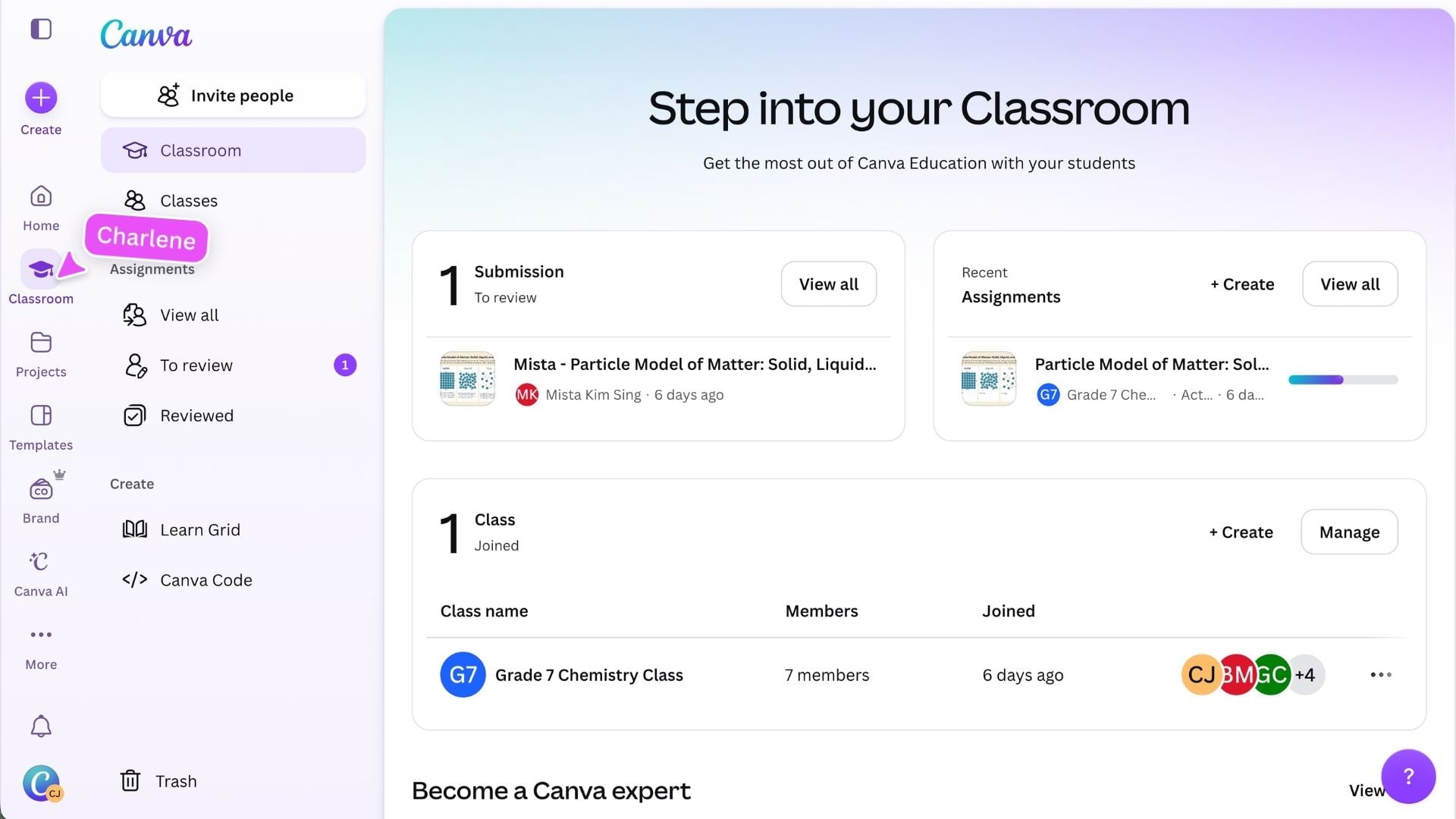
Select Classroom from the side panel to open your central space for managing classes, assignments, and student work. At the top of the page, you will see tools for planning lessons, creating activities, and accessing teaching resources. As you begin working with students, the page updates to show: Use the Classroom side panel to move between your classes, assignments, and reviewed work. You will also see Education tools to find resources and create classroom activities.
Create and manage your classes
Open Classes to view the classes connected to your Canva account or create a new one. Check your school setup first: Your classes may already appear if your school has synced class data with Canva.
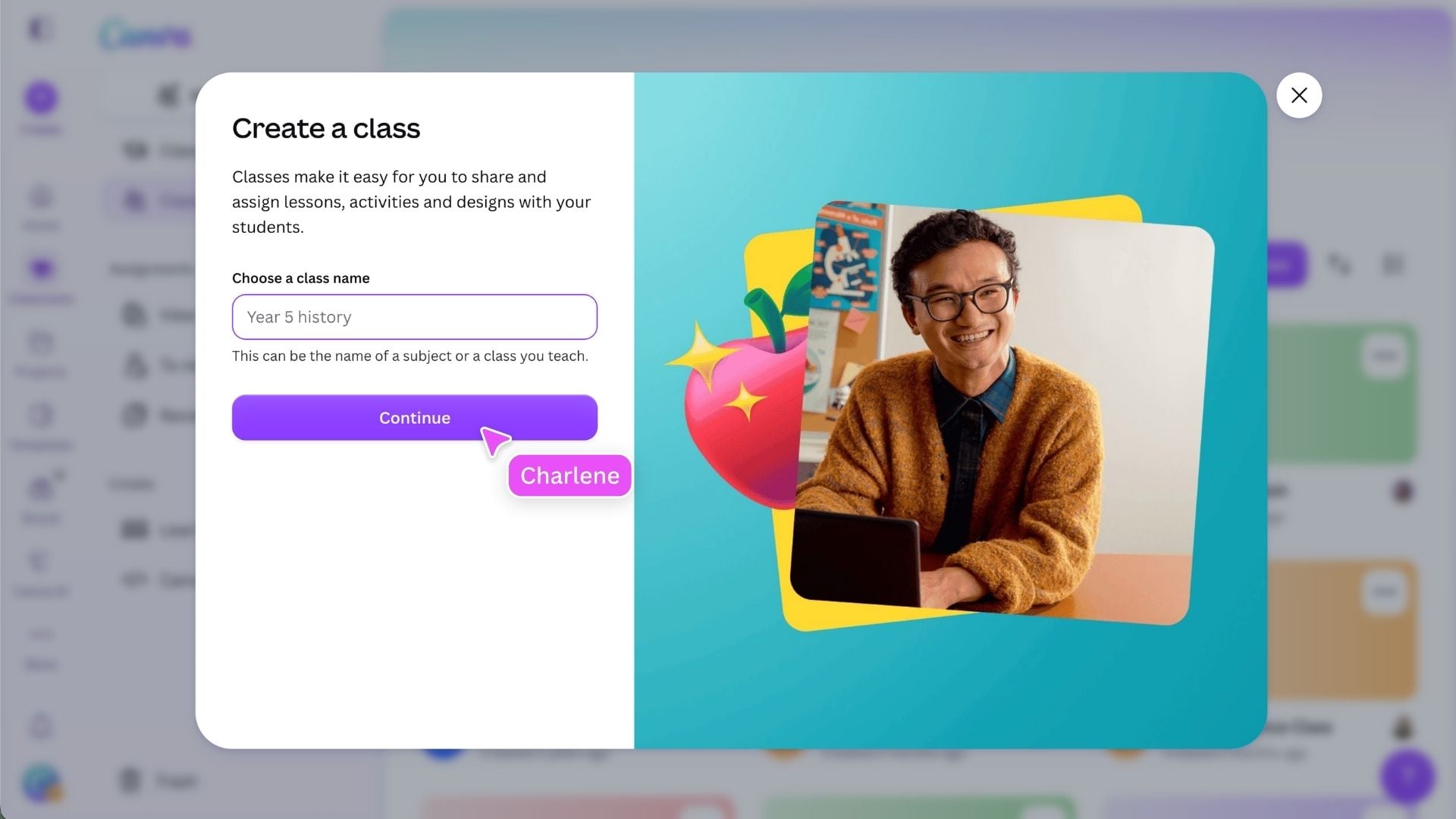
If you need to create a class, select Create a class and give it a clear name. You might organize classes by year level, subject, teaching period, or another structure that works for your school. Select an existing class to view its members, manage invitations, and update class settings.
Team or class? Your team represents your school or school system. A class is the specific group of students you teach.
Invite students to a class
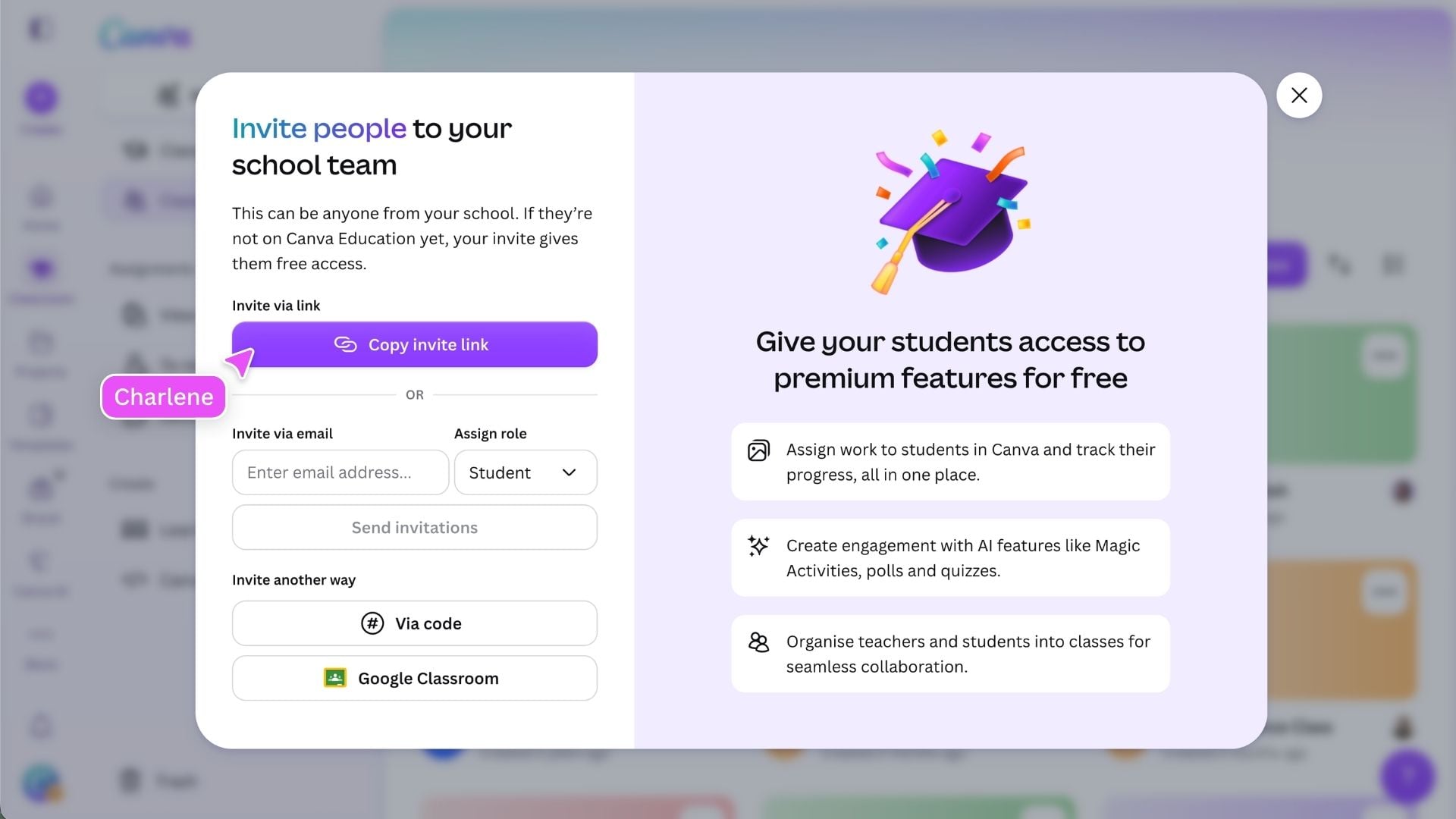
Open the class you want students to join, then choose an invitation method that suits your school setup. Depending on the options available, you can: Ask students to use their school account so they join the correct school team and class, where required by your school.
Track assignments and student progress
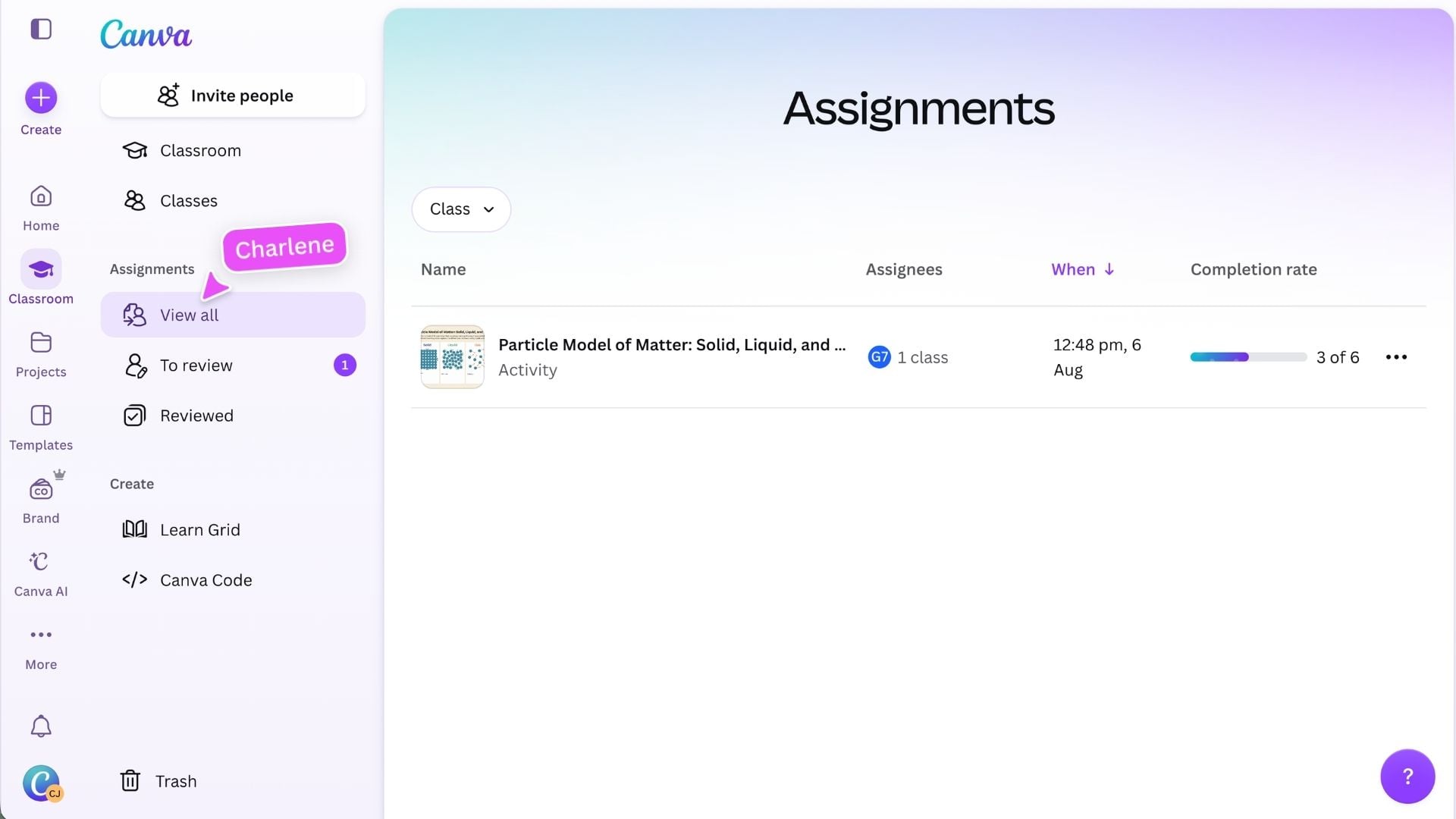
Classroom helps you see what needs your attention, including submissions waiting for review, recently shared assignments, and student progress. Select View all to open the full list of assignments. Use the available filters to narrow the list by class or status. Select an individual assignment to see: Select To review to find submitted work waiting for feedback. Completed reviews appear under Reviewed. Assignments shared from Canva appear in this space, making it easier to track classwork without searching through individual designs.
Connect a classroom or learning platform
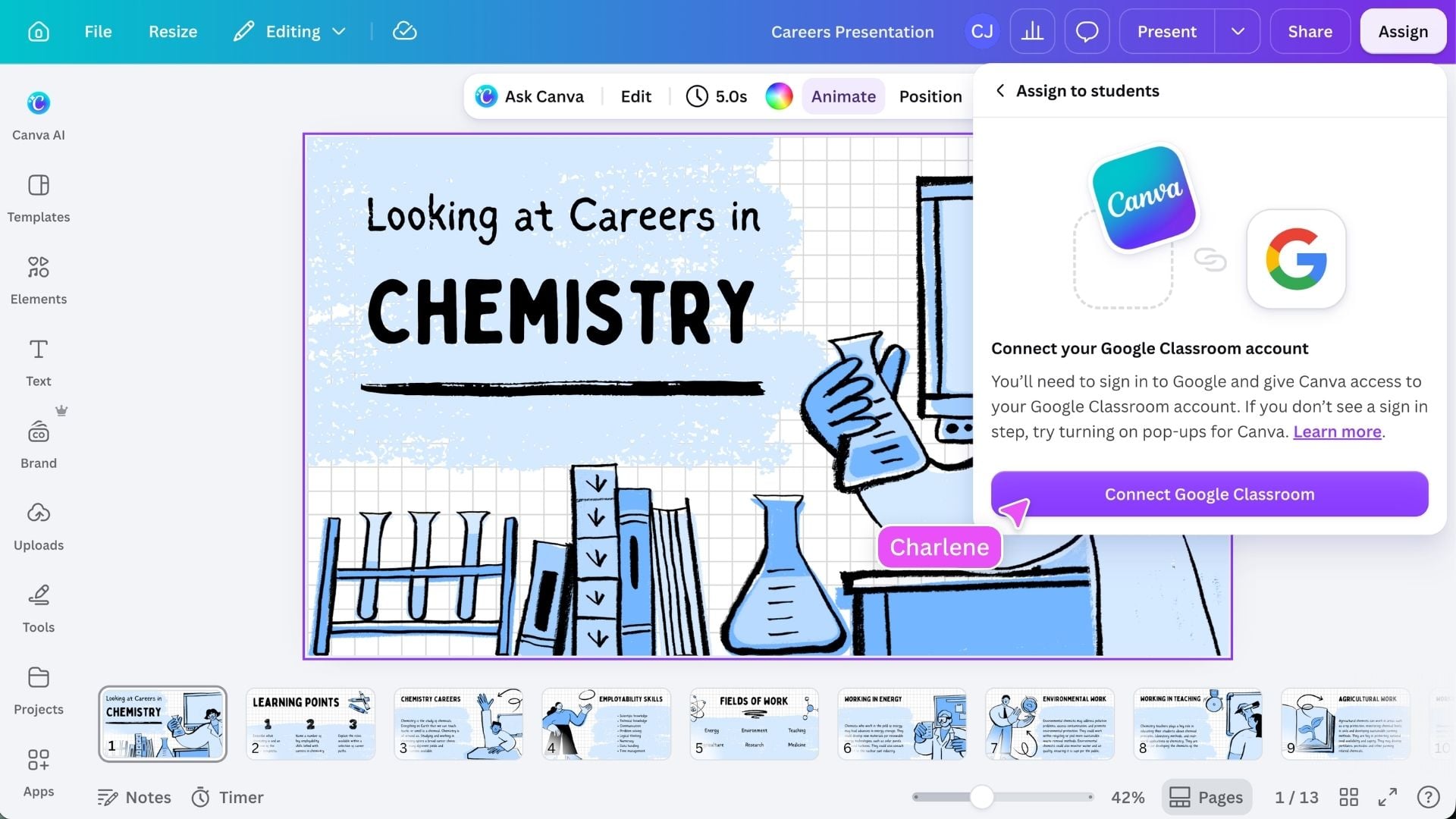
Canva Education can connect with classroom and learning management platforms already used by your school. Depending on your school setup, available connections might include: Availability depends on your school’s platform and administrator permissions. Check with your school administrator if you can’t see the connection you need.
Ready to manage your classroom? You now know how to create and manage classes, invite students, monitor assignment progress and find work that is ready to review. Return to Classroom whenever you need to manage a class, check student progress or review submissions.
Key skills
Featured in these lessons
Share
Last updated 17 Sep, 2026