Exploring the Visual Suite
9m
Beginner
Dive into Canva’s Visual Suite, from Docs and Whiteboards to video editing, to discover new ways to create and collaborate.
Exploring the Visual Suite
9m
Beginner
Dive into Canva’s Visual Suite, from Docs and Whiteboards to video editing, to discover new ways to create and collaborate.
What you’ll learn
- How to choose the right Canva format for your projects
- Create Docs, Whiteboards, and Videos from templates
- Collaborate with others in real time using Whiteboards

Canva gives you different ways to bring ideas to life, whether you are writing a document, planning with a team, or creating a video. Use this guide to explore Docs, Whiteboards, and Video, and learn how to choose a format, start from a template, add content, and collaborate with others.
Choose what you want to create
From the Canva homepage, select Create and choose a format. In this guide, you’ll explore: You can also explore other formats such as Sheets, Email, Websites, Presentations, Social Media, and Print.
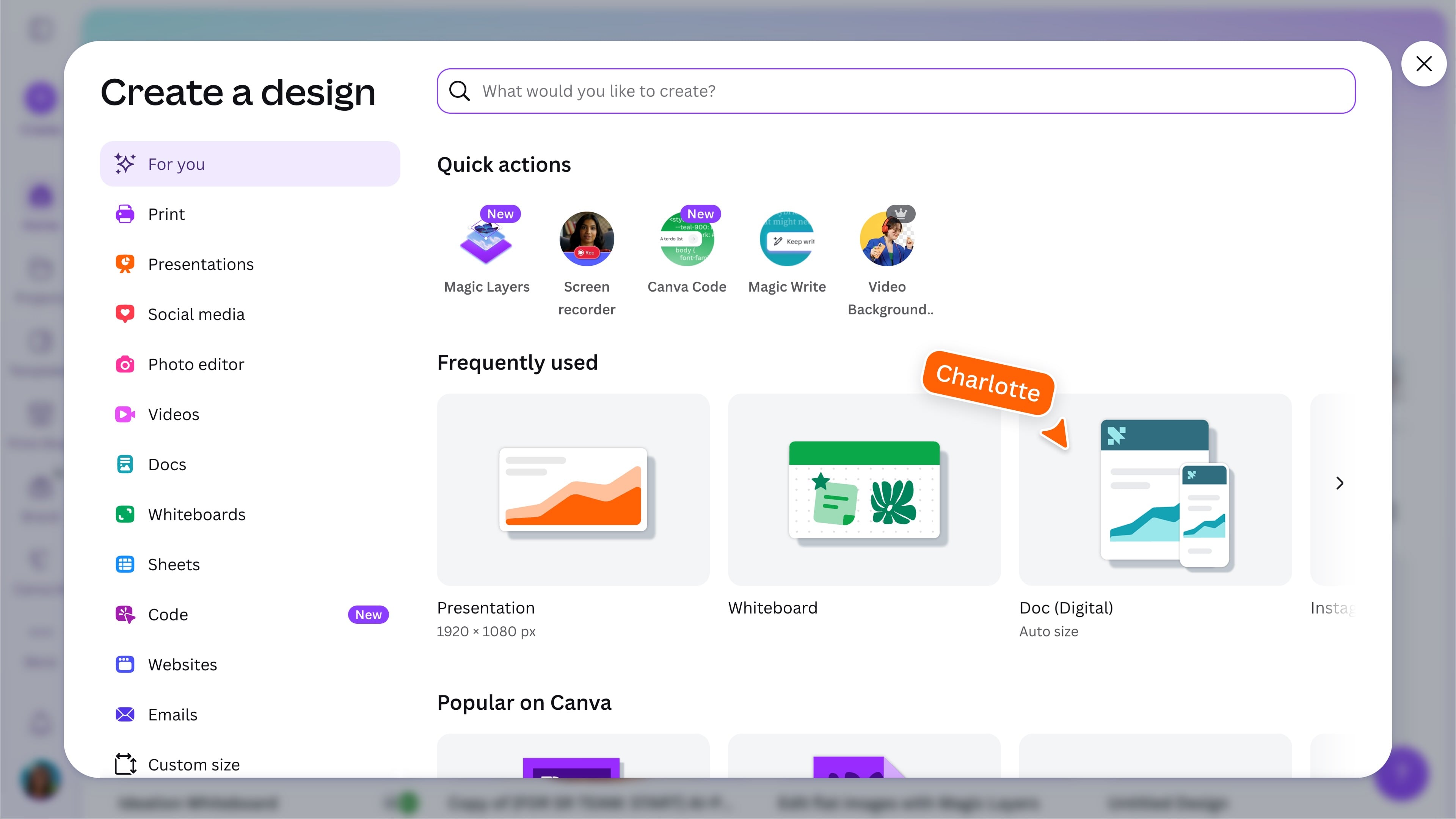
Create with Canva Docs
Use Canva Docs for text-based work that also needs visuals. Start with a blank Doc or choose a template, then add and edit text, plug in images, tables, charts, or Canva Designs to make your doc visually engaging. Use the plus button inside the Doc to insert more content, such as banners, colored text blocks, to give your doc a visual boost. Add columns and page breask to structure your information clearly. Select Share to invite others, and use Suggesting mode when you want collaborators to propose changes.
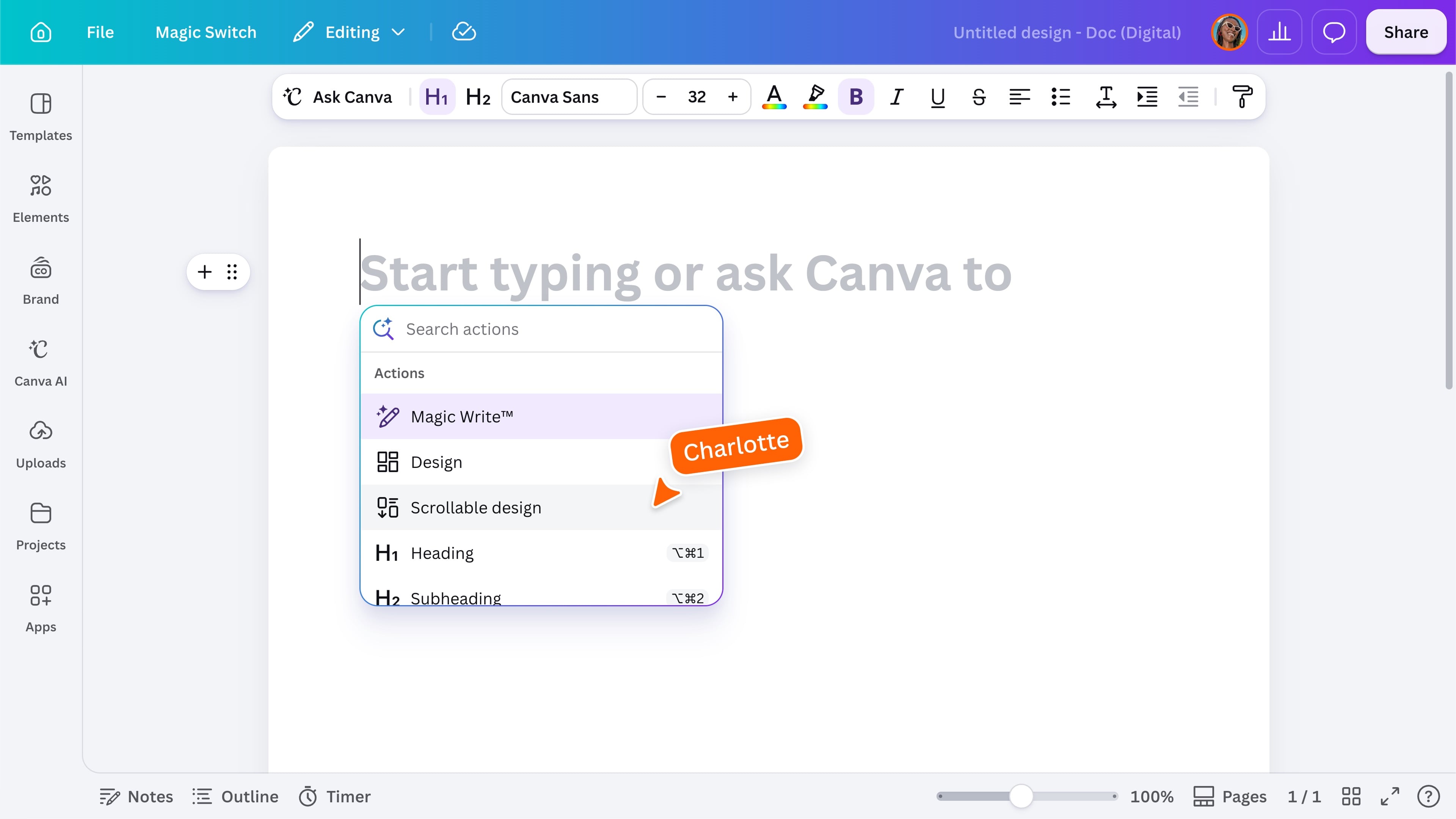
In this menu you can also use Magic Write. Canva’s AI-powered writing assistant, designed to help you generate ideas and create a first draft quickly. To use Magic Write with existing text, select the text, tap the three dots (•••), then choose Magic Write. Select Rewrite for an alternative version, or Transform text to enter your own prompt.
Plan with Whiteboards
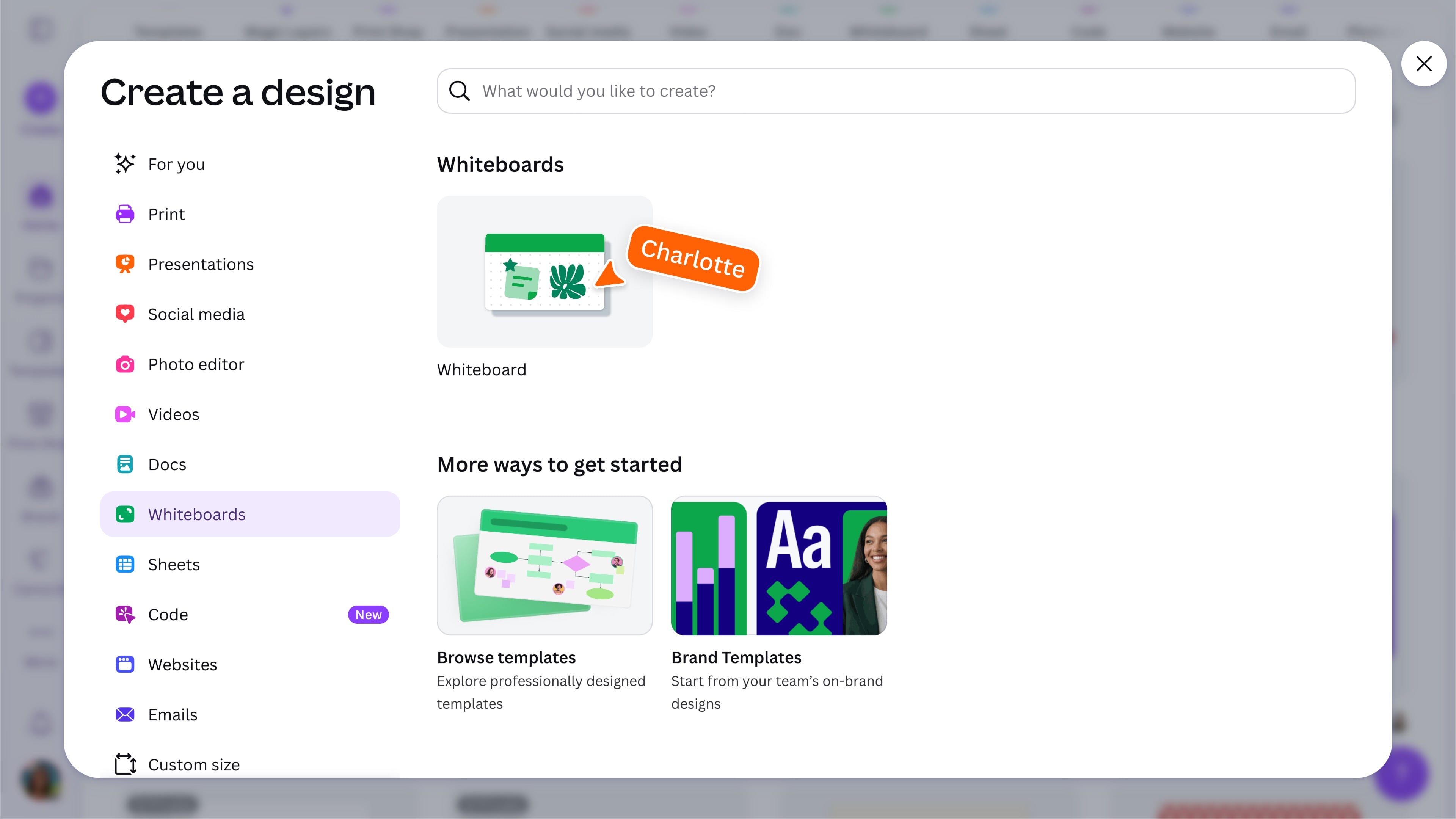
Use Whiteboards for brainstorming, project planning, workshops, and mapping ideas. Start with a blank Whiteboard or choose a template. Add sticky notes, shapes, lines, photos, graphics, charts, or video, then move and arrange them across the open canvas. Select Share to collaborate with others in real time. Add reactions to sticky notes to easily identify popular ideas, and use Sort to instantly organize them to reveal themes.
Create and edit a video
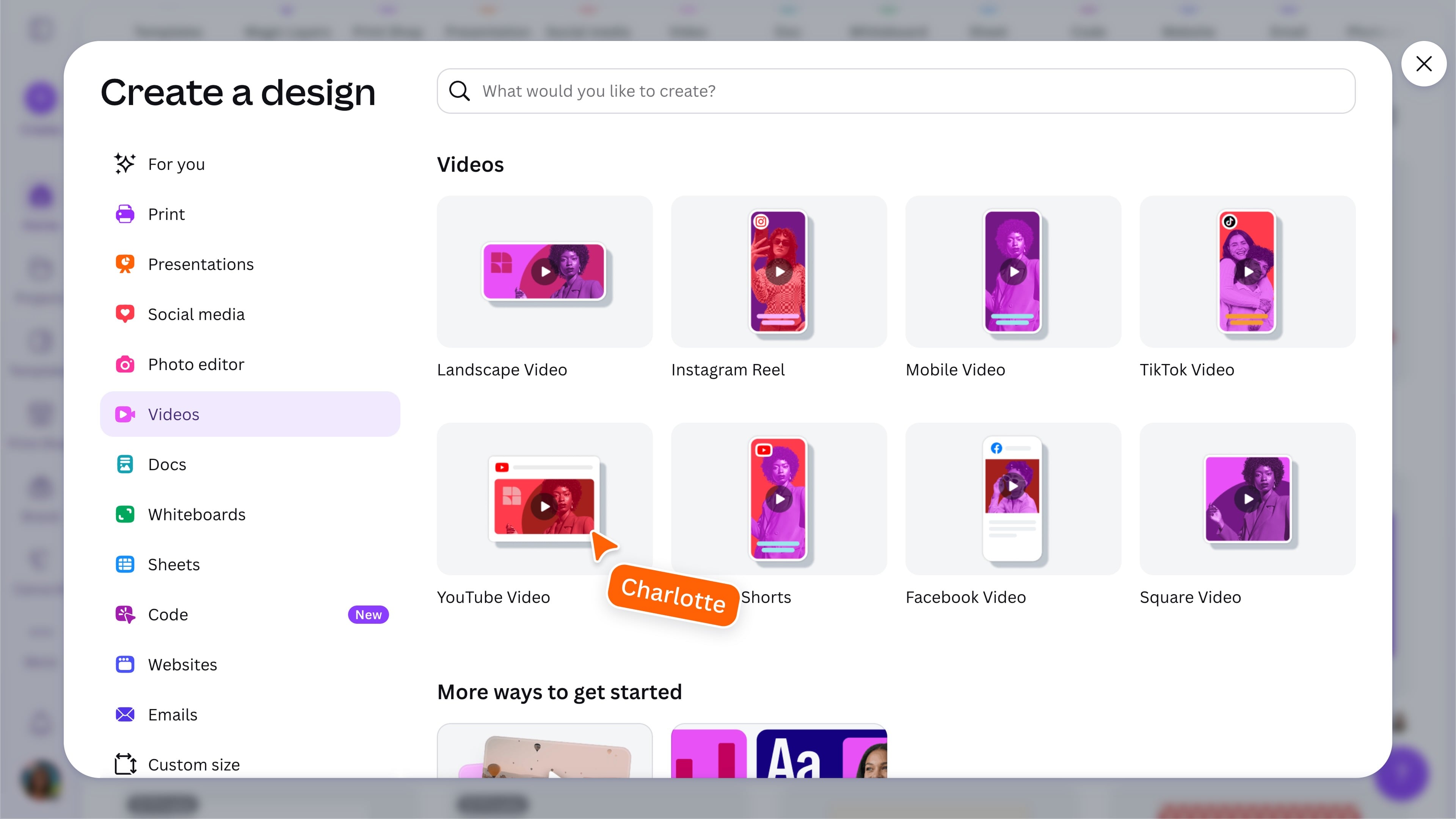
From the Create panel, choose Video. Start with a blank video or choose a template, then select Customize this template to begin editing. Use the timeline to arrange clips, text, graphics, and audio. Drag the playhead to move through the video, trim clips by dragging their edges, and add animation or transitions where needed.
Preview and share videos
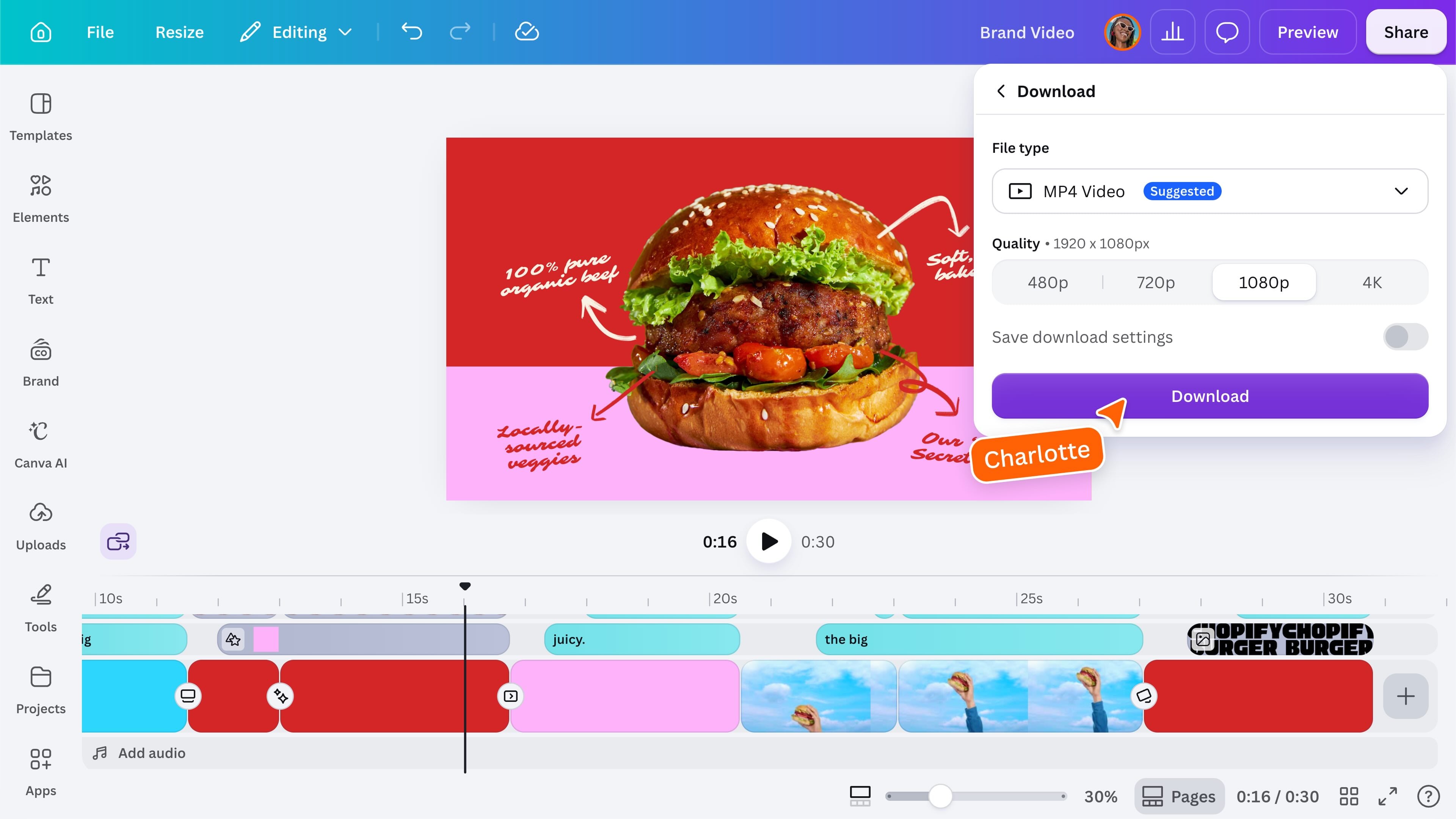
Preview your video before exporting. When you’re ready, select Share, then Download, and choose MP4 Video. You may also be able to publish directly to supported social platforms.
Ready to explore? Choose the format that best matches your next task: write a visual document, plan ideas with a team, or create a video.
Featured in these lessons
Share
Last updated 04 Aug, 2026