
Grow your small business with Claude and Canva
10m
Beginner
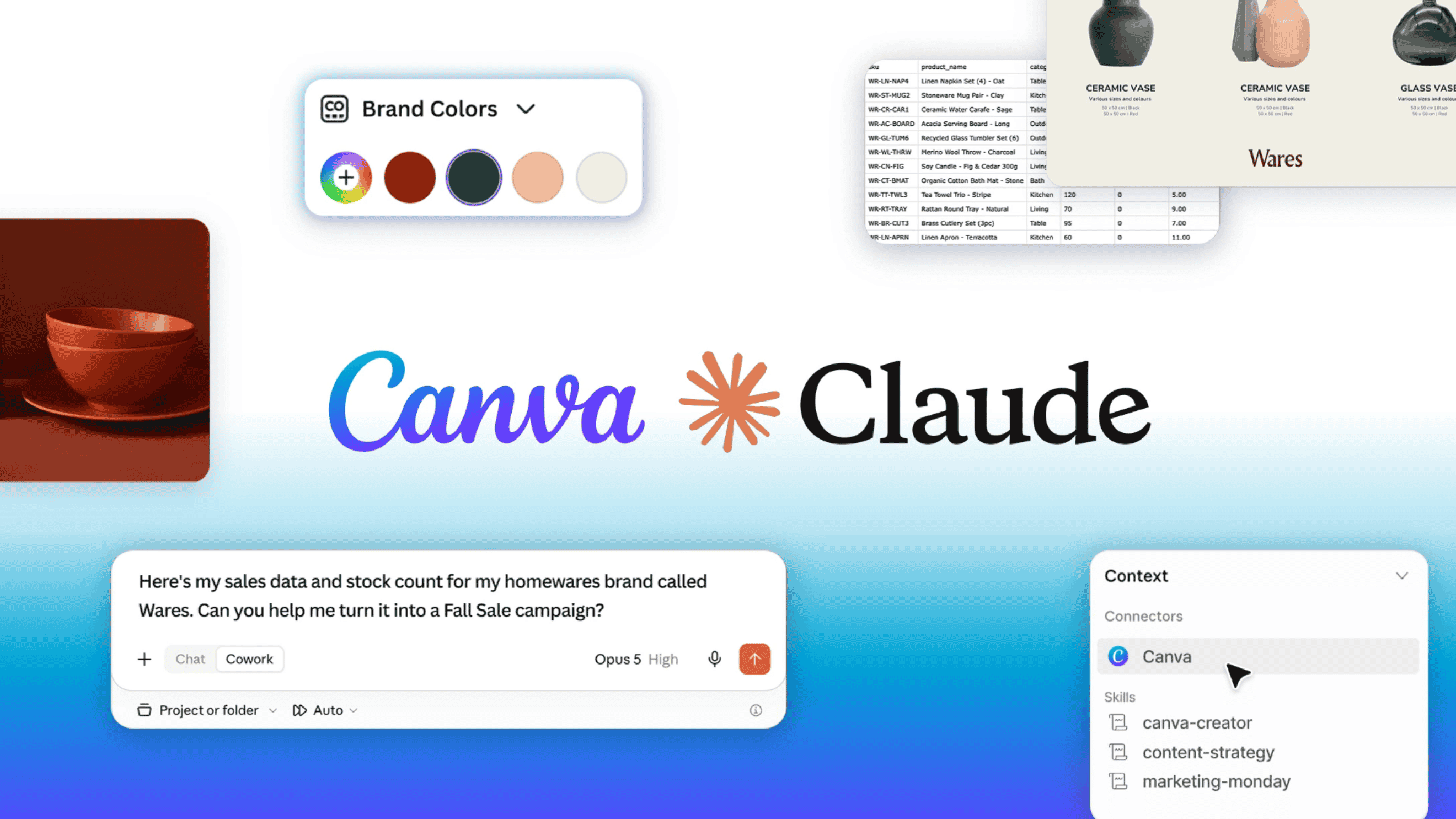
You've got a promotion to plan, a new product to launch, or a slow week that needs a push. The ideas are there, but turning any of it into something visual - a social post, a pitch deck, an ad set - takes time, design skills, or both.
That's where Claude and Canva come in. In this guide we will walk you though exactly how to set up Canva and Claude, connect the small business plug in and get started with your first project.
Grow your small business with Claude and Canva
10m
Beginner
You've got a promotion to plan, a new product to launch, or a slow week that needs a push. The ideas are there, but turning any of it into something visual - a social post, a pitch deck, an ad set - takes time, design skills, or both.
That's where Claude and Canva come in. In this guide we will walk you though exactly how to set up Canva and Claude, connect the small business plug in and get started with your first project.
What you’ll learn
- How to connect Claude and Canva
- How to install the small business plugin
- How to use the plugin to create in Canva

What is the Claude small business plugin and how to connect it to Canva
With Canva connected to Claude and the Small Business plugin installed, you can take the business context that already lives in your conversations - sales trends, customer feedback, campaign results, stock levels, rough ideas in a voice note - and turn it into on-brand, editable designs. It’s never been easier to go from idea to design. Whether you're running a cafe, selling handmade products online, growing a freelance business, or building a content brand, here's how it works: This guide walks you through setting up the connection, installing the plugin, and a few ideas to get you started.
Section 1: Connect Canva to Claude
Before you start, make sure your Canva account is connected to Claude. You might be prompted to connect automatically when you make your first design request, but you can also set it up manually. To connect Canva to Claude:
To check it's working, ask Claude: "Check if the Canva app is connected."
Section 2: Install the Small Business plugin
The Small Business plugin gives you access to all the skills covered in this guide. Once it's installed, you can start using skill commands like /canva-creator, /content-strategy, and /ad-manager in any conversation. To install the plugin: Once it's installed, you can confirm by selecting the + button again and scrolling to Plugins. You'll see SMB Complete in your installed list.
You can also ask Claude: "Check if the Small Business plugin has been installed."
Section 3: Bring all your business context together
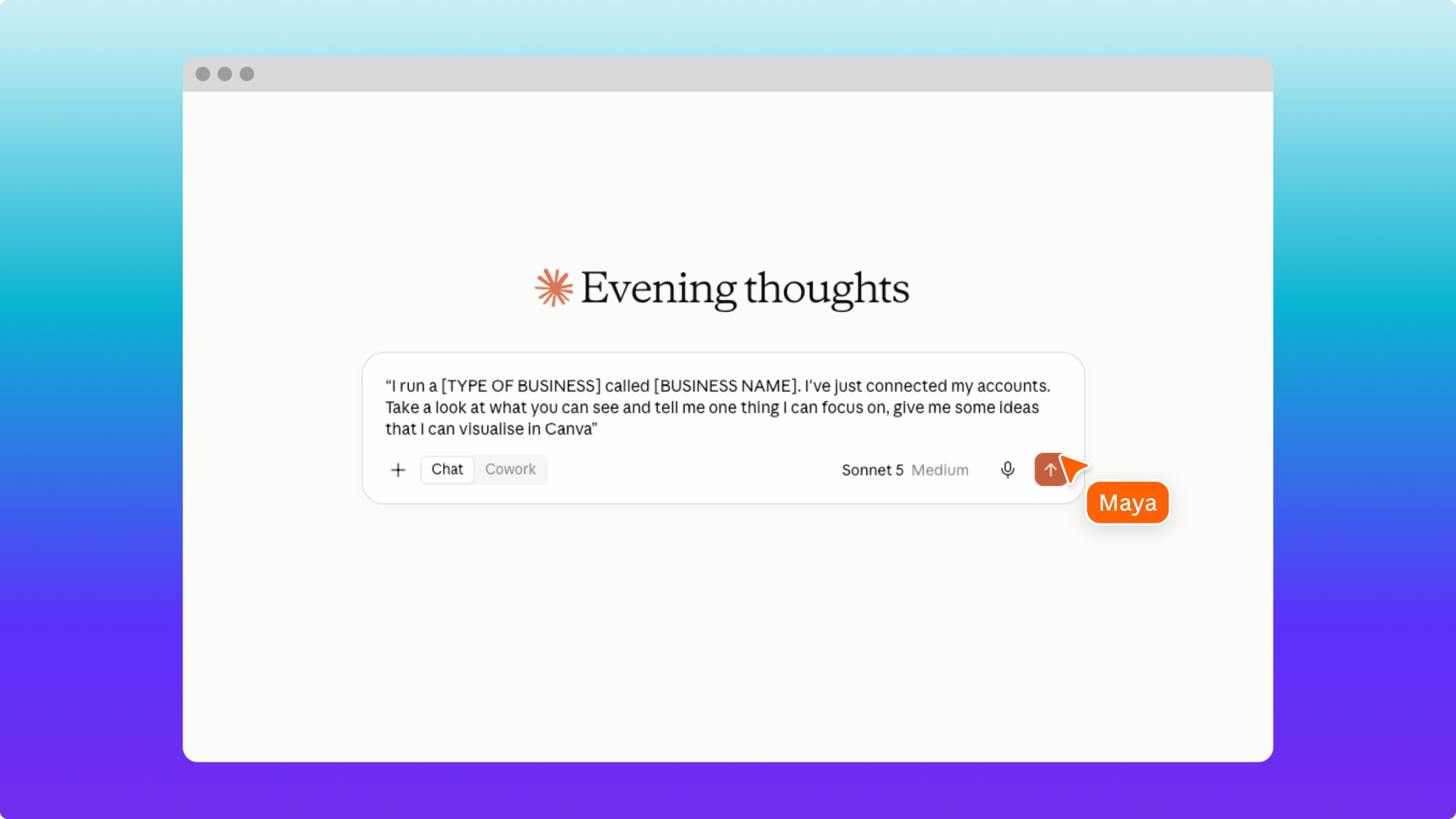
Now that the plugin is installed and Canva is connected, you've got everything you need. The next step is giving Claude something to work with. Claude works best when it has real business context, not a vague prompt. The more you give it, the more relevant the output. That context can come from anywhere: You can upload files directly into the chat (CSVs, spreadsheets, PDFs), paste in data, or ask Claude to work from conversations you've already had. If you've been using Claude for your business, it may already have useful context from earlier chats - product details, audience descriptions, goals you've talked through. Try this to get started: “I run a [TYPE OF BUSINESS] called [BUSINESS NAME]. I've just connected my accounts. Take a look at what you can see and tell me one thing I can focus on, give me some ideas that I can visualise in Canva” Claude analyses your data, finds the patterns, and gives you a starting point. From here, you can ask it to turn those insights into something visual.
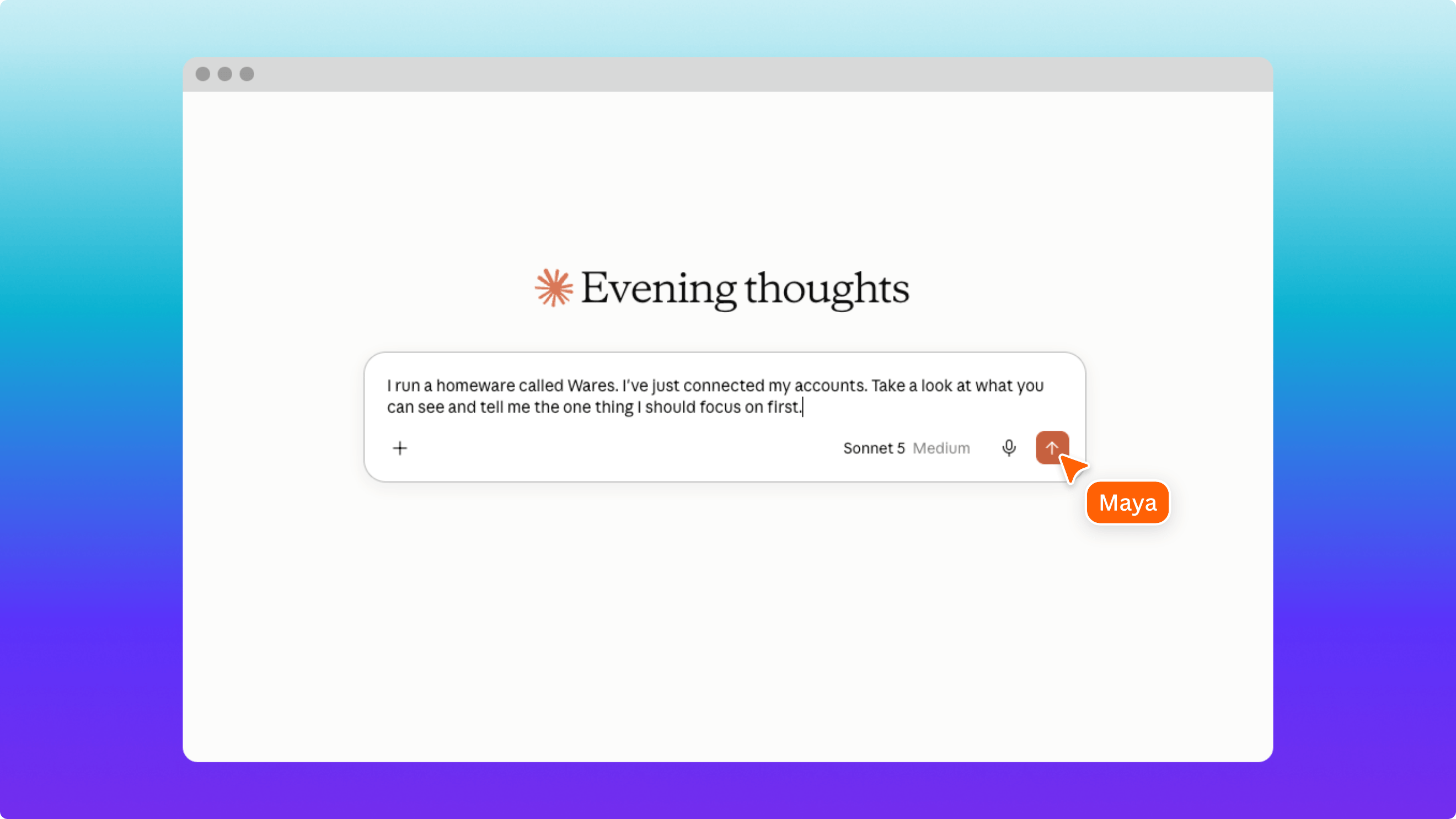
You don't need perfect data. A photo of a handwritten stock list, a rough set of notes, or even a conversation where you describe what's going on in your business is enough to get started.
Section 4: Turn your insights into on-brand designs
This is where the plugin does its work. Once Claude has your business context, you can ask it to create designs in Canva, using your Brand Kit so everything looks and feels cohesive and on brand. Here are a few ways to put it to use.
Turn your numbers into a visual business report
You've got the data. You need it to tell a story. The Marketing Monday skill takes your sales figures, stock levels, or campaign results and turns them into a clear, visual report you can share with your team, your business partner, or your accountant. What you get back is a designed Canva doc - not a wall of text, but a formatted report with your branding applied. Open it in Canva to tweak the layout, add your own commentary, or export it as a PDF.
Try this: /marketing-monday I run a [TYPE OF BUSINESS] called [BUSINESS NAME]. Using the data I've uploaded, create a monthly business report as a Canva doc. Include a summary of top-performing [PRODUCTS/SERVICES], flag anything that needs attention, and recommend what to focus on this month. Use the [YOUR BRAND KIT NAME] brand kit.
Turn your business numbers into a report you can read, share and build new campaigns from.
Build a campaign plan from a single prompt
You've got an event coming up, a new product to promote, or a seasonal push to plan. Describe the campaign to Claude and let the Canva Creator skill turn your brief into designed assets. If you haven’t set up your brand kit but you've got a Canva template or a design you like, reference it in your prompt. Claude uses it as a starting point so the output matches what you've already built. Just paste a link to it in the prompt, like this: Try adding this to your prompt: Use [link to an existing design] as the starting point for the layout.
Try this: /canva creator I run a [type of business] called [business name]. Here's the brief: we're launching a [product/event/promotion], running from [start date] to [end date], with the heaviest push in [peak window]. My channels are [channel 1], [channel 2], and [channel 3] — [channel 1] is for [its role], [channel 2] is for [its role], and [channel 3] is for [its role]. The main call to action is "[your CTA]." Create this as a Canva Doc using my [brand kit name] brand kit, with a short strategy summary at the top covering the campaign overview, one line per channel on its role, and why it matters right now, followed by a content calendar table with Go-live Date, Platform, Content Type, and Call to Action — one row per piece, weighted toward the peak window.
Try adding this to your prompt: Use [link to an existing design] as the starting point for the layout.
Map out a content strategy and bring it to life
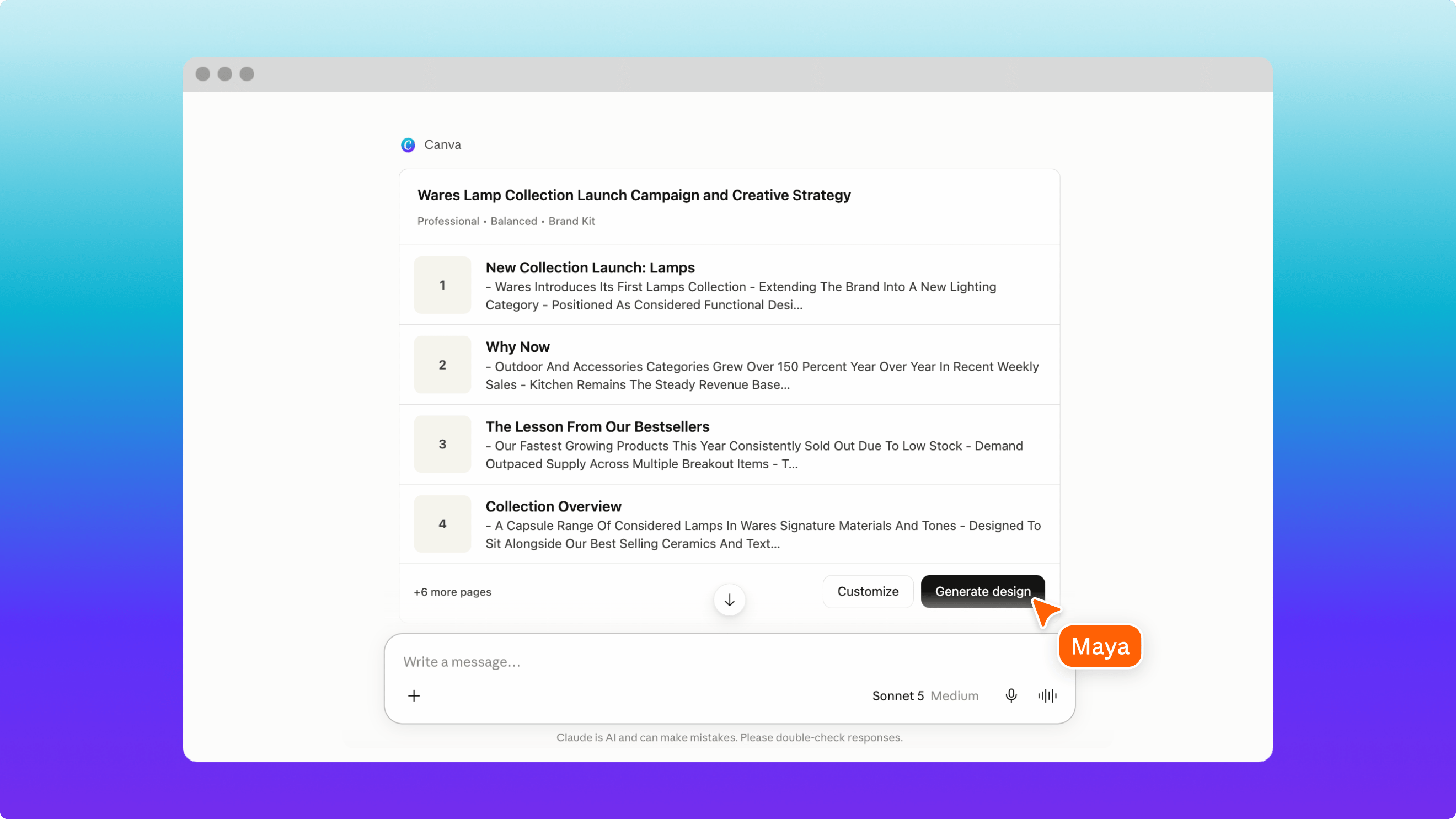
You know you should be posting more, but getting from "I should run a campaign" to "here's the plan" is where things stall. The Content Strategy skill takes a business goal, a product launch, or a seasonal moment and turns it into a structured content plan - delivered as a presentation you can work from. Try this: /content-strategy I run a [TYPE OF BUSINESS] called [BUSINESS NAME]. I want to build a content plan around [GOAL/LAUNCH/SEASONAL MOMENT] for [PLATFORMS, e.g. Instagram and LinkedIn]. My audience is [DESCRIBE YOUR AUDIENCE]. Focus on the [PRODUCTS/SERVICES] that are performing best from the data I've shared, and recommend what types of content to create. Deliver the plan as a Canva presentation using the [YOUR BRAND KIT NAME] brand kit. What you get is a campaign plan you can actually use - structured by platform, with content themes, post ideas, and a schedule. It opens in Canva as a designed presentation, so you can reorganise it, add to it, or hand it to someone on your team. From there, use the plan as your brief. Pick the posts or assets it recommends and create them in Canva, with your Brand Kit and templates already loaded.
Start with uploading information that is relevant so that Claude and Canva have a great data to pull insights from.
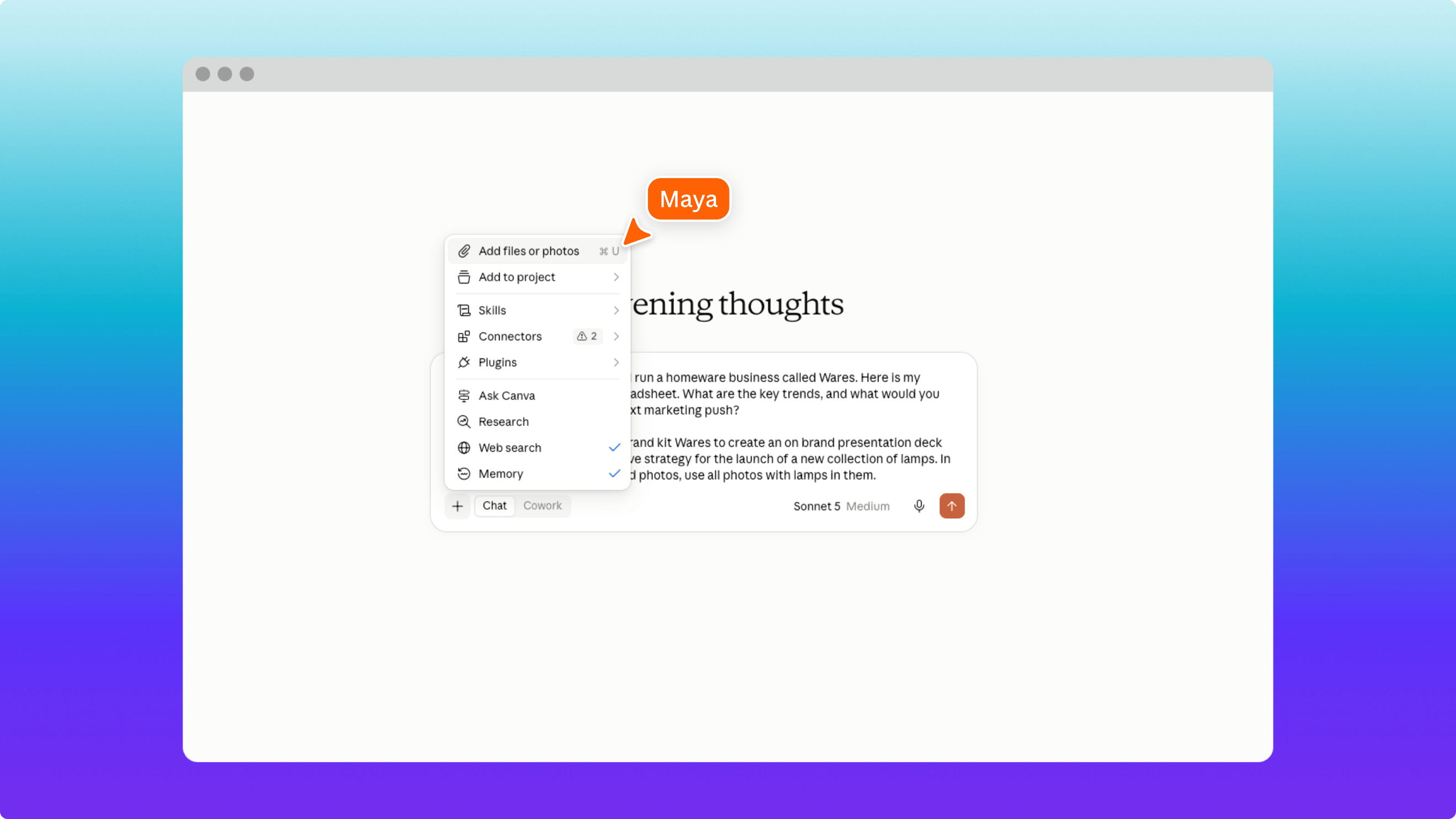
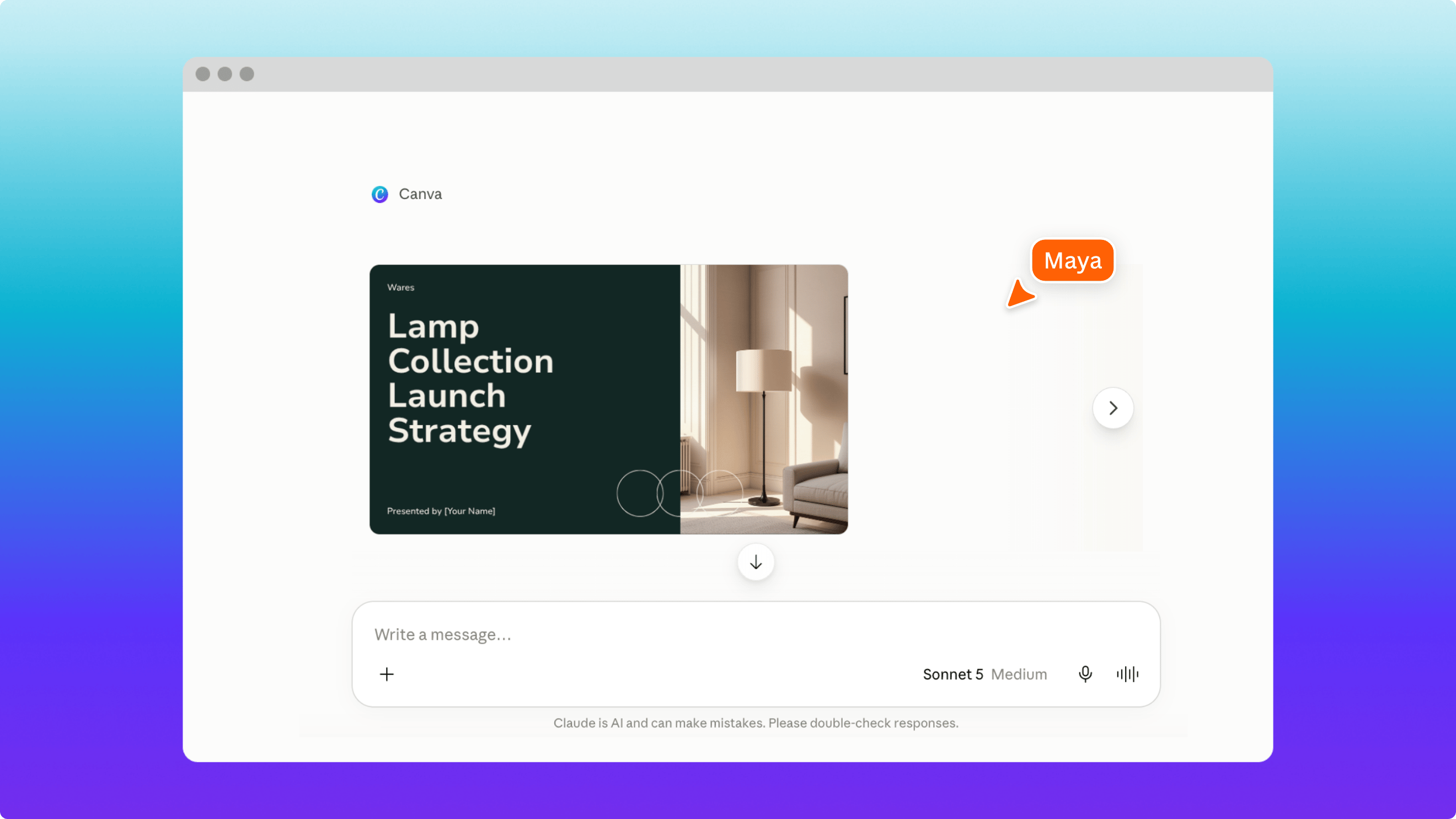
Claude will create an outline for the presentation deck, then once you hit generate a Canva presentation deck will be created.
Once the presentation deck has been created you are ready to edit in Canva. You can swap out images, edit the text, change the colors and more.
You can swap out images generated for your own inside the Canva editor
Section 5: Make it yours with the tools you know
A few things that help you get better results
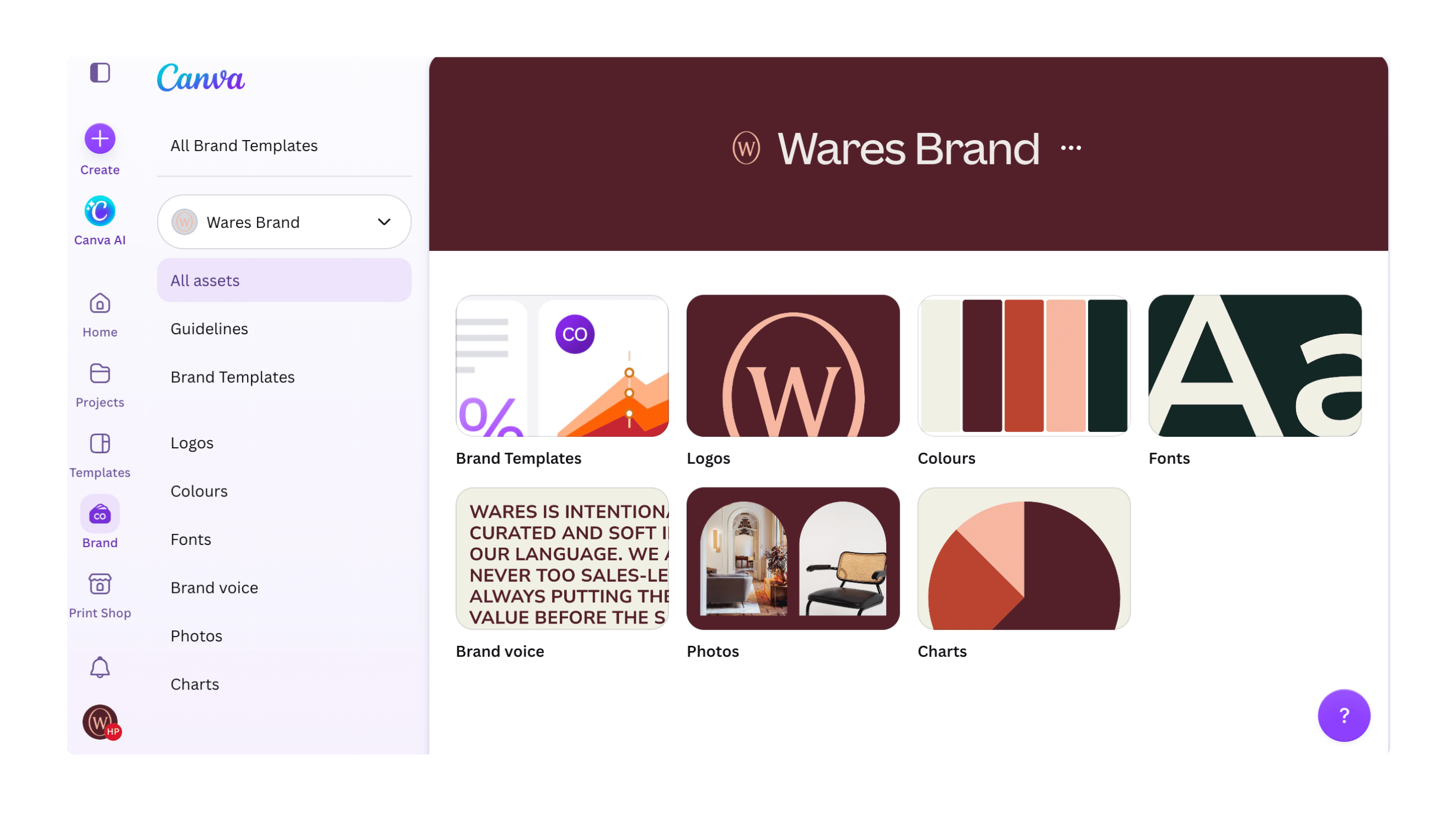
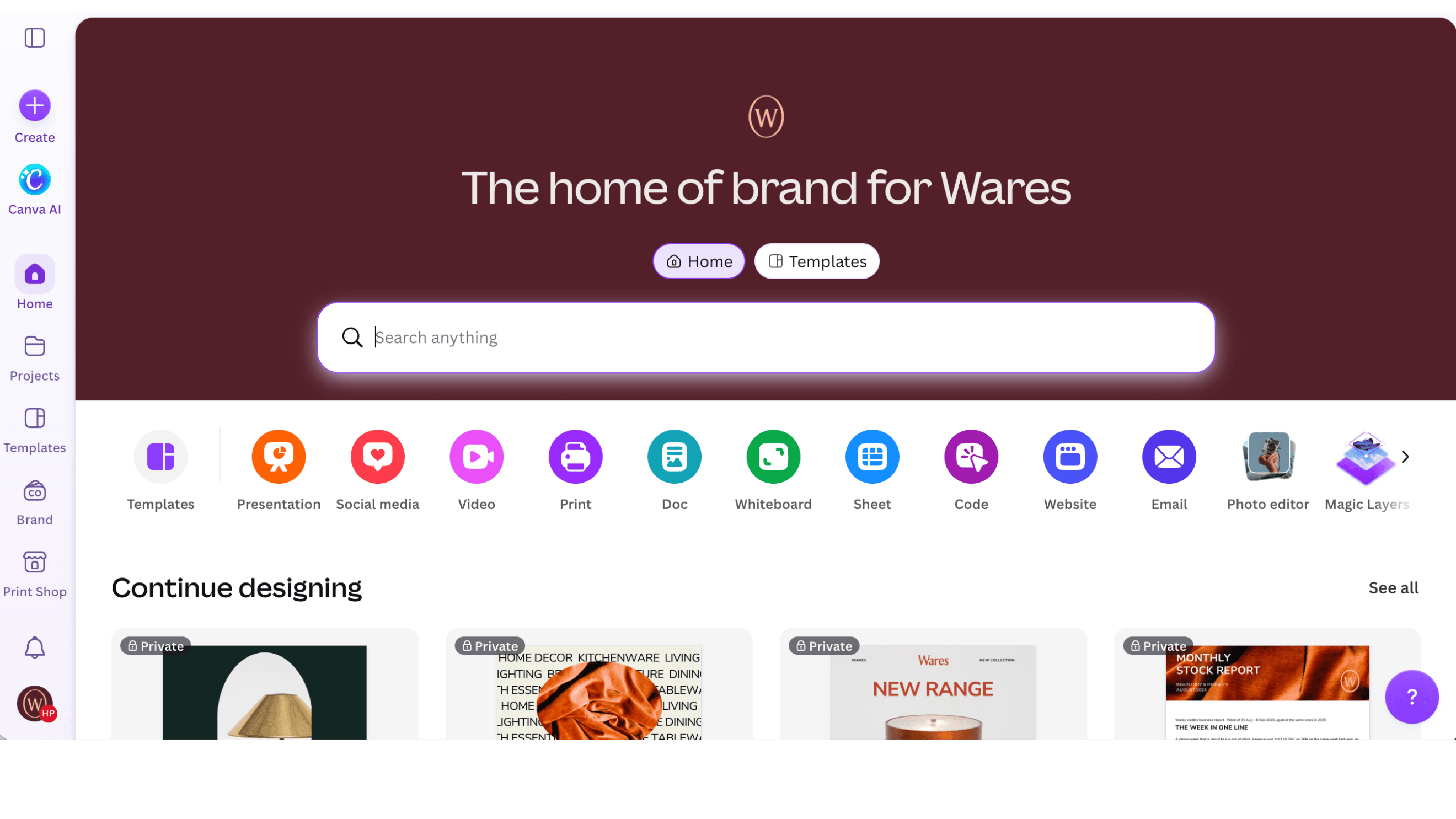
Set up your Brand Kit first
Your logo, colours, and fonts should be loaded into your Canva Brand Kit before you start generating. Every design Claude creates pulls from it, so the more complete your kit is, the more polished the output. Want step by step instructions on setting up your own brand kit, find that here.
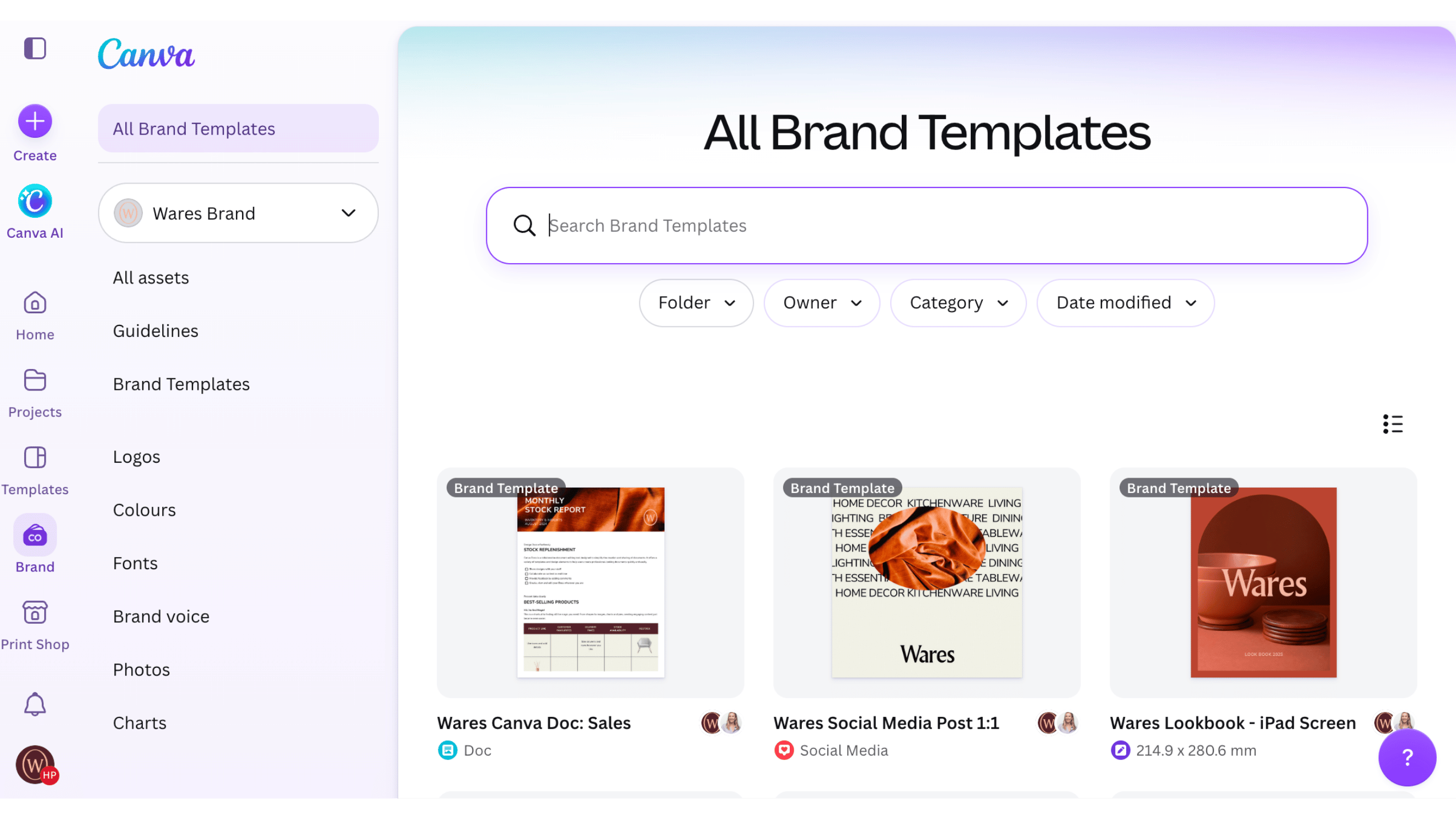
Reference your existing designs
If you've already got a template, a social post, or a presentation you like, tell Claude about it in your prompt. It uses that as a starting point so new designs match what you've already built, rather than starting from a blank slate.
Be specific about the output
Name the format (doc, presentation, Instagram post, flyer), the channel it's for, the audience, and the tone. "Create something for my business" gives Claude very little to work with. "Create a LinkedIn carousel for small business owners that highlights our three best-selling products in a clean, minimal style" gives it everything it needs.
Let Claude think before it designs
Before jumping to "create this in Canva," ask Claude to analyse, summarise, or recommend first. Try things like: Once you're happy with the direction, ask Claude to turn it into a design. Check the details before you publish. Claude gives you a strong starting point, but always review the final output. Check that product names, prices, dates, and key facts are accurate. Make sure images are right. Read the copy out loud. Then publish with confidence.
Section 6: Now it’s your turn
Pick one thing on your to-do list and bring it to life. Upload last month's numbers and ask Claude to turn them into a visual report. Take that product launch you've been putting off and get a campaign plan built. Pull together a pitch deck from the business context Claude already knows about. Start with what you've got; a spreadsheet, a rough idea, a conversation, and let the Small Business plugin and Canva take it from there.
On this page
1
What is the Claude small business plugin and how to connect it to Canva
2
Section 1: Connect Canva to Claude
3
Section 2: Install the Small Business plugin
4
Section 3: Bring all your business context together
5
Section 4: Turn your insights into on-brand designs
6
Turn your numbers into a visual business report
7
Build a campaign plan from a single prompt
8
Map out a content strategy and bring it to life
9
Section 5: Make it yours with the tools you know
10
Set up your Brand Kit first
11
Reference your existing designs
12
Be specific about the output
13
Let Claude think before it designs
14
Section 6: Now it’s your turn
Share
Last updated 08 Oct, 2026