Find, create and adapt teaching resources
6m
Discover ready-to-use resources, adapt them for your students and create new activities with AI and Canva tools.
Find, create and adapt teaching resources
6m
Discover ready-to-use resources, adapt them for your students and create new activities with AI and Canva tools.
What you’ll learn
- Finding teaching resources
- Adapting resources for your students
- Creating activities with AI
- Using resources with your class

Find ready-to-use teaching resources, adapt materials for your students, and create new classroom activities with AI and Canva Code. Use this guide to choose the right starting point, customize resources to your lesson goals, and decide how to use them with your class.
Find a starting point
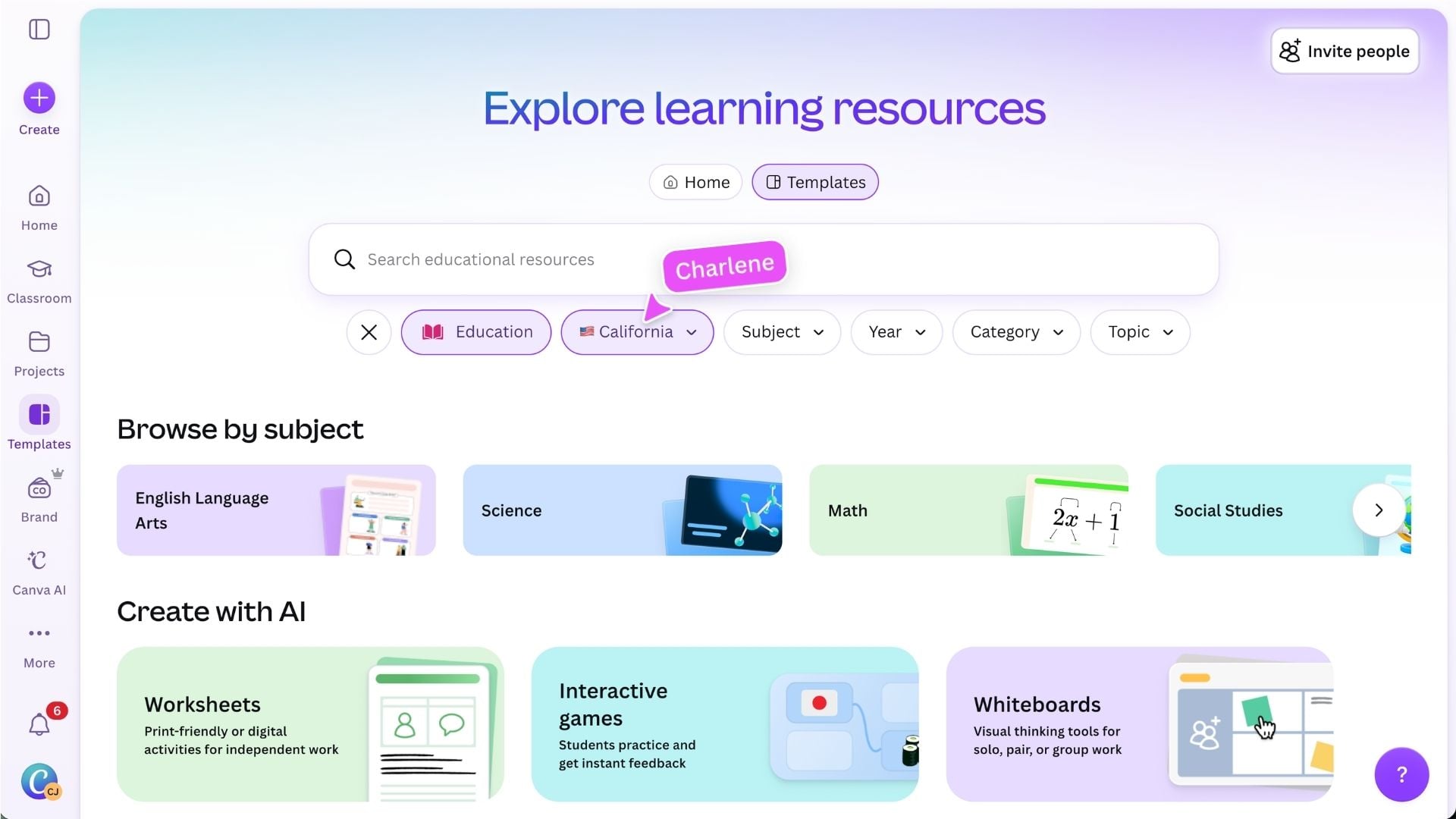
Select Education to explore teaching and learning resources for your classroom. You can also open the teaching resources area from Classroom using the option shown in the side panel. From here, you can:
Browse ready-to-teach resources
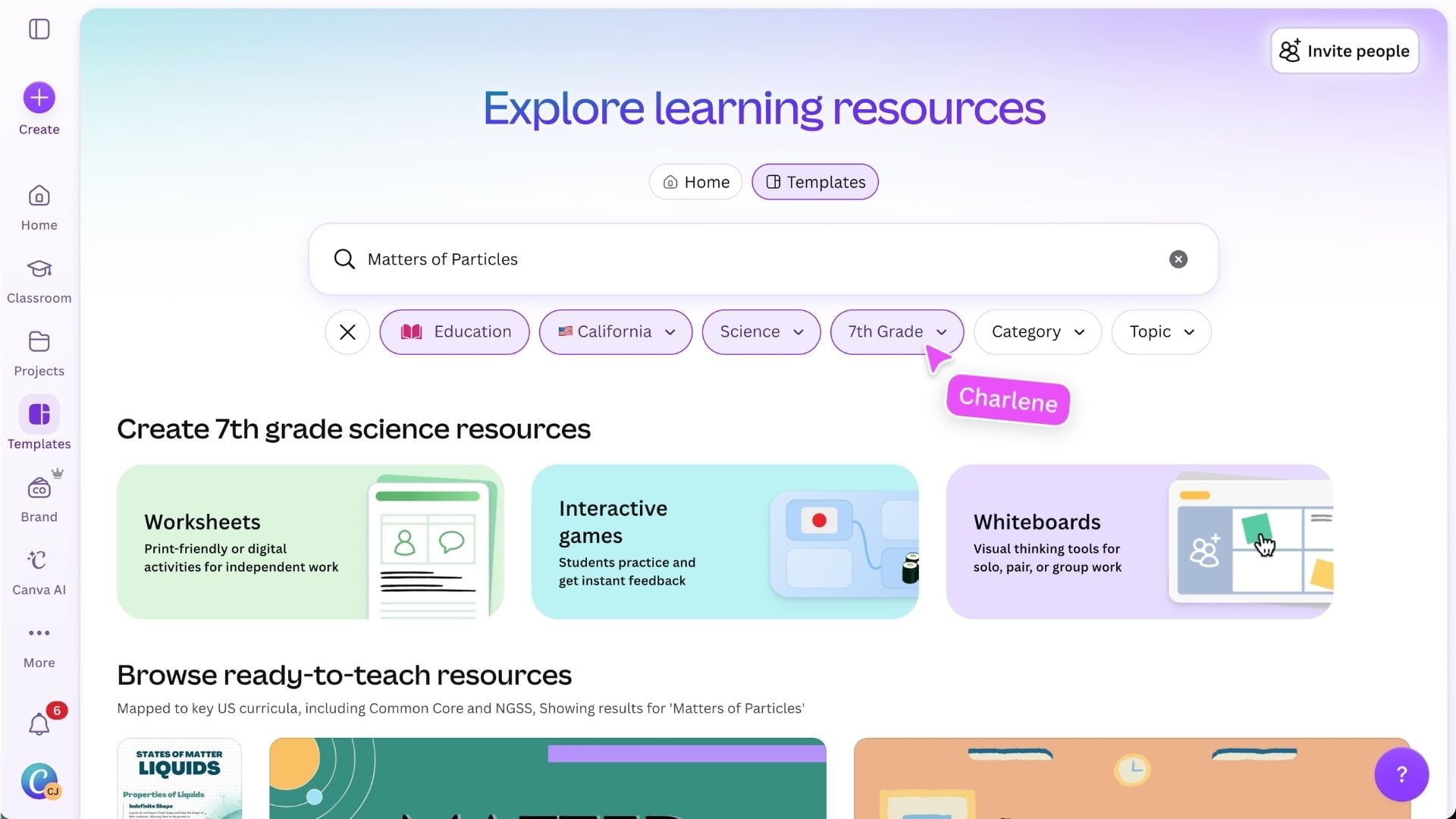
Use the search bar to look for a topic, subject or type of learning activity. Selecting Education unlocks filters that can help you narrow the results by: You can also browse by subject to explore resources designed for different curriculum areas. Select a resource to preview it and check whether it suits your lesson before opening your own editable copy.
Choose the right resource for your lesson
Before opening or generating a resource, consider how students will use it. Think about: Starting with the right format can make the resource easier to adapt and more useful in your lesson.
Adapt a resource for your students
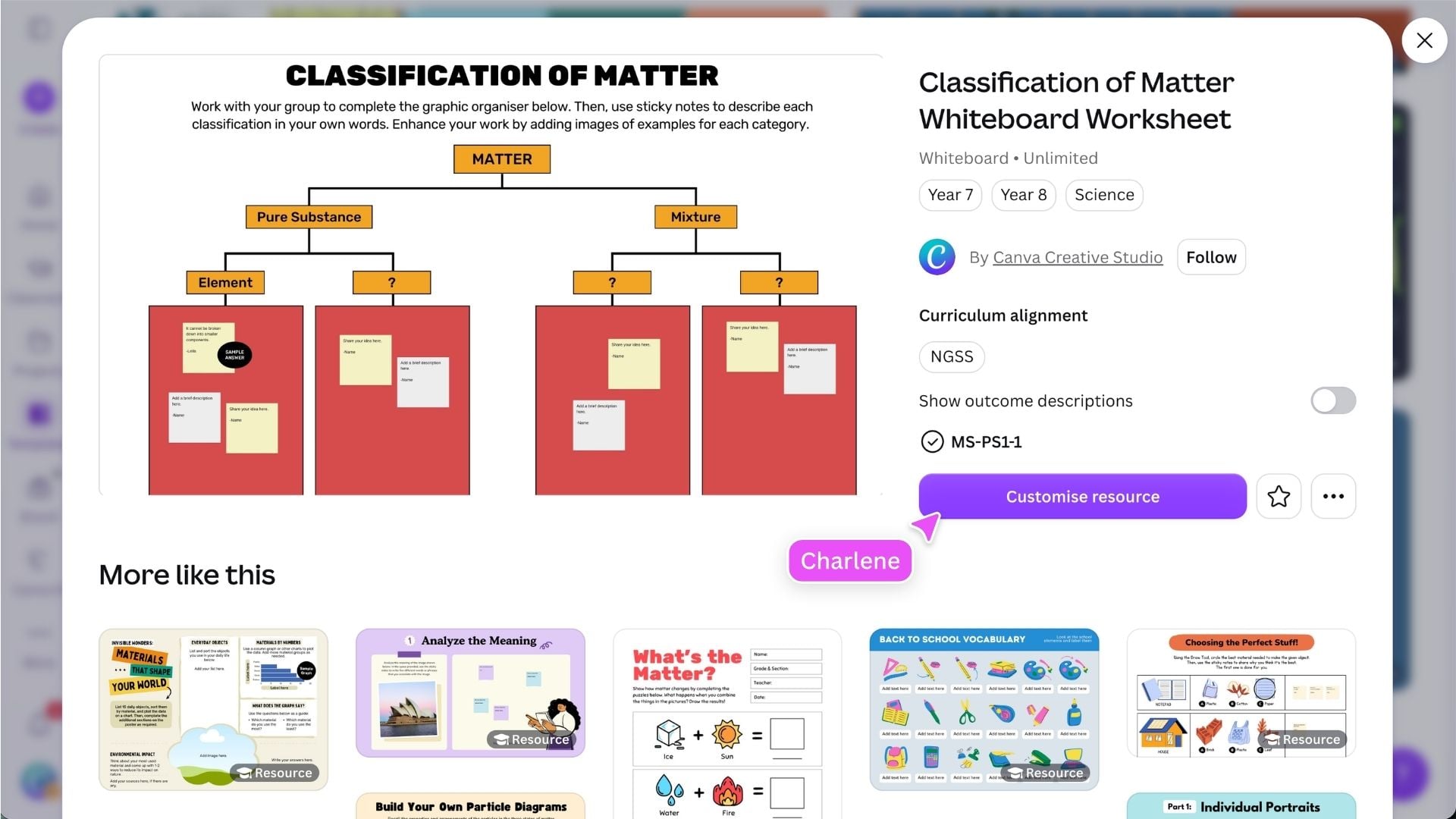
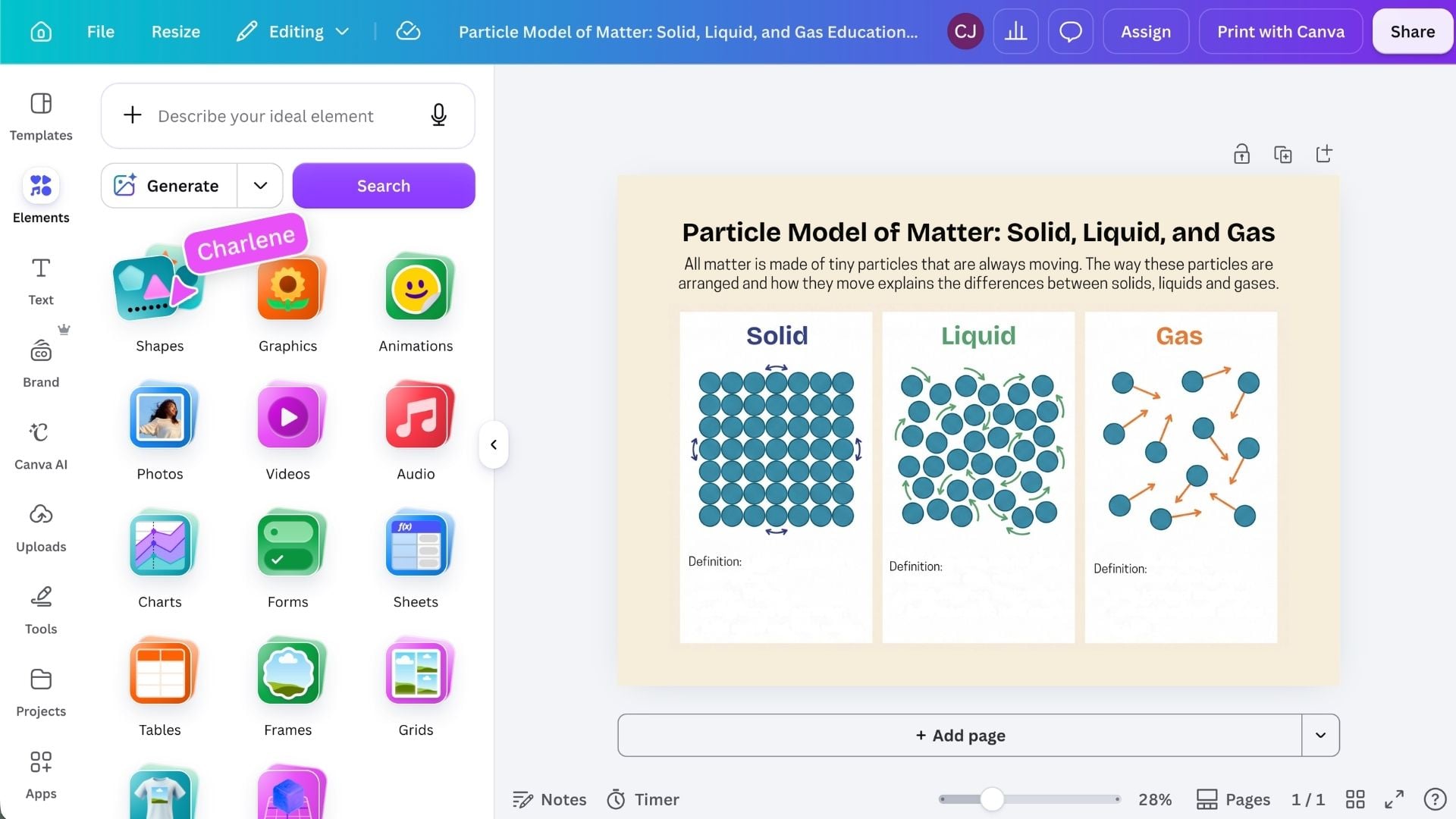
Open the resource in Canva to adjust it for your class. You can: You can customize ready-made resources, AI-generated activities, and materials you have already created or uploaded.
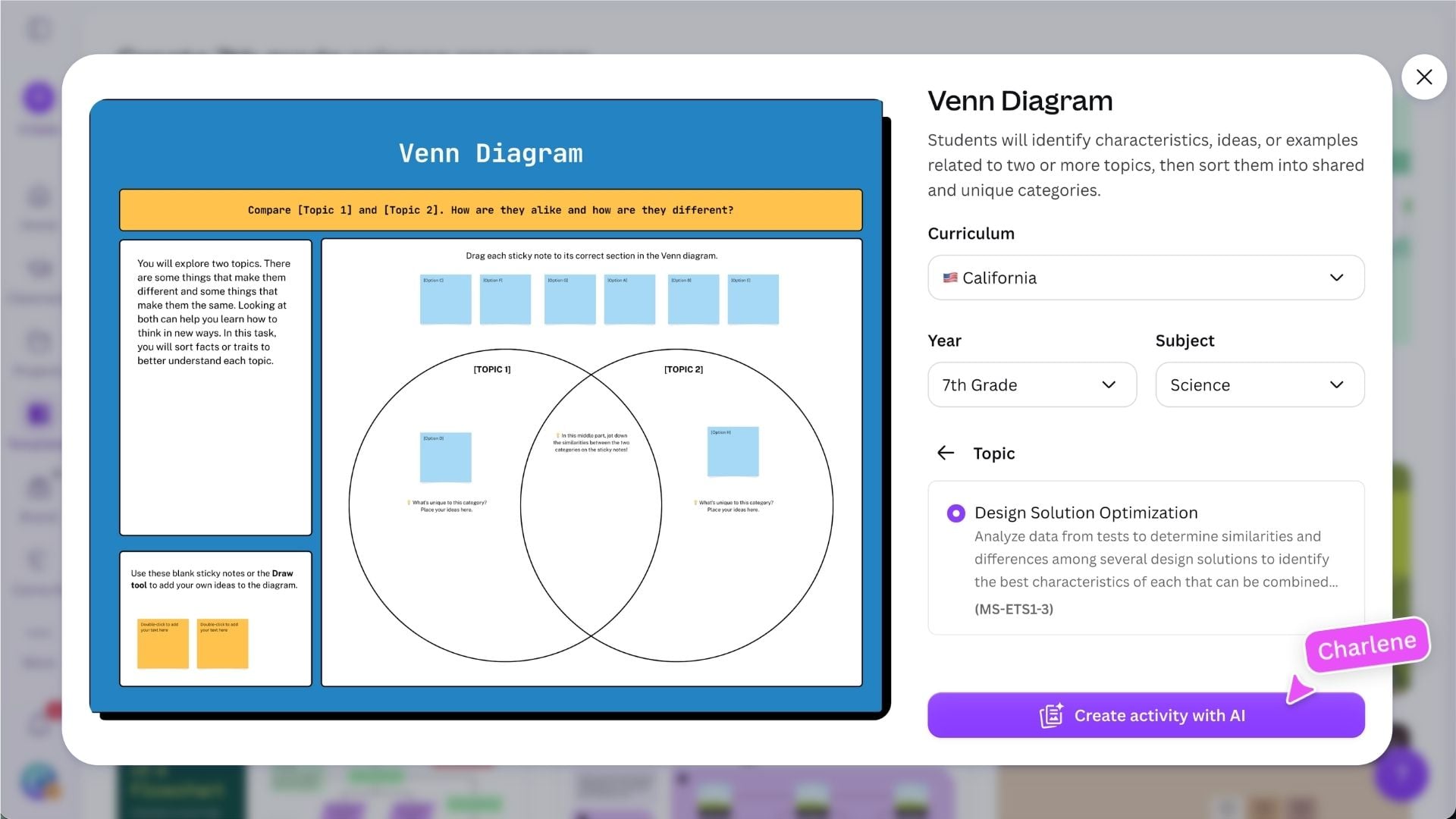
Generate an activity with AI
Choose an activity type to explore options you can generate with Canva AI. For example, selecting Whiteboard shows both ready-made resources and different whiteboard activity formats you can create. When the activity panel opens, add the available details, such as: Use the Make it relevant field to add specific instructions, examples, or classroom context. Add as much classroom context as possible to help generate a more relevant result.
Remember: Always review the generated activity before using it, and adjust the instructions, content and level of challenge for your students.
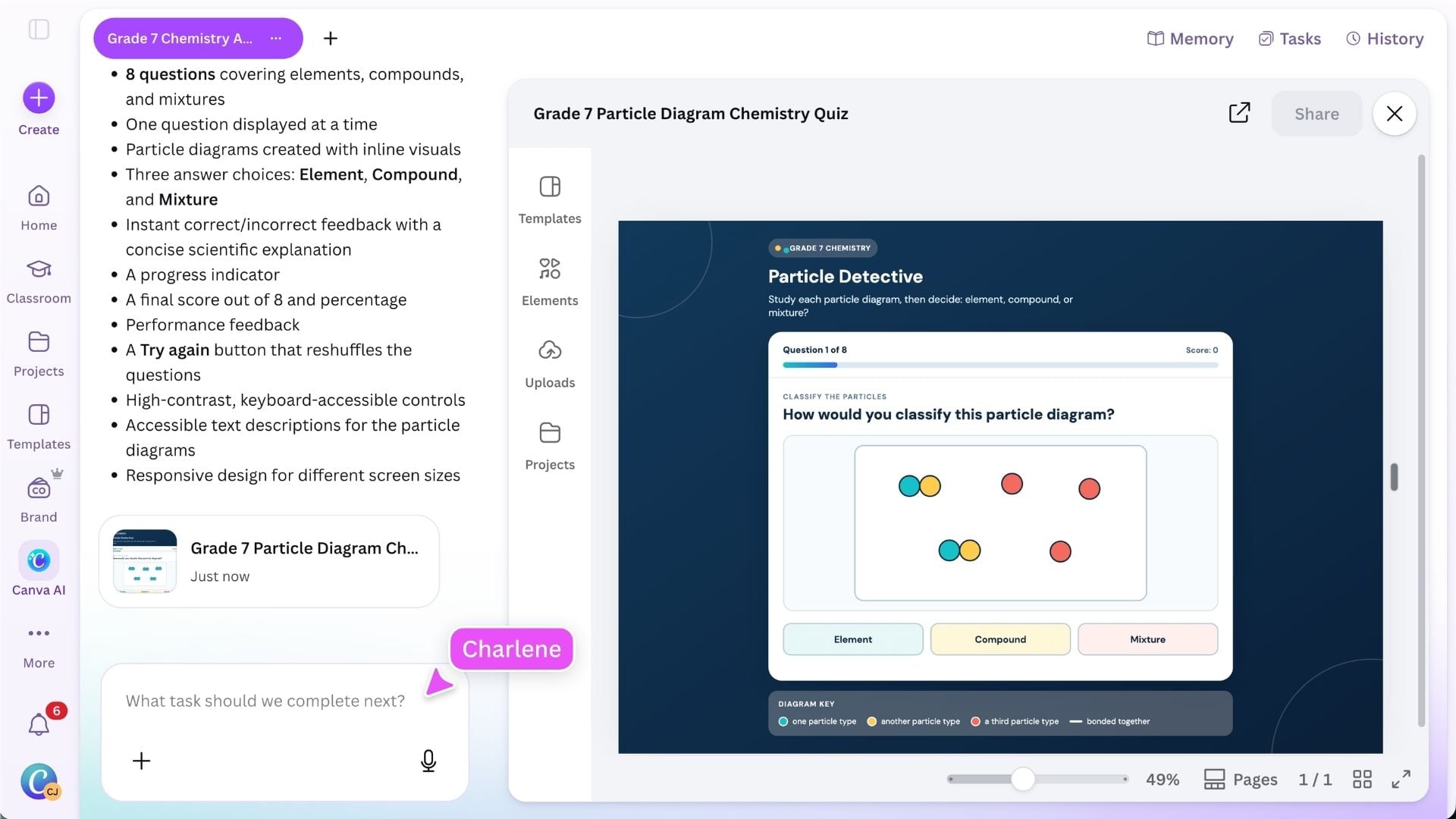
Create a custom interactive with Canva Code
Canva Code can help you create a custom learning experience from a written prompt. You can start from a suggested idea or describe your own activity in detail. Include information such as: For example: Create a Grade 7 Chemistry activity where students identify particle diagrams as an element, compound or mixture. Show one question at a time, give instant feedback and finish with a score.
Test the interactive before sharing it with students to make sure the instructions, responses and feedback work as intended.
Canva Code interactives can be added to another design or published as a standalone experience. They’re not managed in the same way as standard assigned activities.
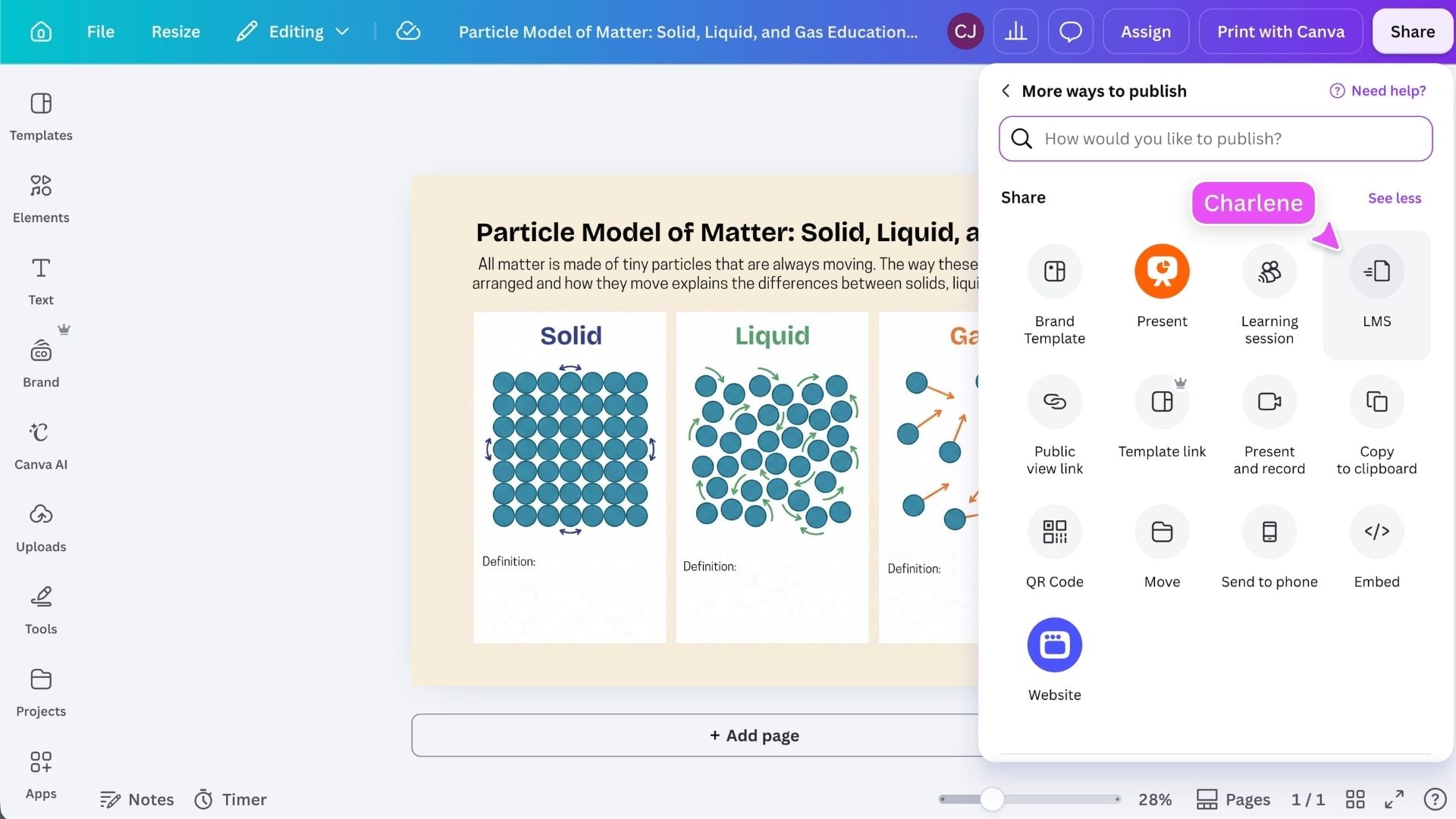
Choose how to use the finished resource
Once your resource is ready, choose how it will support your lesson. Depending on the resource type, you may be able to: The available options may vary depending on the resource type and how Canva Education is set up at your school.
Ready to create for your class? You now know how to find a ready-to-teach resource, choose the right format, adapt it for your students, and create a new activity with AI or Canva Code. Return to the teaching resources area whenever you need classroom-ready content, fresh ideas or a faster starting point for your next lesson.
Featured in these lessons
Share
Last updated 18 Aug, 2026