Delivering lessons and assignments
6m
Beginner
Present content, assign individual activities and run collaborative learning experiences with your class.
Delivering lessons and assignments
6m
Beginner
Present content, assign individual activities and run collaborative learning experiences with your class.
What you’ll learn
- Presenting and facilitating lesson content
- Choosing how students will participate
- Assigning individual copies with Assign Flow
- Running collaborative Live Learning Sessions
- Helping students access and complete activities

Use Canva across each stage of a lesson, from presenting and explaining content to assigning individual work and facilitating live collaboration. Use this guide to choose the right way to deliver content, move students into an activity and support them as they complete their work.
Present and guide your lesson
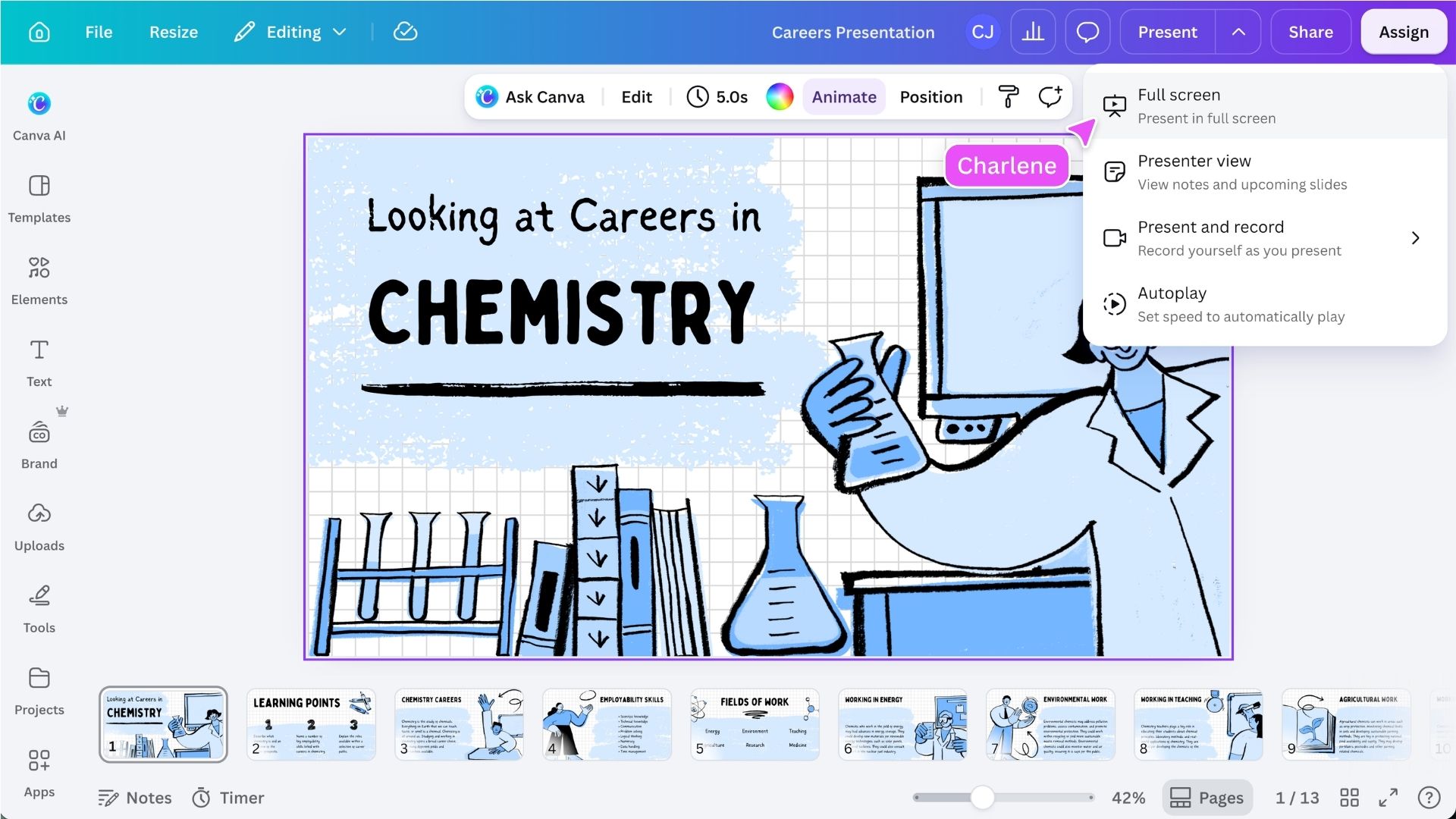
Use Canva to introduce a topic, explain a concept, model a task or guide a class discussion. A presentation is one option, but you can also display other Canva content, such as a video, document, whiteboard, graphic organizer or visual resource. Open the design, select Share, then choose Present to display it full screen so students can focus on the content.
Add presenter notes to help you remember key explanations, questions or prompts.
During the lesson, you can also use tools such as Draw to annotate the content, highlight important information or model your thinking. This can be especially useful when presenting from an interactive whiteboard.
Add energy with Magic Shortcuts
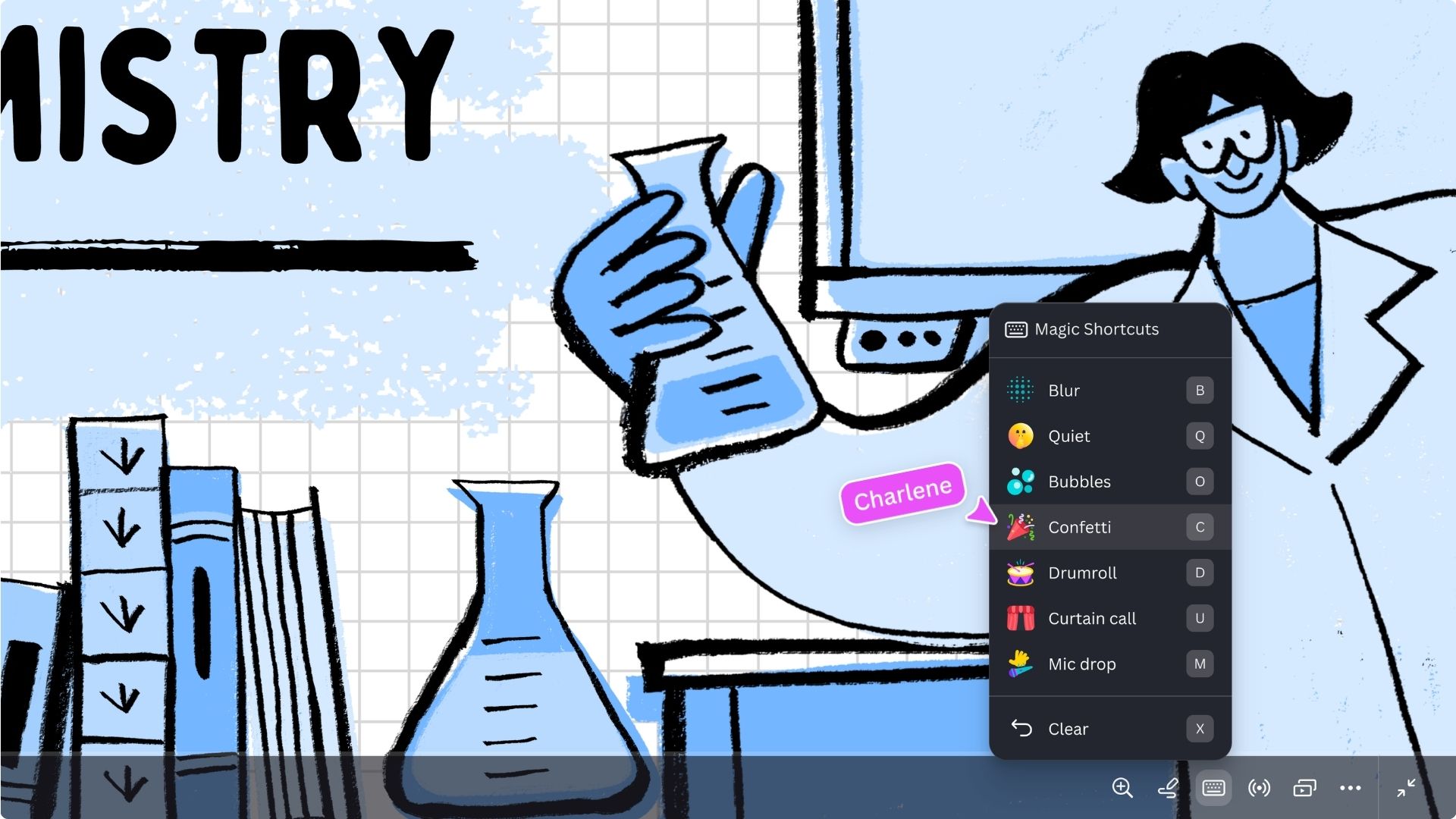
While presenting, use Magic Shortcuts to celebrate contributions, regain attention or add energy without interrupting the lesson. Open the Magic Shortcuts menu from the presentation controls to view the available effects and keyboard commands.
Try out:
Choose how students will engage
Once you have introduced the lesson, decide how students need to interact with the next resource. You might: Choose the option that best supports the learning goal, the type of response students need to produce and the level of collaboration required.
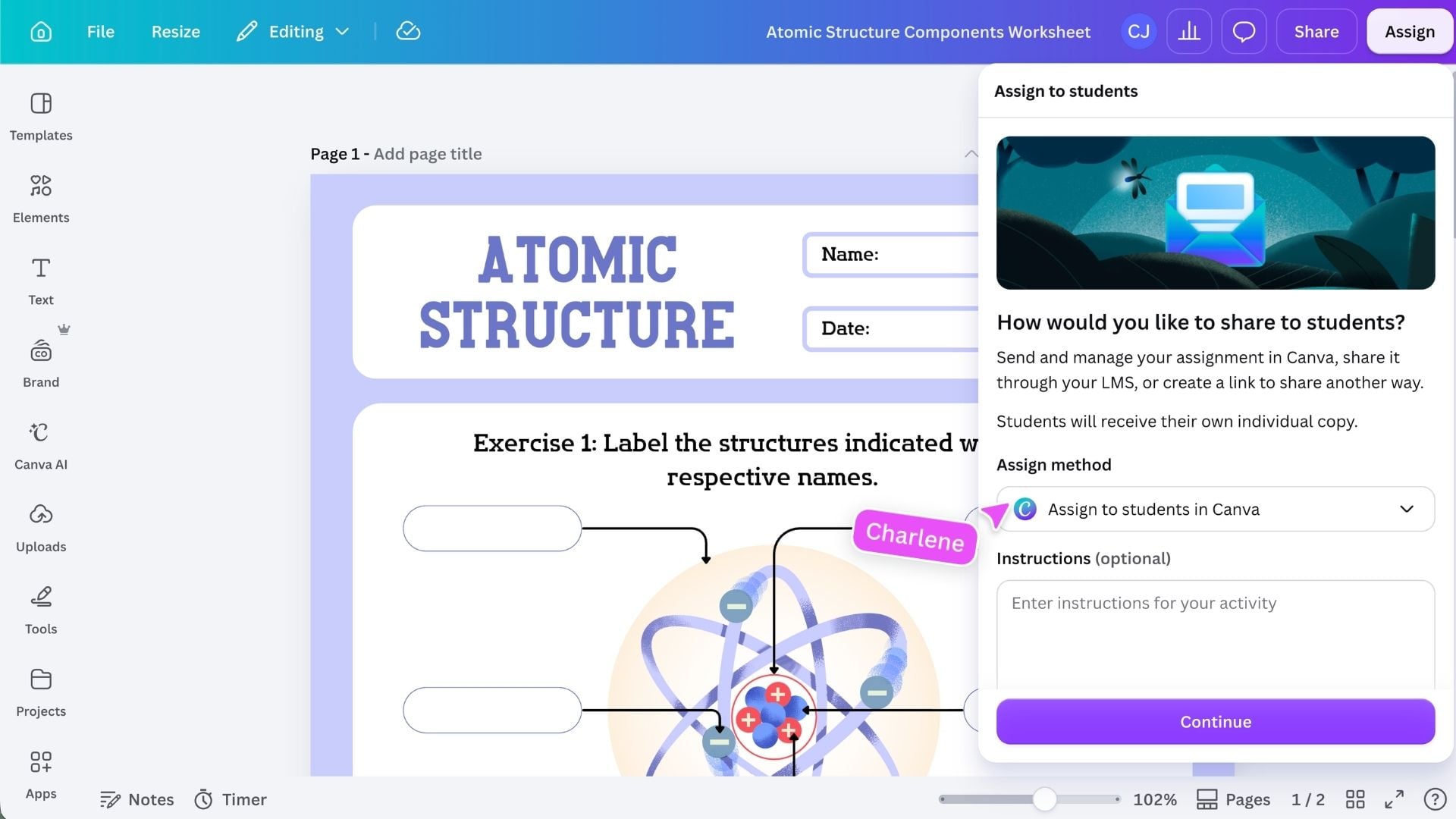
Assign individual work with Assign Flow
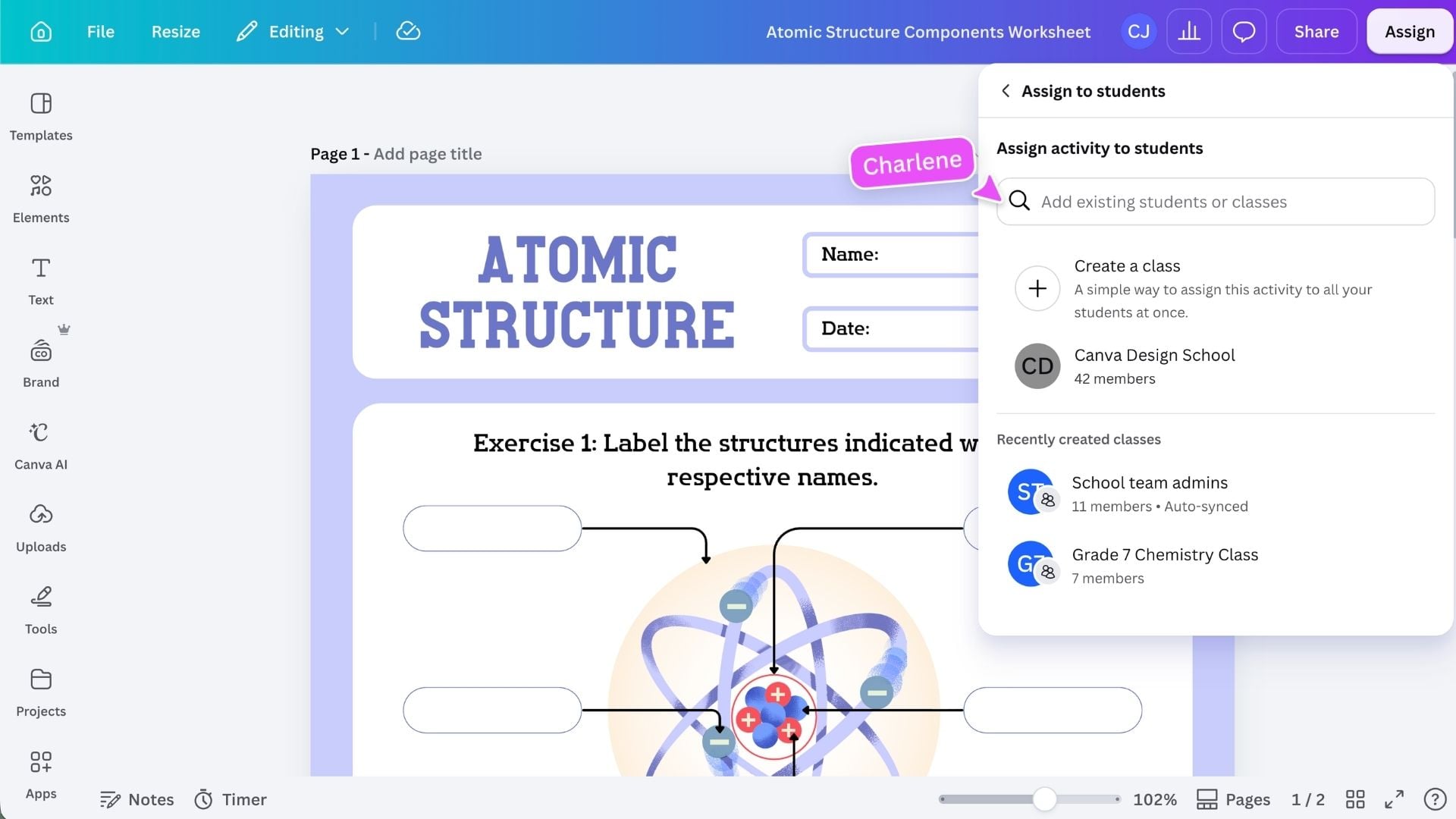
Use Assign when each student needs their own editable copy of an activity to complete independently. Open the activity, select Assign, then choose the class or students who should receive it. Add clear instructions so students understand what they need to do and how to complete the activity. Assign Flow creates an individual copy for each student. Students can edit their own work without changing the original resource or another student’s copy. Students can open the activity, complete their work and submit it when they are finished. You can then return to Classroom to monitor progress and review submitted work.
Run a Live Learning Session
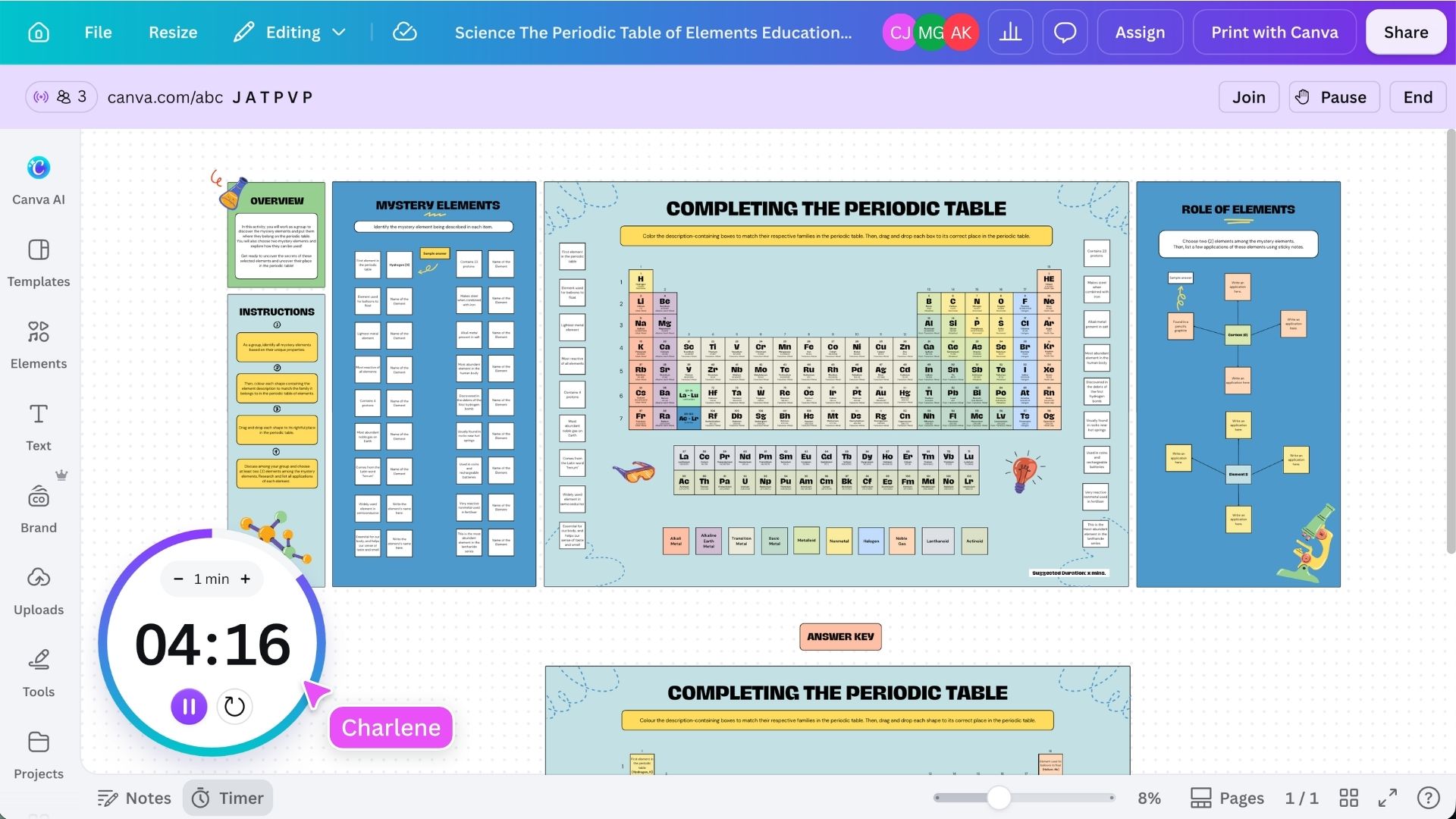
Use a Live Learning Session when you want students to join the same design and participate while you guide the activity. Start with a collaborative activity, such as a whiteboard, where students can brainstorm, respond, create or learn together. Before starting the session, prepare the activity by: Select Share, then choose Live Learning Session. Students can join using the QR code, link or unique session code. Students can enter a name and choose an avatar without creating an account, while students who are already signed in can join directly. During the session, you can monitor participation, guide the pace and see students collaborate in real time.
Keep the joining details visible for students who arrive late or need to reconnect.
Ready to deliver your lesson? Choose the approach that best matches each stage of learning: You can move between these approaches during the same lesson, helping students shift naturally from teacher-led instruction to active participation.
Featured in these lessons
Share
Last updated 18 Aug, 2026