Using Search
5m
Beginner
Learn how to use search in Canva to quickly find templates, elements, videos, apps, and fonts for your designs.
Using Search
5m
Beginner
Learn how to use search in Canva to quickly find templates, elements, videos, apps, and fonts for your designs.
What you’ll learn
- How to find a template for your next project
- How to search Canva’s element library
- How to find matching design collections
- How to search for videos, apps, and fonts

Canva is full of templates, elements, videos, apps, and fonts to explore. Search helps you find what you need faster, whether you are starting a new design or adding the finishing touches. In this guide, you’ll learn how to search for templates, elements, collections, videos, apps, and fonts.
Search templates
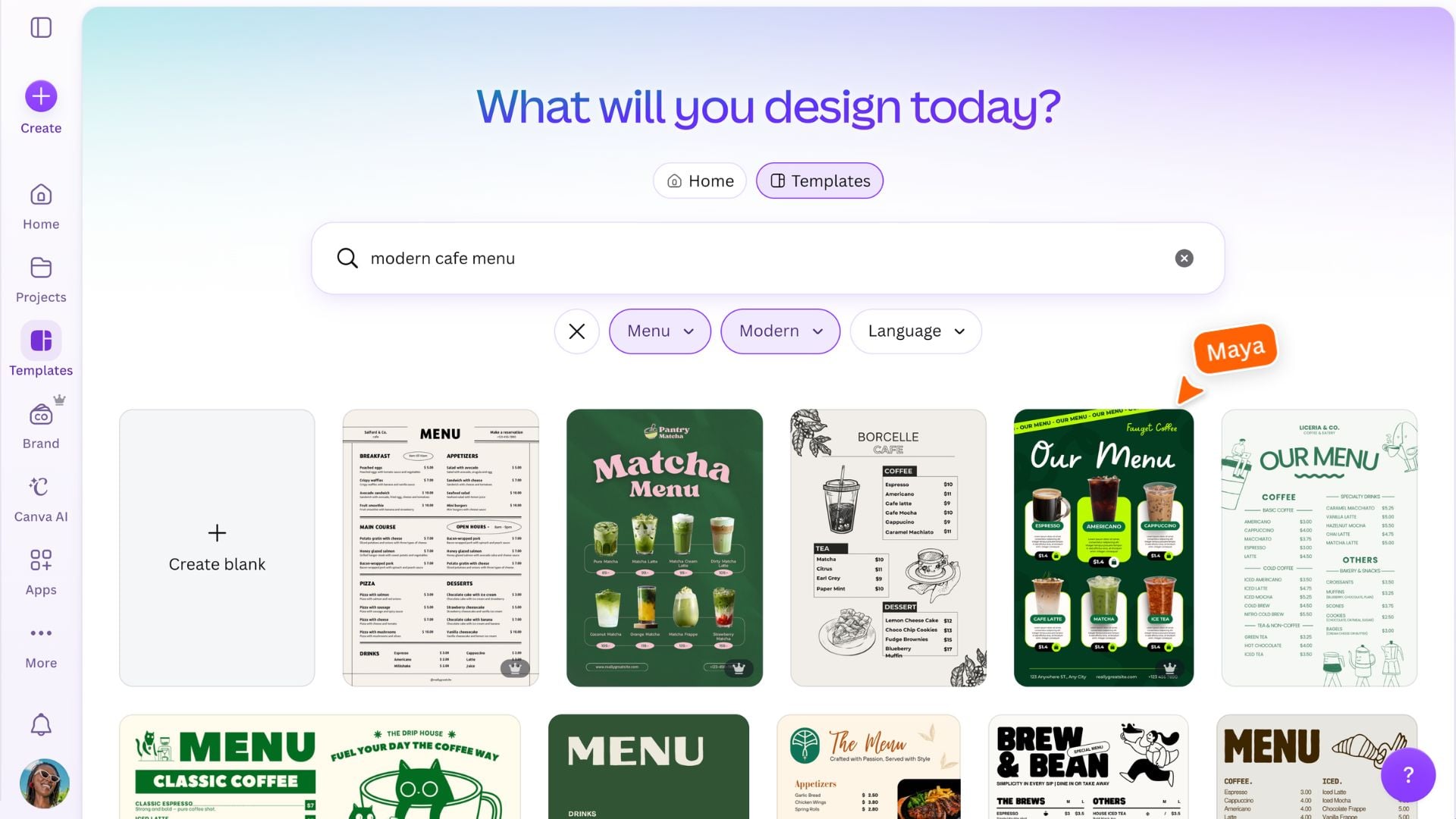
Starting with a template can help you turn an idea into a design more quickly. From the Canva homepage, use the search bar to describe what you want to create. Try including the format, topic, or style you are looking for. For example, instead of searching for “menu,” try “modern café menu” or “birthday party menu.”
Search for elements
Elements are the design ingredients you can add to your work, including graphics, photos, stickers, shapes, frames, videos, and more.
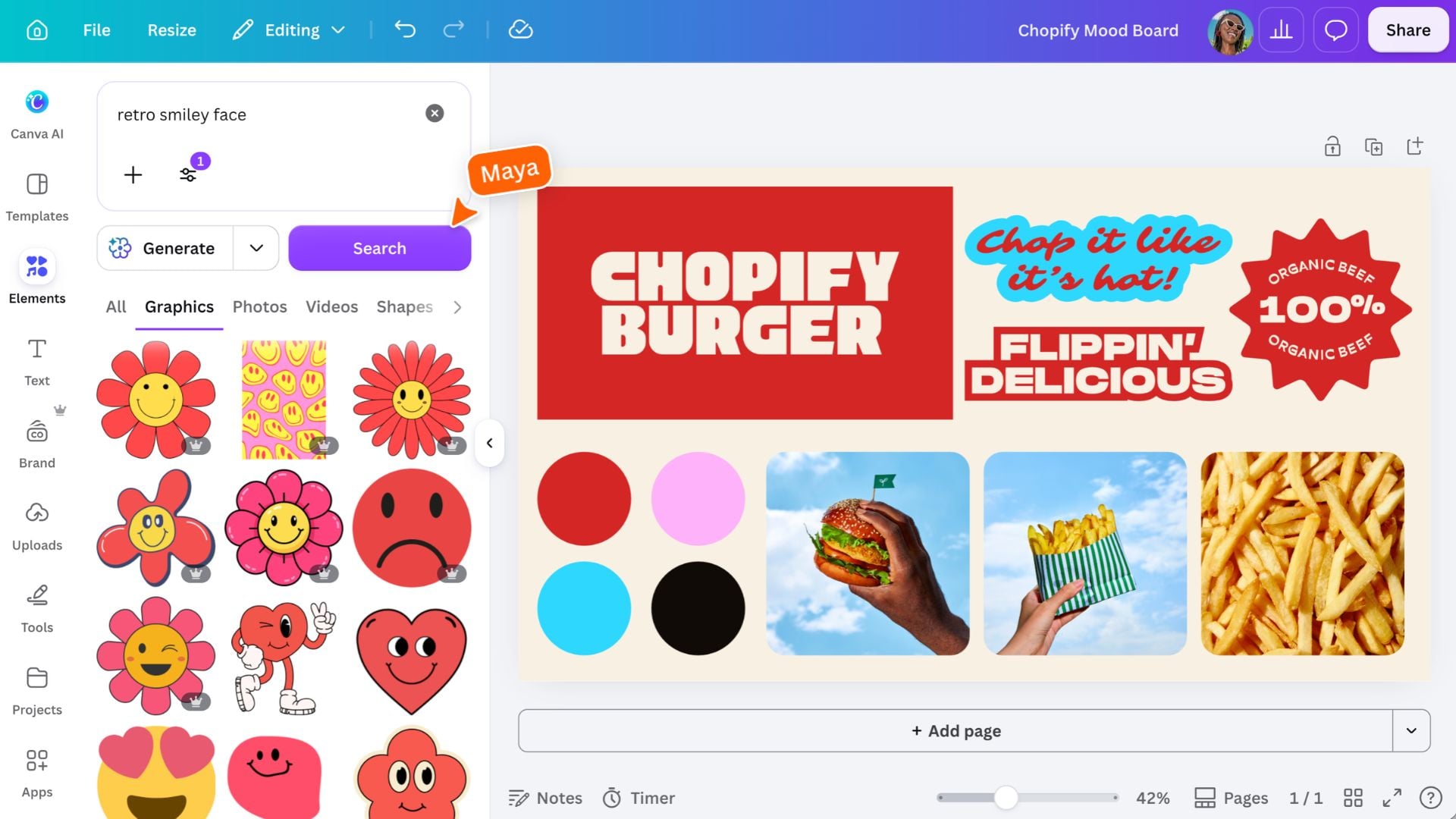
Try using descriptive keywords to get closer to the look you want. For example, search for “hand drawn flowers,” “blue abstract shapes,” or “retro smiley face.”
Find similar elements
Found an element you like? You can quickly find similar elements, or explore a collection of matching graphics, photos, and other design elements. This is a simple way to make your design feel more consistent.
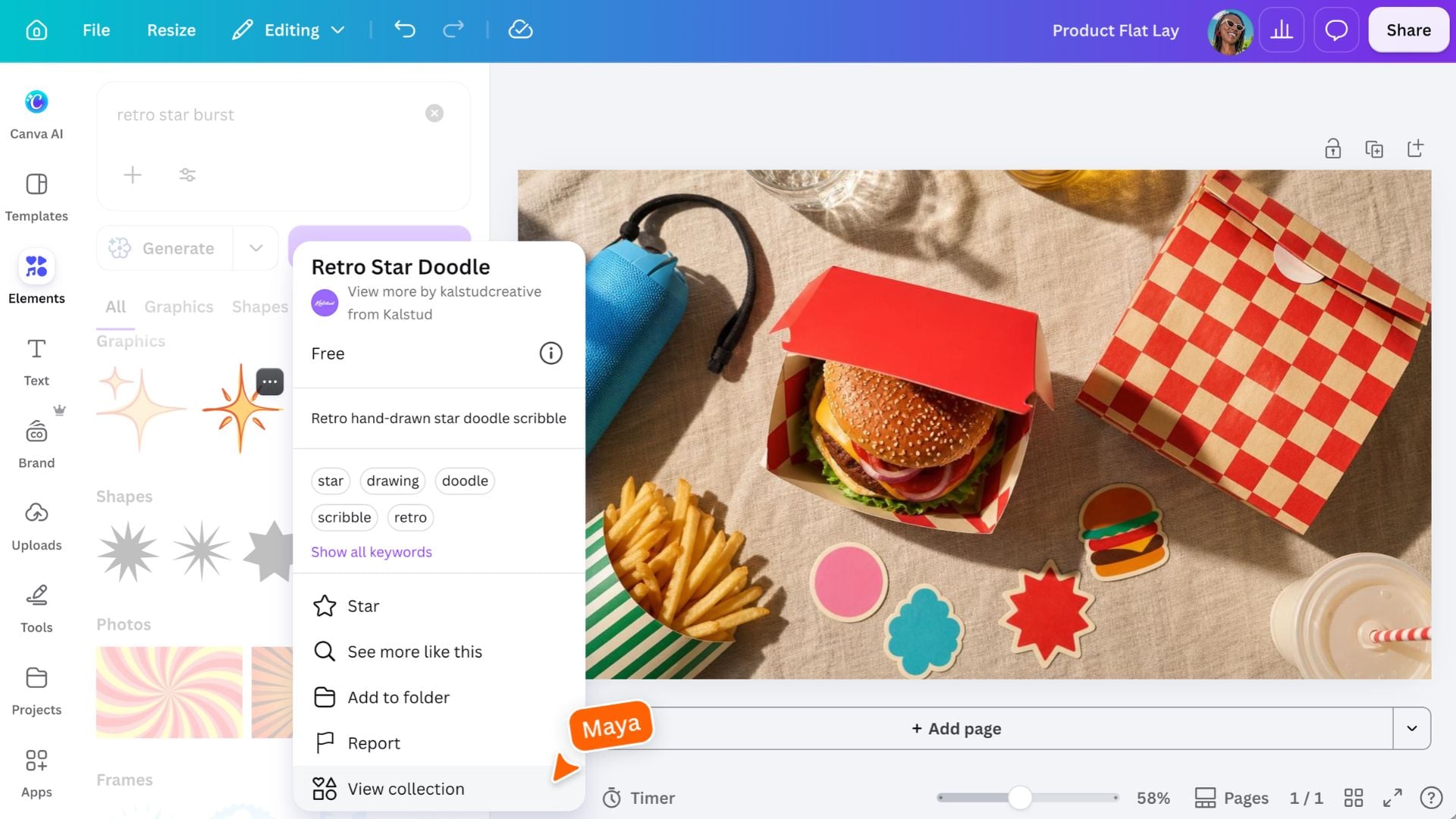
Can’t find an element in a similar style? Use Style Match to copy a style you love and apply it to other elements in your design.
Search for videos
You can also search Canva’s video library to find clips for presentations, social posts, and more. Try combining a subject with a mood or style, such as “calm ocean,” “busy city,” or “celebration confetti.”
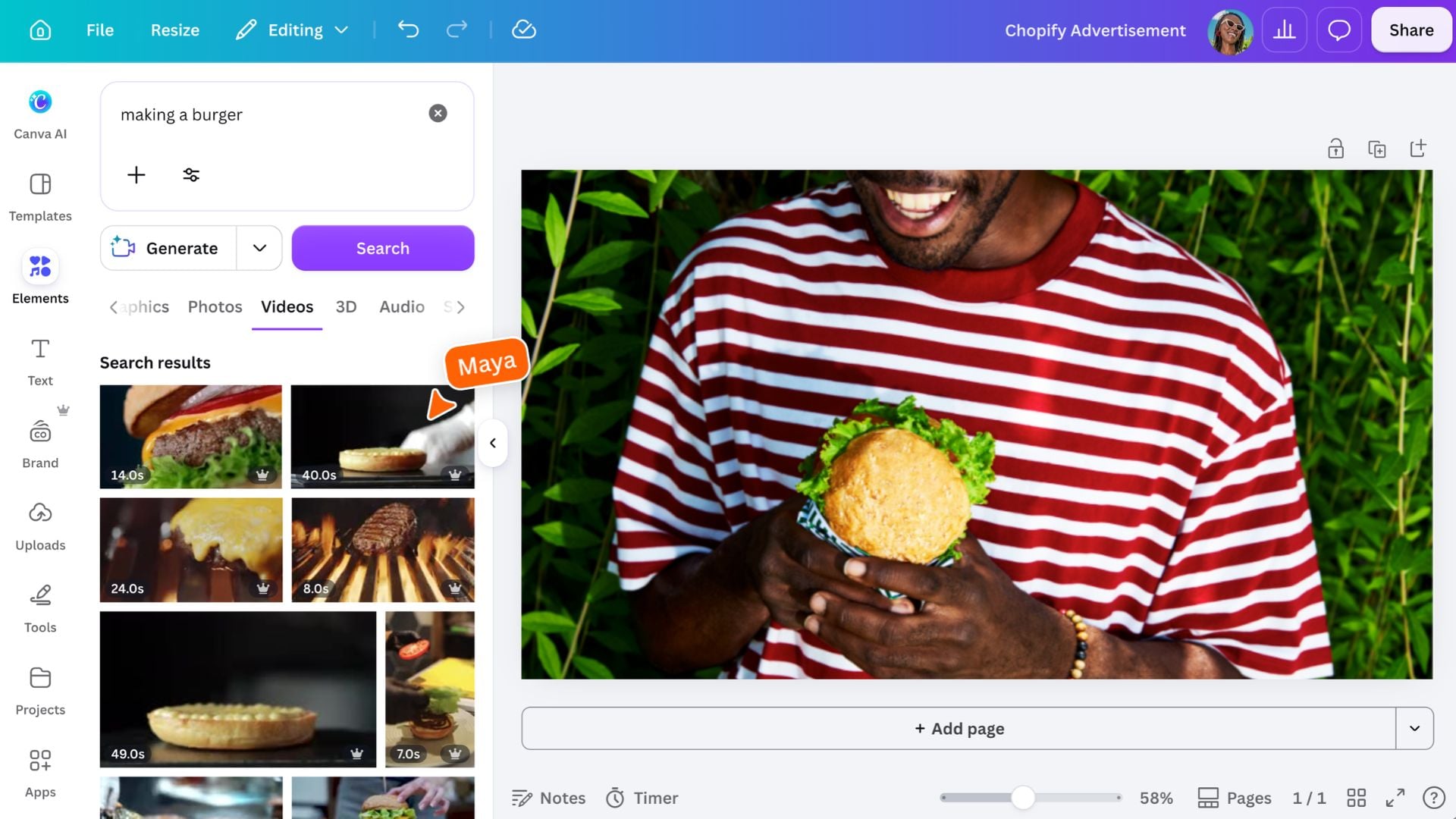
With Canva Pro, use Background Remover on videos to remove the background and give your design a more polished look.
Search for apps
Apps can help you add extra tools and content to your Canva workflow. For example, you could search for “QR code” to create a QR code for your design.

Search for fonts
Search can also help you find the right font and text tools for your design.
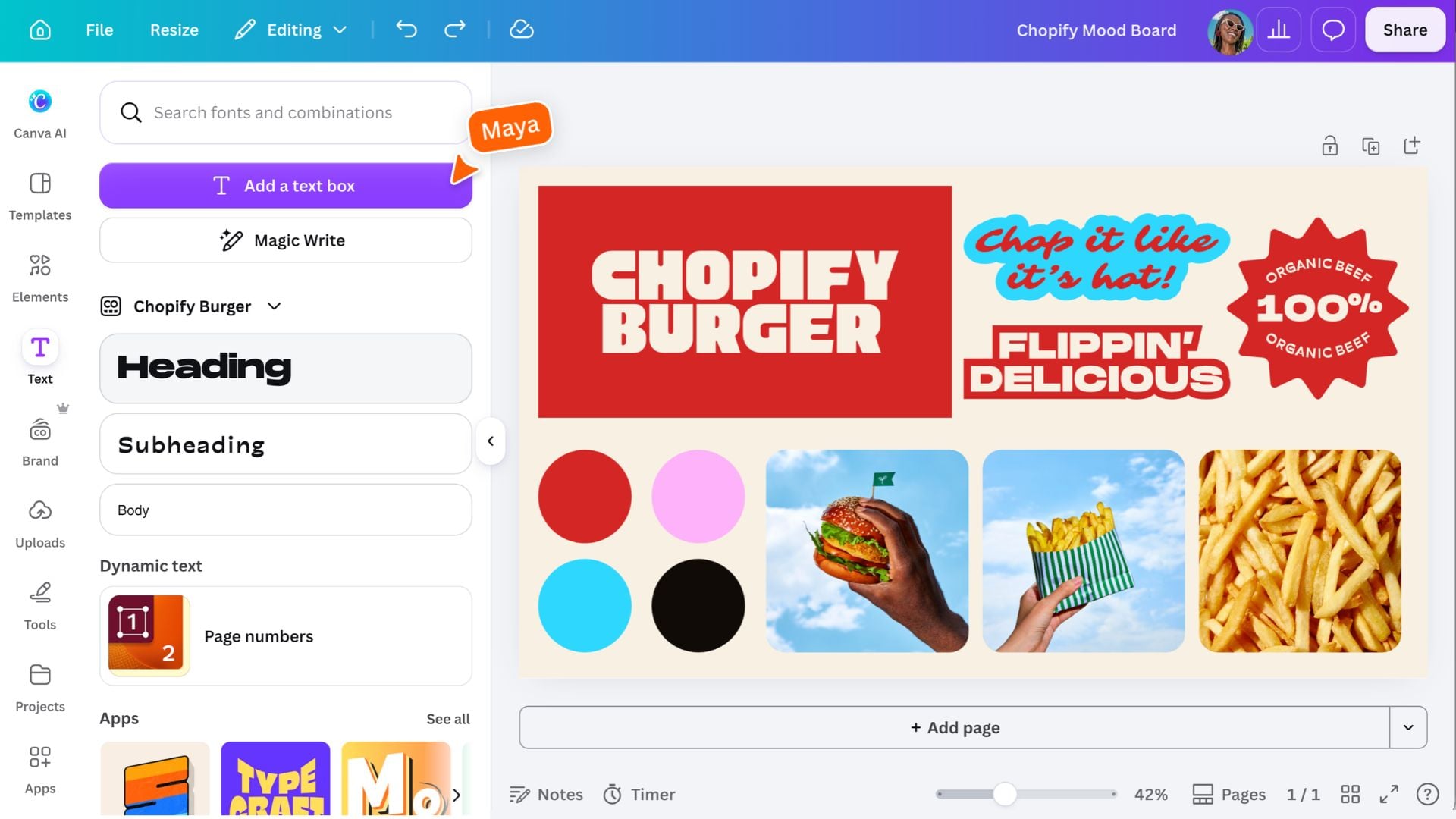
To change a font’s color, size, formatting, or alignment, select the text in your design and use the toolbar above the editor.
Keep Exploring
The more specific your search, the easier it is to find something that fits your idea. Start with a few keywords, explore the results, and see what you discover.
Key skills
Featured in these lessons
Share
Last updated 17 Sep, 2026