- Distort Image
Distort images in just a few clicks
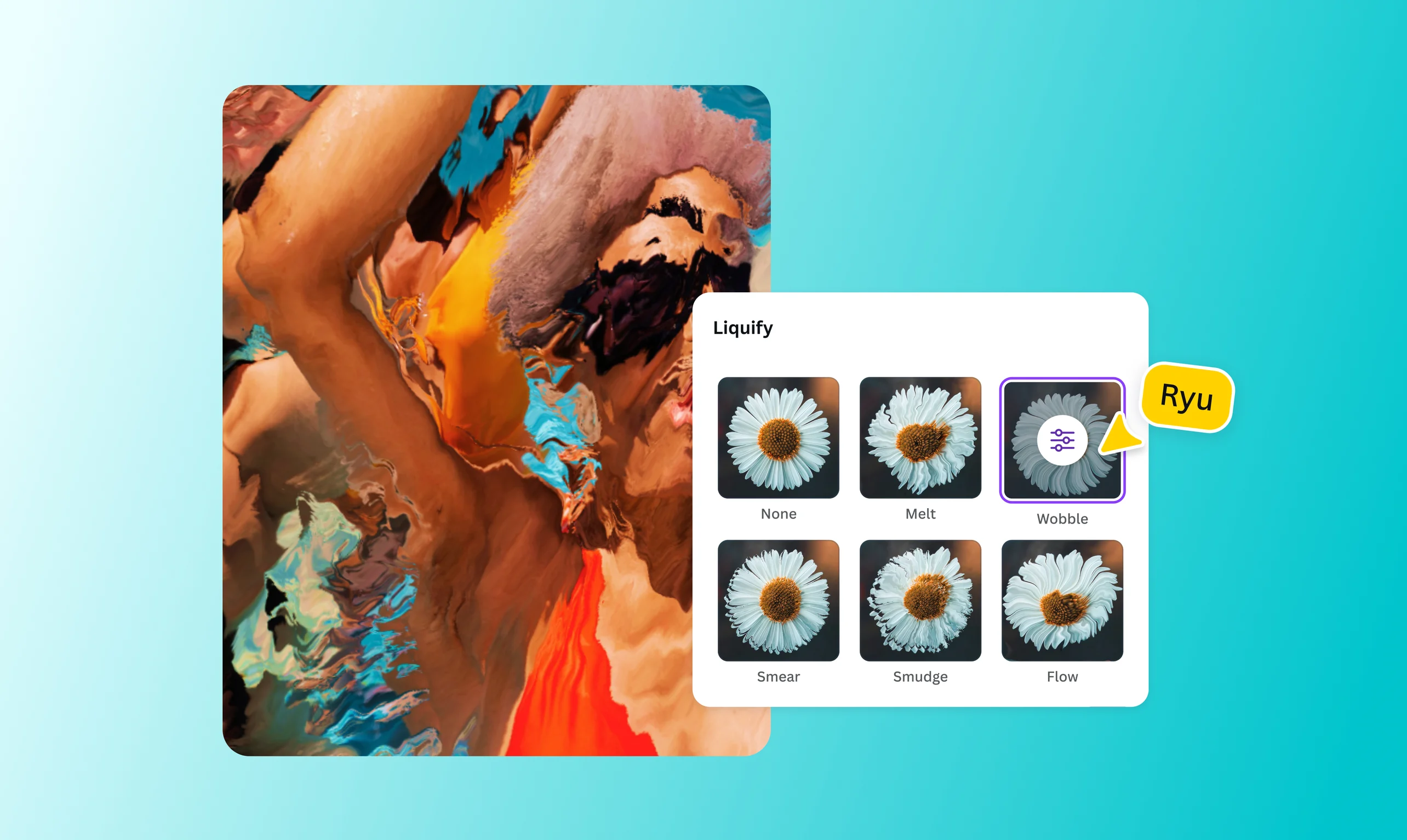
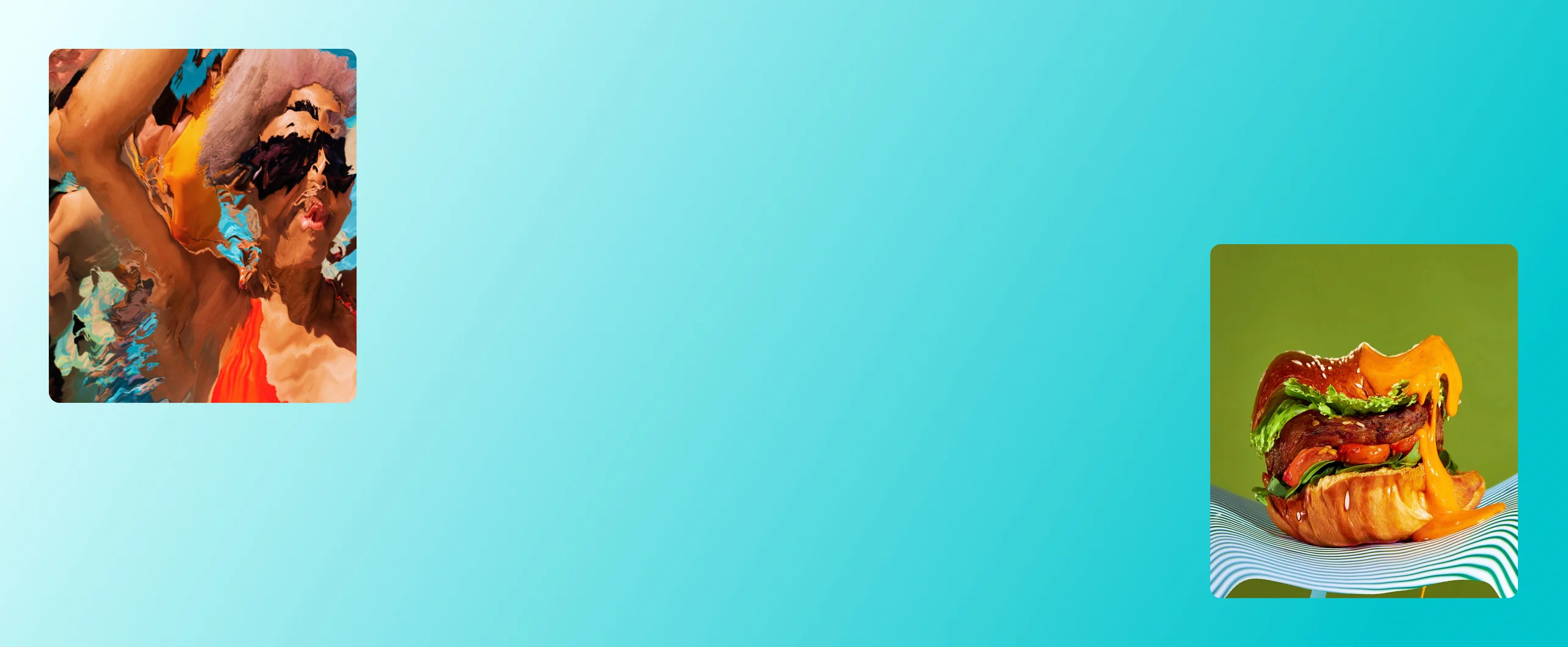
Use the Liquify app on Canva to effortlessly warp, reshape, and liquify your designs. Give your photos a wobbly or drippy effect for a distinct, eye-catching look.
or drop it here
Learn about Canva's upload formats and requirements. See how we use your content in our Privacy Policy.
How to distort your image
Upload your file
Select the “Upload your file” button or easily drag and drop your files into the section.
Edit your design
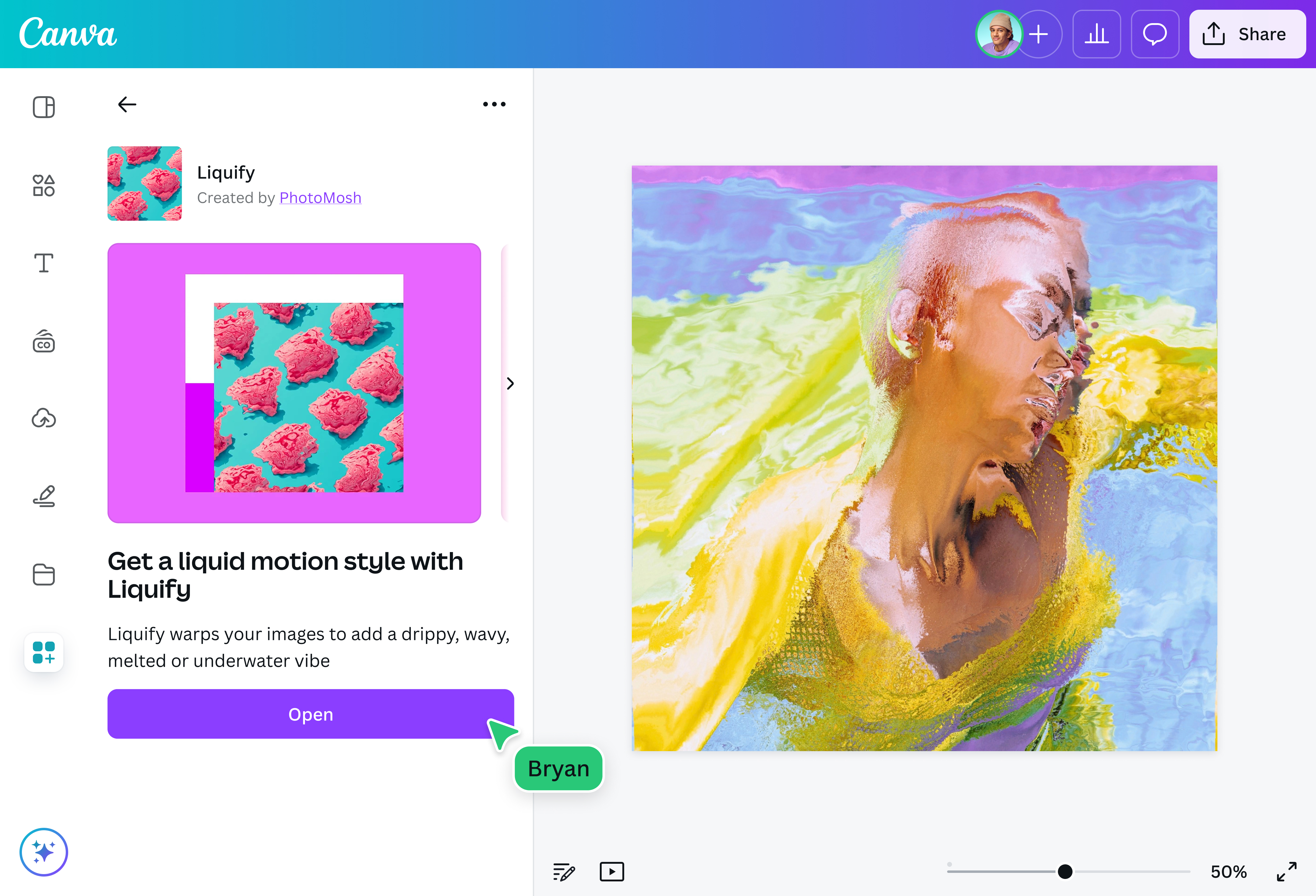
Use the Liquify app on Canva to transform your image.
Download your design
Once you’re happy with your design, download it as a high-quality file.
Reshape your designs in seconds

Want an easy way to create a unique visual? Use the Liquify app on Canva to distort your image and give it a warped or melted aesthetic. In just a few clicks, you’ll get professional-quality results without the need for additional downloads or expensive software. It’s the perfect way to add an artistic flair to social media posts, school assignments, and marketing visuals.
Leverage AI to enhance your photo

Refine the details of your image with the help of our AI-powered photo-editing tools. Clean up photo clutter with our Magic Eraser(opens in a new tab or window) (Pro), remove unwanted backgrounds with the Background Remover(opens in a new tab or window) (Pro), replace objects(opens in a new tab or window) with AI, and easily transform elements in your photo with Magic Edit(opens in a new tab or window) (Pro). The best part? These tools take mere seconds to give the results you want.
Get creative with more apps on Canva

Do more than just distort your image online. Explore other apps on Canva to create engaging visuals in different styles. Want to turn your portrait into a whimsical cartoon? Check out the Cartoonify(opens in a new tab or window) app. You can also convert images into sharp vectors with Tracer(opens in a new tab or window), or infuse vibrant colors into old images with Colorize(opens in a new tab or window). Our vast selection of apps and tools ensures that there’s something for your every need.
Easily collaborate and share your design

You don’t have to create distorted images all by yourself. Invite your team to collaborate via link or email, and see any enhancements they make in real time. Once everyone is satisfied with the results, you can download your image as a high-quality file or share it directly to your brand’s social media pages.
How to distort an image
Frequently asked questions
- You can distort an image using the image distortion tool on our platform. Simply upload your photo, access the tool, then choose from a variety of effects, namely melt, wobble, smear, smudge, and flow.
- Distorting images can serve multiple purposes. One popular reason is to creatively express a feeling or mood through digital art. Others distort images to create stylized visuals as part of a social media campaign or project. Lastly, distorting images can be beneficial for events that require unique and eye-catching marketing materials for their banners, photo backgrounds, and displays.
- Yes, you can. You can choose None to remove the distorted effect on your image. Alternatively, you can re-upload the original photo and add it to your design once more.

@navneet4