- Here’s how to quickly and easily edit video in Canva
Here’s how to quickly and easily edit video in Canva
How to use the Canva video editor
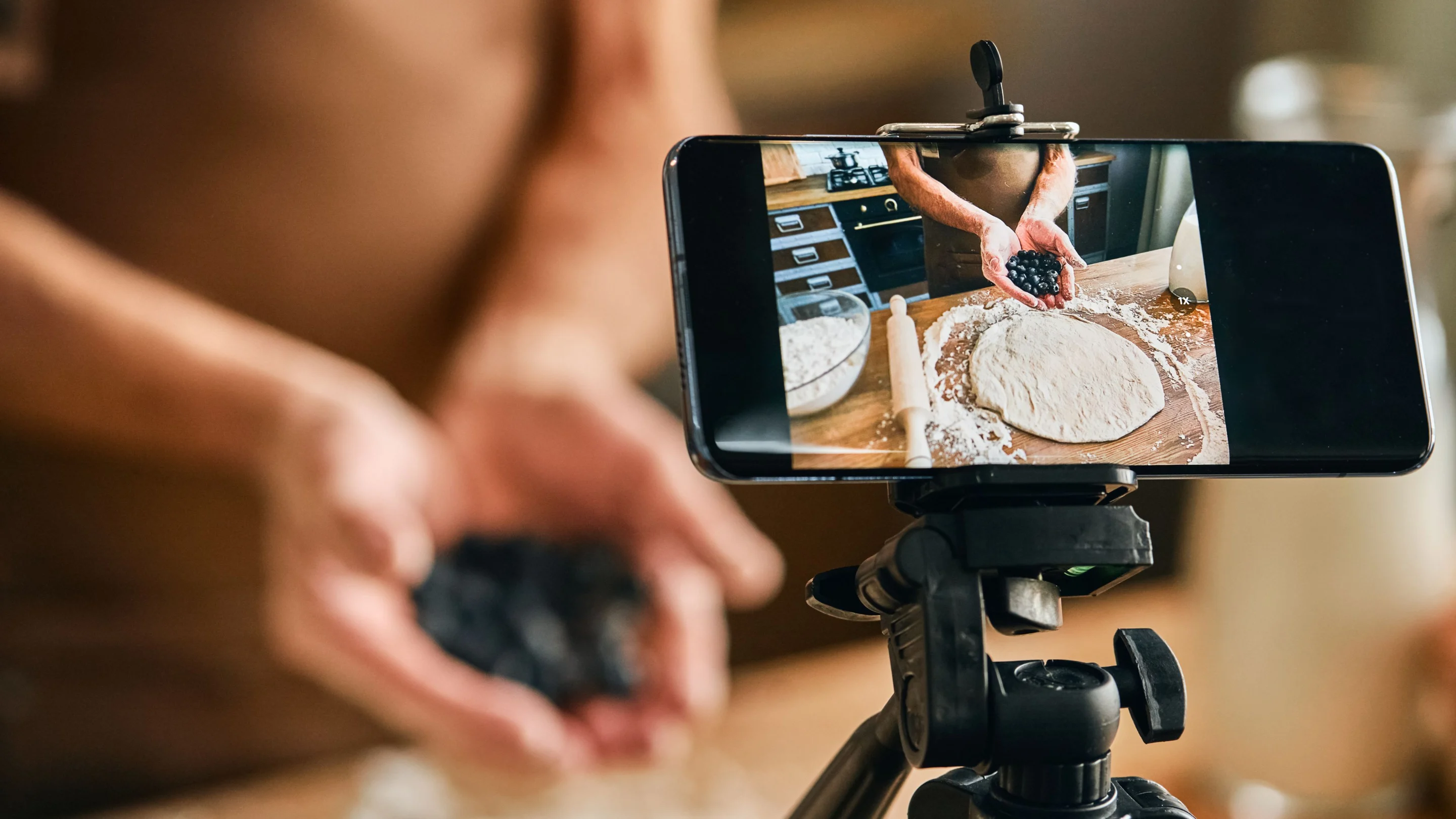
Looking for the a simple, easy and free video editor? Well done! You found it! Yes, that’s right you can quickly and easily create and edit videos with Canva. You can even cut them on-the-go with Canva’s video editing app(opens in a new tab or window) for mobile.
In this article, you’ll learn some of the most important video editing basics, including how to trim, crop and add music to keep your audience engaged and entertained.
Why video editing is so important
It’s no secret video has become the dominant medium for digital marketing and content marketing. Most notably, Instagram, formerly a powerful marketing tool for businesses of all sizes, shifted its focus to video by prioritizing their reels (video content).
So how do you go from creating still to creating video? Well, the secret to a great video is good editing and Canva can help. Whether you need to create a video from scratch or you have videos you need to cut and edit, Canva can help.
Getting started with video editing in Canva
Start by typing ‘video’ into the Canva search bar and select the blank option. There are heaps of templates to choose from but we’ll start from scratch and you can explore templates on your own.
We’ll assume you have existing footage to get started. The first thing you’ll want to do is upload your videos. By clicking ‘upload’ in the editor and then ‘media.’ As soon as they appear, you can drag them into the timeline.
If you don’t have your own footage, you can create your video entirely from Canva’s free stock video(opens in a new tab or window)library. All of Canva’s videos are royalty free for individuals and businesses, so you don’t need to worry about licensing. Just go to elements, type in your subject and select the videos that suit. Check out our video guide about how to create videos in Canva(opens in a new tab or window).
How to trim, split and reorder videos
Trimming a video is the quickest and simplest way to elevate your videos. Usually there’s room to cut down the start and end of your unedited videos, which will help make your final video cleaner and more polished.
To trim down a clip, simply slide the edges inwards in the editor. Try watching the video and stopping the playhead right where you want to make the cut. That way you know exactly where to stop dragging. You could also use the timestamp.
If you want to cut out a section in the middle of a video, move the playhead to where you want to make your first cut, hit the three dots, then ‘split clip’. Right-clicking on the video is another way you can bring up these options. If you’re splitting a clip into multiple parts, it can be helpful to add comments for yourself so you can tell what’s happening in each clip so you don’t need to rewatch them over and again.
To rearrange the videos, click and drag them to where you want them. And just like that you have control over your video cuts and edits. Up next, we’ll take a look at cropping, rotating, and resizing videos(opens in a new tab or window).
Cropping and rotating your video
Cropping your videos is a great way to focus your audience’s attention and remove any unwanted distractions or background. When you drag a clip into the editor you can do it two ways. If you drag it to the edge of the screen it will attach to the backgroundand you won’t be able to crop the video. If a clip is attached to the background and you don’t want it to be, simply detach it by right-clicking and selecting this option, here.
The other way is to drag your clip to the center of the screen so it will be in its own bounding box. That way, you can make it bigger or smaller by using the handles in the corners. And you can use crop to change what you can see within the box. You can crop it on both sides and move it too. Now you have space to add some text or another video here. You can just as easily rotate elements and videos by selecting them and clicking the rotation icon to the right of the selection area.
To flip a video, click it and in the top menu click flip and choose horizontal or vertical. If you don’t like the change you’ve made, you can easily undo it by clicking on this icon or using the control Z shortcut on your keyboard.
Finishing touches to elevate your video
Now for some finishing touches. To introduce more movement, try animating any text you've added(opens in a new tab or window). Select the text, then hit animate. By hovering your cursor over the top, you can see a preview of each different animation.
Next, let's see how you can add music because sound plays a huge role in holding your audience's attention. Without music, your video may seem to drag on or feel like something's missing. Canva has a huge audio library, so use search terms to find the right genre or mood for your video, or use filters to hone your search.
There are hundreds of great tracks to choose from. Loads of them are free but the ones with crowns are for Canva Pro subscribers. Or you can try your luck by typing in a word that aligns with your video. If you're working with different video file formats, you can easily convert them using our mov to mp4 converter(opens in a new tab or window) or mkv to mp4 converter(opens in a new tab or window) for smoother playback and editing. You can also use our audio to video converter(opens in a new tab or window) to transform your sound files into engaging visual content, or extract audio from video(opens in a new tab or window) to repurpose existing soundtracks. For spoken content in your videos, our video to text(opens in a new tab or window) tool can create accurate transcriptions, or use speech to text(opens in a new tab or window) to convert any audio recordings.
To listen to a track, click the play button. Once you've found your track, drag it over to your design or click anywhere on the title. Similar to trimming videos, you can edit the timing of your audio. Do this by dragging the edges or clicking adjust up the top.