Text and the Font Library
5m
Beginner
Learn to use Canva’s Font Library, add text, and apply effects to elevate your designs with impactful typography.
Text and the Font Library
5m
Beginner
Learn to use Canva’s Font Library, add text, and apply effects to elevate your designs with impactful typography.
What you’ll learn
- Adding text to any design
- Choosing a font
- Searching and exploring the font library

The right font can completely change the mood, tone, and impact of your design. Use this guide to add and edit text, explore Canva’s font library, format your words, apply text effects, and create a clear visual hierarchy.
Add text to your design
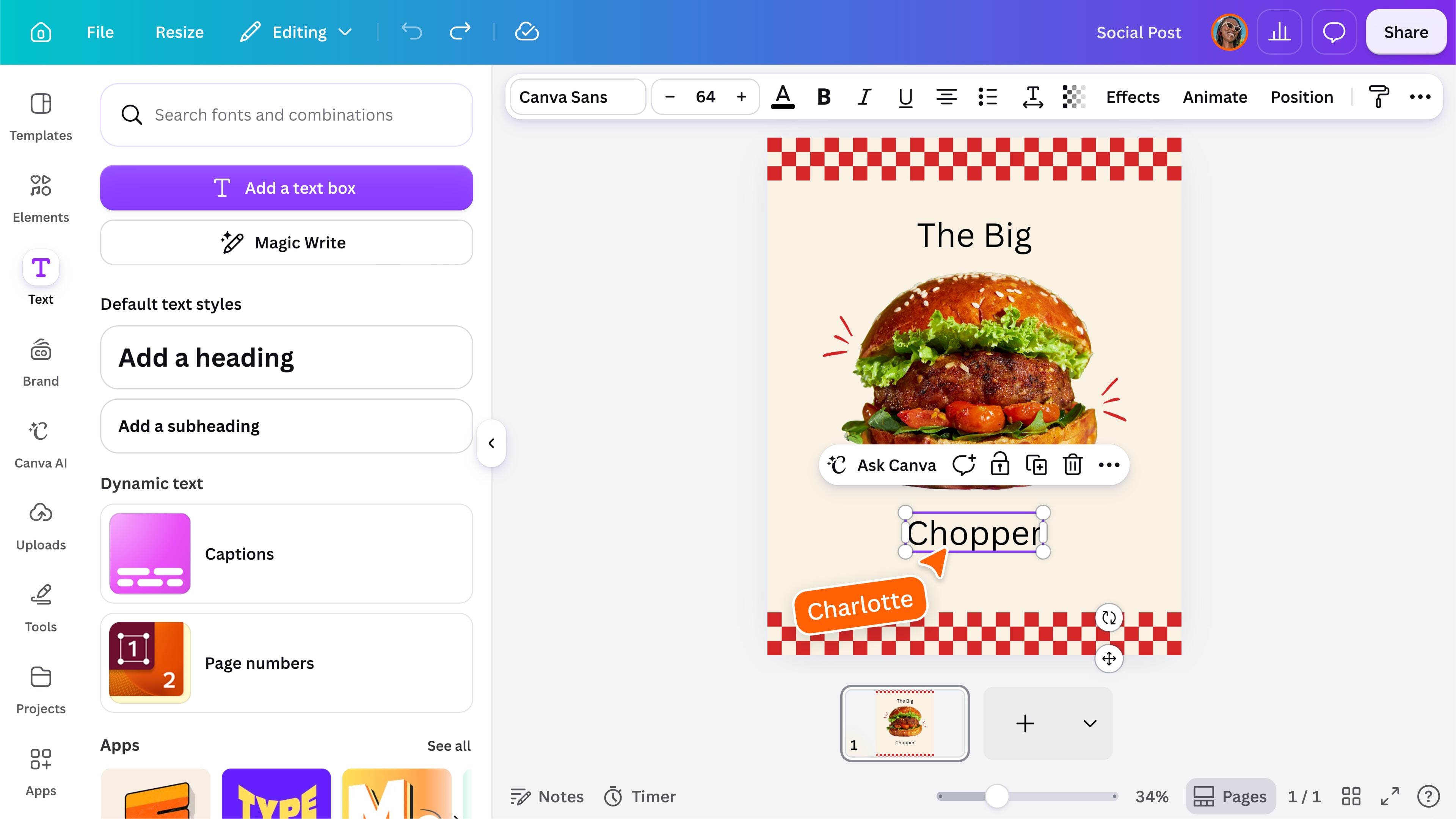
Open Text from the editor side panel, then choose Add a text box. You can also press T on your keyboard to quickly add a text box to the page. Start typing to add your own words, then select the text to begin changing its font, size, color, and style.
Choose a font
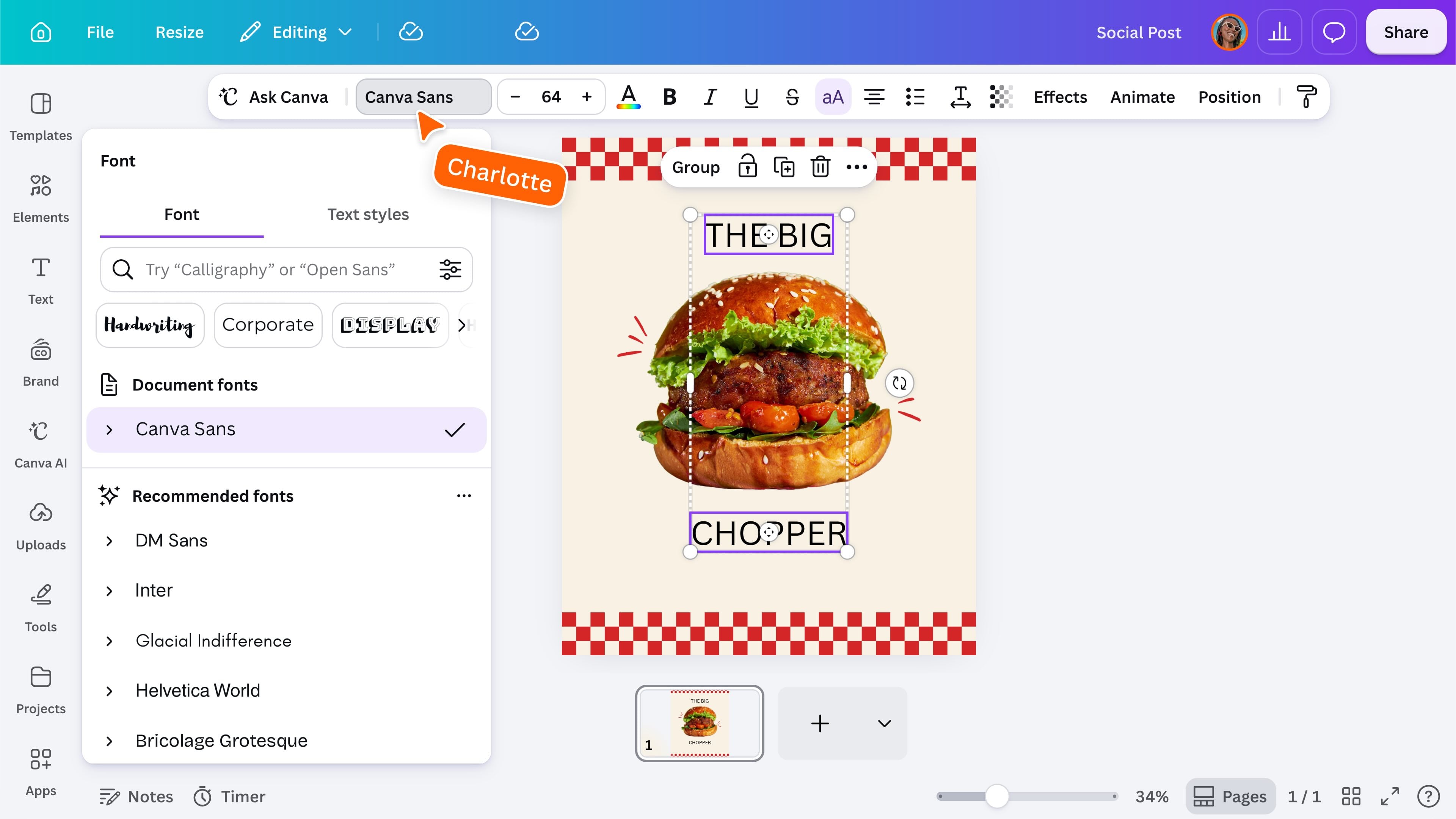
With your text selected, open the font menu from the toolbar. Canva’s font library includes a wide range of styles, along with fonts used in your design and any Brand fonts available to your team. Browse the library or search to find a font that suits your message. Some fonts may only be available on certain Canva plans.
Search and explore fonts
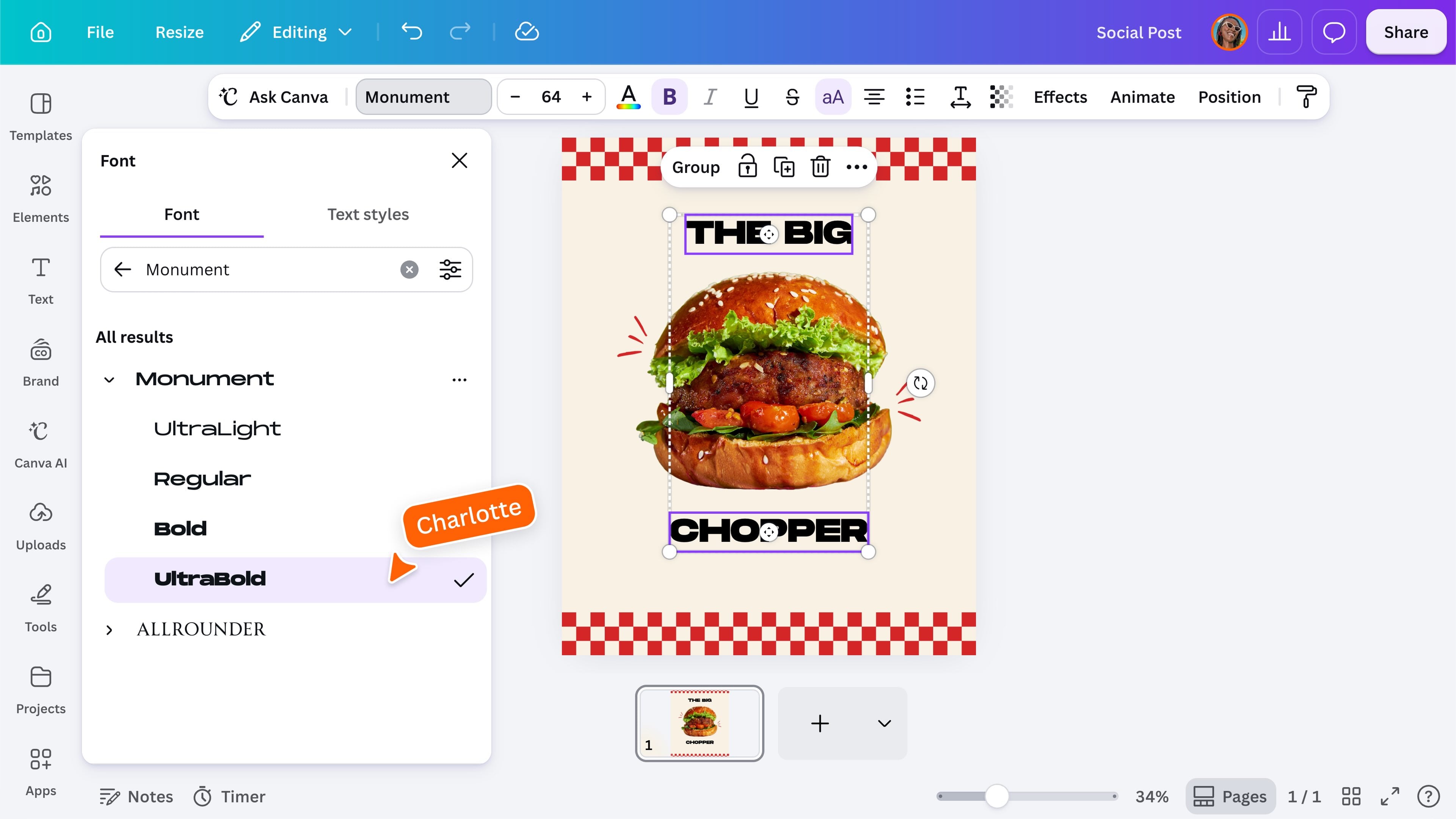
Use the search bar to look for a font by name or describe the style you want, such as bold, playful, elegant, or handwritten. You can also browse font categories to explore options that share a similar look and feel. Try comparing a few fonts before choosing one. The same words can feel completely different depending on the typeface you use.
Style and format your text
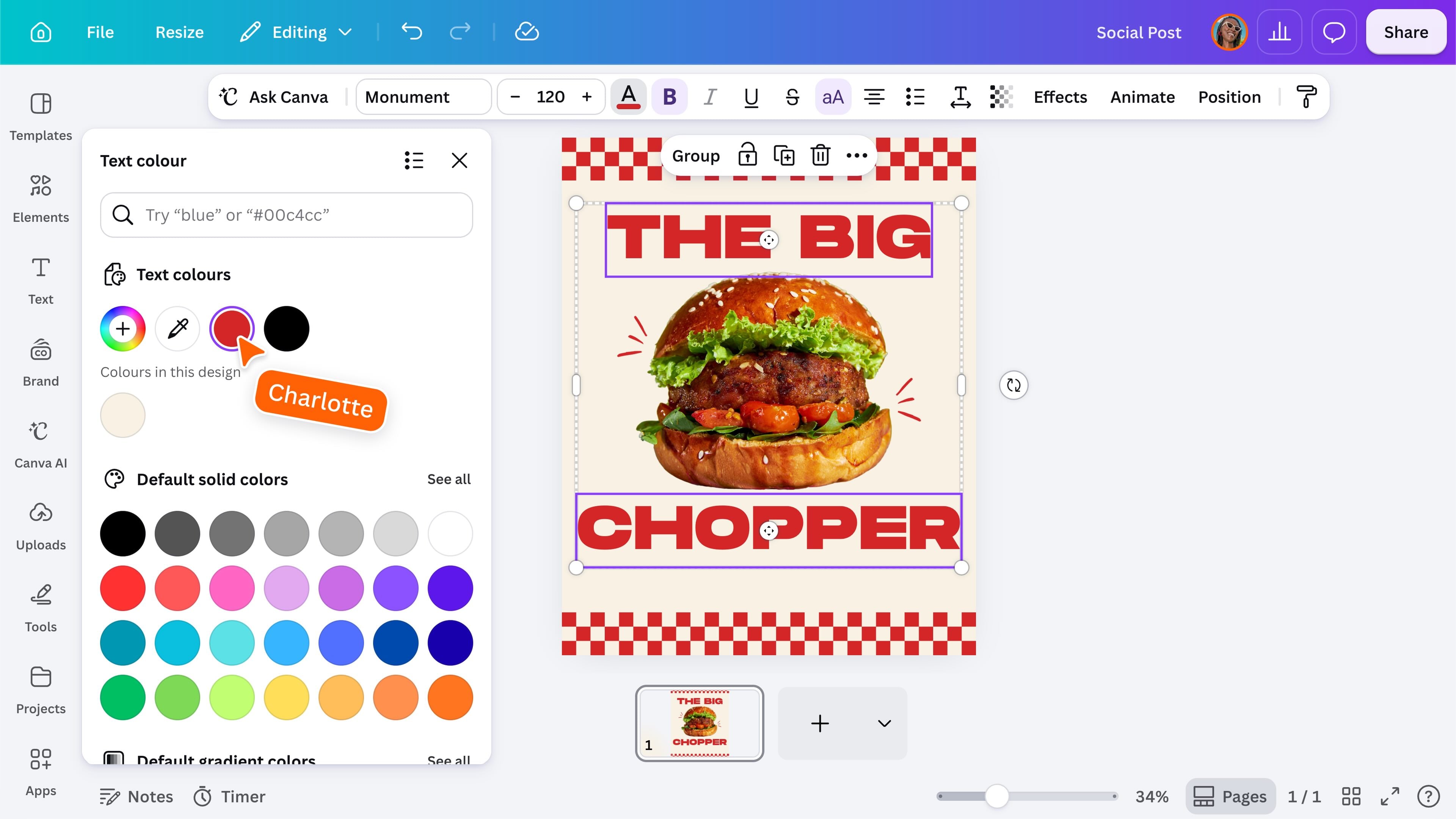
Select your text to open the formatting tools in the toolbar. Depending on what you have selected, you can: You can also enter a HEX code or use the eyedropper to match a color already used in your design. The toolbar may look slightly different as Canva introduces new options, but the core formatting controls remain the same.
Apply text effects
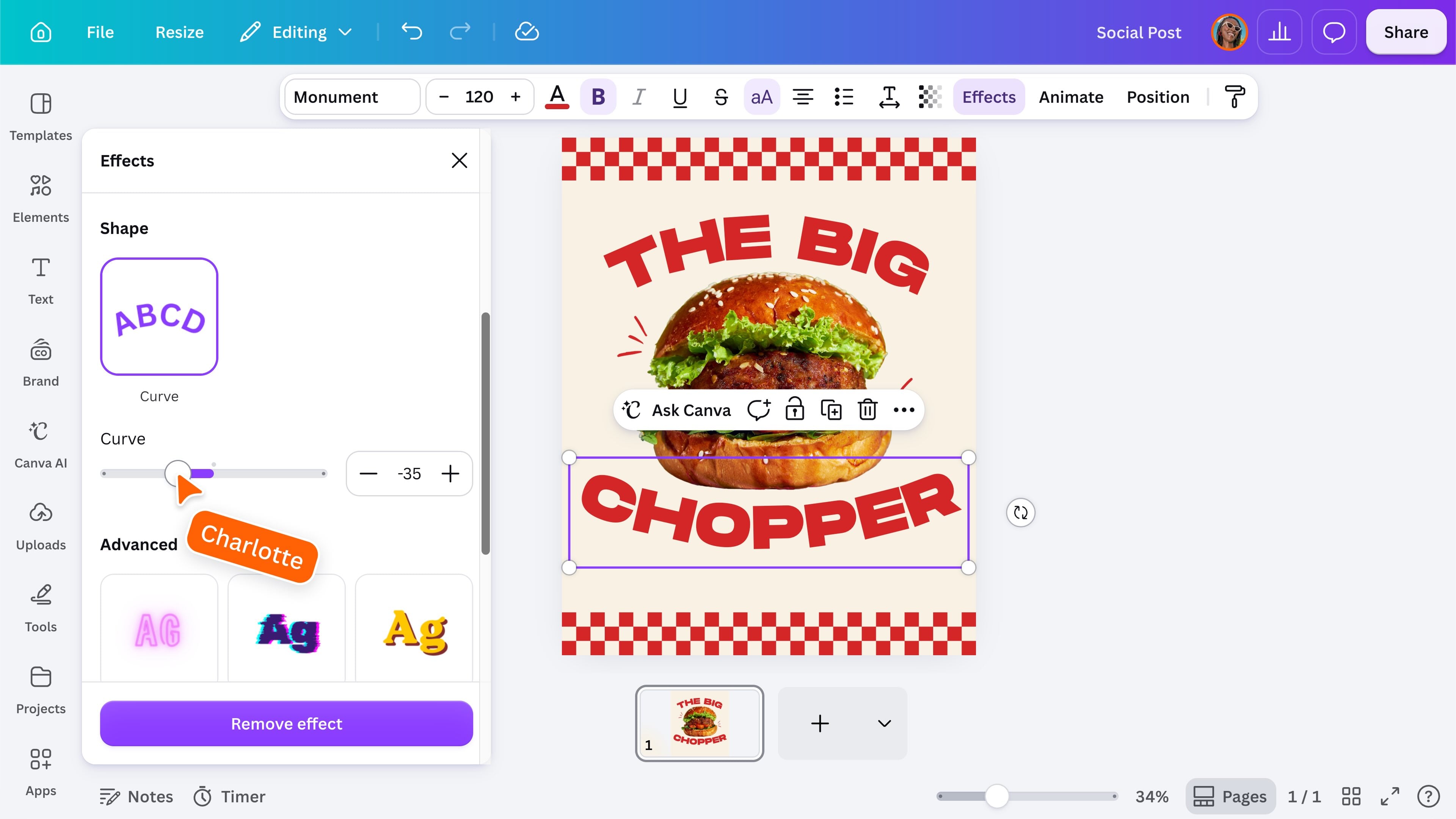
Select your text, then choose Effects from the toolbar. Explore options such as shadows, outlines, backgrounds, and other visual treatments that help your text stand out. You can also curve your text and adjust the amount of curve to suit your design. Use effects with purpose. A simple treatment is often enough to make important text easier to notice.
Build clear text hierachy
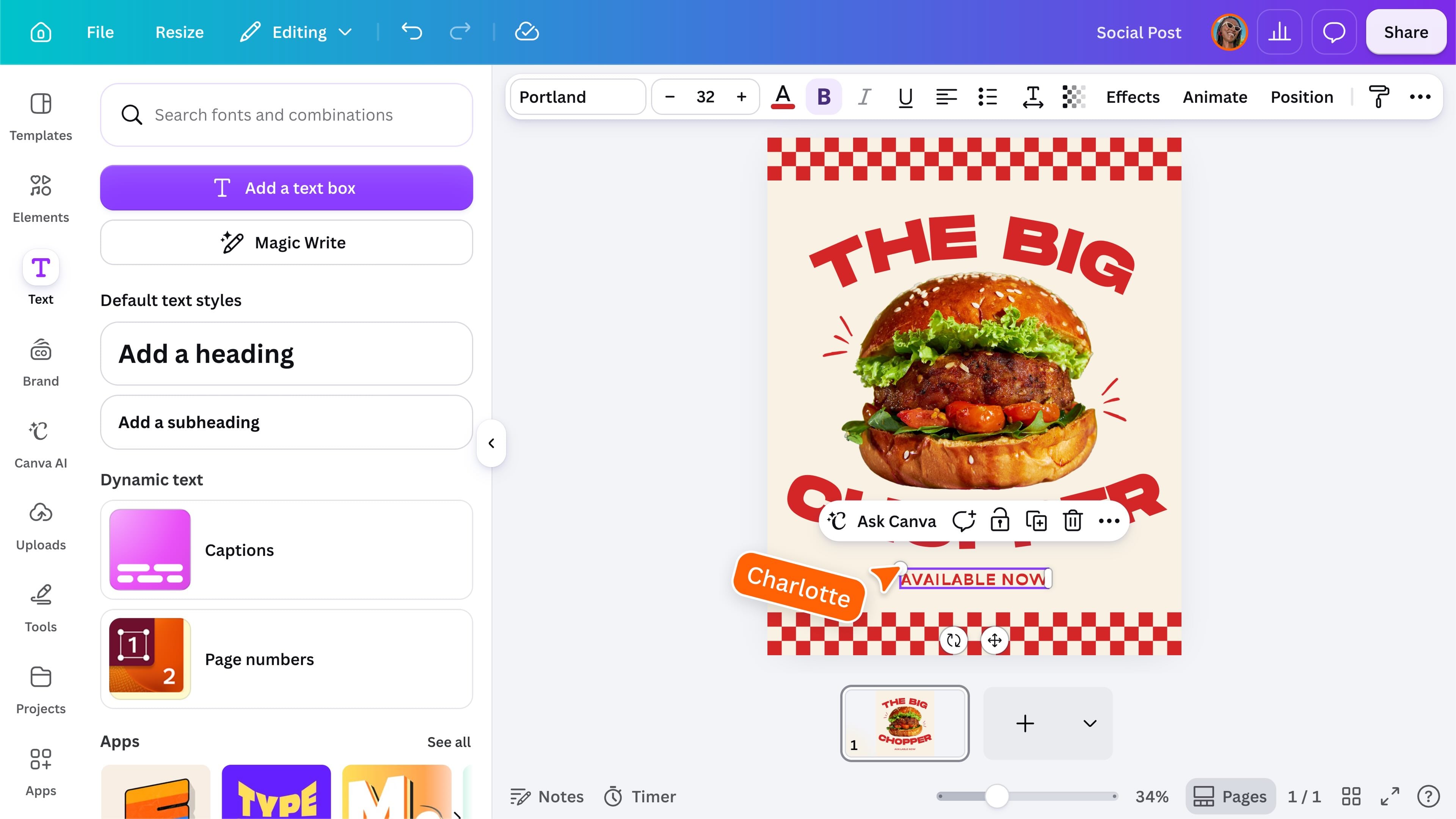
Use different text sizes and styles to show what matters most. A clear design will usually include: Keep the number of fonts limited and use them consistently across your design. You can also explore ready-made font combinations in the Text panel for inspiration. Add one to your design, then update the words to suit your content.
Ready to experiment? You now know how to add text, search for fonts, format your words, apply effects, and create a clear text hierarchy. Try writing your name in a few different fonts or create a simple poster using type as the main design element.
Featured in these lessons
Share
Last updated 04 Aug, 2026