Navigating Canva's homepage
5m
Beginner
Learn how to explore Canva’s homepage, find templates, access projects, and navigate essential tools with ease.
Navigating Canva's homepage
5m
Beginner
Learn how to explore Canva’s homepage, find templates, access projects, and navigate essential tools with ease.
What you’ll learn
- Logging in to Canva
- Locating folders, designs, images, and videos
- Finding the right templates
- Exploring Brand tools
- The App Marketplace

Welcome to Canva’s homepage, the starting point for your designs, templates, uploads, brand resources, and more. Use this guide to understand the main areas of Canva and confidently begin your first project.
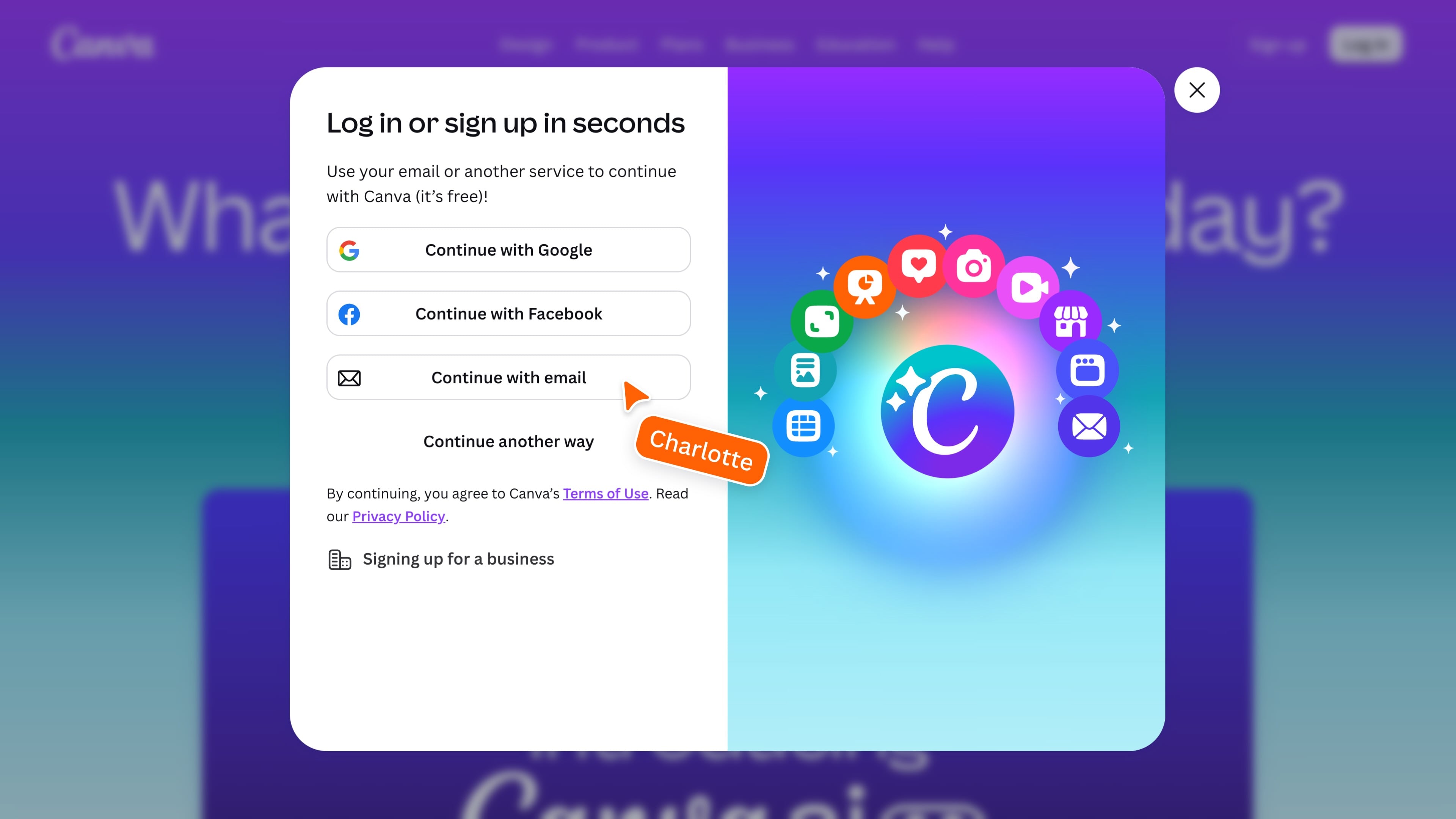
Log in to Canva
Log in to your existing Canva account or create a new one using the sign-in option that works best for you.
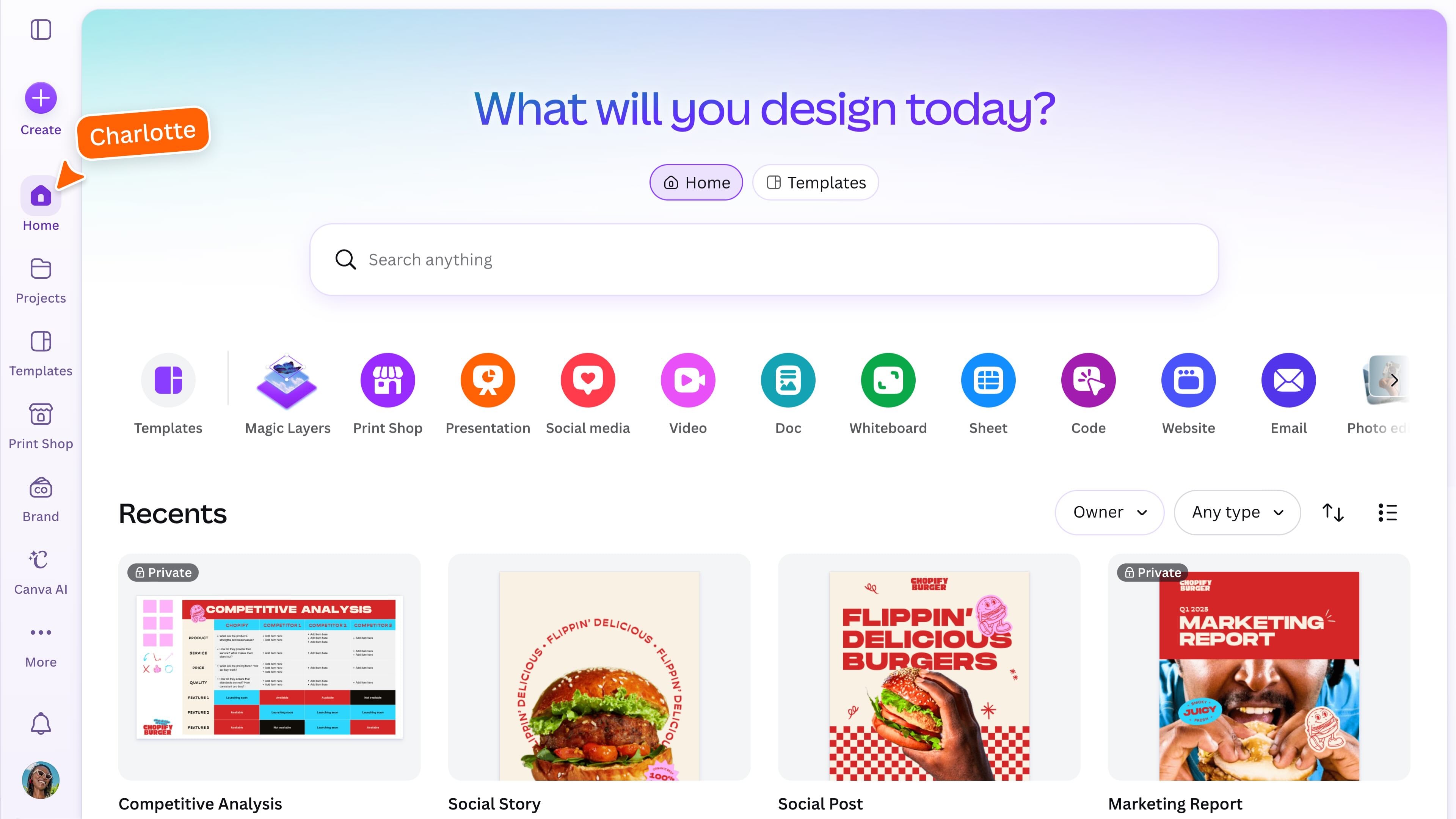
Start from the homepage
The homepage gives you a few easy ways to start creating. Choose from popular design types to open a blank design, or use the Create button to explore more options and set your own custom size. You can return to the homepage whenever you want to start something new or access another area of Canva. Use Canva’s search bar to search your designs, or browse templates. Select the relevant option to narrow your results.
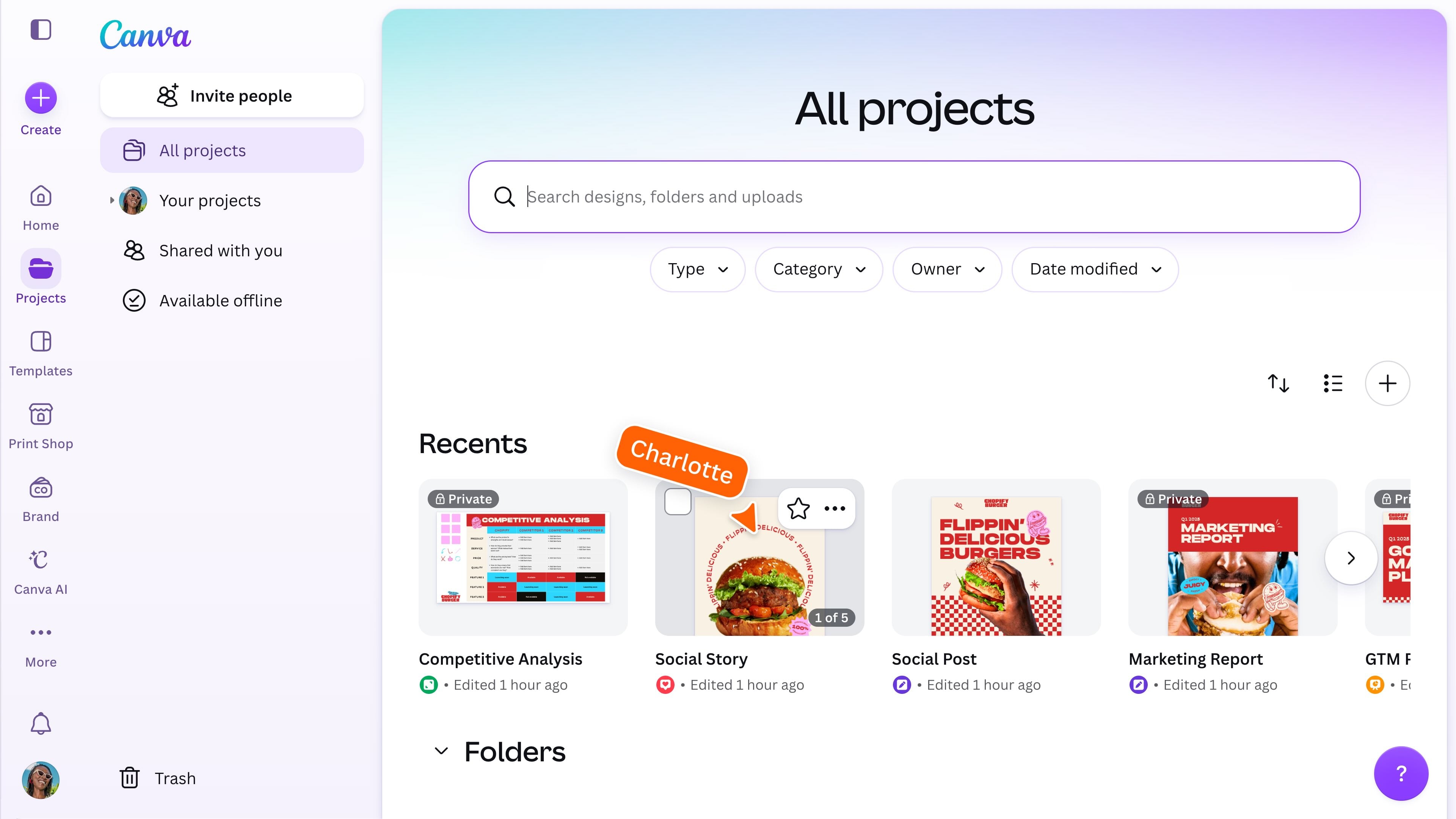
Find your work in Projects
Projects is where you can find and organize the content you have created or uploaded to Canva. Use Projects to access: Search and filters can help you quickly narrow down what you are looking for. Select Available offline from the side panel to find designs you have prepared for offline editing. Offline availability may vary by device, and you must be online to select this option.
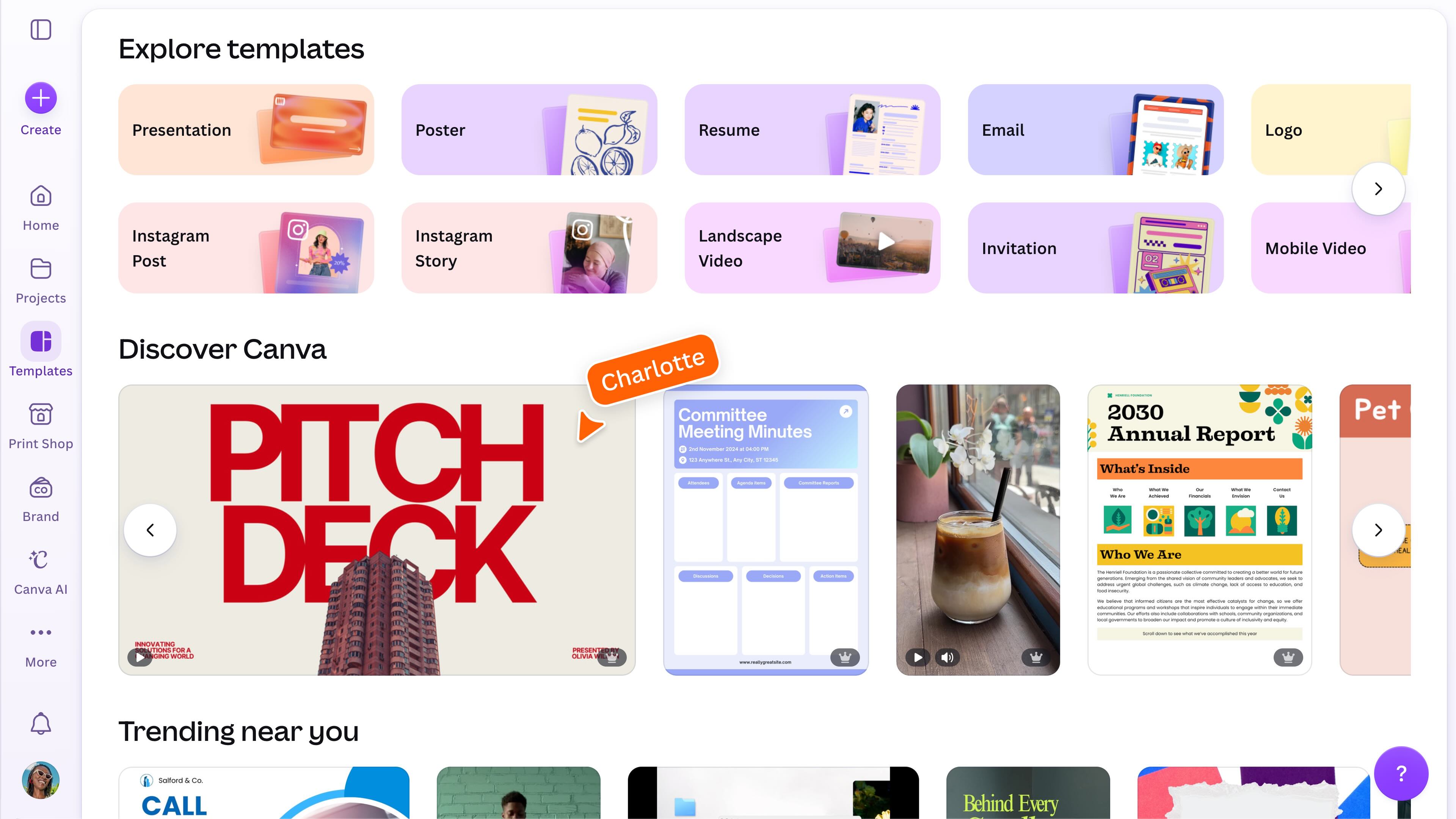
Explore templates
From the homepage, select Templates to browse ready-made designs, or use Create to explore templates by design type. Browse by category or use the search bar to look for something specific. The more detail you include in your search, the more relevant your results will be. Select a template to preview it, then choose Customize this template to open your own editable copy and start creating.
Keep designs consistent with Brand
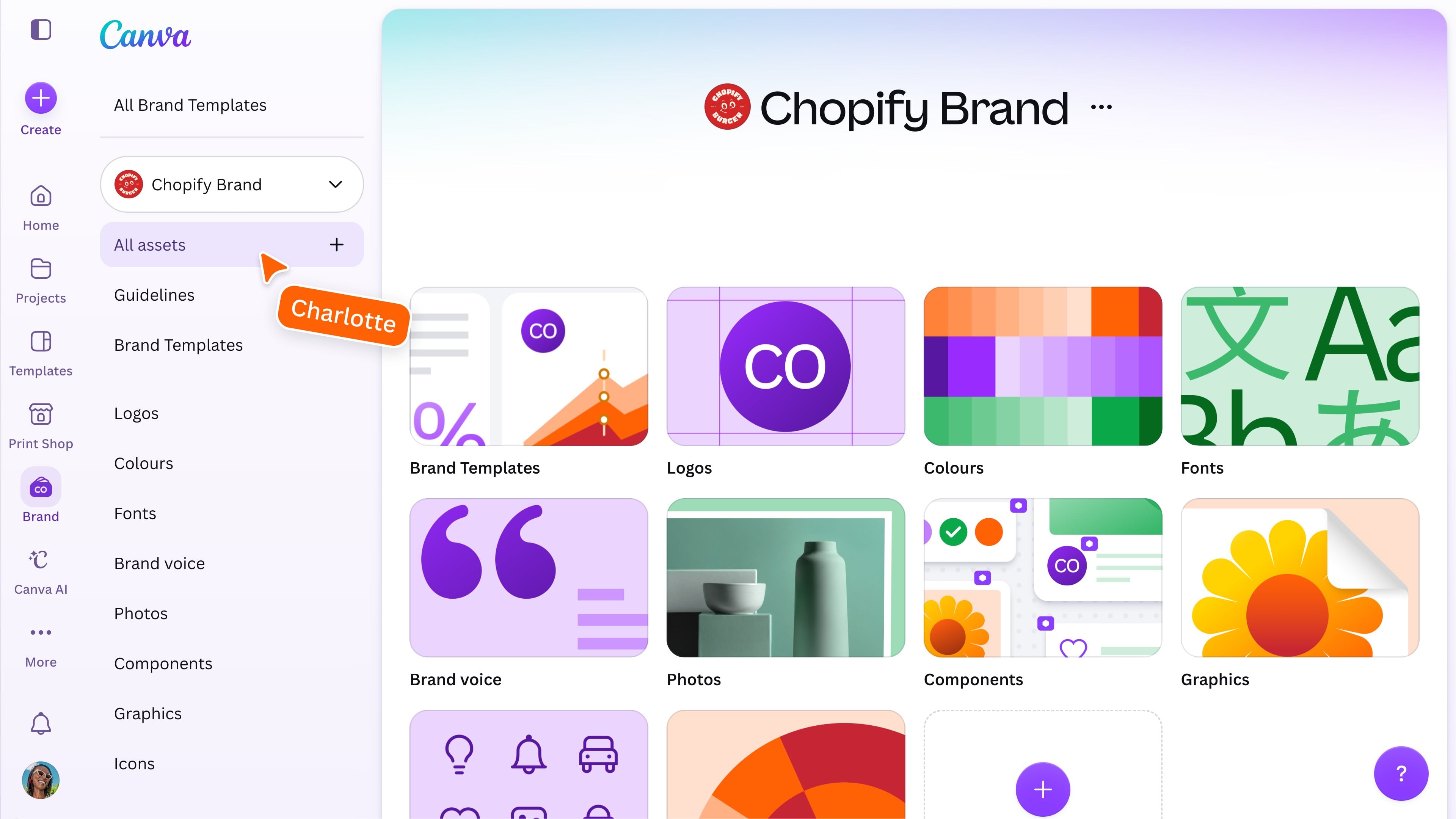
Brand is where you can access your team’s approved visual resources, including logos, colors, fonts, graphics, and Brand Templates, and more. Keeping these resources together makes them easier for your team to find and helps everyone create consistent, recognizable designs. The Brand features available to you may depend on your Canva plan and team setup.
Add more tools with Apps
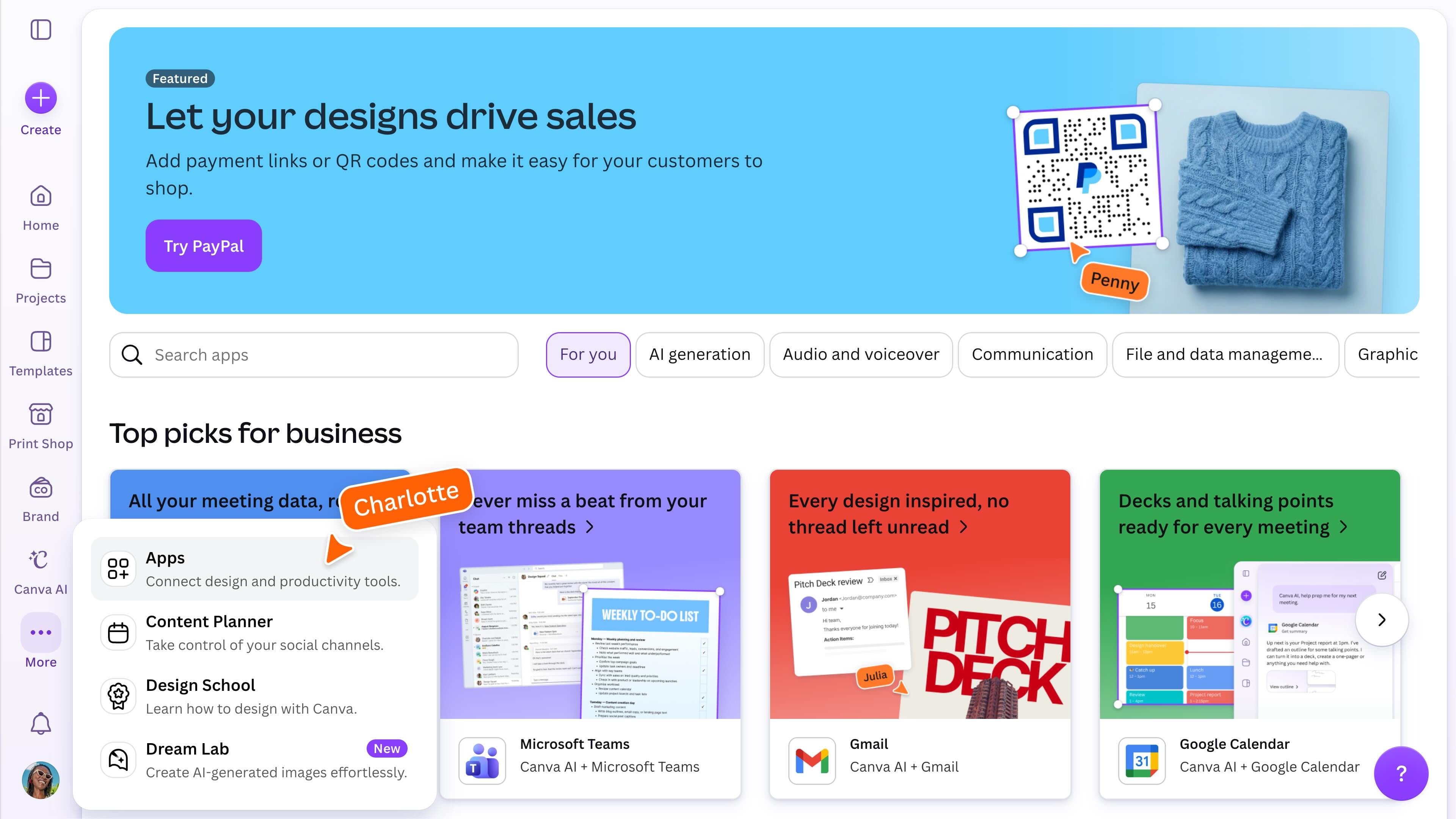
Apps sits under the More option. It extends what you can do in Canva by connecting you with Canva tools and third-party integrations. Explore apps for generating content with AI, importing media, creating charts, improving productivity, and adding interactive elements to your designs. The apps available to you may vary depending on your Canva plan, device, and team settings. Keep an eye on this section to discover new and trending tools as they are introduced.
Manage your account and get help
Open your profile menu in the bottom-left corner to manage your account, switch teams, change the theme, review plans, and sign out. Select Your account for personal settings, or Settings for team settings. Select Help and resources to search for answers, access support, or find guidance while you work.
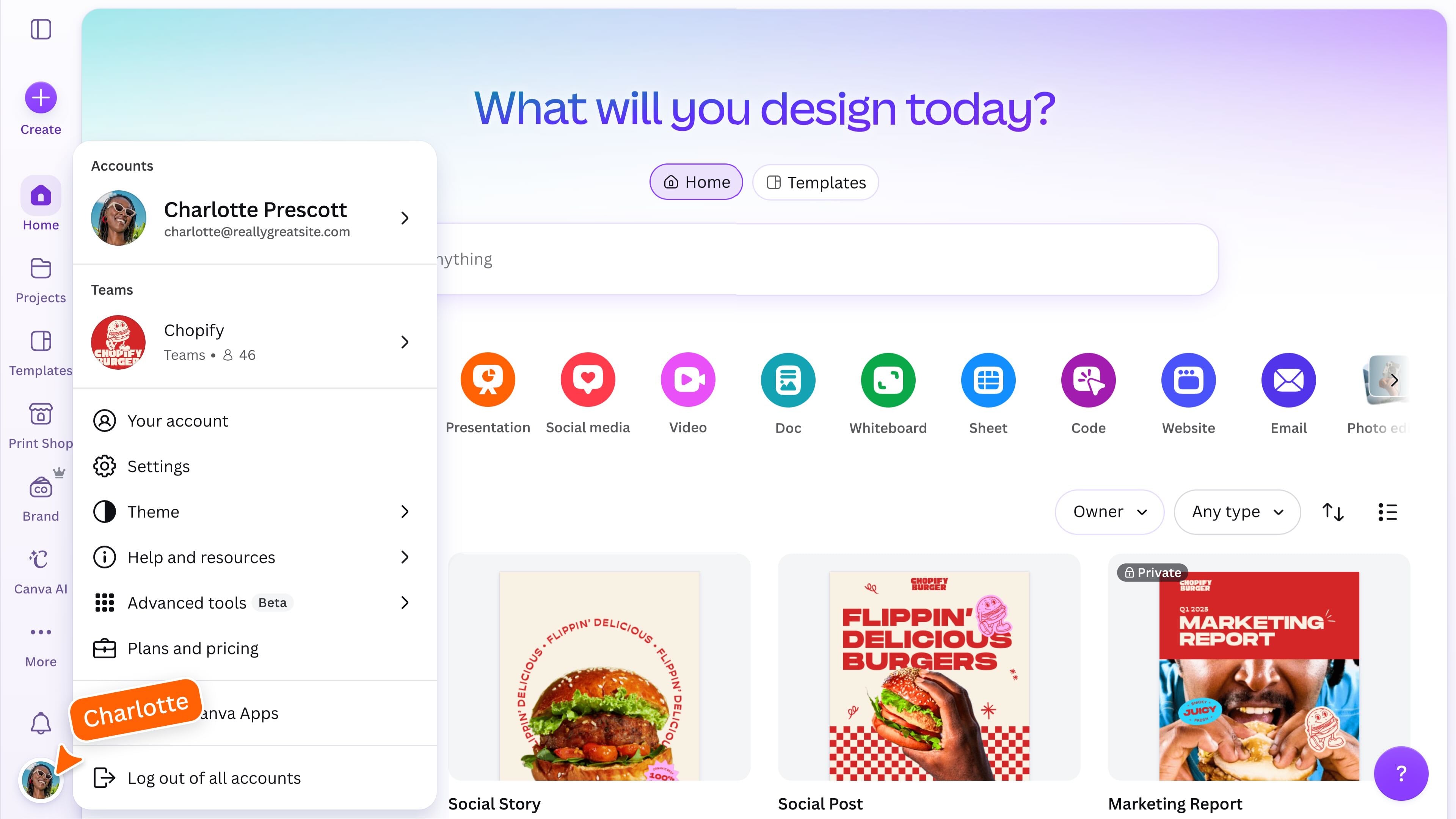
Another way you can get help easily is going to the purple ? symbol in the bottom right of your screen. This gives you access to an AI-powered assistant who can help you with ideas, advice and questions.
Ready to create? You now know where to find your designs, templates, brand resources, apps, and account settings. Return to the homepage whenever you want to start something new or find a project you have already created.
Featured in these lessons
Share
Last updated 08 Oct, 2026