Customizing templates
10m
Beginner
Discover how to personalize Canva templates, from adjusting layouts to adding elements, for unique and professional designs.
Customizing templates
10m
Beginner
Discover how to personalize Canva templates, from adjusting layouts to adding elements, for unique and professional designs.
What you’ll learn
- Start a new design and navigate the editor
- Add, organise, and manage pages
- Use the side panel and menu bar tools
- Personalise templates and customise your pages

Templates give you a ready-made starting point for your design and make it easier to create polished work quickly. Use this guide to start a presentation, explore the editor, customize a template, edit its pages and elements, and share your finished design.
Start a new design
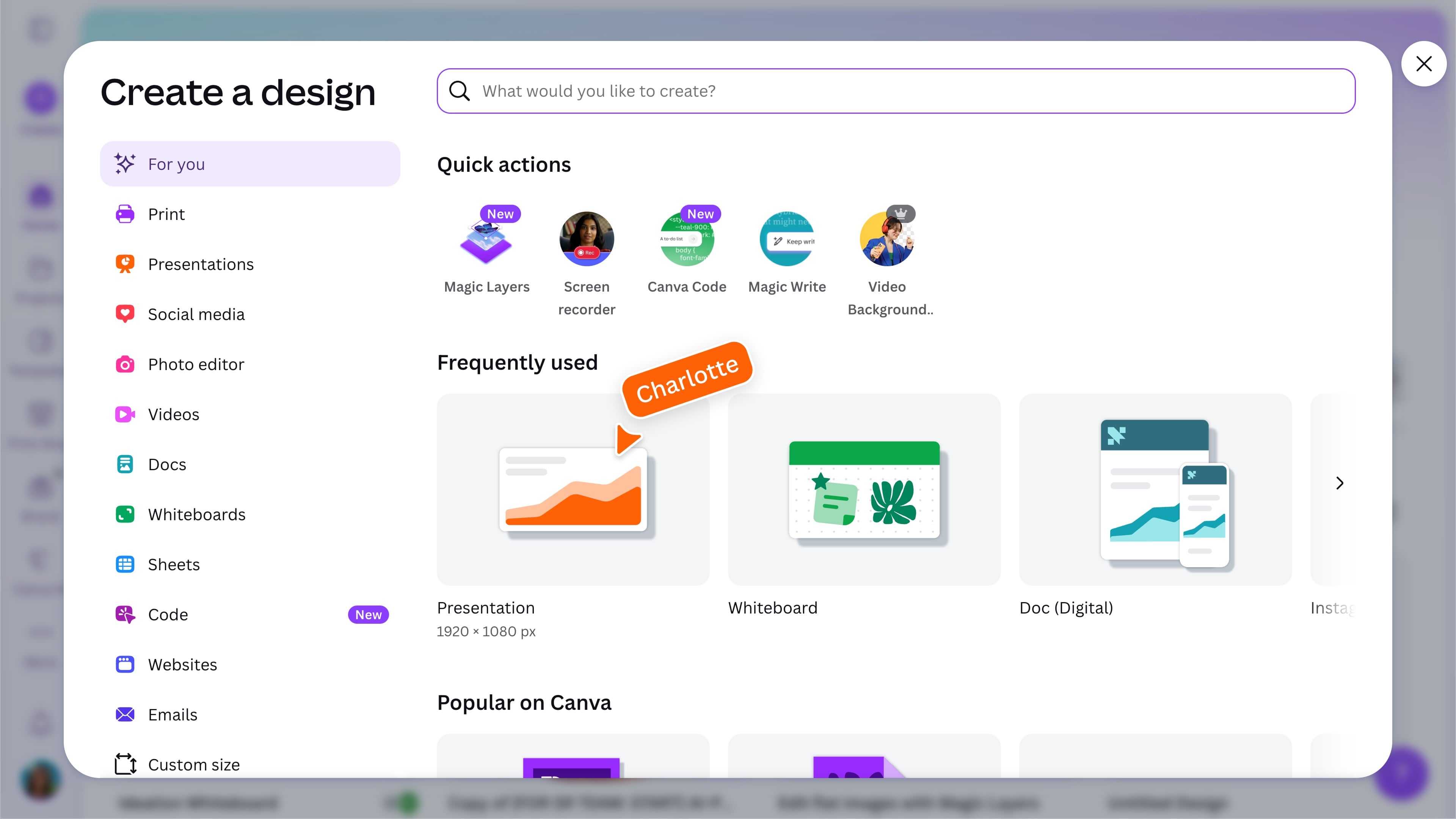
It’s time to create your first design. From the Canva homepage, select the Create button and choose Presentation to open a new blank presentation. Starting with the same design type will make it easier to follow each step. The skills you learn can also be used across other Canva design types.
Get to know the editor
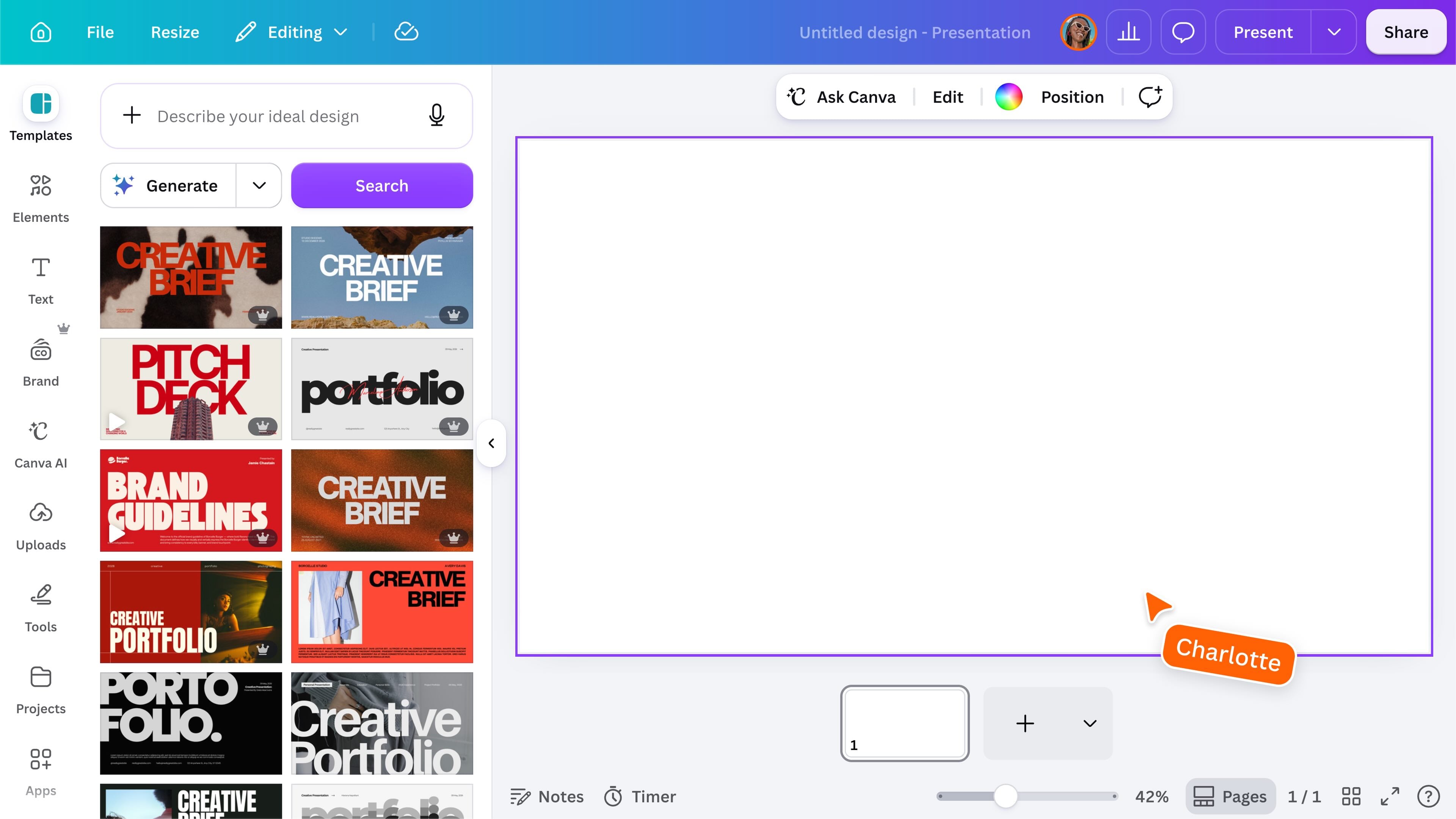
The editor is your creative playground, where you can add, arrange, and customize every part of your design. The key areas include: The tools displayed may change depending on what you select, your design type, device, workspace settings, and Canva plan.
Add and manage pages
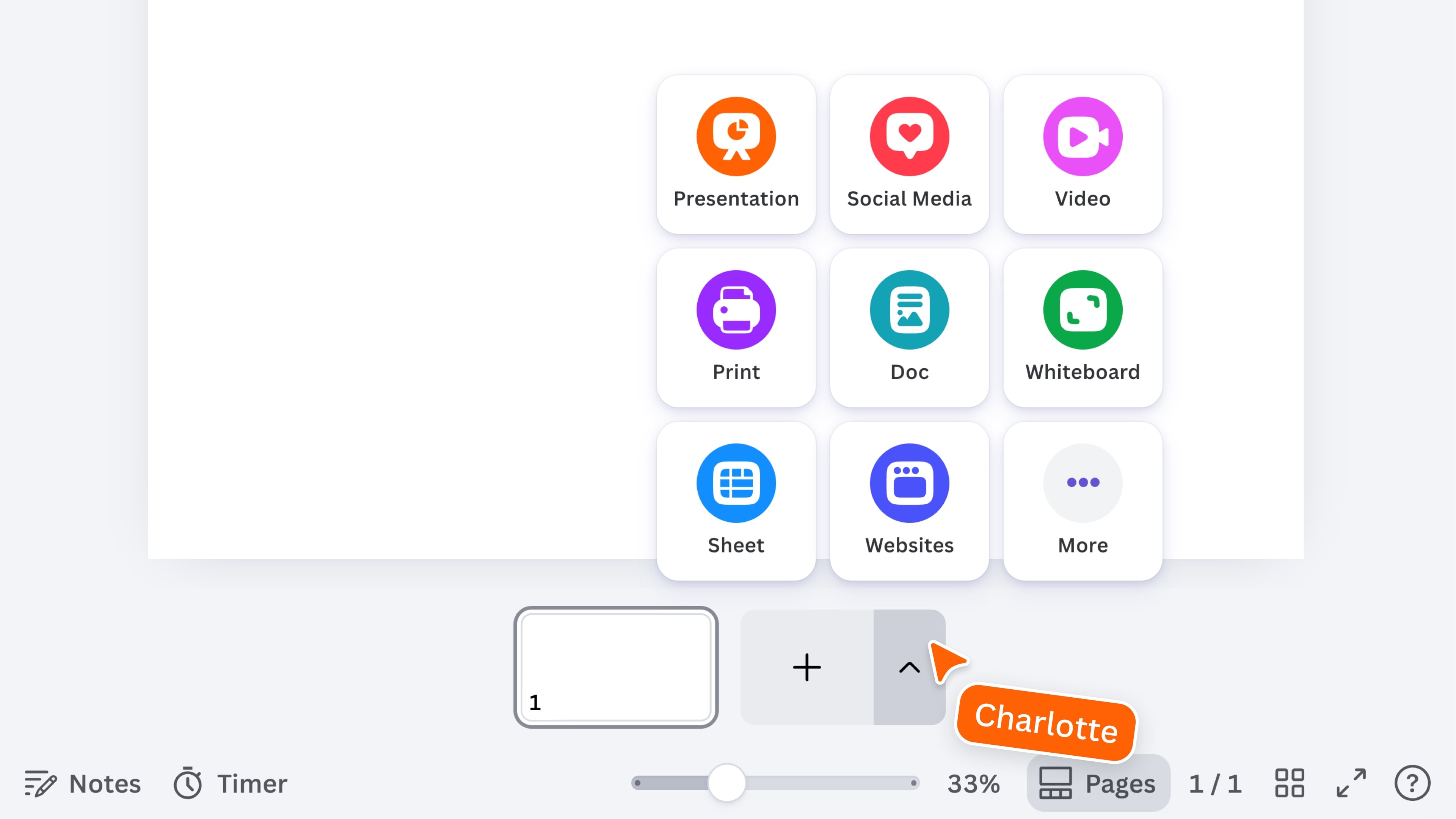
Use the page controls at the bottom of the editor to add a blank page, duplicate an existing page, rearrange your pages, or remove one you no longer need. Select Add page to create another page in the same format. To combine different formats into one design, open the dropdown next to it and select Add page type. For longer designs, switch between the available page views to see more pages at once and organize them more easily. Use the zoom controls to adjust how much of your design you can see while you work. Made a mistake? Use Undo and Redo to quickly reverse or repeat an action.
See the four little squares in the bottom right of the image above? This is the grid view. This button lets you see all pages in your design at once, making it easier to navigate between them, rearrange pages, and manage multi-page designs.
Explore the side panel
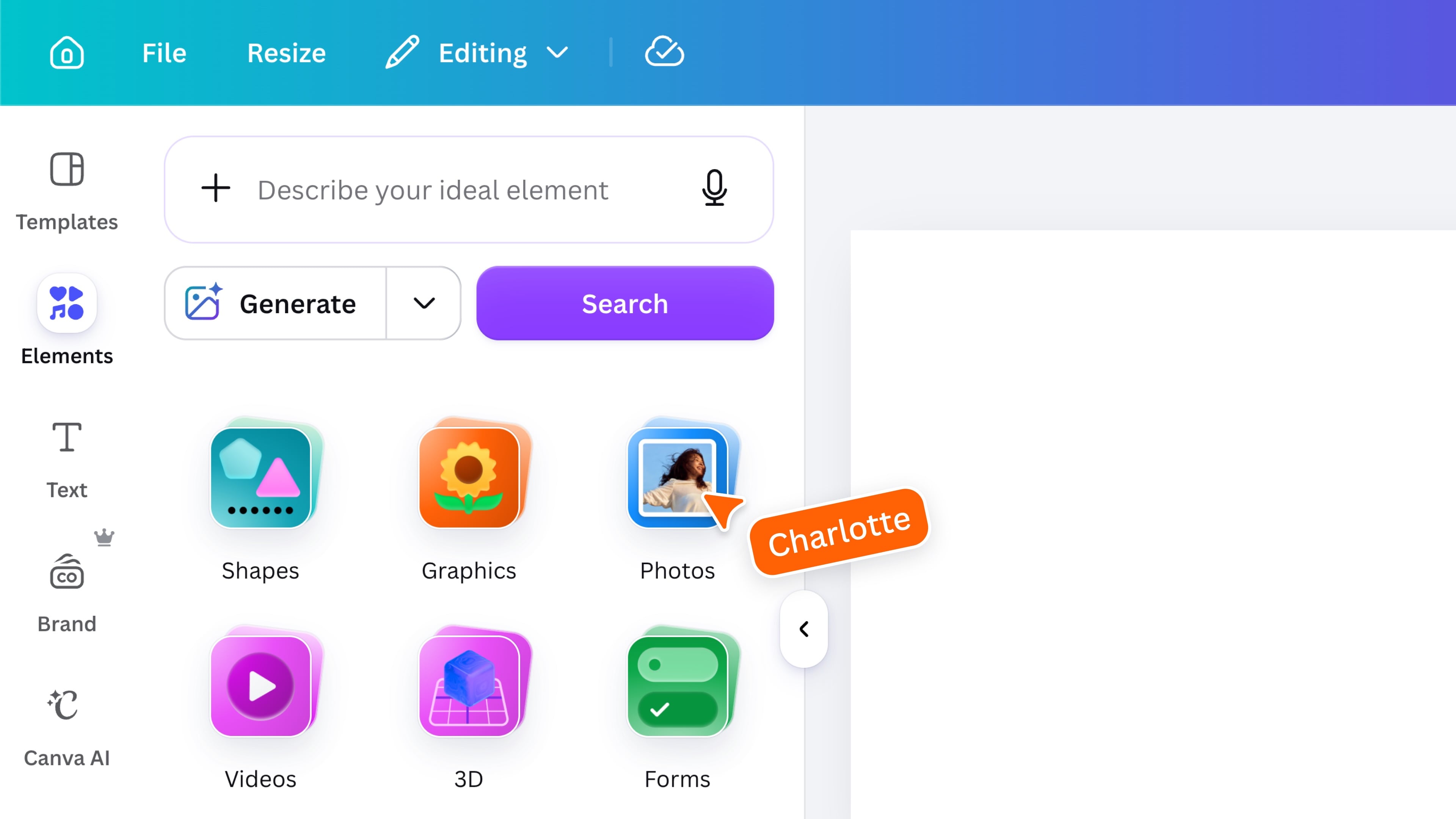
The side panel gives you access to the main tools and resources you can add to your design. Depending on your design and setup, the side panel may include: The tabs and tools you see may vary depending on your design type, workspace settings, device, and Canva plan.
Customizing templates
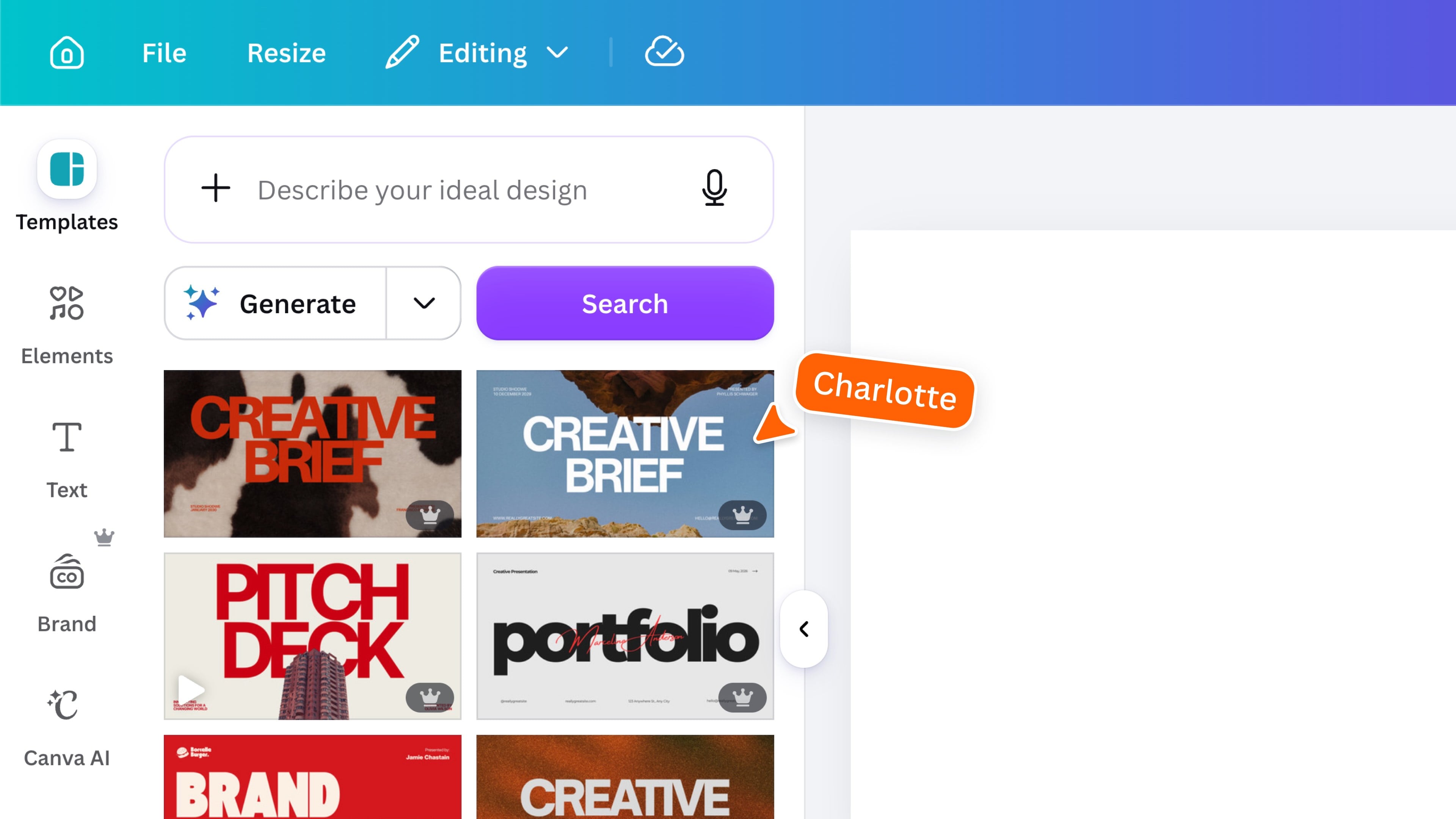
Templates give you a ready-made starting point and can help you create more quickly. Browse for a template that suits your design, or type in keywords to search and narrow down your options. Once you’ve chosen a design, update the text, images, colors, and other elements to make it your own. Some templates include a single page, while others contain a coordinated set of pages you can use throughout your design. Select an individual template page to add only that page, or choose Apply all pages to add the complete coordinated set.
Edit elements in your design
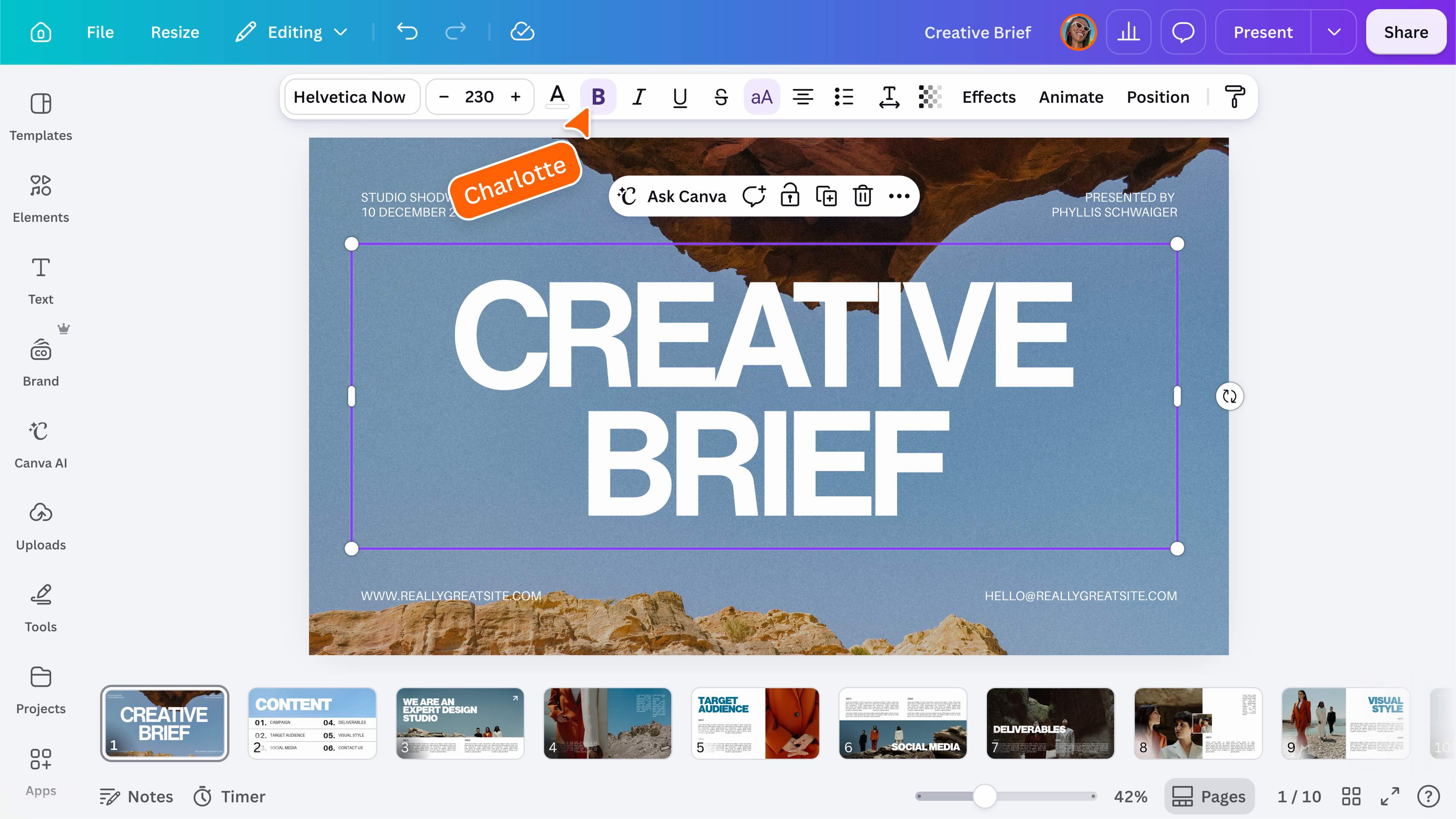
Select an element on the page to see the available editing options. You can: The toolbar will change depending on the type of element you select.
Use design settings
Open File in the top-left of the editor to access settings such as rulers, guides, margins, and accessibility options. You can show rulers, guides, and margins to help position elements more precisely. These guides are only visible while you’re designing and won’t appear in your finished design.
Keep working offline
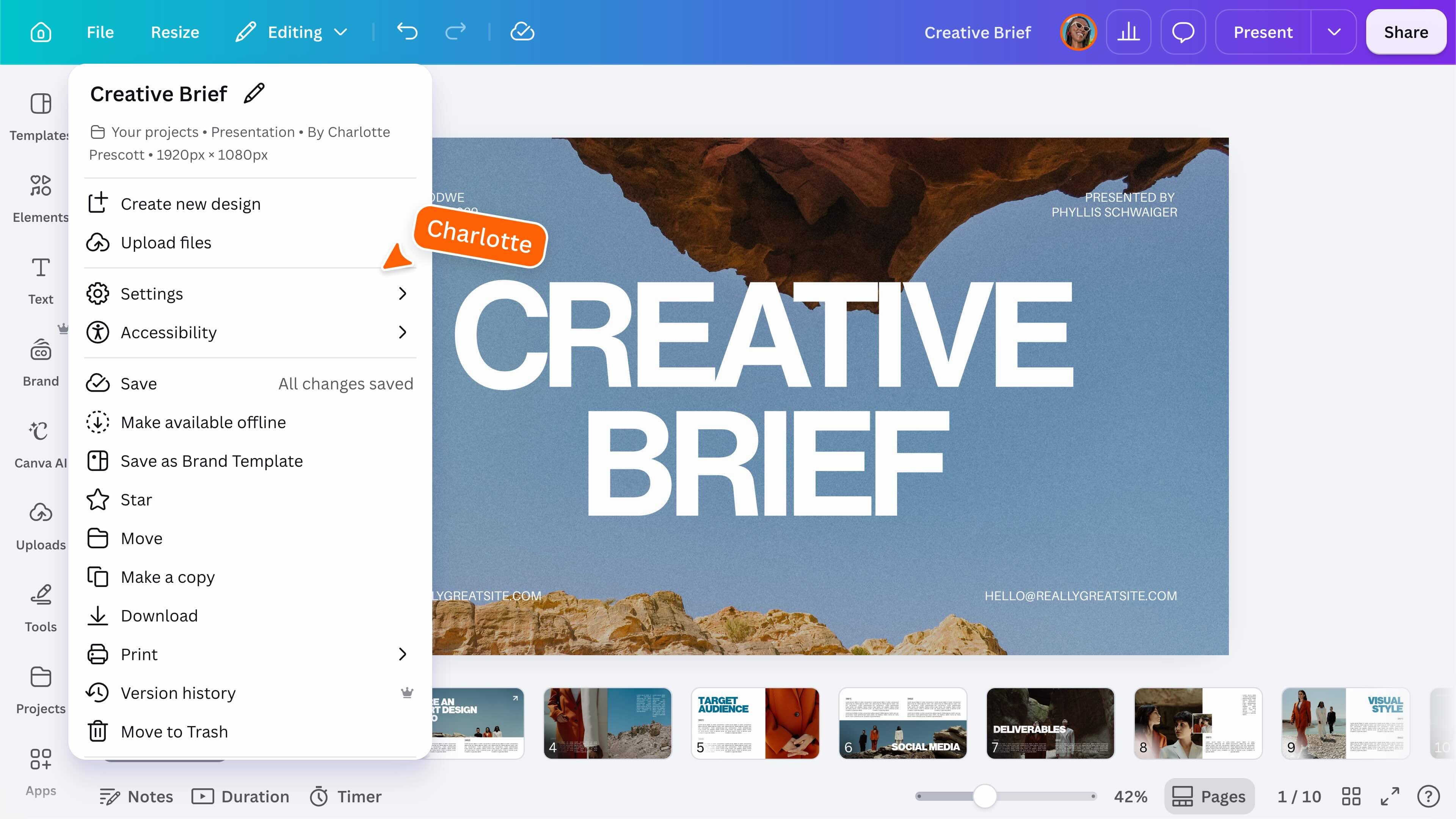
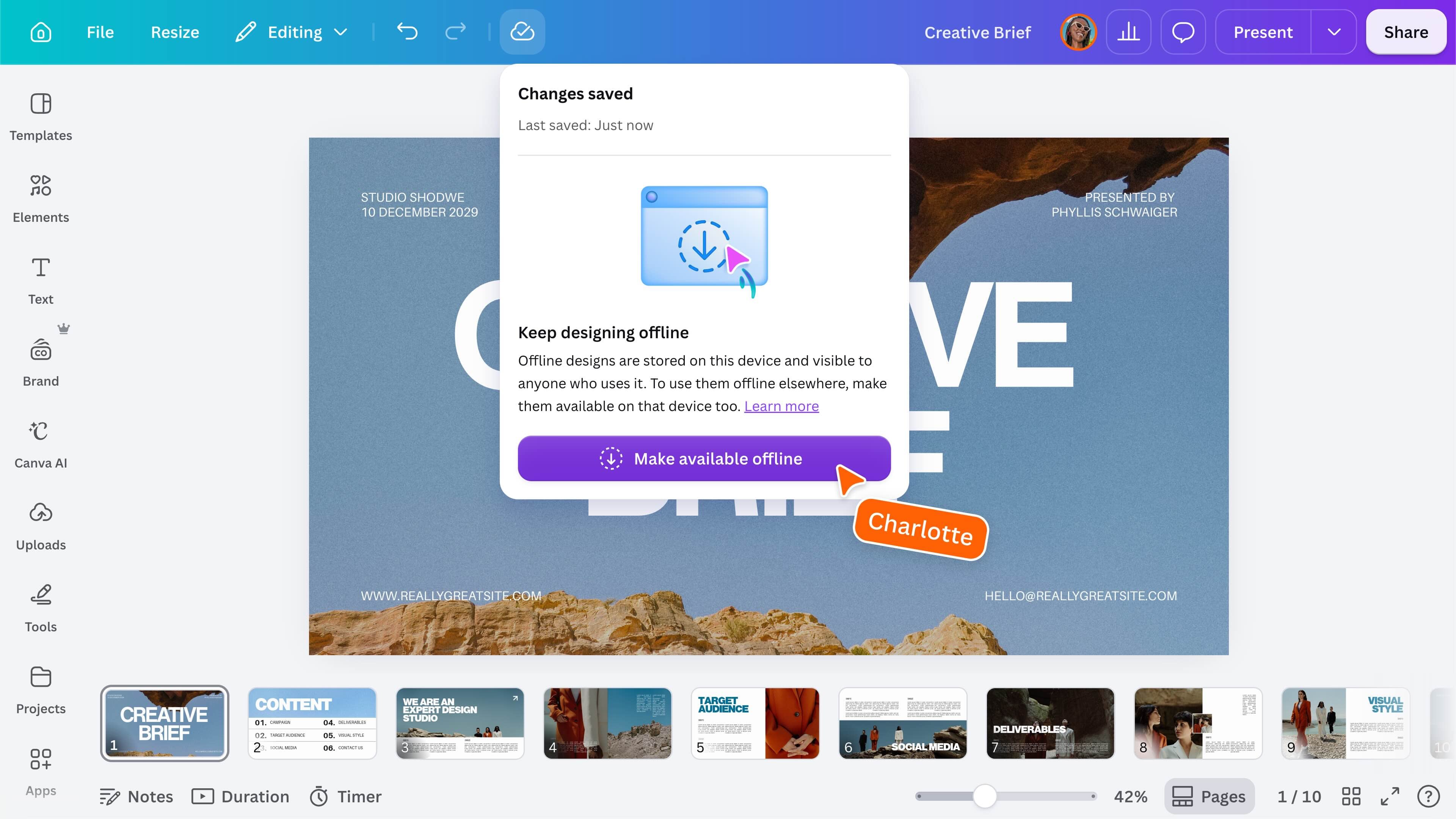
Make your design available offline so you can continue editing without an internet connection. In the File menu, choose Make available offline. Follow the same route to remove its offline availability. Your changes will be saved on your device and synced with Canva when you reconnect. Availability may vary depending on your device, design type, and Canva plan.
Name, save and share your design
Give your design a clear name so it is easier to find in Projects later. Canva saves changes automatically while you work. Before closing, check the save indicator near the design title, particularly if your internet connection has been interrupted. You can also copy a collaboration link, present your design, download it, share it online, or explore printing options. Where available, you can print your designs directly through Canva.
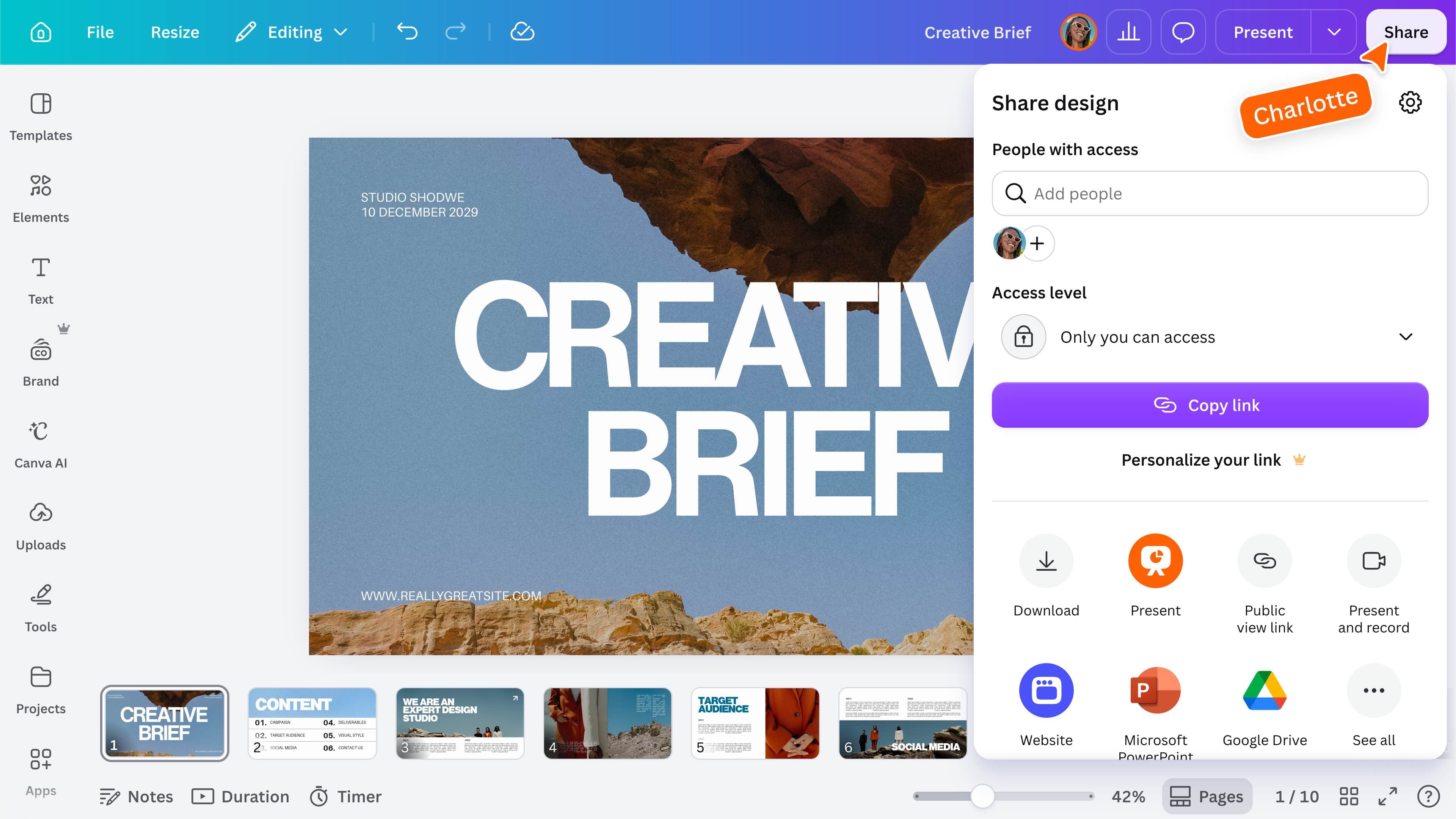
Ready to keep creating? You now know how to move around the editor, manage pages, add content, customize a template, and share your work. Keep experimenting by changing the text, adding images, moving elements around, or creating another page.
Key skills
Featured in these lessons
Share
Last updated 08 Oct, 2026