Sharing, collaborating and downloading
5m
Beginner
Explore Canva’s sharing and collaboration tools, enabling real-time feedback and seamless teamwork on your designs.
Sharing, collaborating and downloading
5m
Beginner
Explore Canva’s sharing and collaboration tools, enabling real-time feedback and seamless teamwork on your designs.
What you’ll learn
- How to invite collaborators and manage their access
- Sharing designs, collect feedback, and use comments
- Downloading finished work and keep your designs organised

Canva makes it easy to work with others, gather feedback, and share your finished design. Use this guide to invite collaborators, manage access, leave comments, download your work, and keep your designs organized.
Share your design
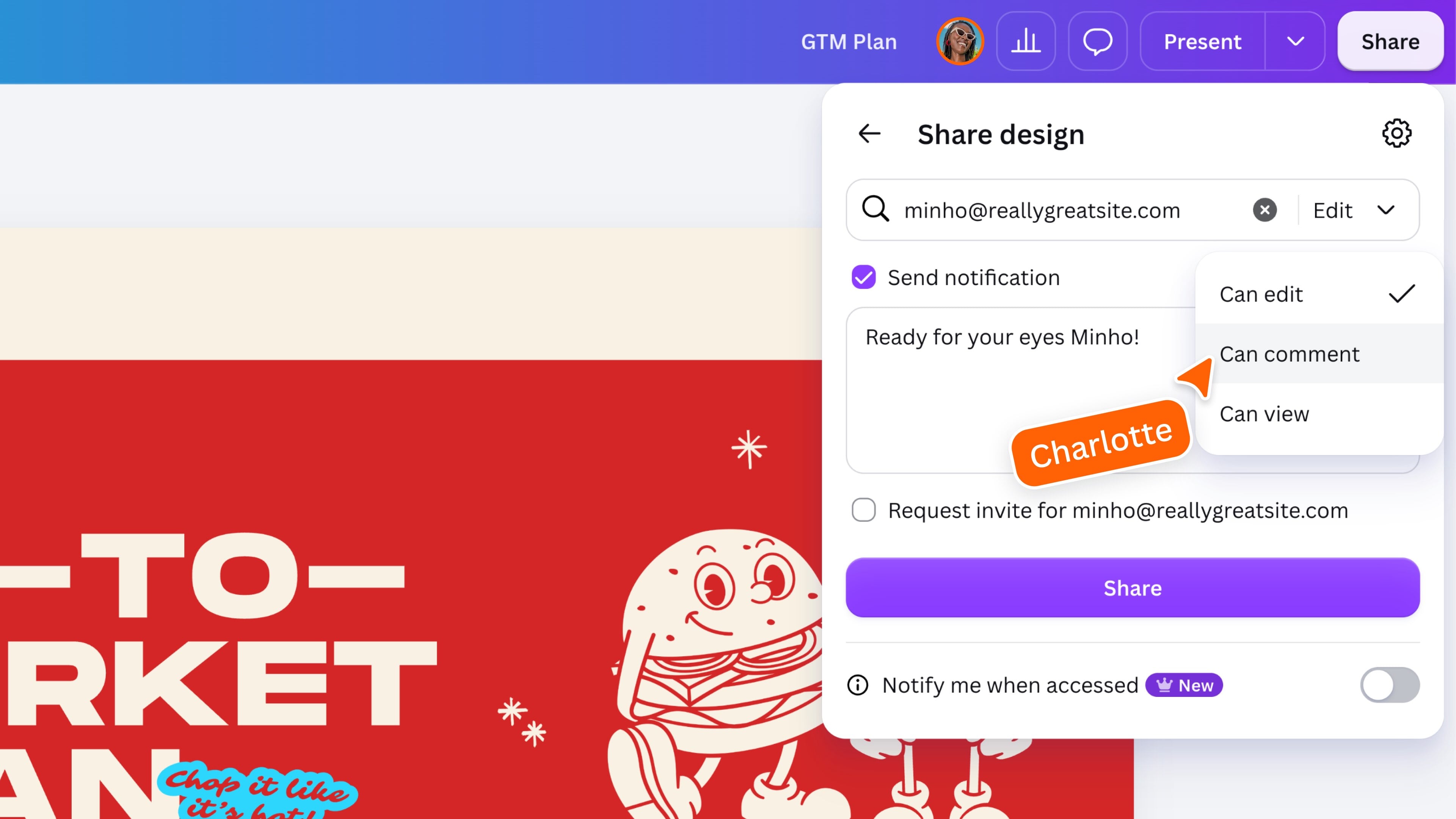
By default, a new design is set so that only you can access it. Sharing and visibility options may vary depending on your team settings. Select Share, then add the email addresses of the people you want to invite. Choose the level of access that suits how you want them to participate: You can also add a message before sending the invitation. The Share panel may look different as Canva introduces new options, but the core access settings remain the same.
Share with a link
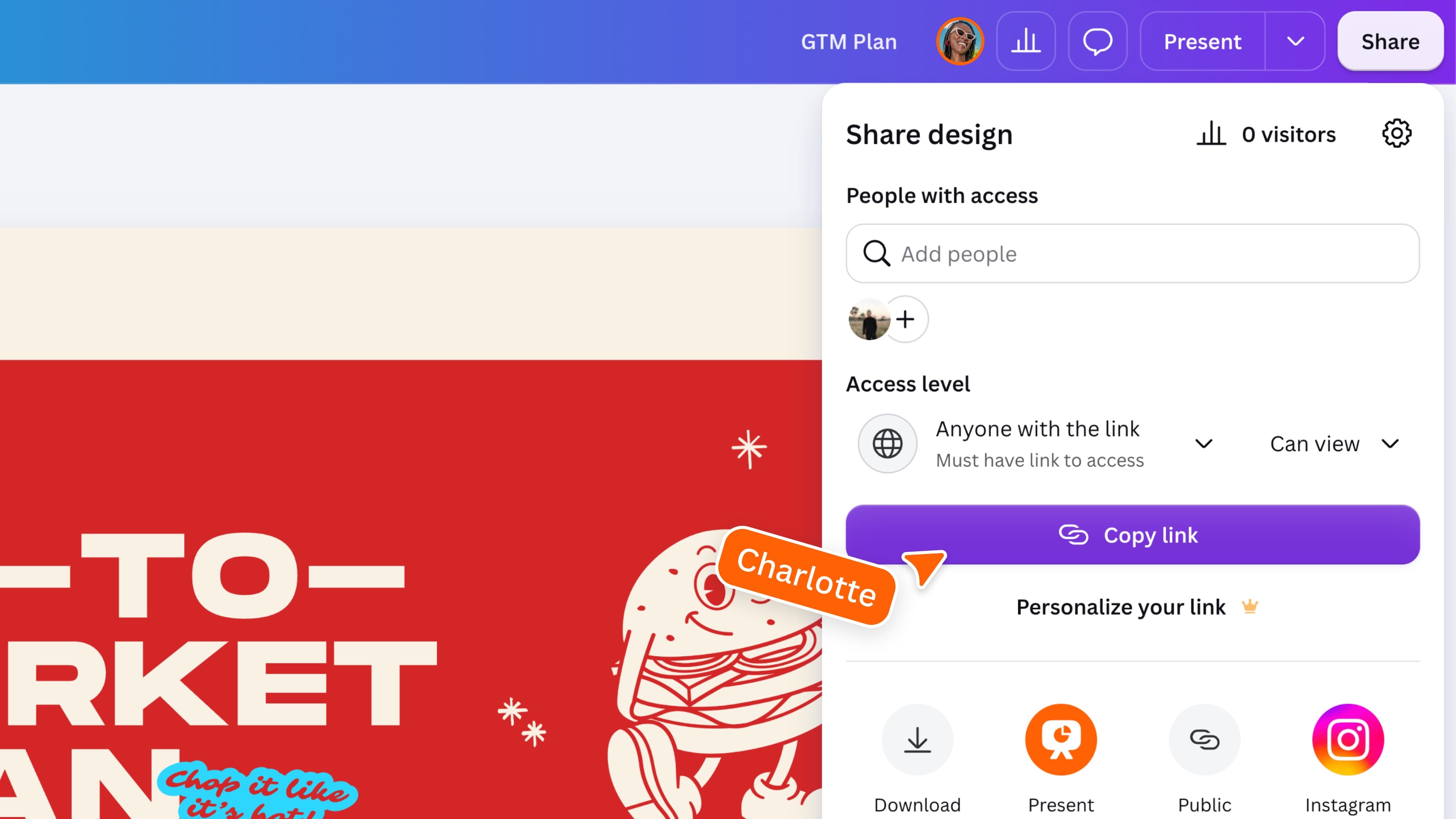
You can also share your design using a collaboration link. Choose who can access the link, then decide whether they can view, comment, or edit. Copy the link and send it to the people you want to collaborate with. Be careful when choosing Anyone with the link. Anyone who receives or is forwarded the link may be able to open the design using the permission you selected.
Collaborate in real time
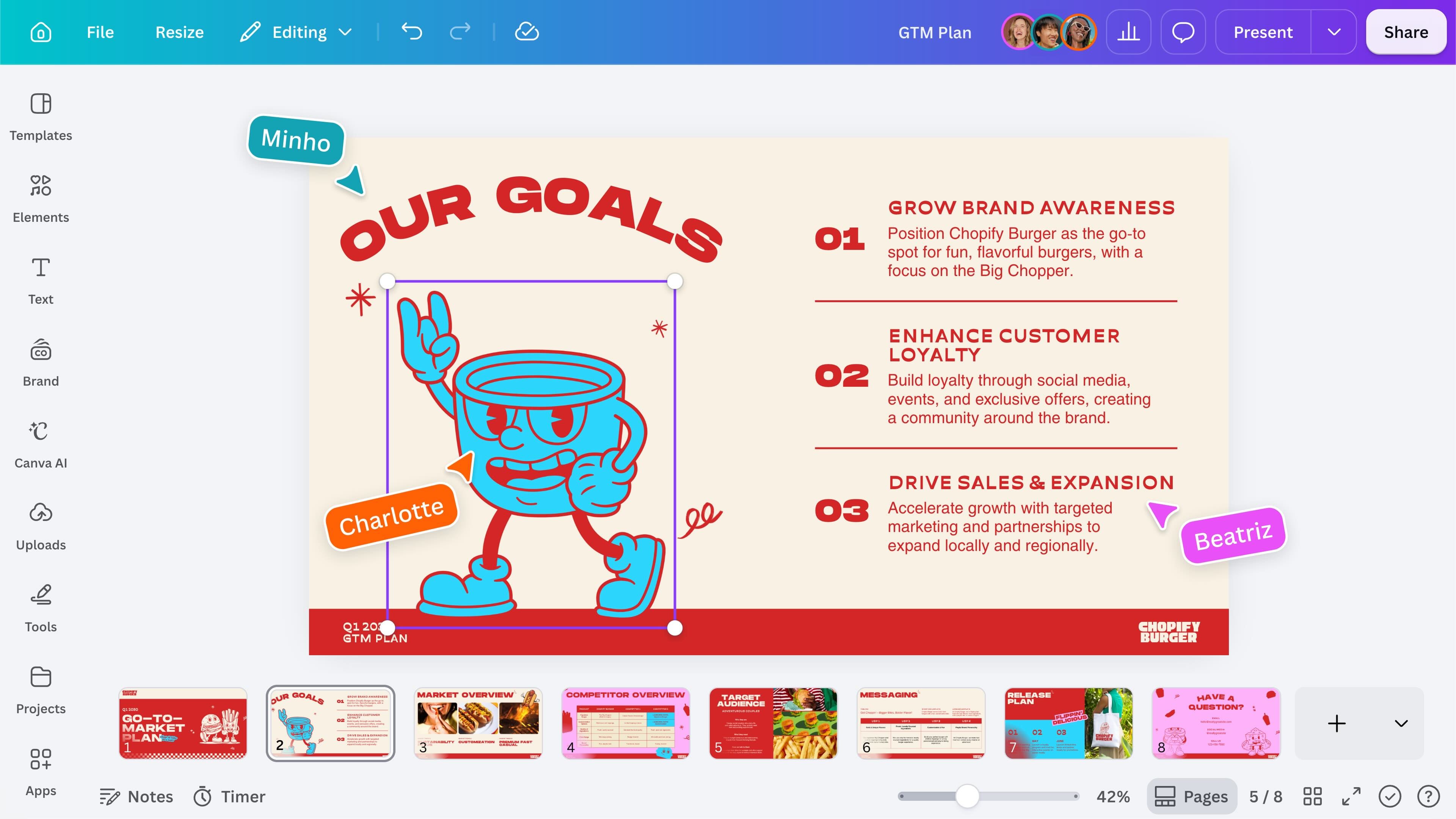
When collaborators join your design, you can work together at the same time. You may see collaborators’ profile icons at the top of the editor and their cursors moving around the design as they select or edit content. Real-time collaboration makes it easier to review ideas, make changes, and build a design together without creating multiple versions.
Add and manage comments
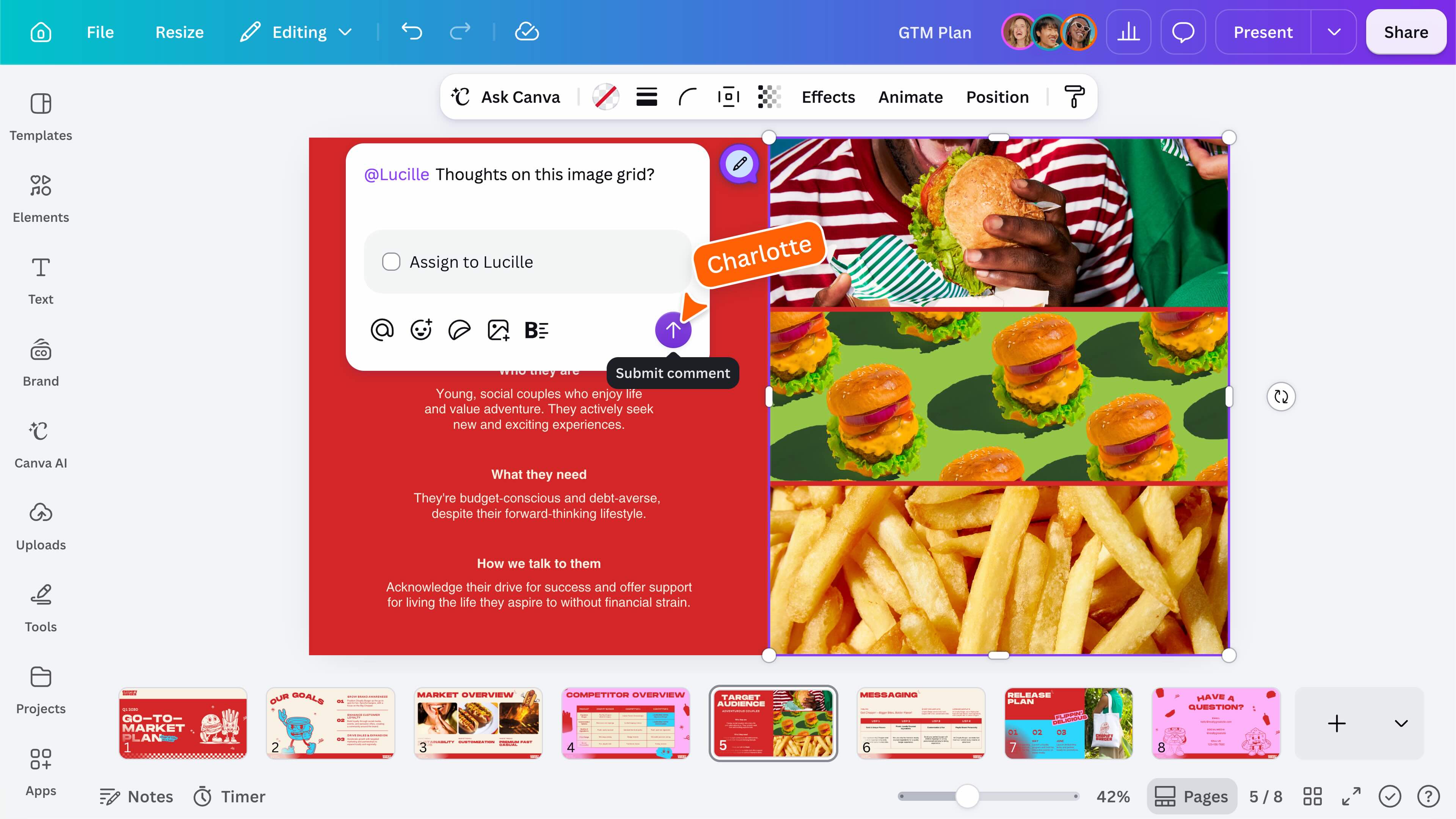
Select an element or area of your design, then add a comment to leave feedback or ask a question. Use @ followed by someone’s name to notify them directly. Depending on your account and workspace, you may also see options for turning feedback into an assigned task. Collaborators can reply to comments, react to them, or resolve them once the conversation is complete. Use the available comment controls to review active and resolved conversations. The exact options may vary depending on your account and workspace.
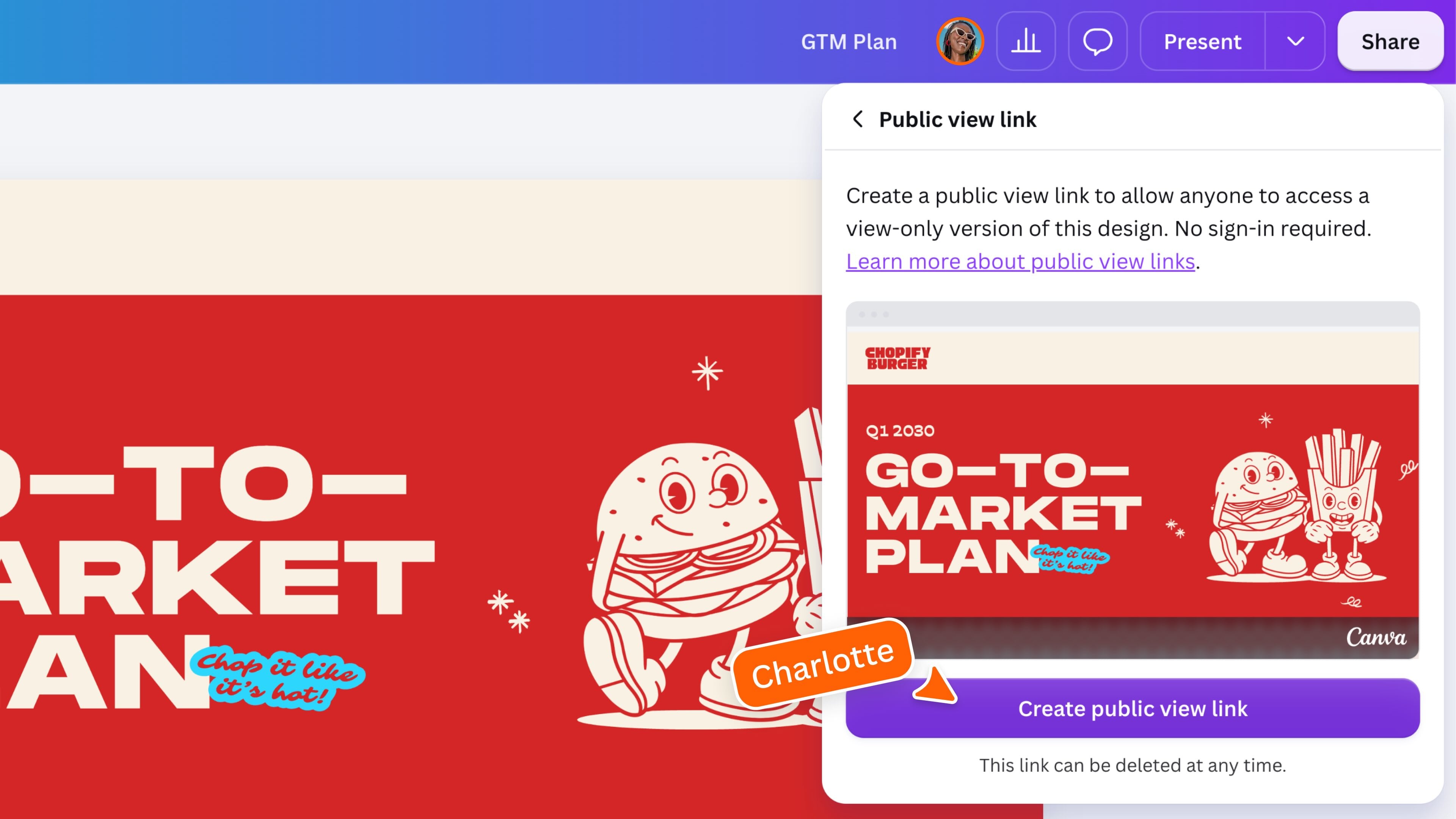
Create a public view link
A public view link gives people a view-only version of your work without granting access to the editable design. This can be useful when you want to share information with a wider audience while keeping the original design private. Public view links may only be available on certain Canva plans. You can delete the public view link when you no longer want it to be available.
Download or publish your design
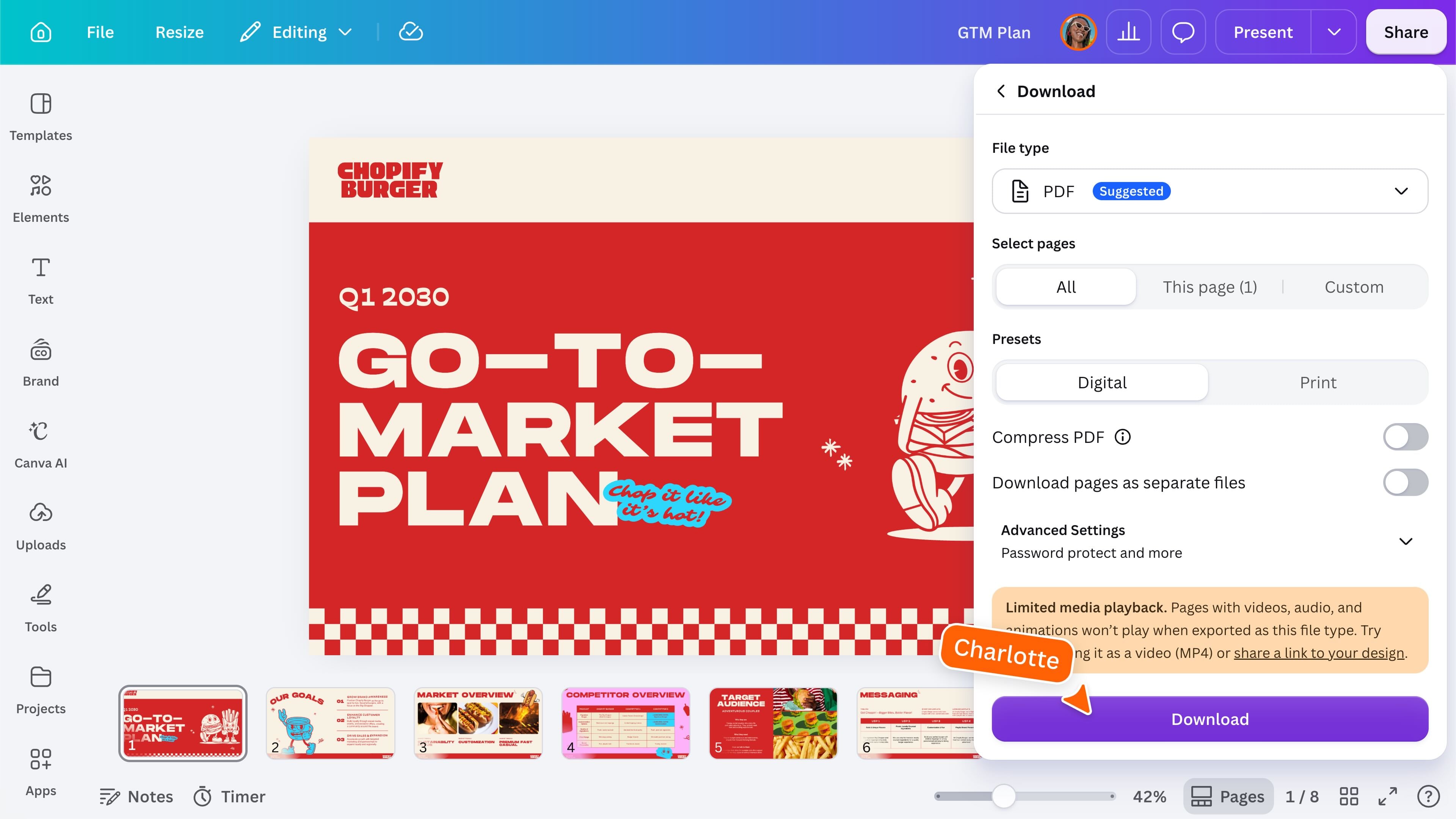
When your design is ready, open Share and choose Download. Select the file type that best suits how you plan to use your design. The available formats may change depending on the design type. Depending on the design type and your Canva plan, you may also see options to: The exact options shown may vary depending on your design, device, and Canva plan.
Save and organize your work
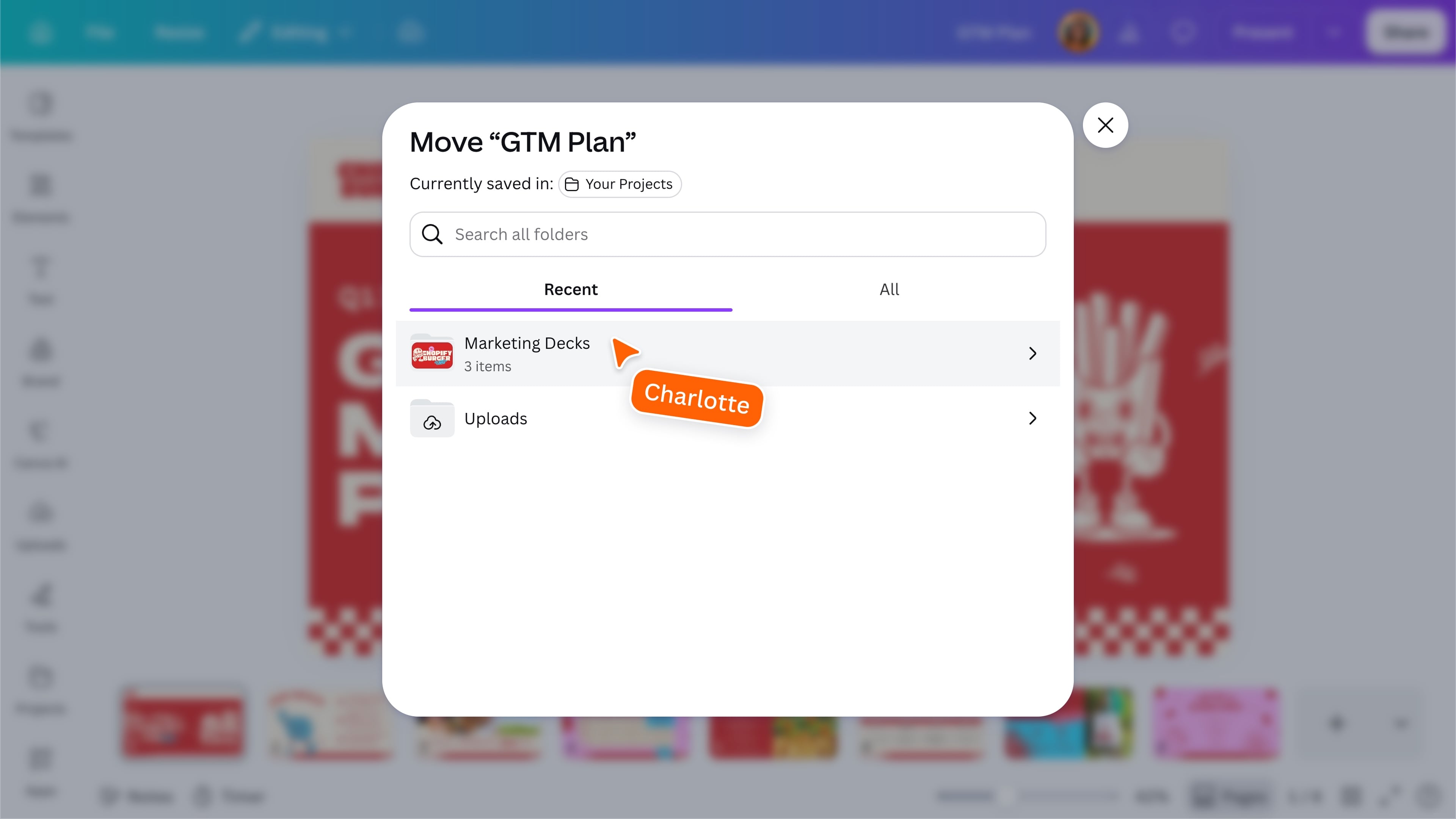
Canva saves your changes automatically while you work. Check the save status before closing your design, especially if your internet connection changes. You can also access save options from the File menu. To organize your design, choose Move from the available design options, then select an existing folder or create a new one. You can view your folders from Projects on the Canva homepage. Star the folders you use most often to make them easier to find. Folders can also be shared with others, depending on your access and team setup.
Ready to collaborate? You now know how to share a design, manage permissions, gather feedback, download your work, and keep projects organized. Try inviting someone to one of your designs and use comments to work through an idea together.
Featured in these lessons
Share
Last updated 04 Aug, 2026