Uploading and editing photos
5m
Beginner
Enhance your photos using Canva’s editor with tools for cropping, filters, and Magic Studio features like background removal.
Uploading and editing photos
5m
Beginner
Enhance your photos using Canva’s editor with tools for cropping, filters, and Magic Studio features like background removal.
What you’ll learn
- Navigating the Photo editor
- Editing your photos
- Exploring AI-powered photo editing
- Using filters
- Editing photos in a design

Take your photos further with Canva’s photo editor. Make small adjustments or transform your image with tools that help you remove distractions, replace backgrounds, improve image quality, and create something new. Use this guide to upload a photo, crop and adjust it, explore AI-powered editing tools, and use your finished image in a design.
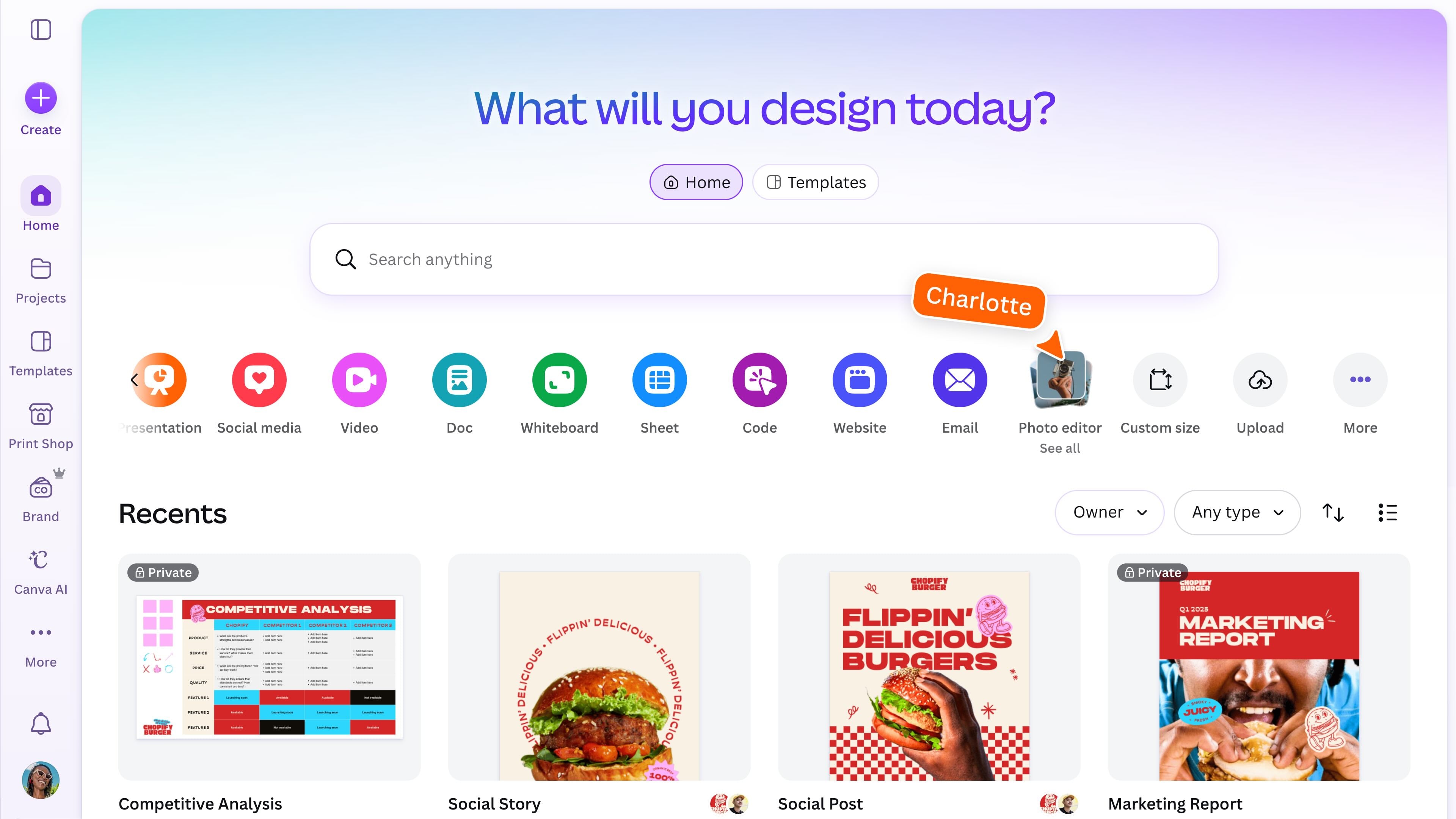
Open the photo editor
From the Canva homepage, select Photo editor, then upload a photo or choose one from your files. You can also open a photo from Uploads, then enter the photo editor to edit. The quickest way to start editing photos in Canva is to drag and drop them straight into your design. Canva supports common image formats, including JPEG/JPG, PNG, WEBP, HEIC, SVG, and PSD.
Get to know the photo editor
Canva’s photo editor makes it easy to make quick changes or more detailed edits, all in one place. The available tools may vary depending on your image, Canva plan, and team settings.
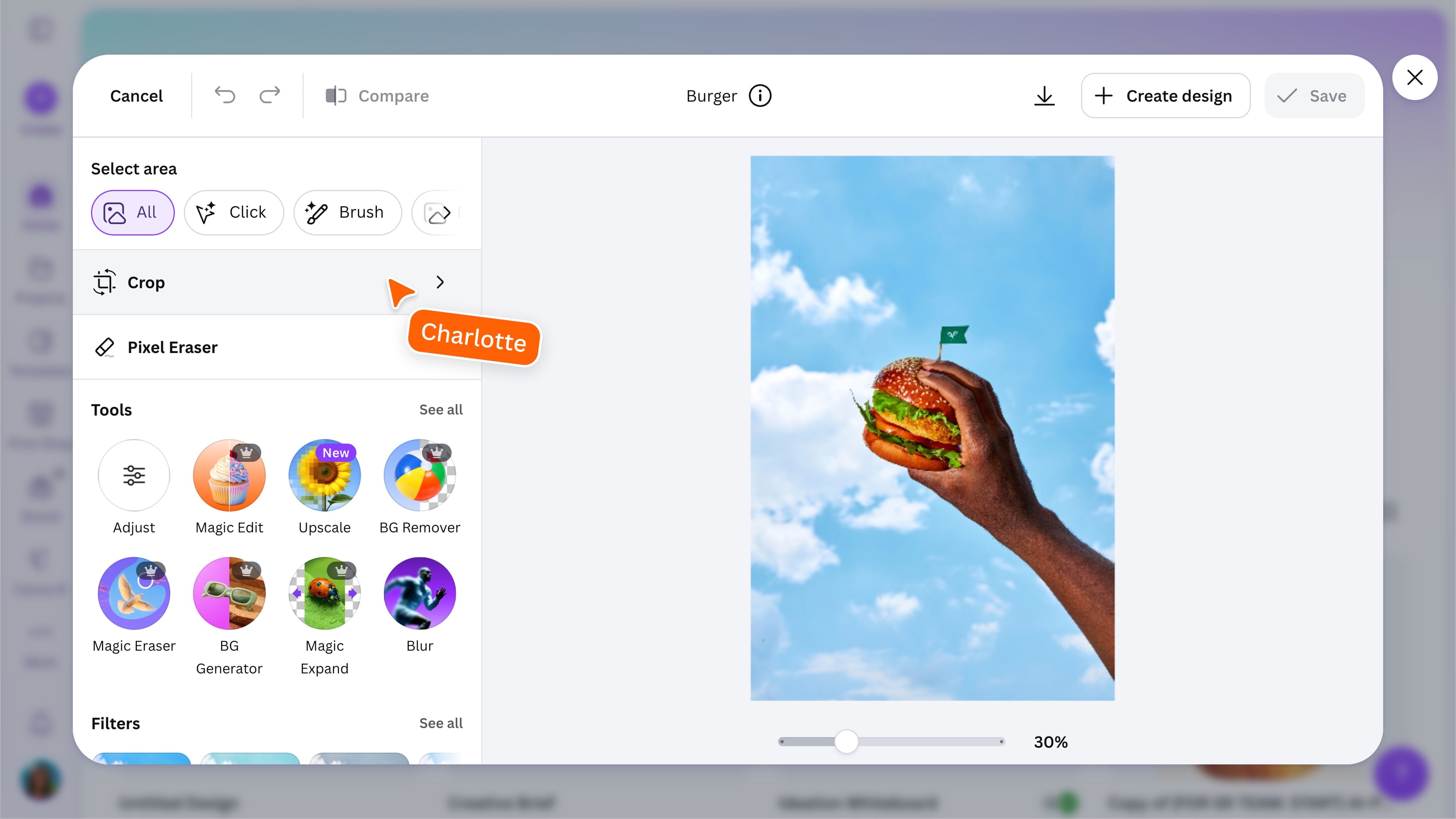
Crop and reposition your photo
Crop your photo to change which part of it is visible. Drag the handles to adjust the crop, choose a preset aspect ratio, or reposition the image within the frame. You can also rotate your photo to straighten it or change its orientation. Select Done when you are happy with the result.
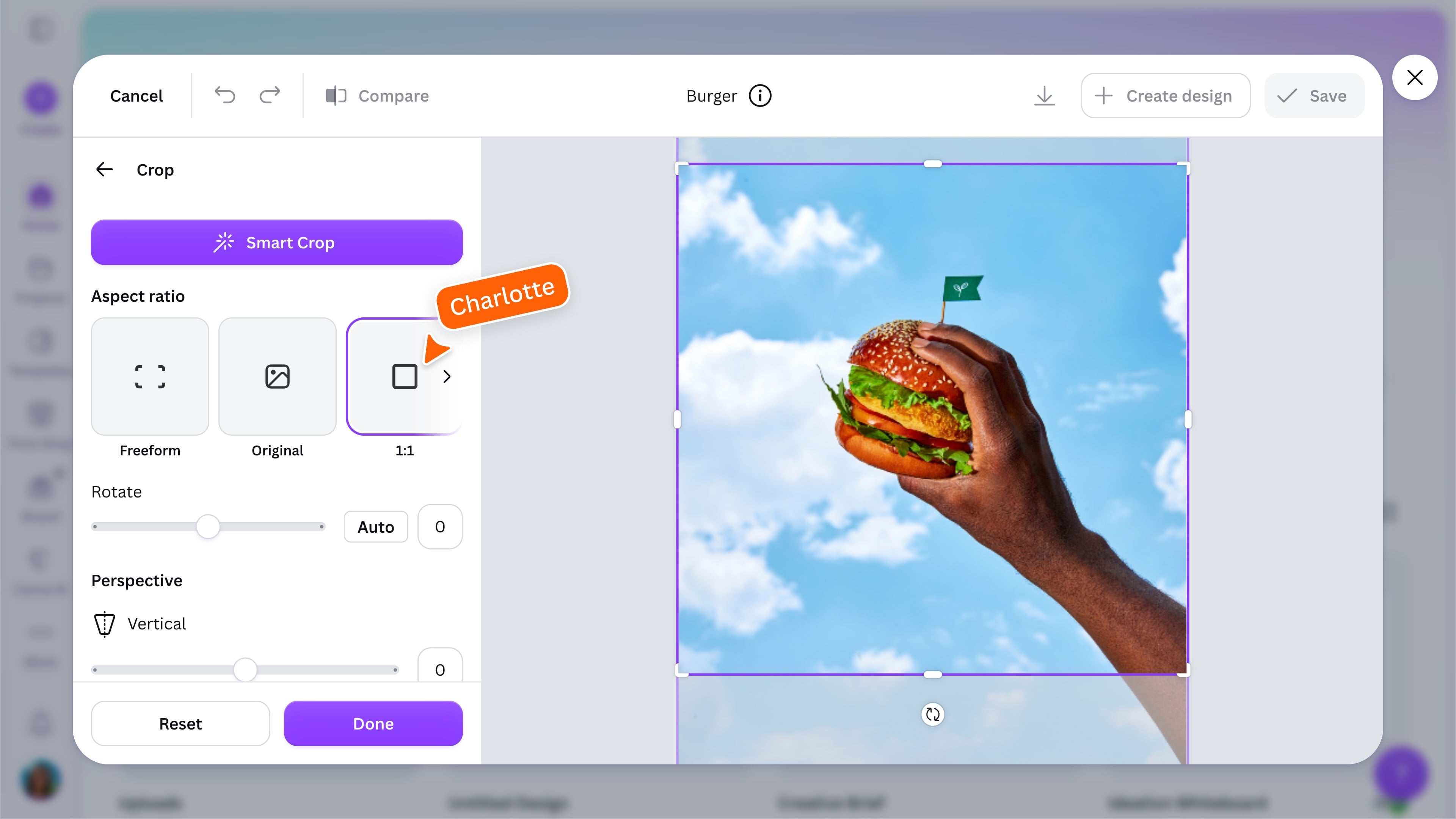
In the image above you’ll see a purple button called Smart Crop. This uses AI to identify the most important part of an image and automatically adjusts the crop to keep it in focus. Really handy when you need help deciding which parts of an image to keep or crop out.
Explore AI -powered photo editing
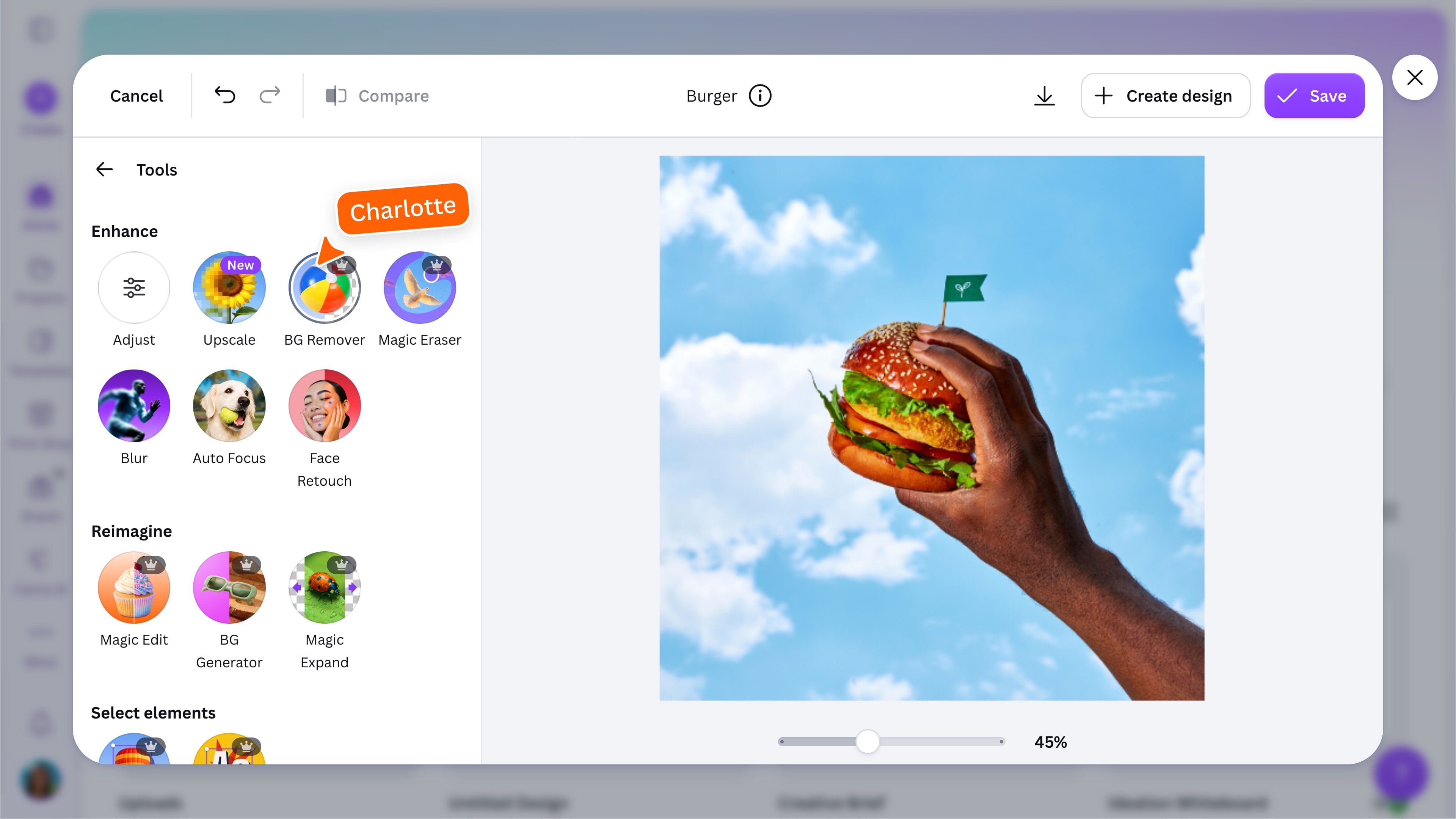
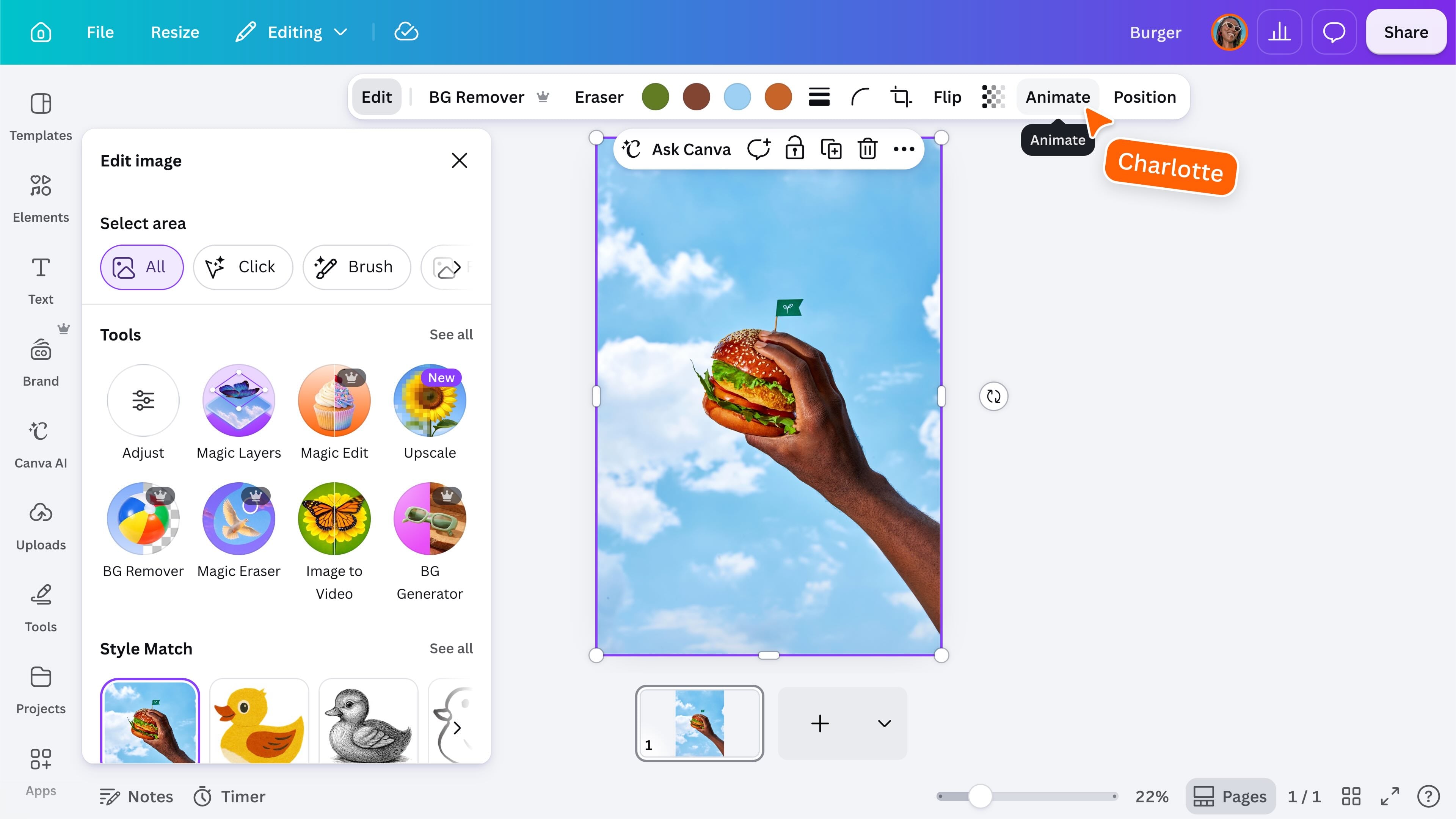
Canva has all the tools you need to customise your photo, and bring your idea to life. Select the photo, then choose Edit from the toolbar to open the photo editing panel. From there, you can access adjustments, filters, AI-powered tools, and photo editing apps. Select Tools to explore Canva’s AI-powered photo editing features. The tools available may vary depending on your image, Canva plan, and team settings. Enhance Adjust your image, improve its quality, remove the background, erase unwanted objects, blur areas, add focus, or retouch a face. Reimagine Replace part of an image with Magic Edit, generate a new background, or expand the image beyond its original edges. Select elements Separate and reposition parts of an image, or extract text from within it. Select a tool and follow the prompts to choose what you want to edit or describe the result you want. Canva may automatically adjust lighting and mood so new elements blend naturally into the scene.
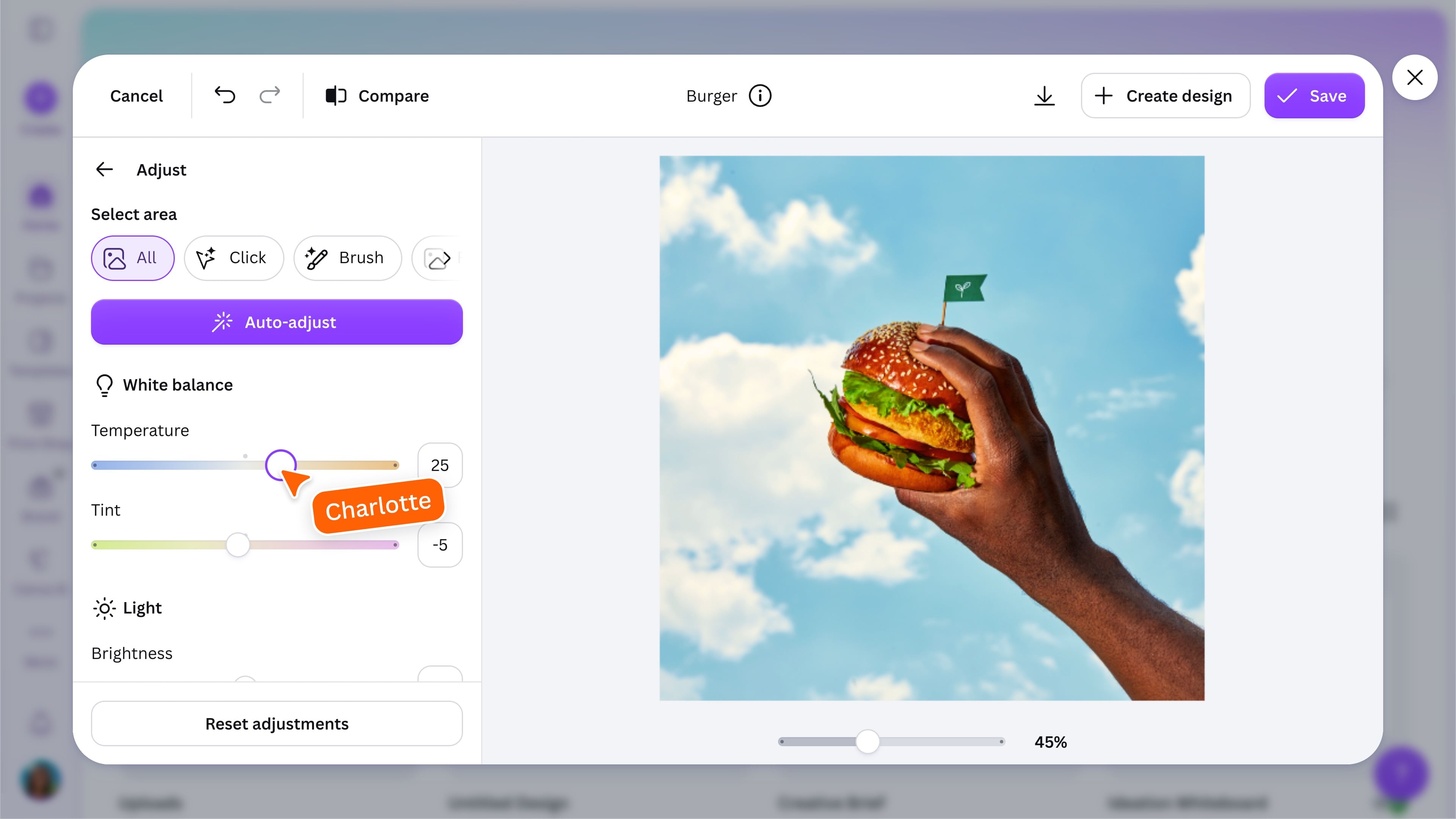
Make precise adjustments
Open Tools, then select Adjust to fine-tune your photo. Use the controls to change brightness, contrast, saturation, colour, texture, and other settings. Select Compare to view the original, or Reset adjustments to start again.
Apply filters
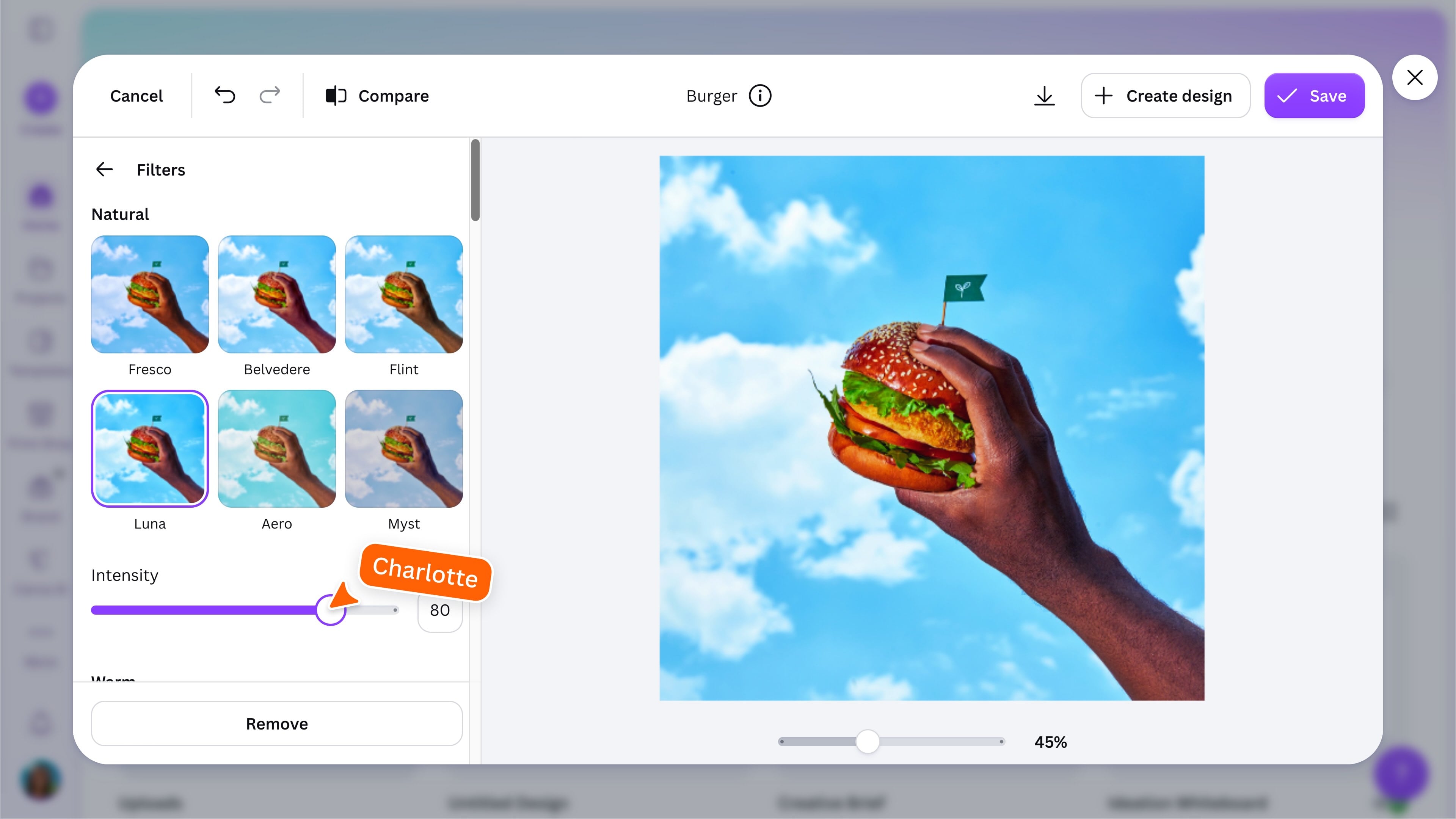
Open Filters to quickly change the overall look and mood of your photo. Choose a filter, then adjust its intensity to make the effect stronger or more subtle. Using the same filter across several photos can help create a consistent look throughout your design. Explore photo editing apps for more ways to enhance, transform, or restyle your image.
Edit photos in a design
Photo editing works similarly when you’re creating a design. Just select the photo and follow the same steps to access all the tools in the photo editing panel. You can also animate your photo with a wide range of motion effect options.
Ready to keep editing? Upload one of your own photos and try cropping it, applying a filter, or using an AI-powered editing tool. When you’re happy with the result, add it to a design or save it for later.
Featured in these lessons
Share
Last updated 04 Aug, 2026