Navigating your Canva Education homepage
4m
Beginner
Get familiar with the main areas of Canva Education and know where to find your classes, projects, resources and creation tools.
Navigating your Canva Education homepage
4m
Beginner
Get familiar with the main areas of Canva Education and know where to find your classes, projects, resources and creation tools.
What you’ll learn
- Navigating the homepage
- Finding classes, projects and resources
- Starting a new design

Welcome to your Canva Education homepage, the starting point for finding teaching resources, managing your classes, creating lessons and activities, and accessing student work. Use this guide to understand the main areas of Canva Education and confidently begin planning, creating and teaching from one place.
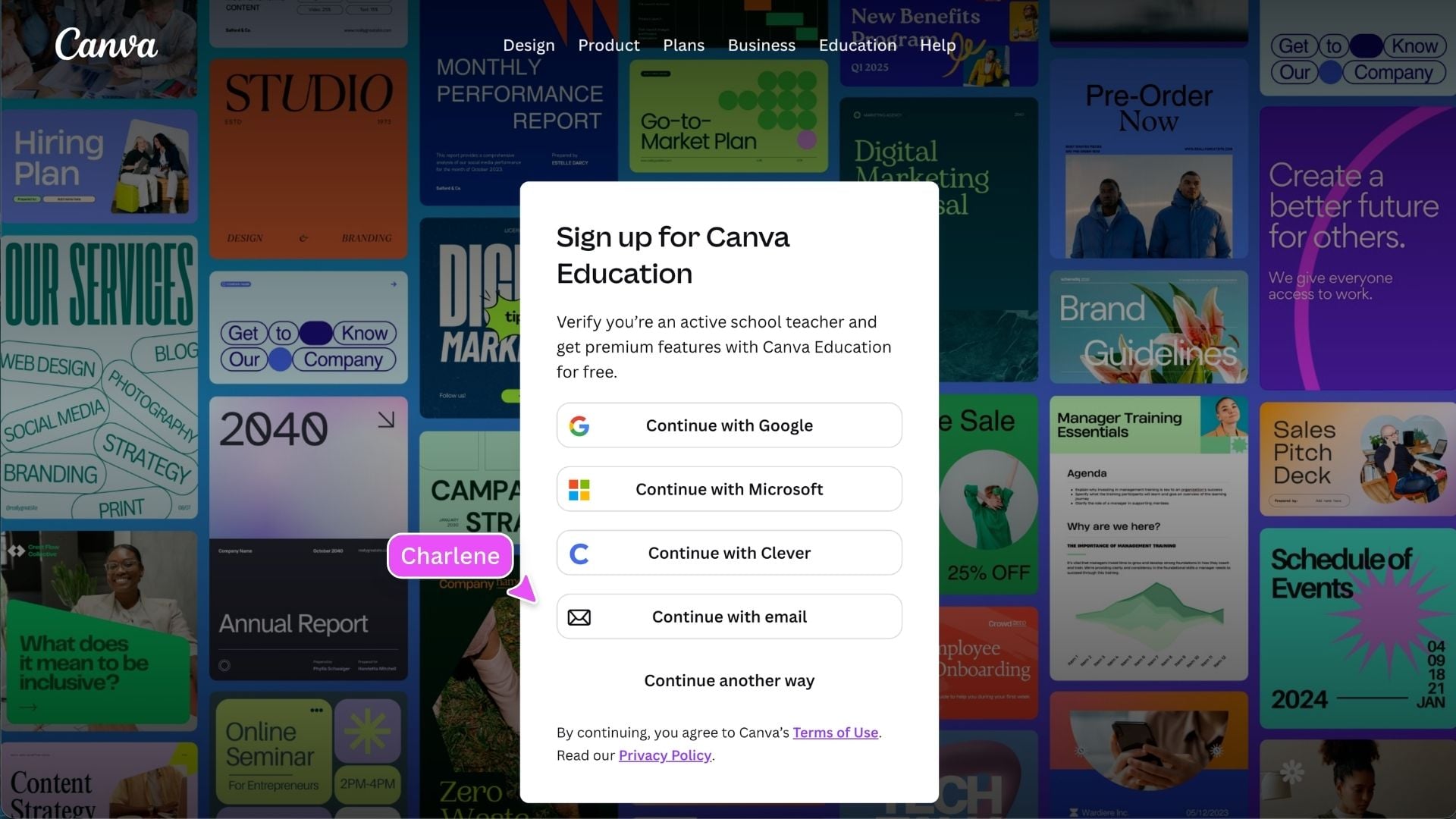
Log in to Canva Education
Log in using the account connected to your school or Canva Education team. This ensures you can access your classes, teaching content, and Education-specific features.
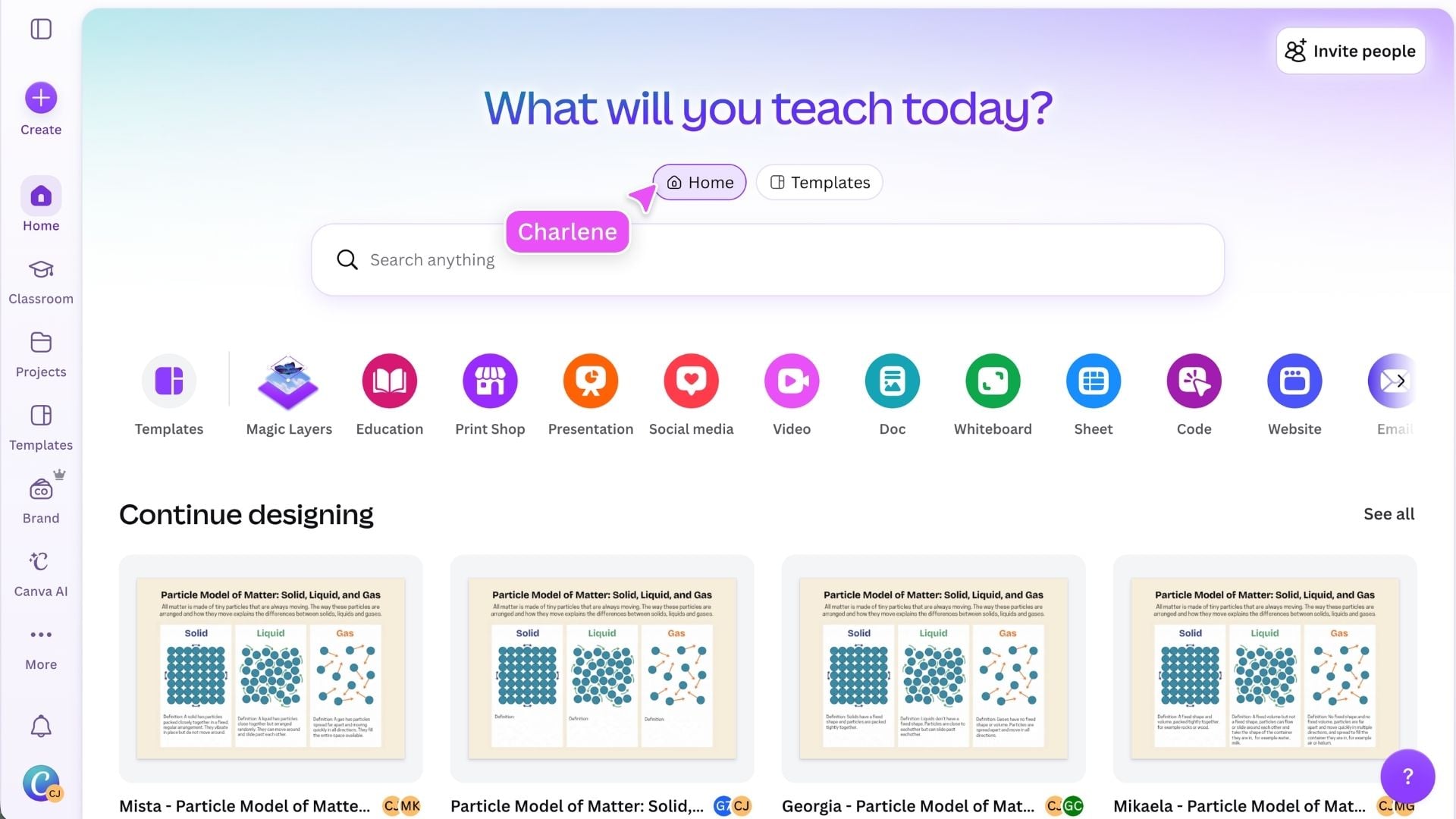
Start from the homepage
The homepage gives you a few easy ways to start creating. Choose from popular design types to open a blank design, or select Create to explore more options and enter custom dimensions. You can also use the search bar to look for a design, template, teaching topic, or resource. Return to Home whenever you want to start something new or access another area of Canva.
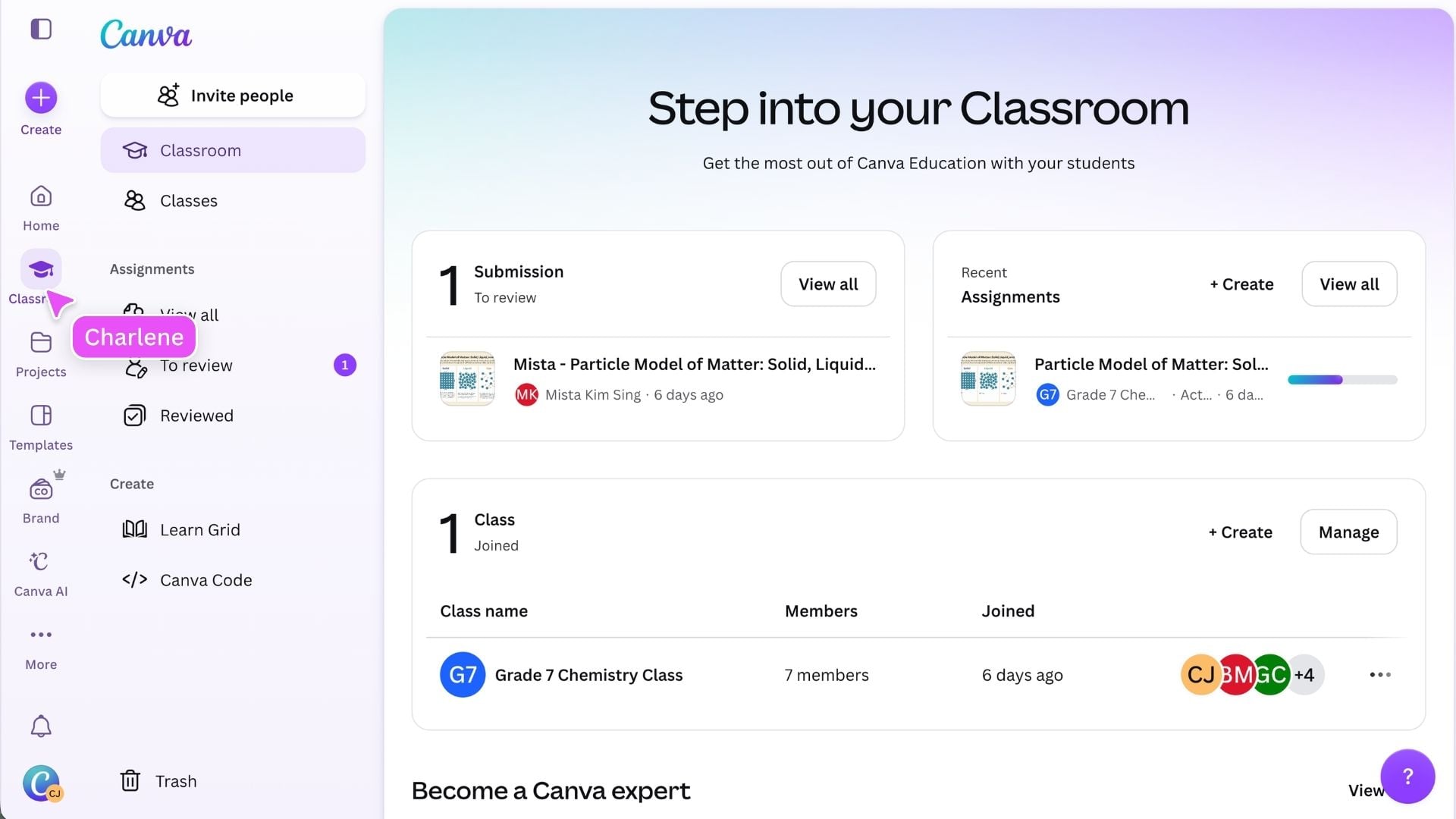
Access your classes
Select Classroom from the side panel to access your classes and classroom content. From here, you can: The classes and options available may depend on how Canva Education is set up at your school.
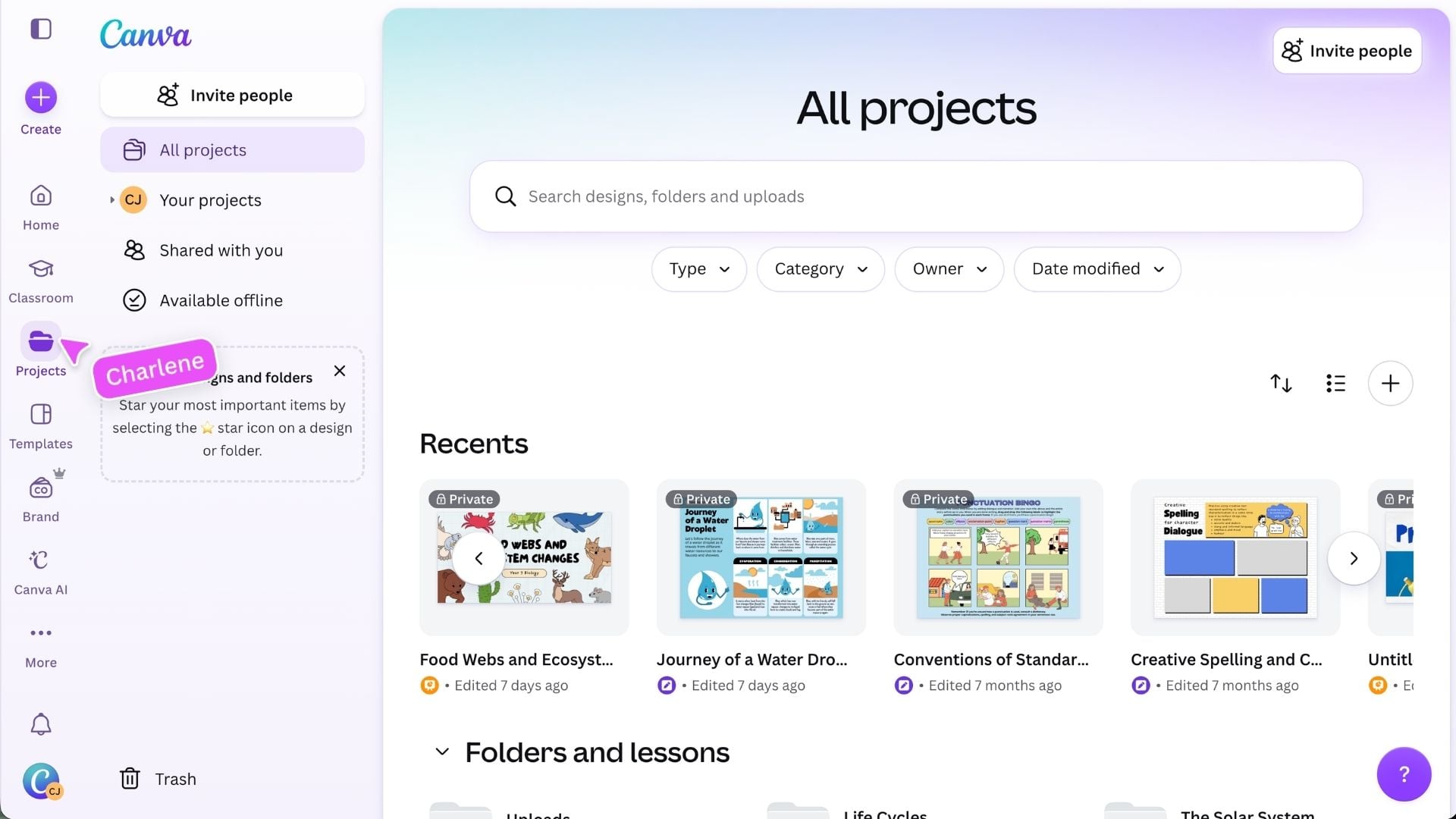
Find your work in Projects
Projects is where you can find and organize the content you have created or uploaded to Canva. Use Projects to access: Search and filters can help you quickly narrow down what you are looking for.
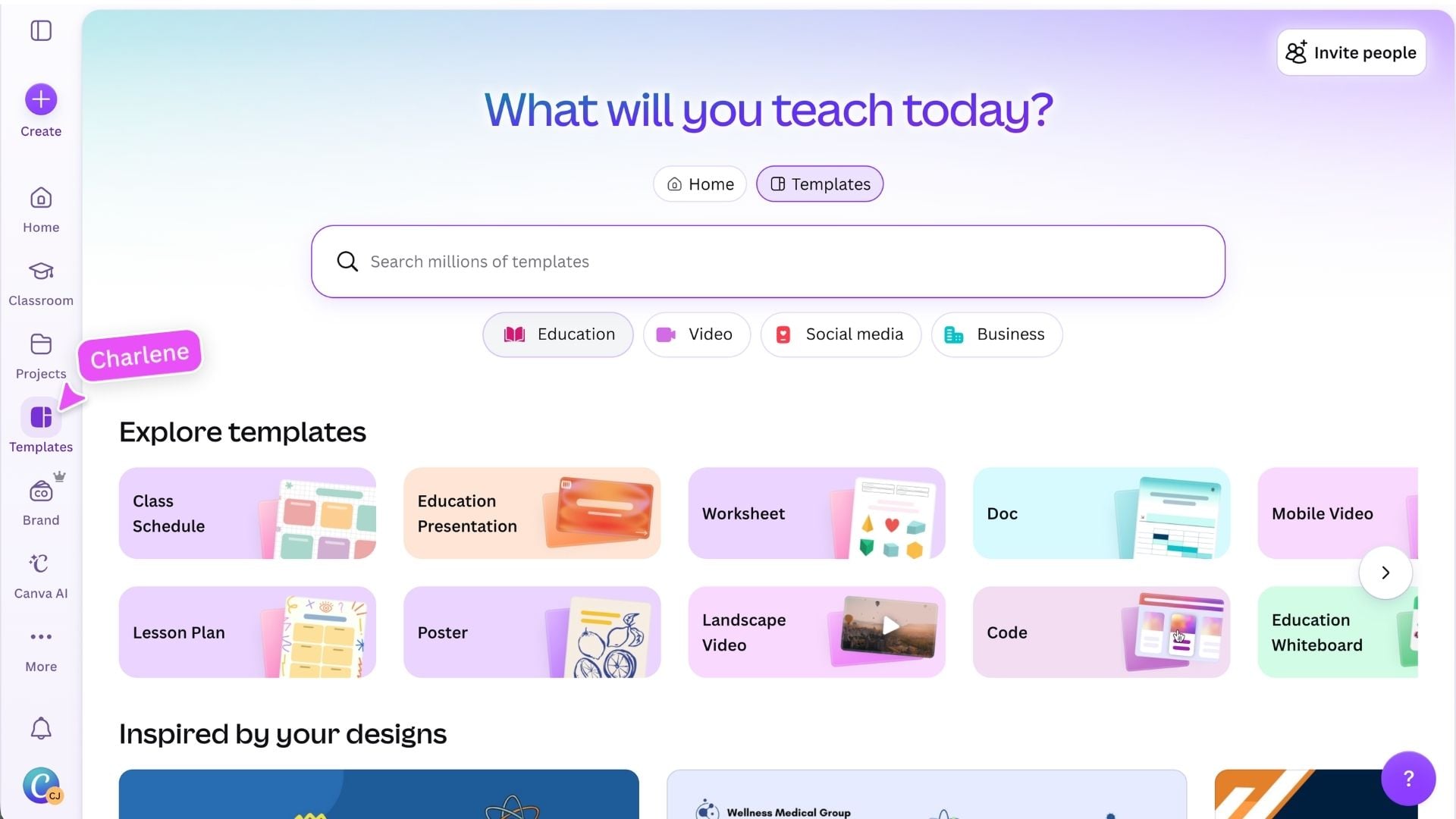
Find teaching and learning resources
Select Templates from the side panel to explore curriculum-mapped, ready-to-teach resources for your classroom. Browse or search by subject, grade level, category, topic, or learning outcome. You can find worksheets, presentations, whiteboards, interactive activities, and other classroom content. Select a resource to preview it, customize it for your class, or use it as the starting point for a lesson or activity.
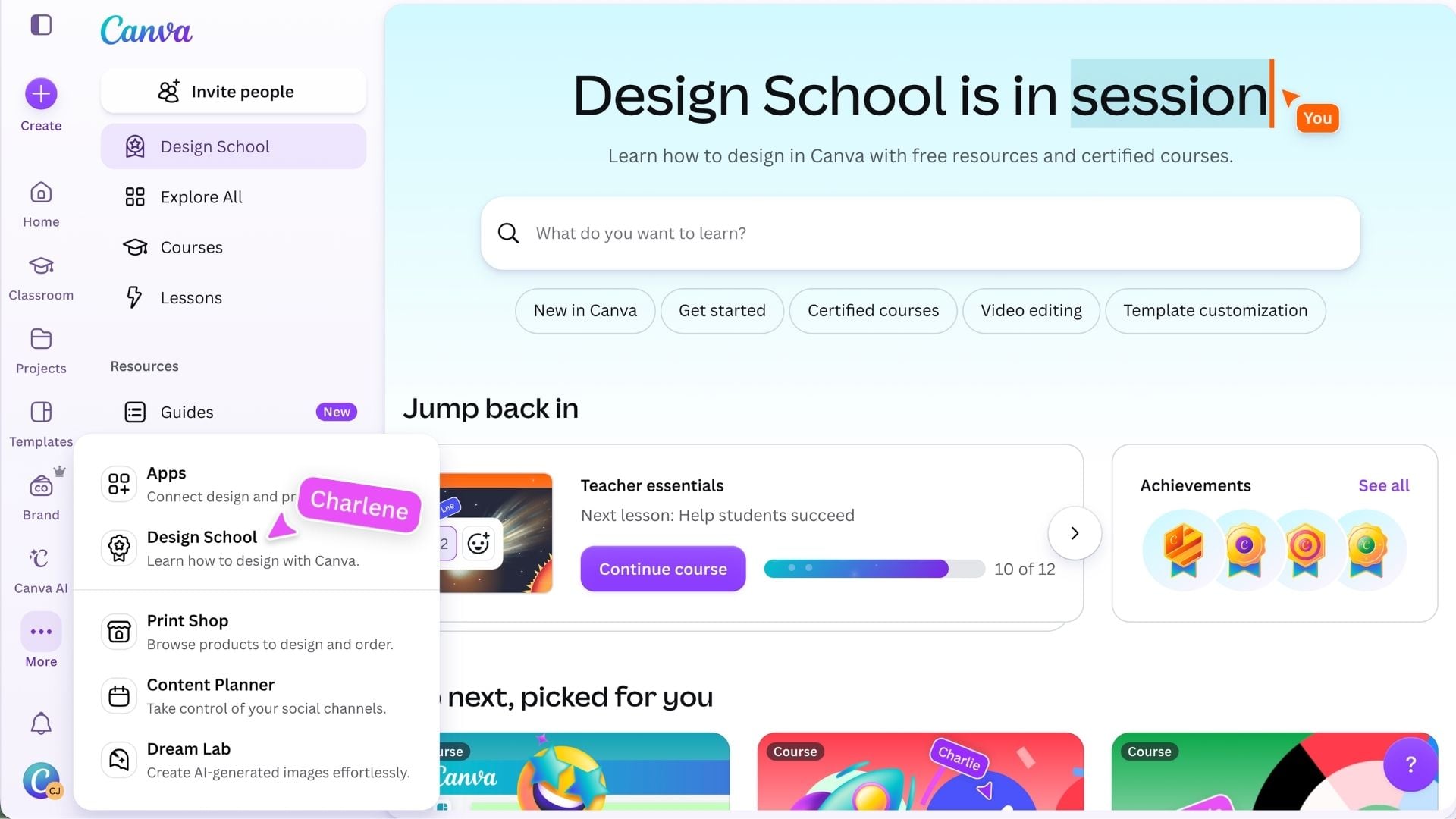
Find more teaching and learning support
The side panel gives you quick access to additional Canva tools and resources. Select More to find options that are not currently shown in your side panel. From here, you can open additional tools and pin the ones you use most often for quicker access. You can also open Design School to find courses, guides, videos, activities, and other learning resources to help you build your Canva skills.
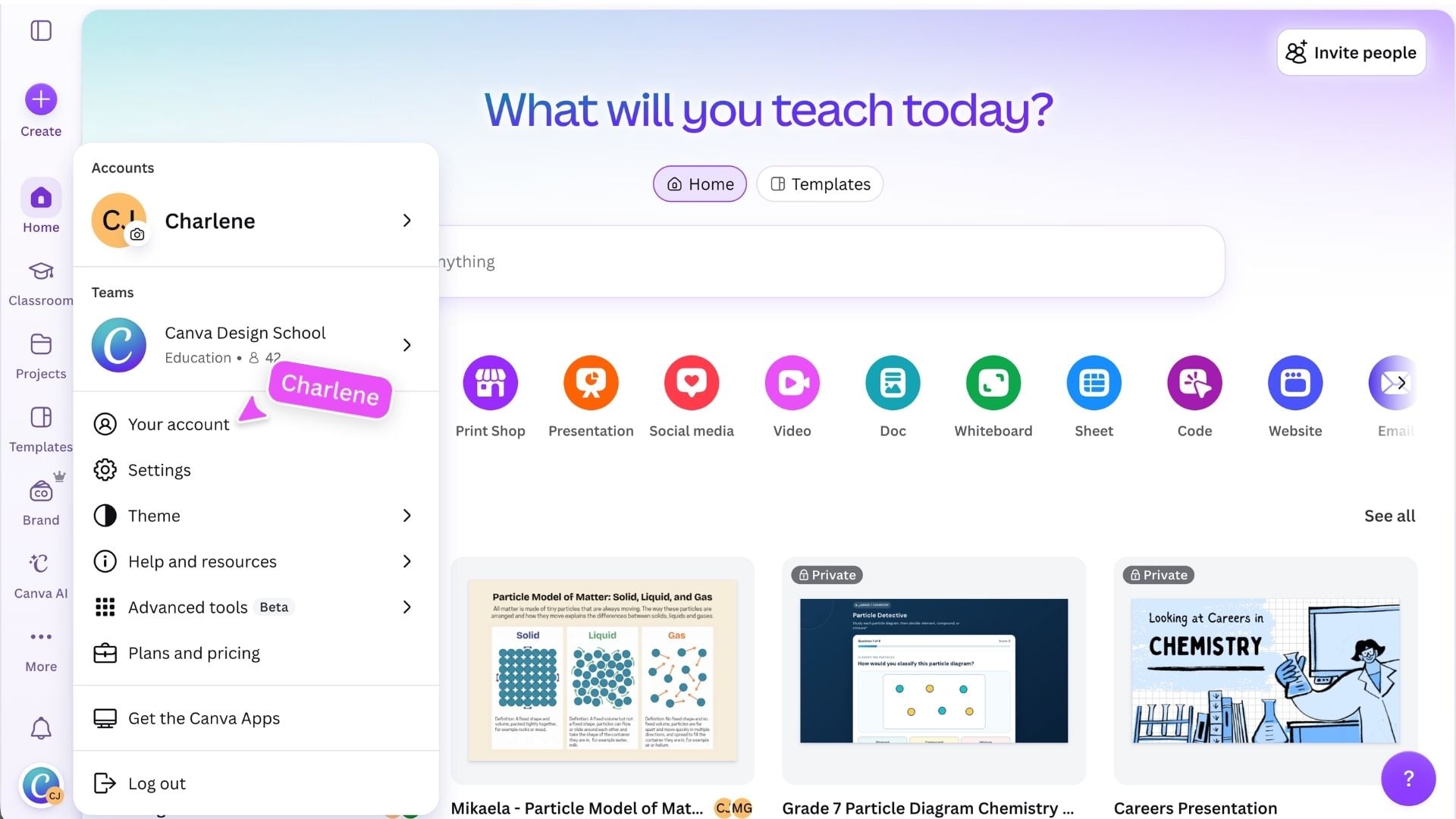
Manage your account and get help
Open your profile menu in the bottom-left corner to manage your account, switch teams, change your settings, and log out. Select Help and resources to search for answers, access support, or find guidance while you work.
You can also select the purple ? symbol in the bottom-right corner to get help with ideas, advice, and questions.
Ready to create? You now know where to find your classes, teaching resources, designs, templates, and creation tools. Return to the homepage whenever you want to start something new, continue a recent project, or access your classroom content.
Featured in these lessons
Share
Last updated 17 Sep, 2026