Review student work and give feedback
5m
Beginner
Review student work, provide feedback in different ways and support students as they revise and improve.
Review student work and give feedback
5m
Beginner
Review student work, provide feedback in different ways and support students as they revise and improve.
What you’ll learn
- Reviewing student work
- Giving targeted feedback
- Supporting revision and improvement
- Using different feedback formats

Monitor student progress, review submitted work and use feedback tools to help students reflect, revise and improve. Use this guide to find work that needs your attention, provide clear feedback and manage work as students move from submission to completion.
Open work ready for review
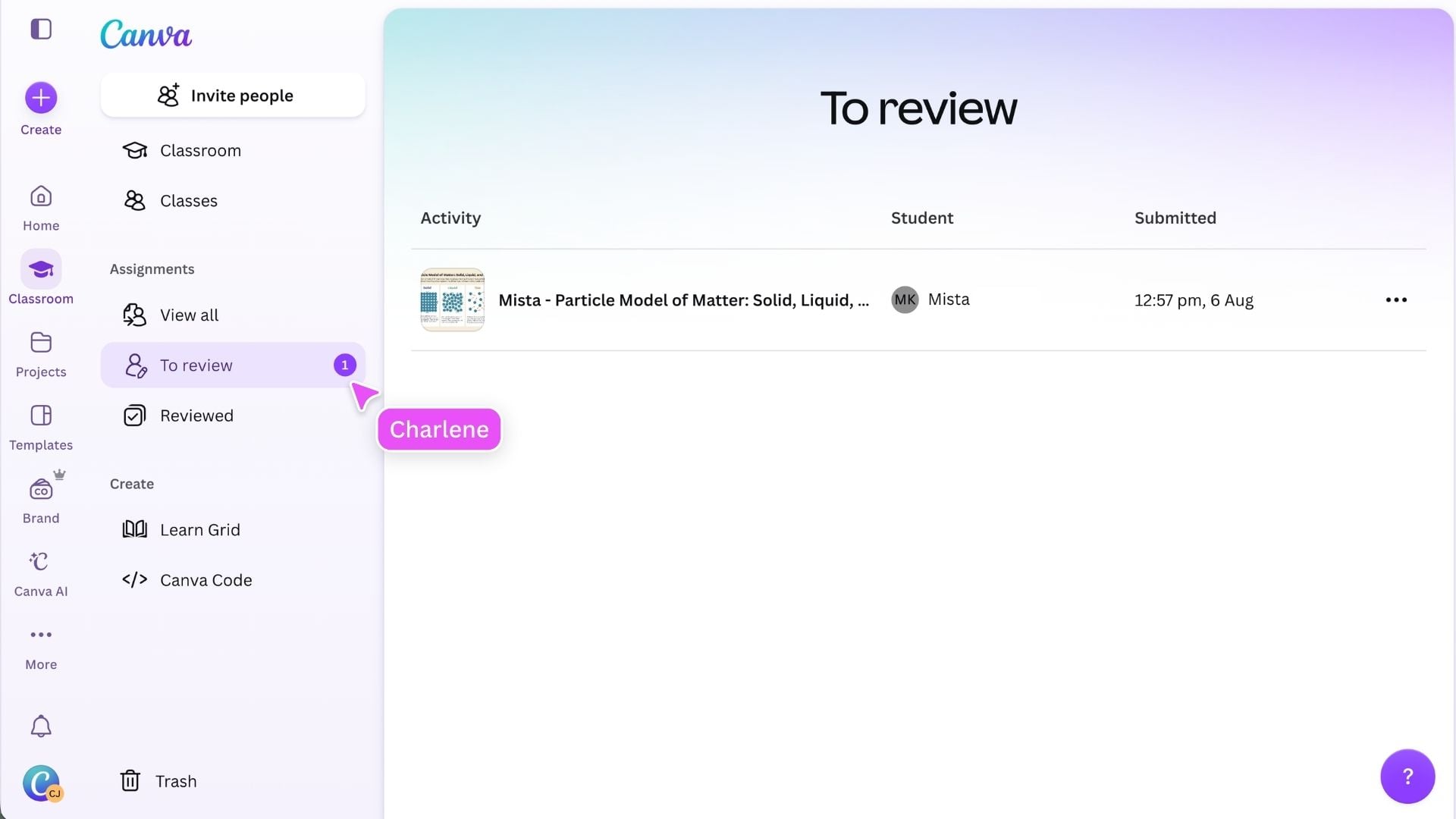
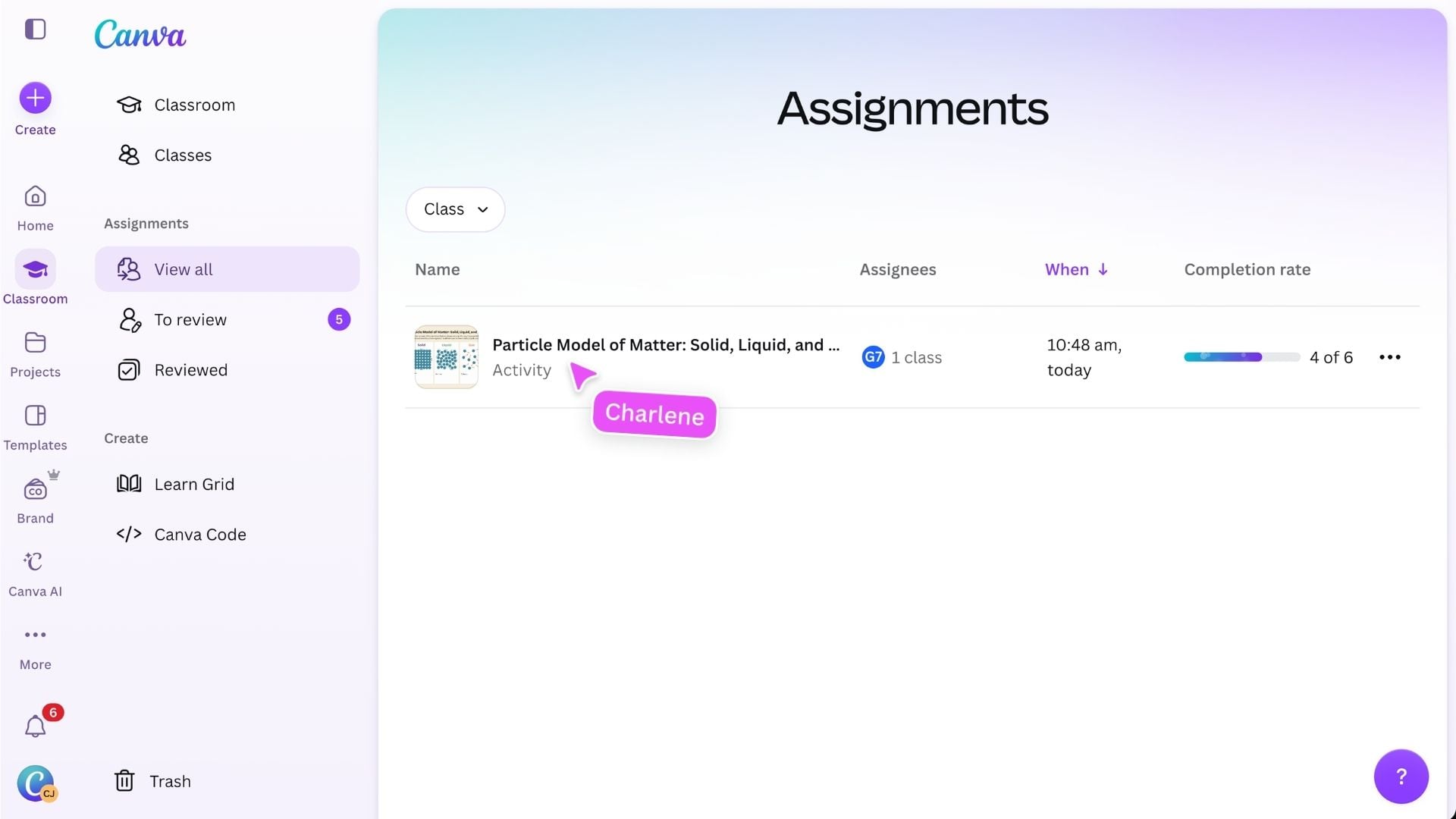
Open Classroom, then select To review to find submitted work that needs your attention. You can also open an assignment to view individual student statuses and select a submission to review. Feedback is most useful when it is connected to the learning goal, attached to the relevant part of the work and clear about the student’s next step.
Give clear feedback with comments
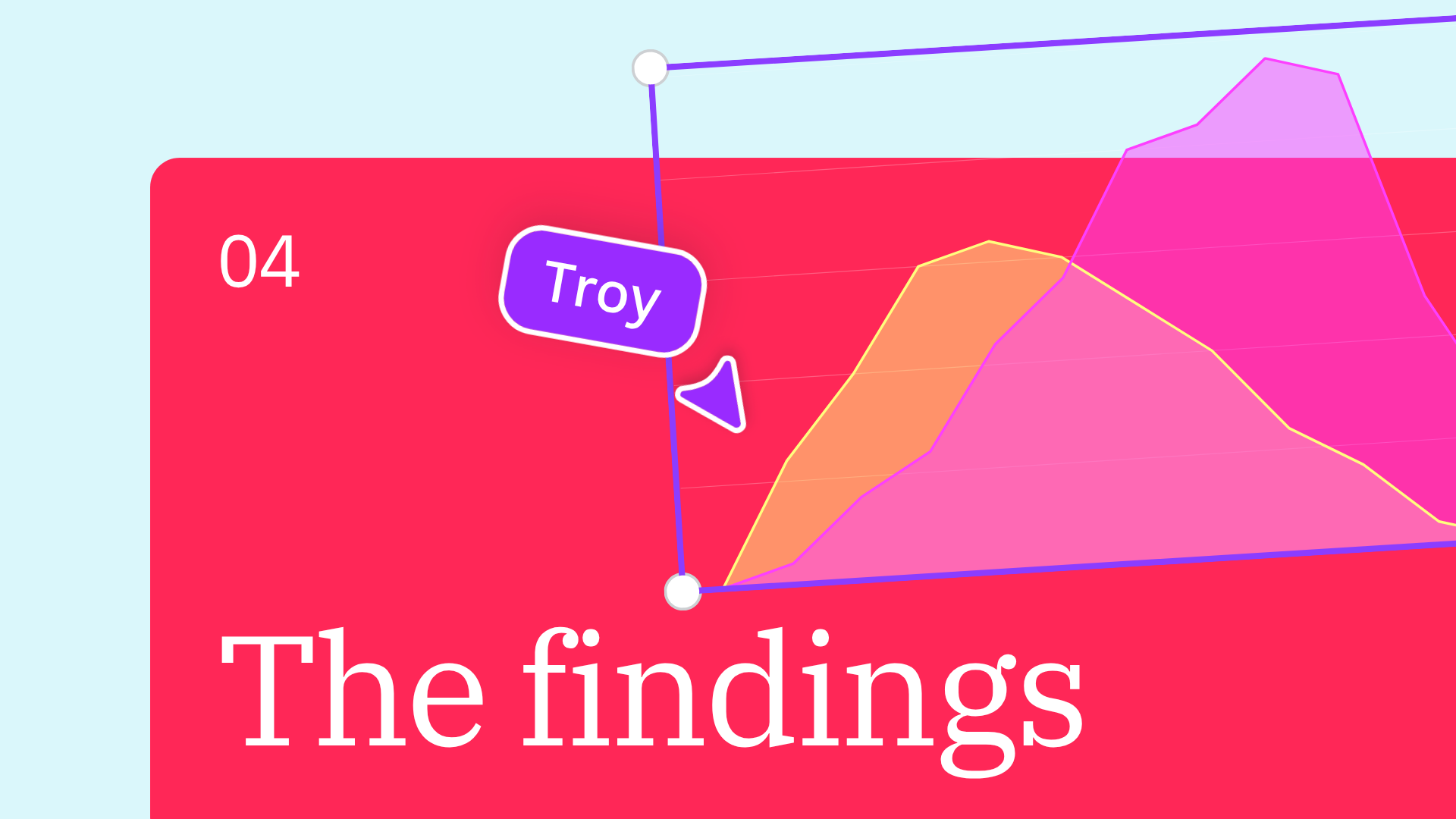
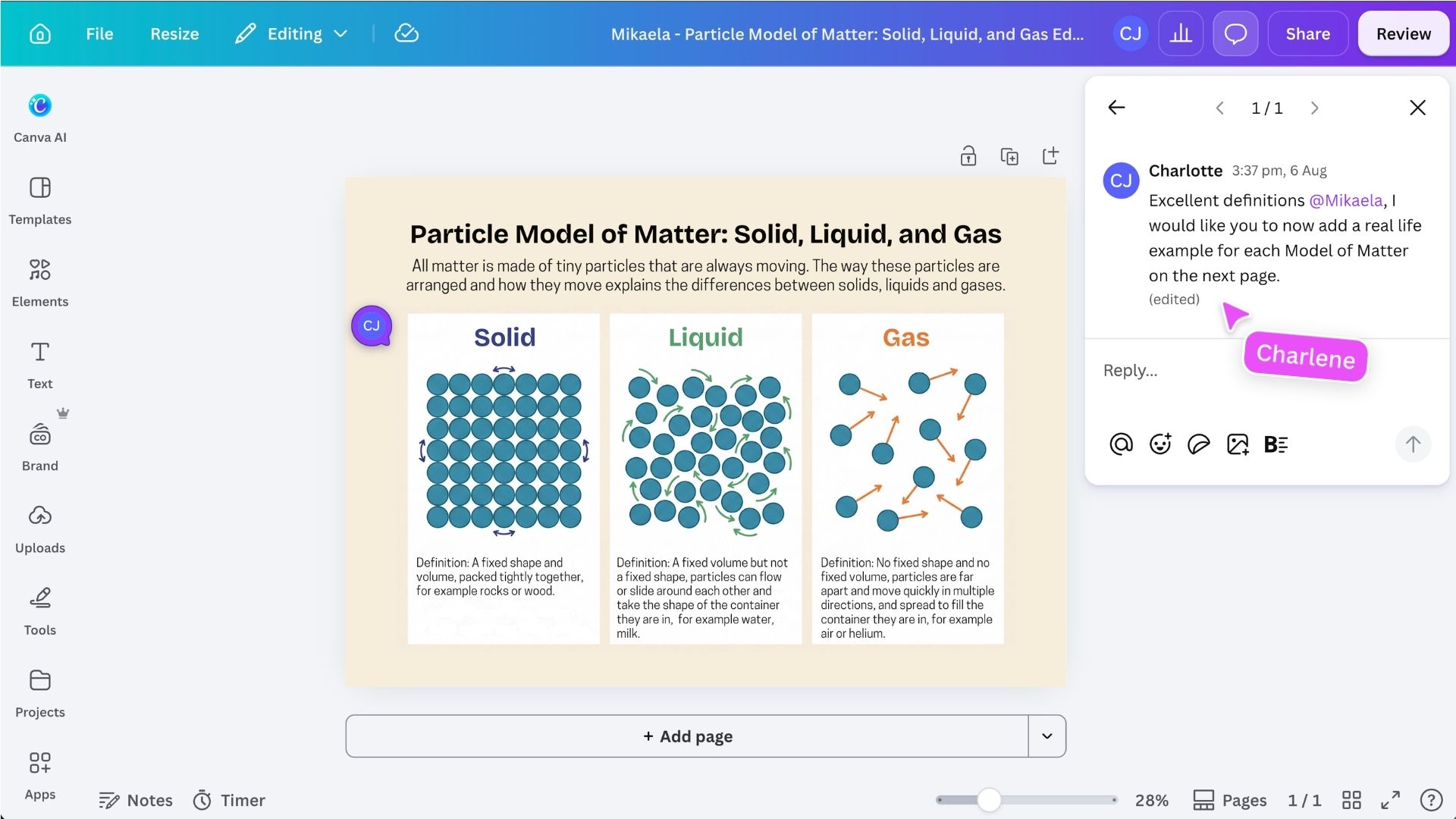
Add comments directly to the relevant part of a student’s design so the feedback stays connected to their work. Use comments to: Students can reply to comments, keeping the feedback and discussion together in one thread. Use @ followed by a student’s name when you need to direct a comment to a specific person, particularly when more than one student is working in the design. Once the student has responded or made the requested change, resolve the comment. This helps both you and the student see which feedback has been addressed and what still needs attention.
Support revision and resubmission
After reviewing the work, choose the next step that best supports the student. You can: Encourage students to check their assigned work and Canva notifications regularly so they do not miss new feedback. Depending on their school setup and notification settings, they may also receive an email when feedback or an update is available. Return to Classroom to monitor student progress, check for revised submissions and see which work still needs attention.
Use different types of feedback
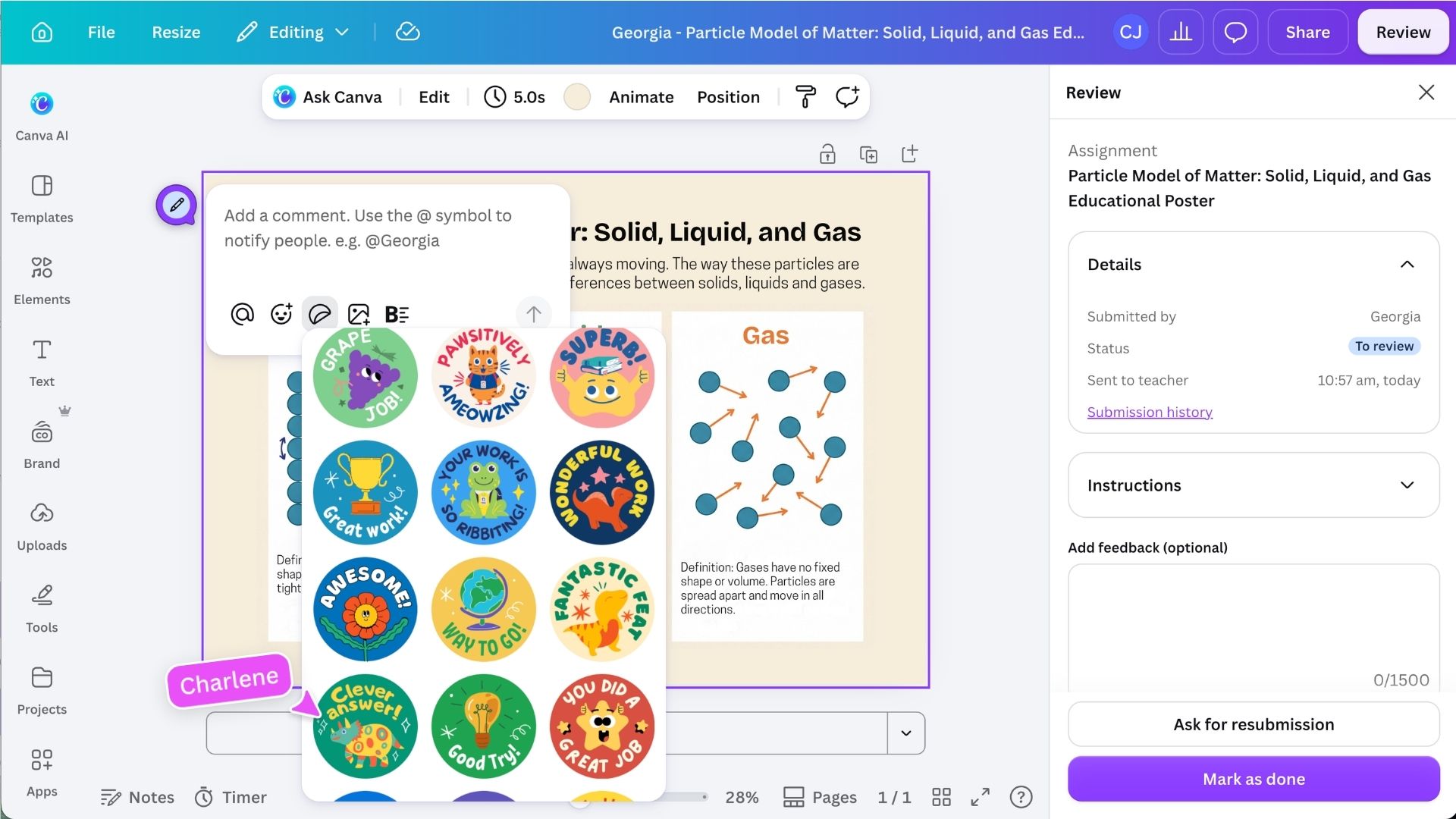
Canva gives you several ways to respond directly within a student’s work. Open the Comments panel and choose a sticker to give quick, encouraging feedback. Use education-focused stickers to recognize progress, celebrate effort or respond without adding a full written comment. Open Tools, then select Draw to circle, underline, highlight or annotate part of the student’s work. Add a comment beside the annotation to explain what it refers to and what the student should do next. Draw is only available in supported design types. Open Uploads, then choose the recording yourself option to add a short video or audio message to the design. Use recorded feedback to explain a complex change, model the next step or give a more personal response.Visual feedback
Drawn feedback
Recorded feedback
Complete and track the review
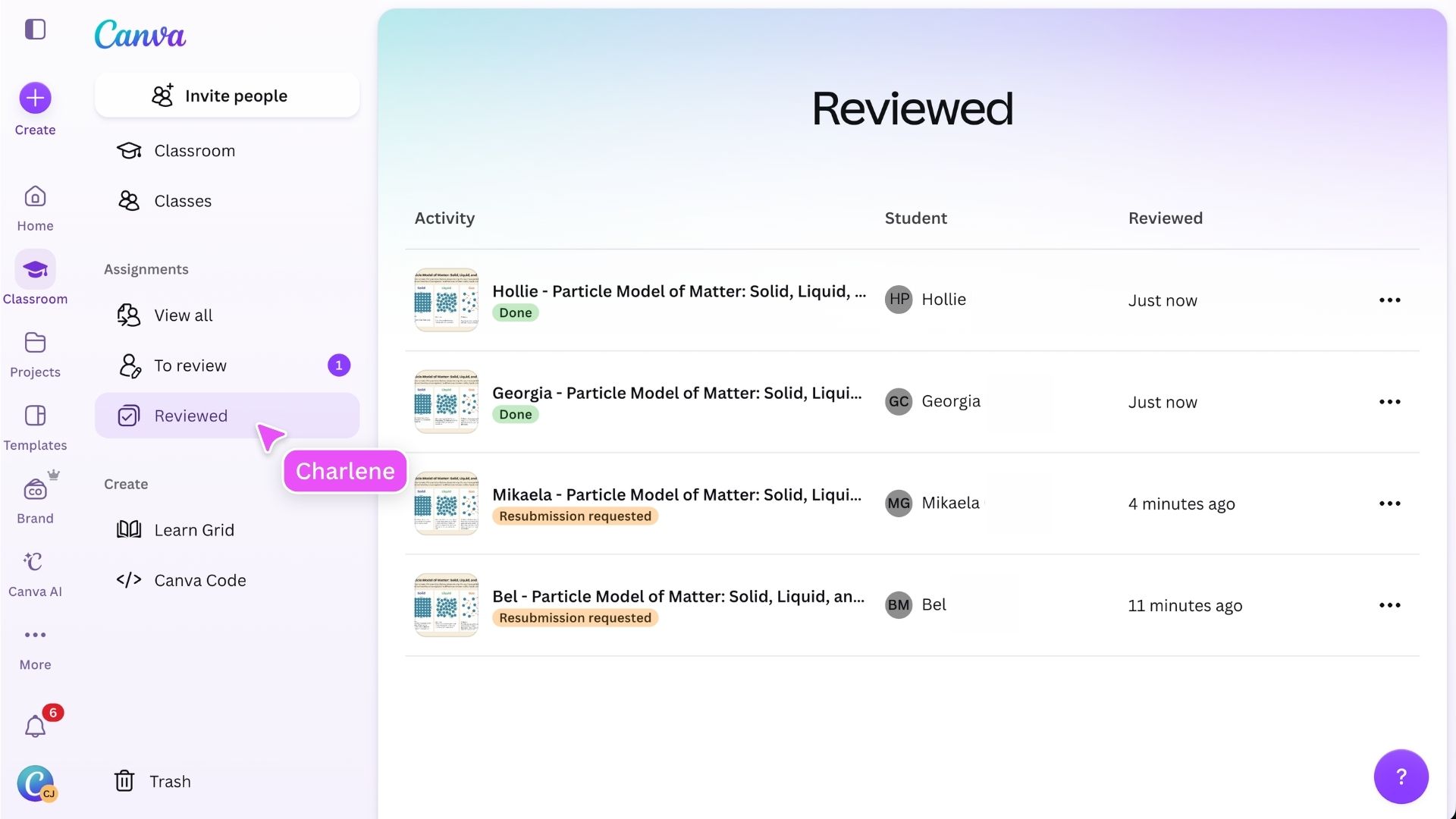
Once the student has acted on the feedback, review the updated work and mark it as complete where appropriate. Completed reviews remain available in Reviewed, making it easier to see which work has already been checked. You can return to the assignment at any time to monitor progress, review an updated submission or confirm that the feedback has been addressed.
Ready to support student progress? You now know how to review student work, give clear feedback and guide students through revision. Use comments to keep feedback connected to the work, make the next step clear and track what has been addressed. Use visual, drawn or recorded feedback when it better supports the learner, and return to Classroom to manage completed reviews.
Key skills
Featured in these lessons
Share
Last updated 17 Sep, 2026