
How to create a Canva vision board for your goals, brand, or next project
6m
Learn how to turn inspiration into something you can see and use. Create a personal vision board in Canva using templates, images, text, layouts, and AI tools, all from your mobile.
How to create a Canva vision board for your goals, brand, or next project
6m
Learn how to turn inspiration into something you can see and use. Create a personal vision board in Canva using templates, images, text, layouts, and AI tools, all from your mobile.
What you’ll learn
- How to use structure to create stronger carousel posts
- A repeatable formula that makes a carousel worth swiping
- How to customize an Instagram carousel template on mobile
- How to reorder slides, replace images, and edit captions efficiently
- How to apply fonts and elements consistently
- How to publish your carousel from Canva to your social account

Why vision boards work
Inspiration is everywhere — but on its own, it can be hard to pin down, or funnel into real, tangible action. Without a way to organize them, your ideas can quickly escape your grasp. You end up with screenshots you never revisit, concepts that grow cold in your notes app, or thoughts that lose clarity over time. A vision board gives those ideas a place to live. Instead of letting ideas sit in your camera roll or notes, you’re turning them into something you can actually see and use. Vision boards are perfect for things like:
It doesn’t need to be a big project or something physical. It can be simple, personal, and something you come back to often, especially when it reflects what matters to you right now. The goal isn’t just to feel inspired — it’s to turn that feeling into something you can act on.
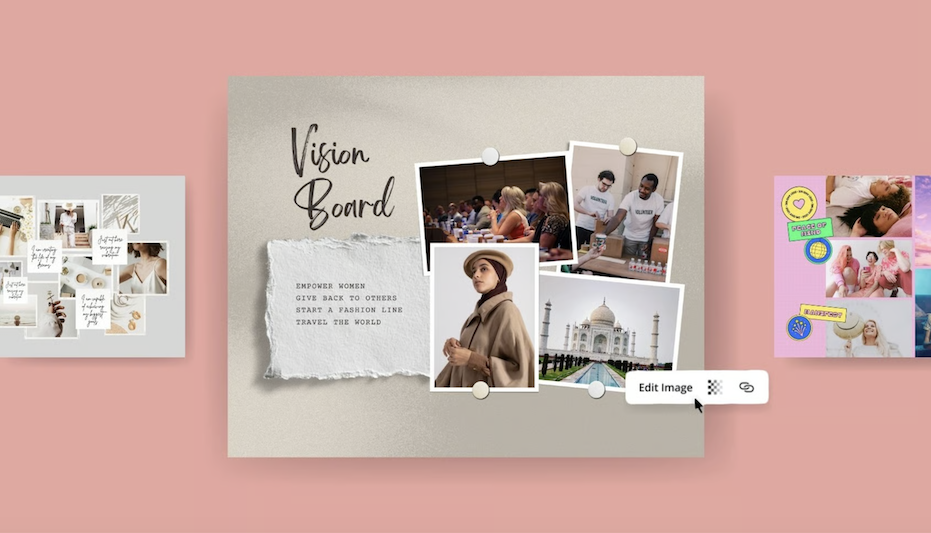
Design with intention
A strong vision board isn’t just a collection of images. What makes it work is how everything connects. You’re combining: When these elements work together, the board becomes easier to read and more meaningful to come back to. A simple way to guide your decisions is to ask:
These answers will shape the images, words, and layout you choose.
Start with a structure
You don’t need to start from a blank page. A template gives you a structure to work from, so you can focus on your ideas rather than figuring out layout from scratch. In Canva:
Everyone may start with the same structure, but the final result will look different depending on the choices you make.
Create your vision board
Now it’s time to make it your own. Start with the headline. This becomes the focal point of your board. You can use Magic Write to generate ideas:Create a title
Keep it short — just a few words that reflect what you’re working towards.
Work through your board and replace each image. You can use: Think about what each section represents. For example: Each image should connect to something you want to focus on. Include at least one image that feels specific to you. This could be:Replace images
Add something personal
These details make the board feel more relevant and easier to connect with over time.
Now refine the text across your board. Add short phrases, reminders, or affirmations that support your direction. Keep them:Update text
If you need help generating ideas, you can always use Magic Write again!
Refine the layout
Once your content is in place, take a moment to adjust the layout. This step is about making everything easier to read and more balanced.
You’re not adding anything new here — just improving how everything works together.
Download your vision board - and actually use it!
When your board is ready:
You can then set it as your lock screen so it’s something you see regularly.
One last thing
A vision board doesn’t need to be perfect. What matters is that it reflects something real — something you can come back to and adjust as things change. You can update it, replace elements, or build a new one entirely over time. The important part is that you’ve taken your ideas and turned them into something visible. Now it’s time to act on it!