
How to create animations using one simple technique
8m
Learn how to create animations in Canva using Match & Move. Use keyframes to build scroll-stopping social content, product demos, and presentations.
How to create animations using one simple technique
8m
Learn how to create animations in Canva using Match & Move. Use keyframes to build scroll-stopping social content, product demos, and presentations.
What you’ll learn
- Why animation holds attention in design
- The core concept behind all animations (keyframes)
- How to use Match & Move in Canva
- How to create three animation styles step-by-step
- How to apply animation to social, campaigns, and presentations

Why should you use animation?
Animation gives people more than something to look at — it gives them something to follow. When movement is used well, it: That’s why animated content often keeps people engaged for longer. And you don’t need to build complex animations to get there. Many effective designs follow a clear sequence — a series of small moves that build on each other. Once you understand that process, animation becomes much easier to create, and much easier to repeat. In this guide, you’ll learn how to build animations in Canva using a single technique. You’ll create movement step by step, then use Match & Move to bring everything together.
Try it yourself: Open up this Activity and follow along as you learn!
Understanding keyframing
Every animation is built on one simple concept: keyframing. To step out an animation, you picture the full sequence of movement you want to see, then break it down into individual moves. A keyframe is a position in your design where something starts or ends. To create an animation, you:
That’s it! Instead of thinking about animation as one continuous motion, you break it into steps — then connect those steps together .
Using Match & Move
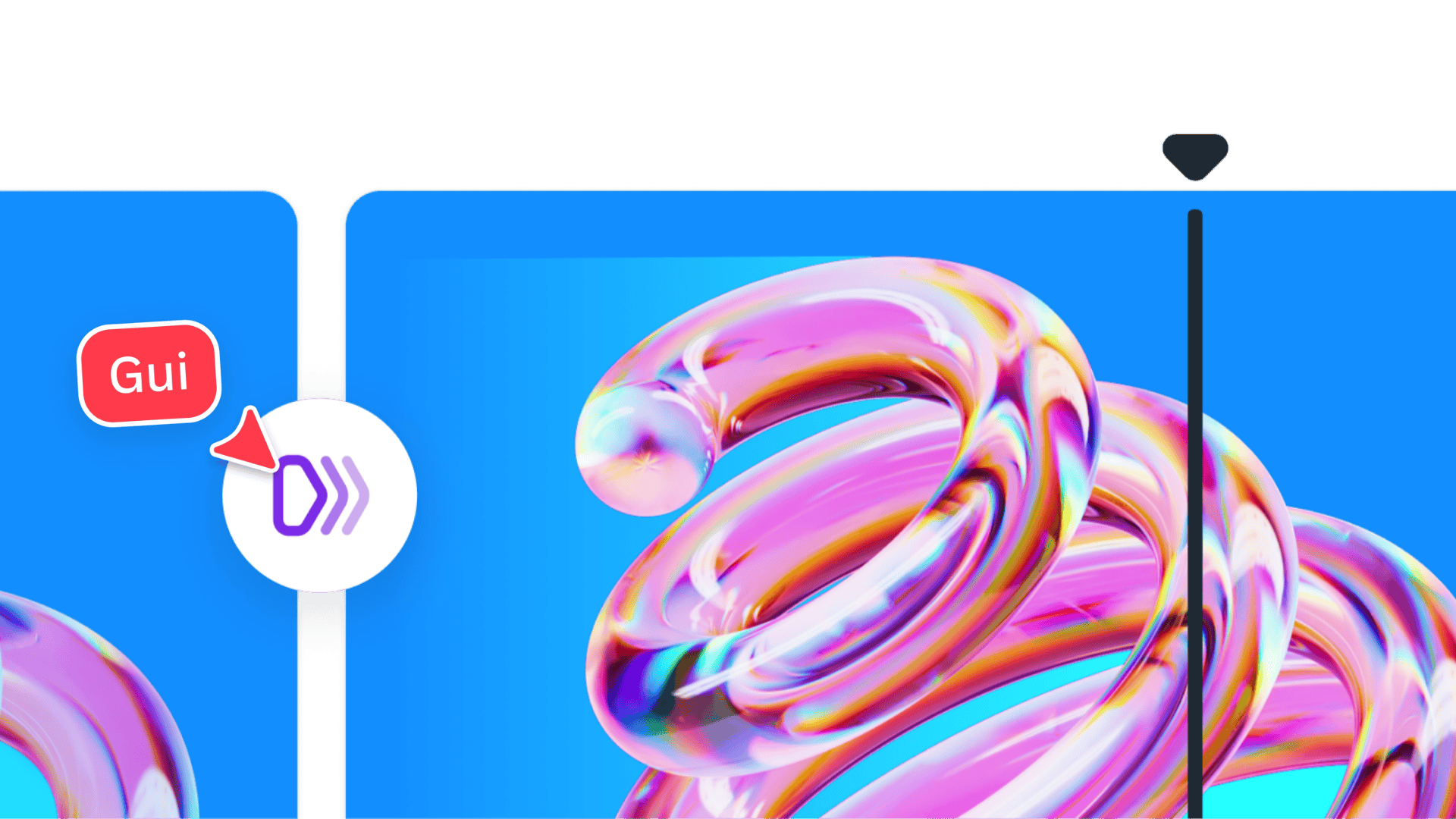
Once your keyframes are set, Match & Move does the rest. Match & Move connects each step and animates the movement between them — whether that’s position, size, colour, or transparency . This is what turns static layouts into motion.
In Canva, you’ll build your animation across multiple slides. Each slide represents a keyframe. Here’s what to do:Setting up your workspace
Try it yourself
The best way to understand animation is to build it. Below, you’ll find a set of guided activities that walk you through three different animation styles. Each one uses the same core process — setting up keyframes and applying Match & Move — but in a slightly different way.
A drag-and-drop animation moves elements into place one by one. You’ll often see this used in:Drag-and-drop animations
It’s useful when you want to introduce items step by step and guide attention across the screen.
A rolling carousel cycles through elements while bringing one into focus at a time. This works well for:Rolling carousel animations
The movement helps create rhythm and keeps the viewer engaged.
A hide-and-reveal animation gradually shows or assembles something on screen. It’s commonly used for:Hide-and-reveal animation
This style lets you control what’s revealed — and when.
Open the Learn & Play activity below and follow along. Each example walks you through the process step by step, so you can build your animation as you go.Get started
One last thing
Animation doesn’t need to be complicated to be effective. Once you understand how to break movement into steps, it becomes something you can build, adjust, and reuse. Each animation starts the same way:
To dive deeper, explore the Create scroll-stopping content course on Canva Design School.