
How to plan and teach a lesson with Learn Grid
Go from a lesson idea to classroom-ready activity in minutes using Learn Grid, using ready-to-teach content and AI-powered tools.
How to plan and teach a lesson with Learn Grid
Go from a lesson idea to classroom-ready activity in minutes using Learn Grid, using ready-to-teach content and AI-powered tools.
What you’ll learn
- How to find or generate content in seconds
- How to turn content into interactive activities
- How to teach and track learning in one place

Planning a lesson can take hours. Searching for content, adapting it, and turning it into something engaging for your students often means jumping between all kinds of tools.
What is Learn Grid?
Canva’s Learn Grid brings everything together in one place. It’s a dedicated learning platform with thousands of curriculum-mapped resources and AI-powered activity creation, all organized by grade, subject, and learning outcome. Create engaging, interactive, activities for your students in more than 30 formats and over 16 languages — from interactive games, whiteboards and worksheets. Learn Grid helps you take an idea for a lesson and turn it into a custom activity with AI – so you're ready to teach it, in minutes. This is the flow you’ll follow throughout this guide. Read each step, watch the short videos to see it in action, then try it yourself. Note: Learn Grid is currently available in select regions. In other regions, you’ll see the education templates library instead.How it works:
Start with your goal
What do you want students to learn today? Start with a clear outcome like understanding a concept, practicing a skill, or exploring an idea. In this guide, we’ll walk through a real example so you can see how it works in practice. We’ll work with a Grade 5 Science lesson on states of matter, matched to the California curriculum.
Get started in seconds
Open Learn Grid to get started. Choose a ready-made resource from the Learn Grid Library or create something new with AI. Either way, you’re moments away from something you can use.
Make it work for your class
Adjust and personalize your content so it fits your students. You can quickly adapt your resources so they’re clear, relevant, and ready to use.
You can edit your resource directly in Canva, or use Canva AI to help you make changes.
Teach your way
Deliver your lesson in the way that works best for you. Everything happens in one place, so you do not need to switch between tools.
Understand student learning
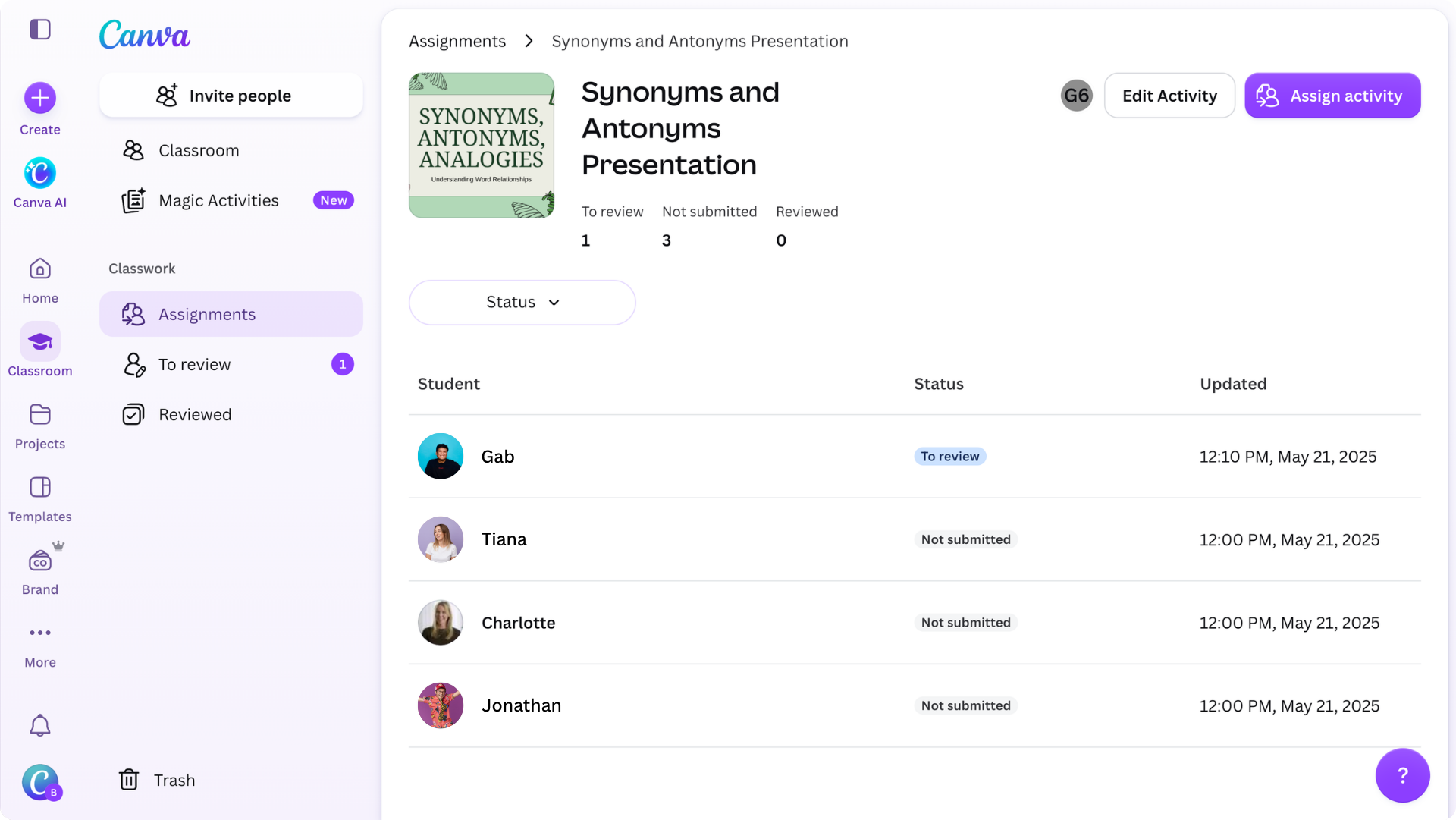
Open your Classroom page to see how students are engaging with the work you’ve assigned them. Navigate to the Classwork tab to view all assignments in one place. From here, you can: All student responses and results are captured automatically – so you get a clear view of progress without extra tracking tools.
Save this for later!
Check out this cheatsheet to learn how to turn any topic into an interactive activity in seconds with AI.
Share
Last updated 17 Sep, 2026