How to start creating with Canva
10m
Beginner
Build confidence in Canva with five easy ways to turn your ideas into designs.
How to start creating with Canva
10m
Beginner
Build confidence in Canva with five easy ways to turn your ideas into designs.
What you’ll learn
- How to find a template that fits your idea
- Easy ways to personalize a design
- Where to find graphics, photos, videos, and fonts
- How to add your own content and match styles
- Ways to share, download, or print your design

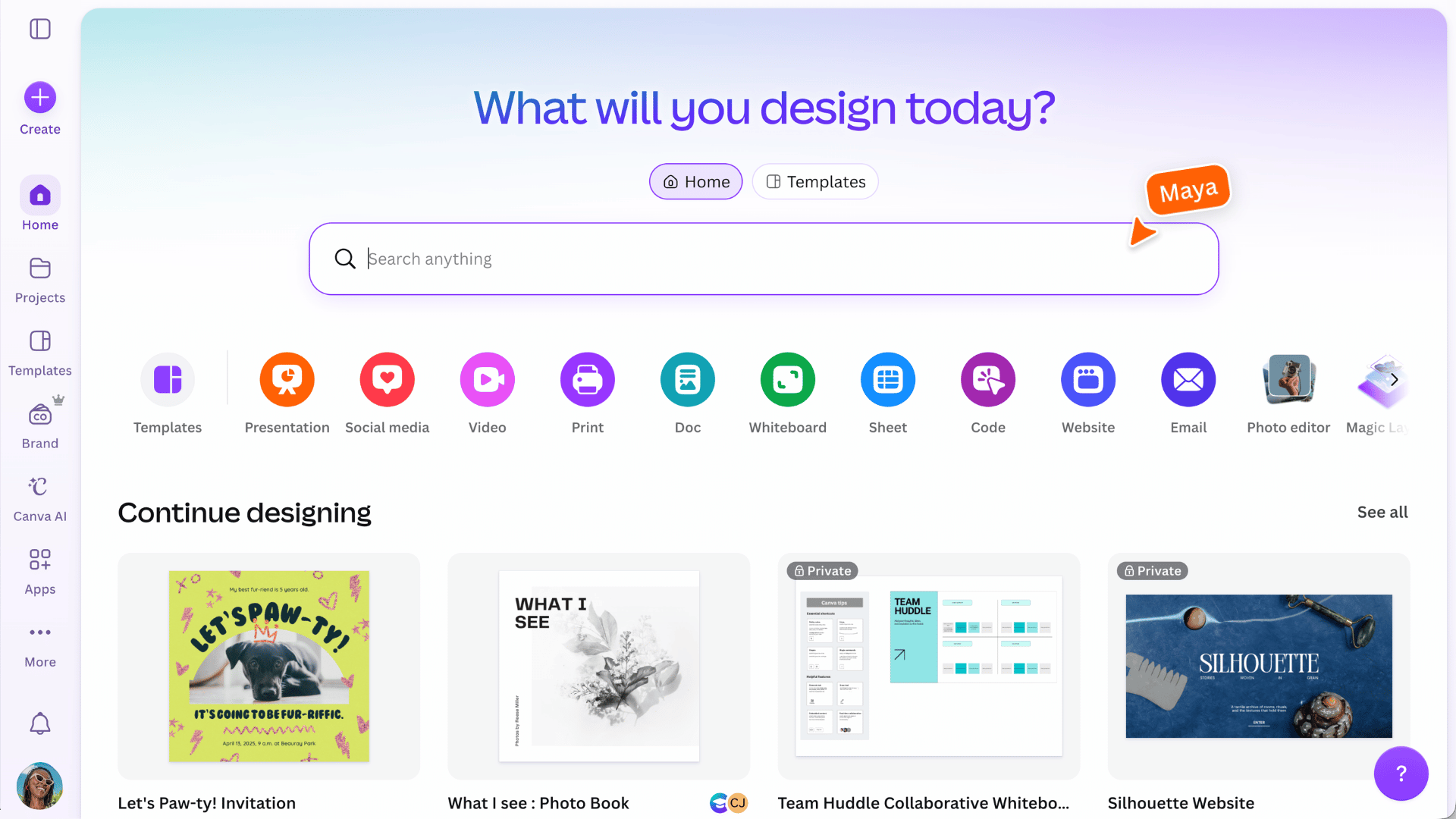
Your next idea can start here. Whether you're using Canva on your phone or computer, choose a template, make it your own, and share it your way.
Start with an idea
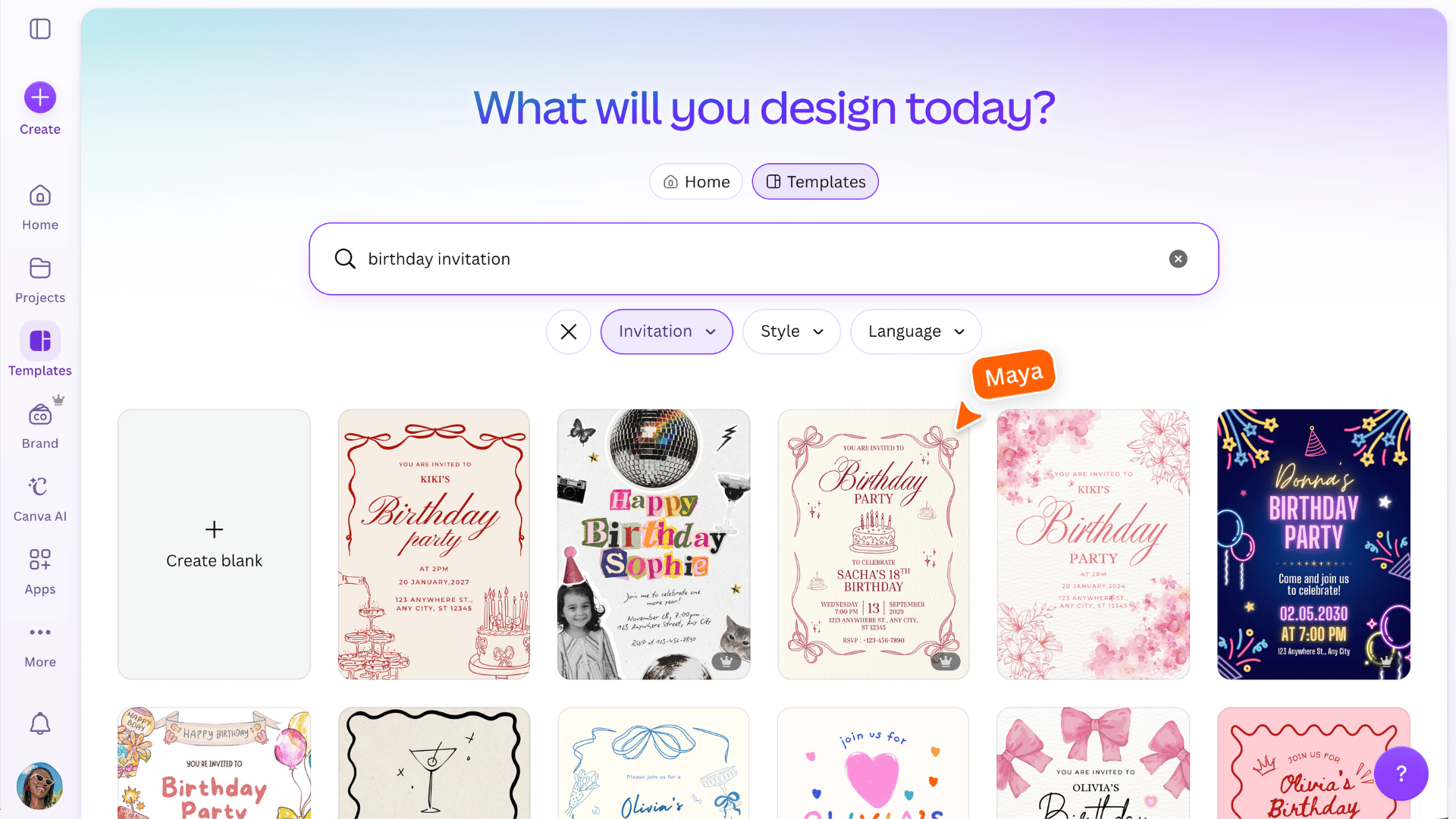
From presentations and videos to Docs, Whiteboards, and more, Canva gives you plenty of ways to bring an idea to life. Not sure where to begin? Browse templates chosen for you, inspired by your previous designs, or trending right now. If you already know what you need, use a detailed search instead. Search for something like “team meeting presentation,” “birthday invitation,” or “social media post,” then use Type to choose the format you need. This helps narrow down the options, so you can find a template that fits your idea. Once you have found one you like, you can customize every part of it to make it your own. Try it:
Make it yours
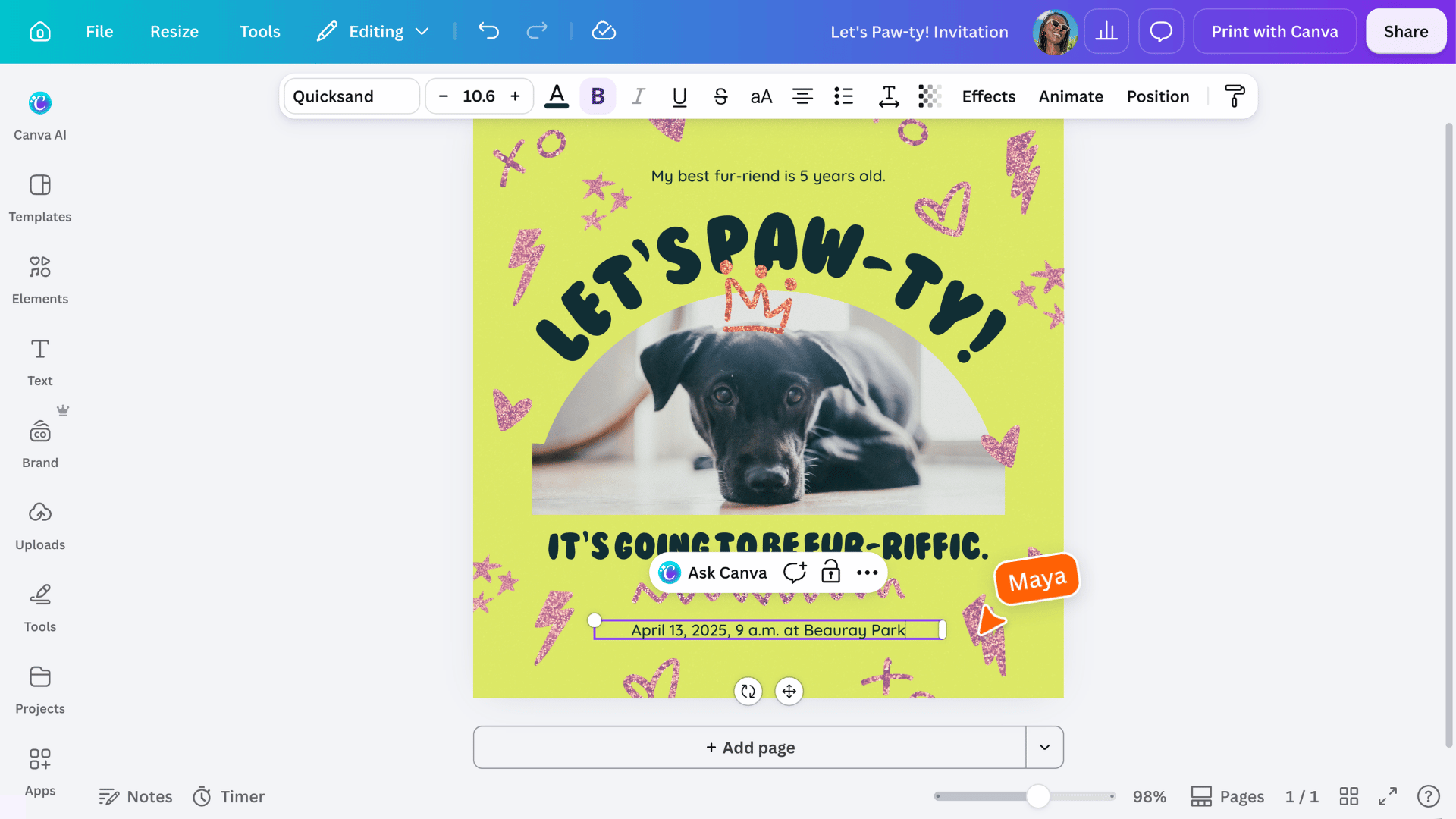
Templates are just the beginning. Change the words, try a new font, update the colors, swap in your own images, and move things around until the design feels right for you. Try it:
Find what you need
The right graphic, photo or video could be one search away. Canva’s library has plenty to explore. Search by subject, style, color, or mood, then choose content that helps your idea come to life. Try it:
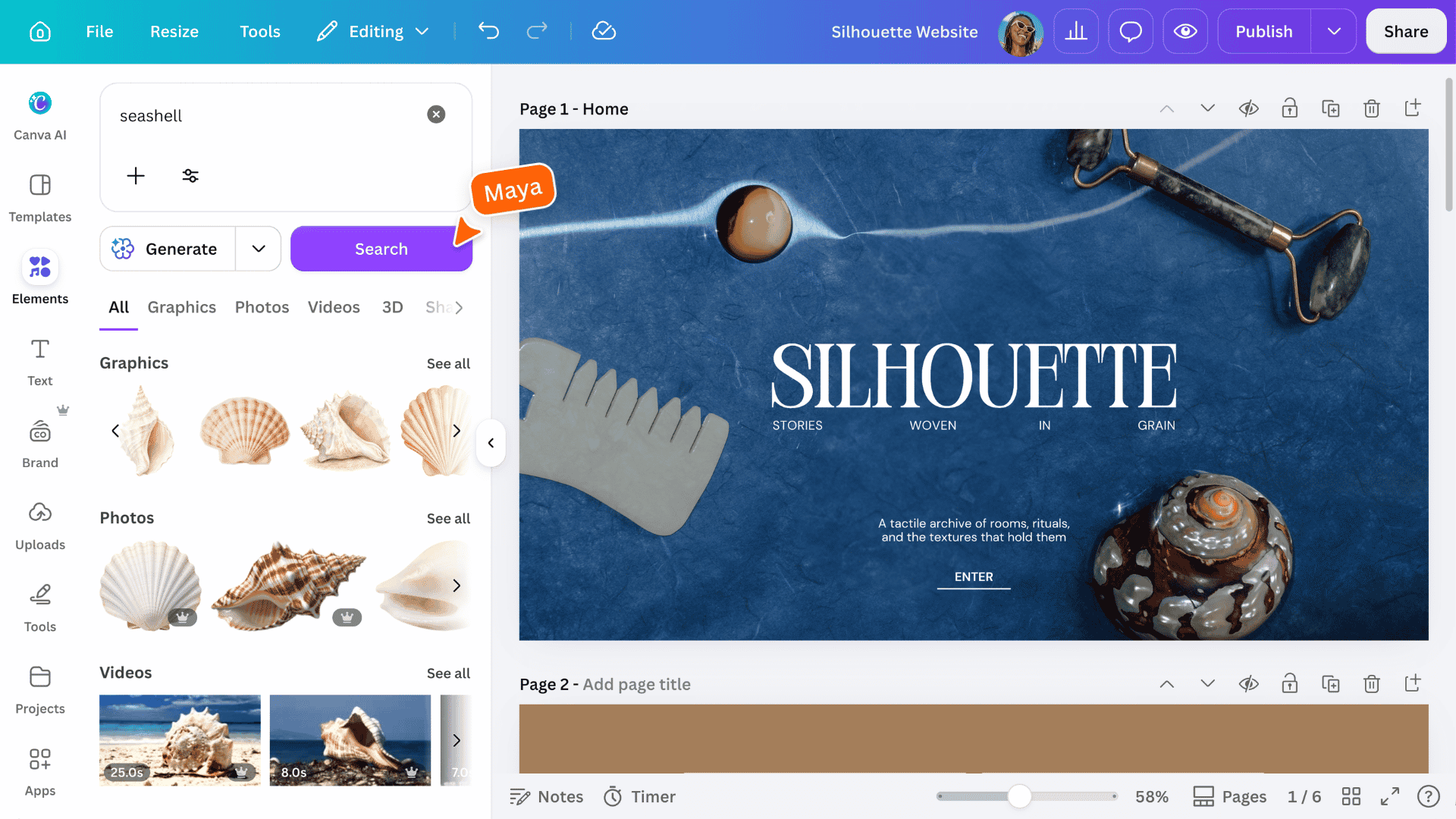
Use Style Match to try a new visual style, such as Cartoon, Sketch, or 3D Art, on a graphic or photo. You can also copy the style of one graphic to another graphic or photo for a more consistent design.
Add your own touch
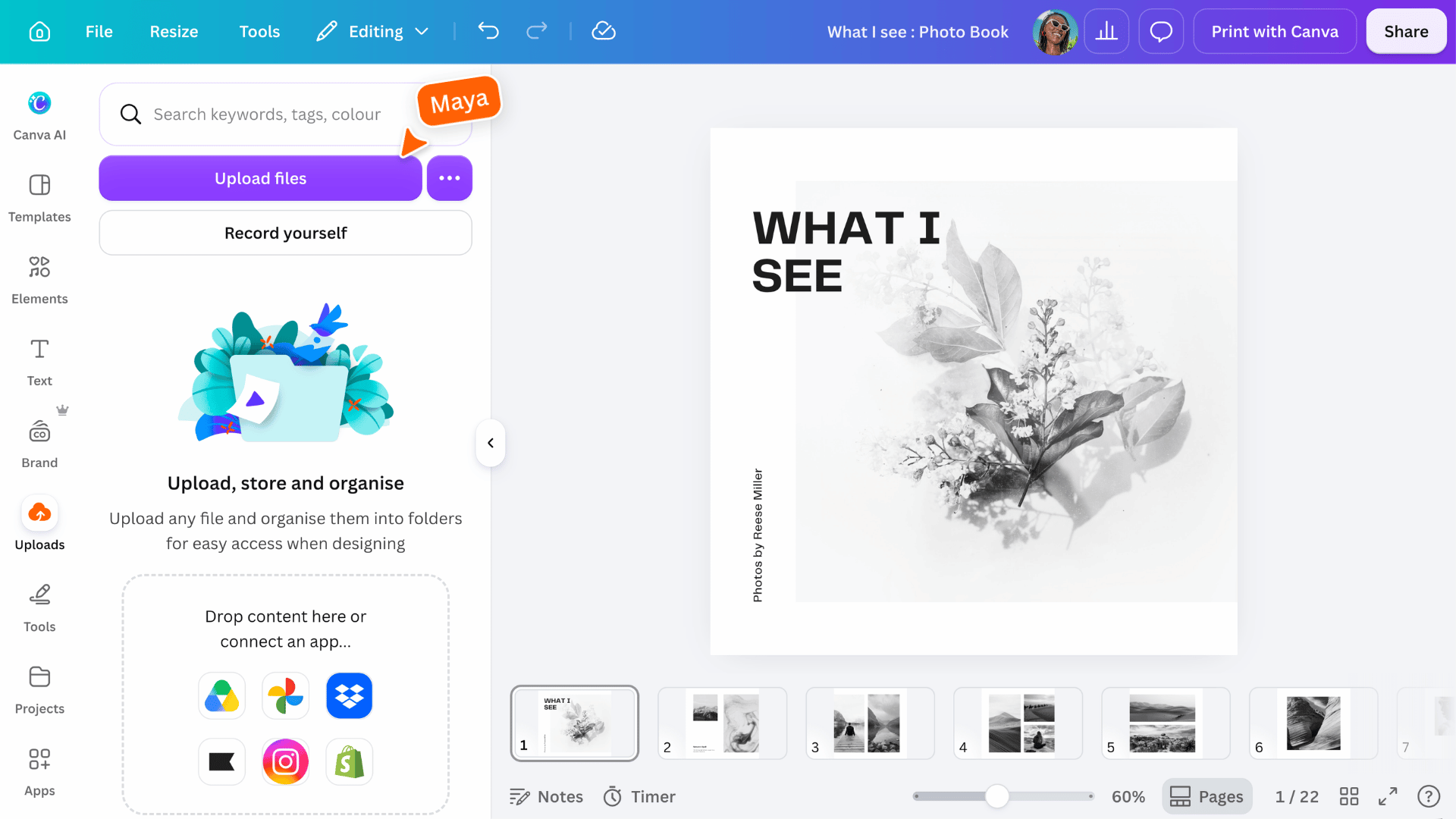
Your best content might already be on your phone or in your files. Upload your own photos, videos, and graphics, then add them to your design. You can crop, resize, and adjust them until they fit just right. Try it:
Share it your way
Your design is ready when you are. Share it with others, download it in the format you need, present it, post it straight to social, or print it. You can print at home or, where Canva Print is available, order professional products. Try it:
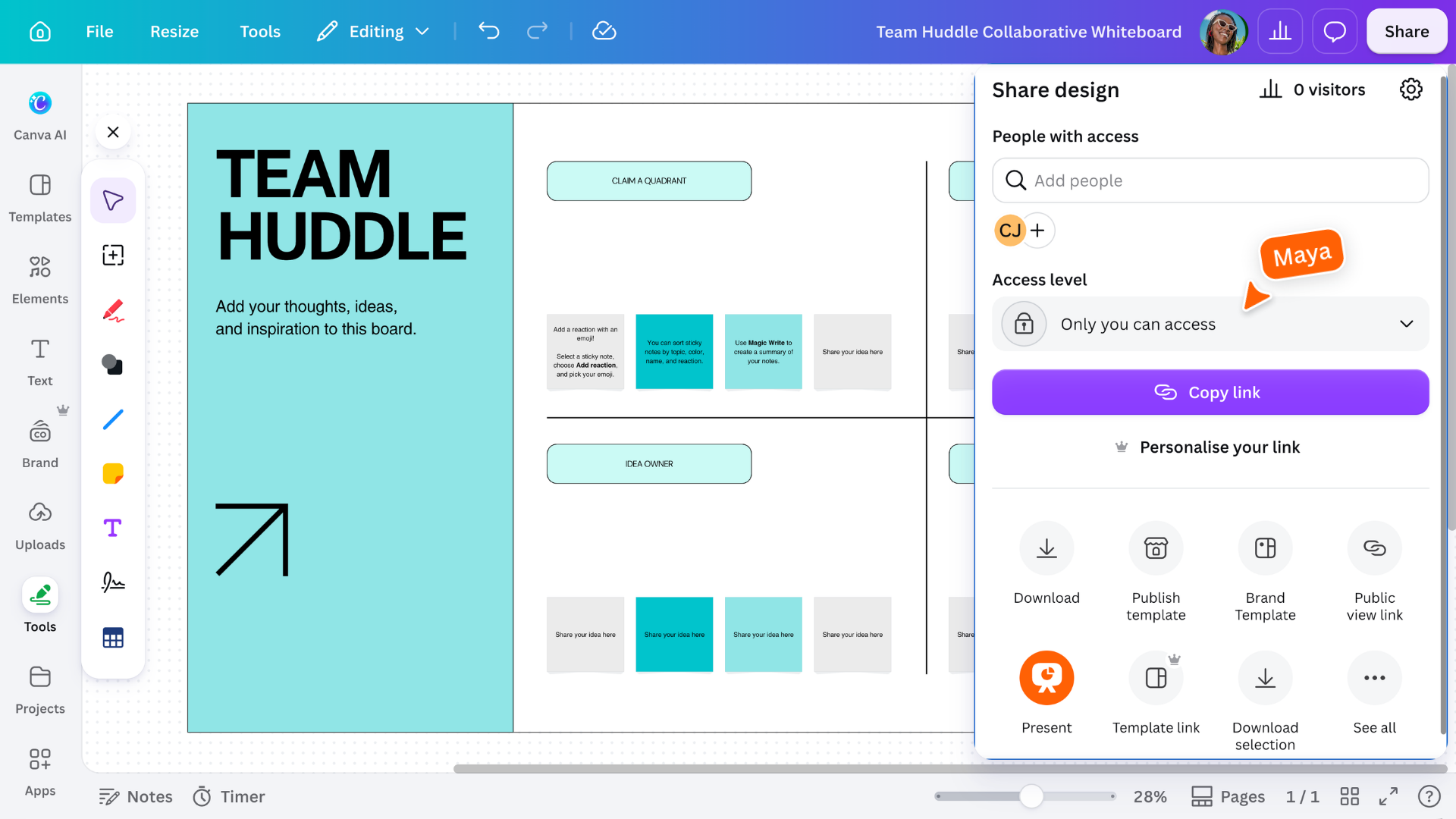
Sharing a link? Choose whether people can view, comment, or edit before you send it.
Ready to keep creating?
➡️ Continue with Canva Essentials Go deeper with guided lessons, practical activities, and the chance to earn a certificate.
Share
Last updated 29 Sep, 2026