- AI Generative Fill

AI Generative Fill
Transform your image from lackluster to dynamic with Canva’s AI generative fill. Add, modify, or replace elements with just a click and some simple text prompts. Let the magic take form in minutes!
or drop it here
Learn about Canva's upload formats and requirements. See how we use your content in our Privacy Policy.
How to use AI generative fill
Upload your image
Select the “Upload your image” button or easily drag and drop your files into the section.
Edit your design
Make some quick touch-ups on your image by using Magic Edit to add, remove, or edit elements with simple prompts.
Download your design
Finally, download your image as JPEG, PNG, or other file format. Share it online, too, with just a click.
Experience the magic with AI

Photo editing doesn't have to be complicated or overwhelming. With Magic Edit(opens in a new tab or window) from Canva’s Magic Studio(opens in a new tab or window), you can experience AI-powered tools without the fuss. With a simple click or brushstroke, you can add, replace, or modify elements in your photo. No design experience or software installation is required.
Stretch your creative limits


Use our AI generative fill to unleash your creativity. Experiment with different objects and elements to find the perfect look. Change outfits or even redesign the entire composition. Add clouds, cats, or a black notebook—anything! Bring your ideas to life.
Seamlessly add or modify elements

Canva’s generative fill tool is effortless. Manual editing to remove objects and elements is a thing of the past. Change or replace objects by clicking on them and using prompts. Type in the new objects you want to add to your image. And then, viola! This is a creative way to breathe new life into a photo.
Transform your photos easily

Elevate your images with our online generative fill. Whether editing photos for a catalog or recreating images for social media, Canva offers endless possibilities. After generating elements, use our photo editor(opens in a new tab or window) to further refine your image. Add filters and effects(opens in a new tab or window) or crop and adjust your photo. Do it all on Canva!
How to use generative fill

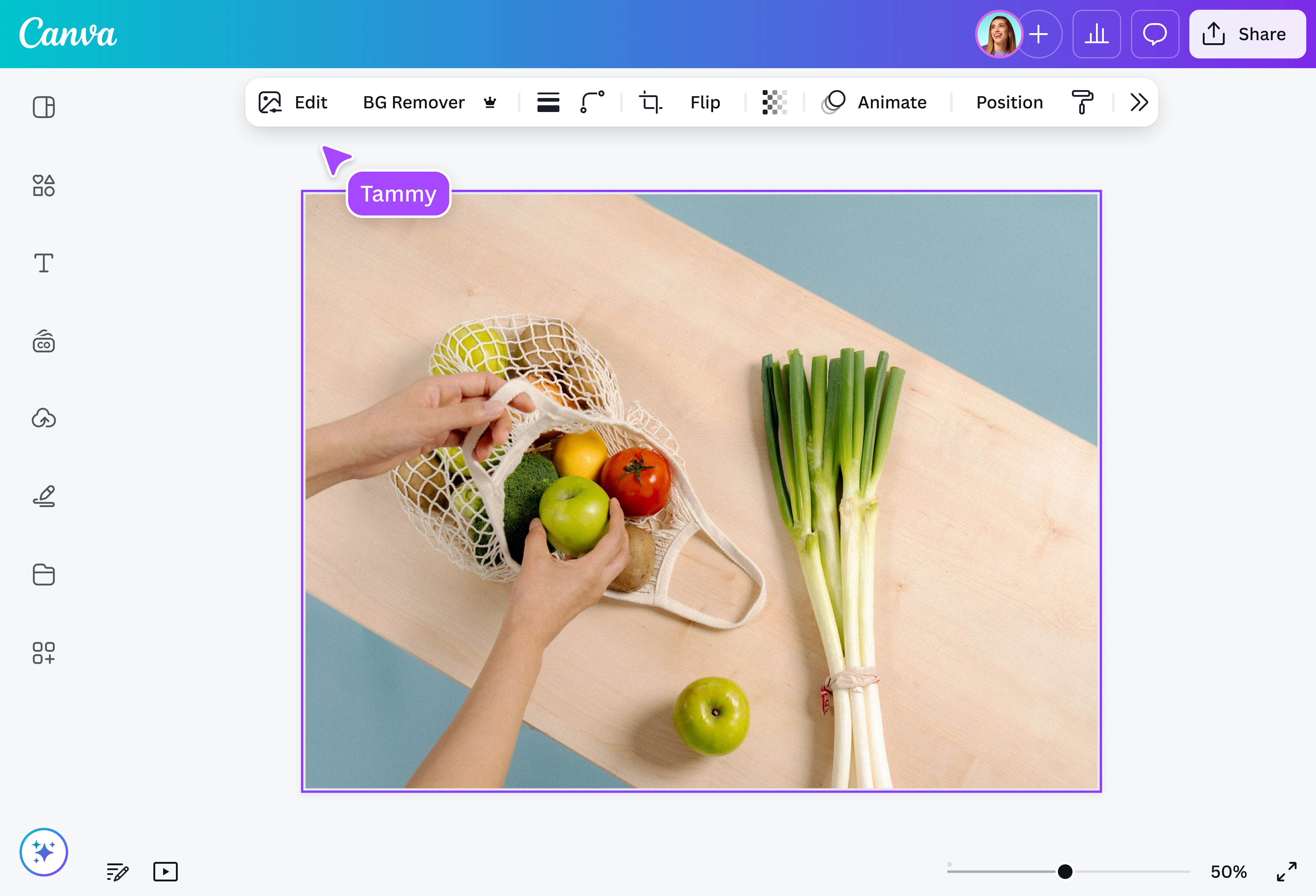
Frequently asked questions
- Generative fill uses AI to analyze your image, and then it creates and fills new content based on your text descriptions. This process also smoothly integrates the generated content into the existing image.
- To use AI generative fill, upload your photo and find Magic Edit within Magic Studio. Select the area you want to alter and type your desired addition or replacement. Click Generate to explore options or refine your prompt. For optimal results, refrain from including text, flags, faces, well-known people, brand names, or specific sizes.
- A user-friendly tool, without a steep learning curve, is ideal. Magic Edit provides this and additional features. After adding generated content to your image, you can enhance it further with our photo editor for various design needs.
- Several tools offer generative fill capabilities. Magic Edit provides this function without requiring extra software installation. Our platform is designed for ease of use, ensuring you can achieve desired outcomes without advanced expertise.

@IGchef_andrewb