- Crop Videos
Crop videos online for free
Upload any MP4, MOV, MKV, WEBM, or MKV file format and crop your video to the right size and aspect ratio. Cut off unwanted elements on the screen and make your video fit any social media feed using Canva’s free online video cropper.
or drop it here
Learn about Canva's upload formats and requirements. See how we use your content in our Privacy Policy.
Try these video editing tools
Convert, edit and more. All the video editing tools you need!
Crop videos effortlessly

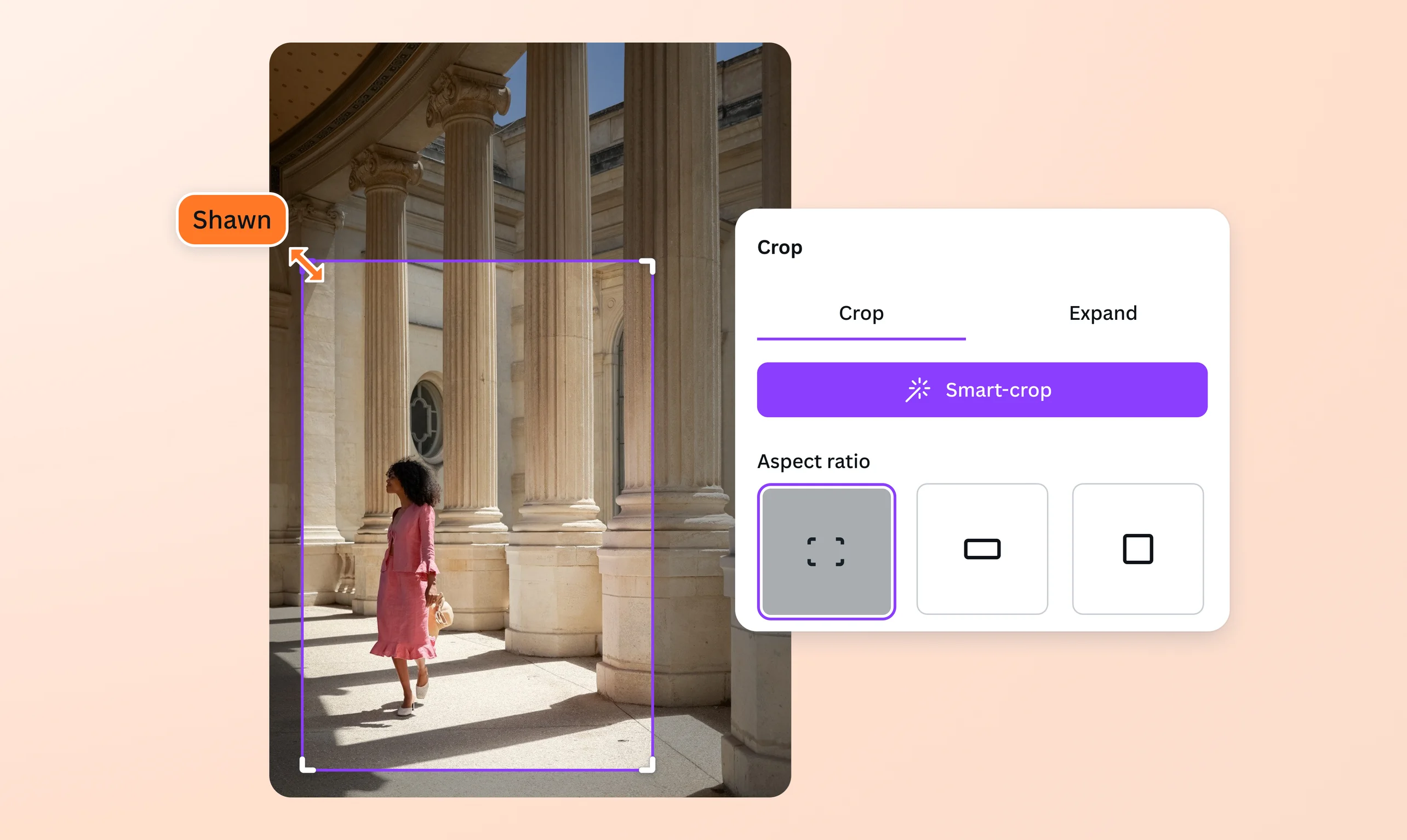
Crop videos on any device—Windows or Mac, iPhone or Android—within seconds. Simply upload your video and adjust the crop handles to any aspect ratio, including perfect squares for Instagram, portraits for TikTok, or widescreen for YouTube. Remove any unwanted bits from the top, bottom, left, and right areas of the screen. Preserve video quality, add more elements using our video editor, and download it for free with no watermarks.
Catch the right composition

As you drag the crop handles, a grid appears to guide you in getting the right shot composition. Use our video cropping tool to cut out distracting elements in the frame, like unsightly borders, black bars from mobile videos, or unintended subjects. You can zoom in, get a close-up, or focus on a specific area of the frame. With our free video cropper, you can refine your footage and select the best angles.
Uncrop, trim video, adjust audio

Made a mistake? Easily uncrop and make adjustments before saving the video. Add more thought to your videos and polish the clip using our video editor(opens in a new tab or window). You can also easily trim videos(opens in a new tab or window) and choose which parts to keep or let go. Then, adjust the volume, overlay text, add stickers, and more. Editing your freshly cropped videos online is simple with all the right tools in one place. Then, instantly share the cropped video to YouTube, Instagram, Facebook, and other digital spaces.
Explore more video editing tools

Do more than simply cropping a video. Find a stock audio to fit your action-packed or sentimental sequence. Upload an image or free GIF(opens in a new tab or window) from our library or yours and apply dynamic transitions and effects to aid your visual narrative. Share it more easily with our free online video converter tools to turn your project into formats like MP4 or GIF. When you upgrade to Canva Pro, use more premium tools such as video background remover and Magic Switch(opens in a new tab or window), a one-click tool that instantly resizes a video to preset dimensions. Simply choose a social media preset or enter custom video dimensions, then click Resize.
How to crop a video


Frequently Asked Questions
- Head over to the App Store and download our free iOS app to crop videos. Select a video from your gallery that you want to upload and crop. On the bottom toolbar, click Crop, and crop handles will appear. Drag the handles to your desired size and aspect ratio. Click Done and voilà; your clip is cropped. With our free video editing app, you can crop videos on the go and explore other online tools to personalize your clips.
- Go to Google Play and download our free Android app to crop videos. Upload the video file you want to crop and click Crop on the bottom toolbar. Drag the crop handles to your desired frame and click Done. With our free video cropping tool, you can crop clips anywhere, anytime.
- Download the YouTube video you want to crop and upload it to our video editor. Click Crop and use it to cut out some parts of the shot. Drag the crop handles and click Done once you’re happy with the frame. If you upgrade to Pro, you can use the one-click, premium Magic Switch tool to resize a video for YouTube dimensions instantly. While you're at it, adjust the audio, put an image or two, or add subtitles using our text tool.
- Open TikTok, scroll to the video you want to crop, then tap the Arrow icon on the right. Click “Save Video” to download the clip to your device. Then, choose the clip to upload to our video cropper tool and click Crop. Drag the crop handles and click Done when you’re satisfied.

@mahimagirdhar