- Video Background Remover
Online Video Background Remover
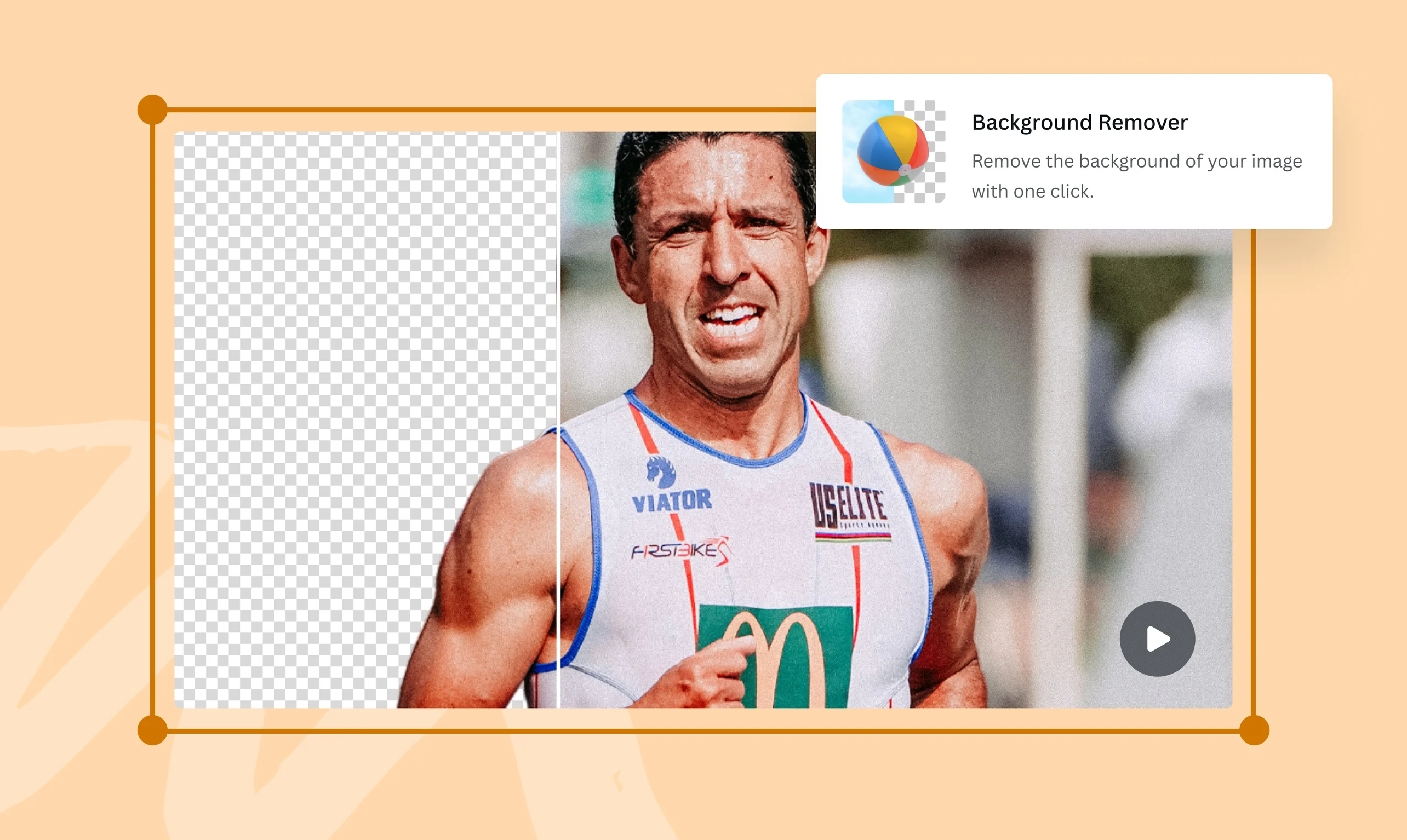
Instantly erase the background of your video and set a new scene with the Video Background Remover on Canva Pro.
or drop it here
Learn about Canva's upload formats and requirements. See how we use your content in our Privacy Policy.
Try these video editing tools
Convert, edit and more. All the video editing tools you need!
How to remove a video background
Upload your video
Select the “Upload files” button or easily drag and drop your video into the design.
Edit your video
Choose “Background Remover” under the Tools option to remove the video background in one click.
Download your design
Make final tweaks to your video then download it as a high-quality MP4 file.
Put the spotlight on your subject

Produce scroll-stopping videos that pique your audience’s attention. Whether you’re promoting a product or making a tutorial, present your subject with a clean and appealing background with the Video Background Remover on Canva Pro. Easily remove the background of your video in just a click — no design experience or green screen required!
Skip the manual labor

The Video Background Remover on Canva Pro analyzes your video and automatically removes the background, so you don’t have to go through the tedium of manually removing it yourself — or worse, re-shooting it in a different location. Instead, set a new scene by adding your video to one of the thousands video templates in Canva’s library or choosing a professional-looking image from our media library.
Streamline your video editing process

Fine-tune your video to perfection with Canva’s online video editor(opens in a new tab or window). Add subtitles, apply filters(opens in a new tab or window), or adjust the speed(opens in a new tab or window) of your video to improve its visual content. Try the AI Music Generator(opens in a new tab or window) to create bespoke music for scenes no one would want to miss. Short on time? Use Magic Design™ for Video(opens in a new tab or window) to auto-edit your video. When you’re finished, ensure your video is ready for upload on any platform with Magic Resize™ (Pro)(opens in a new tab or window).
How to remove the background from a video

Frequently Asked Questions
- Filming with a green screen makes it easy to remove the video background through chroma keying during the editing process. There are also video-editing tools that can be used to isolate the featured subject on-screen and manually erase the backdrop. However, AI-powered tools like the Video Background Remover (Pro) allow users to skip the learning curve and remove video backgrounds with just one click.
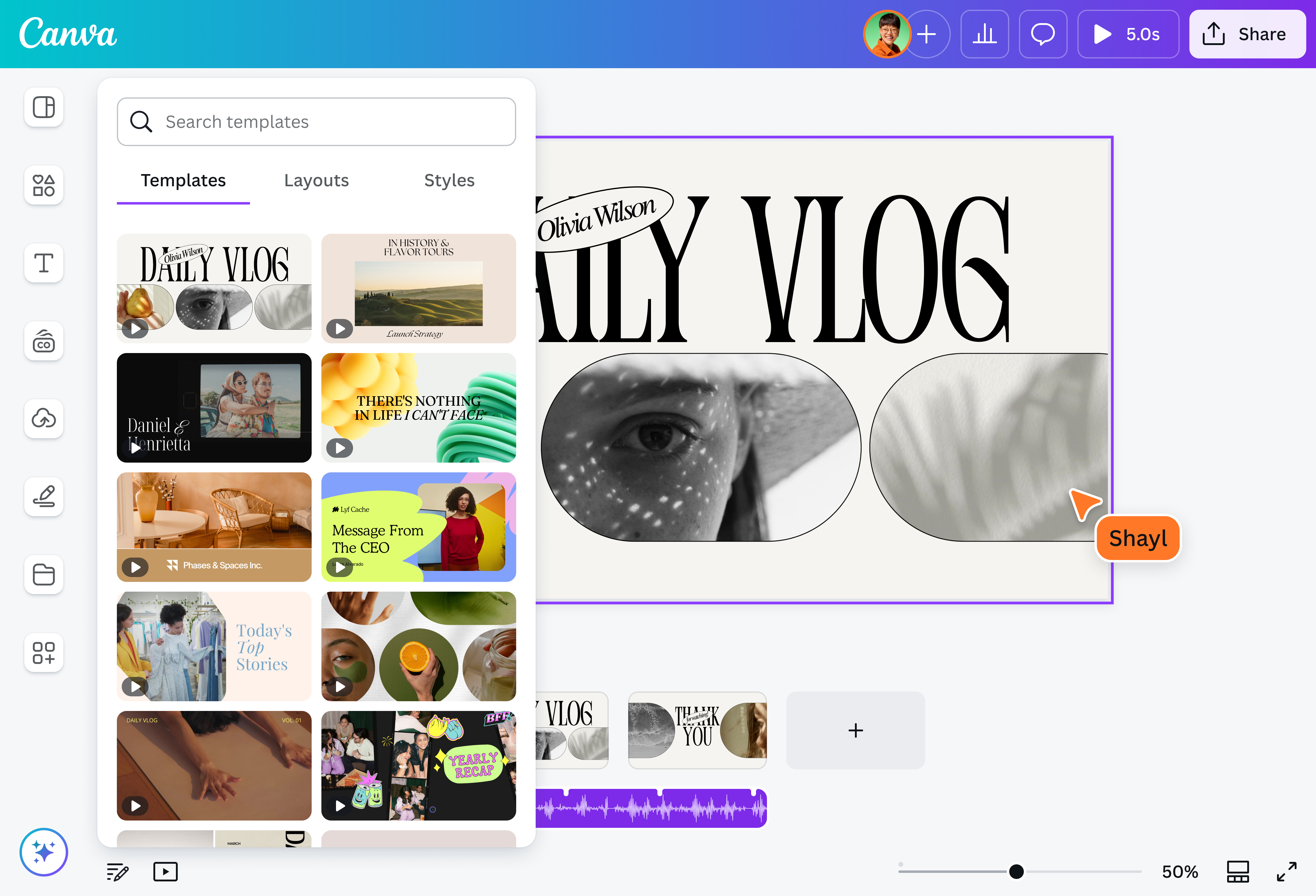
- With our video editor, you can easily remove and change the background of your video. To remove the background, simply click on your video and choose BG Remover on the toolbar. Once the background has been removed with one click, go to Uploads and choose from your previously uploaded files or upload a new image. Alternatively, explore our curated media library for high-quality stock images. Then, add it to your design template and click Position to modify the layers.
An AI-powered video background remover like the one in our online video editor uses machine-learning algorithms to detect the main subject in a video automatically and isolate it from the background. When you click on the video subject, this automated process creates a mask over it that is then recreated across all the frames in the video.
Once the subject in the foreground gets masked, the background becomes transparent. Changing the video background then becomes possible by layering a new image over where the old one used to be.

@navneet4