- AI Image Enlarger
AI Image Enlarger
Looking to post, print, or repurpose a small photo? Enlarge your image and keep its original, crisp, unpixelated resolution with Canva’s powerful Upscale feature.
or drop it here
Learn about Canva's upload formats and requirements. See how we use your content in our Privacy Policy.
Clear results, everytime


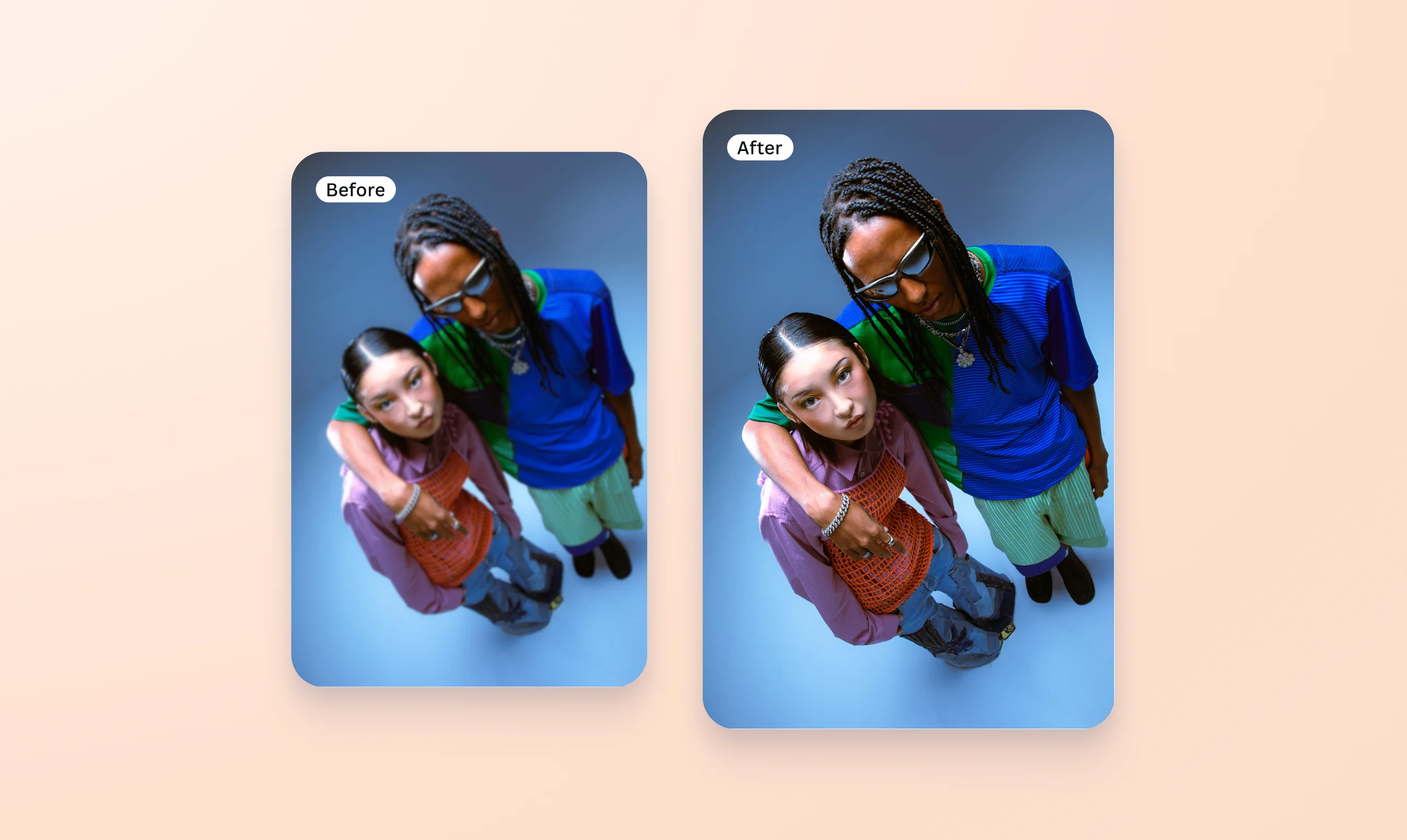
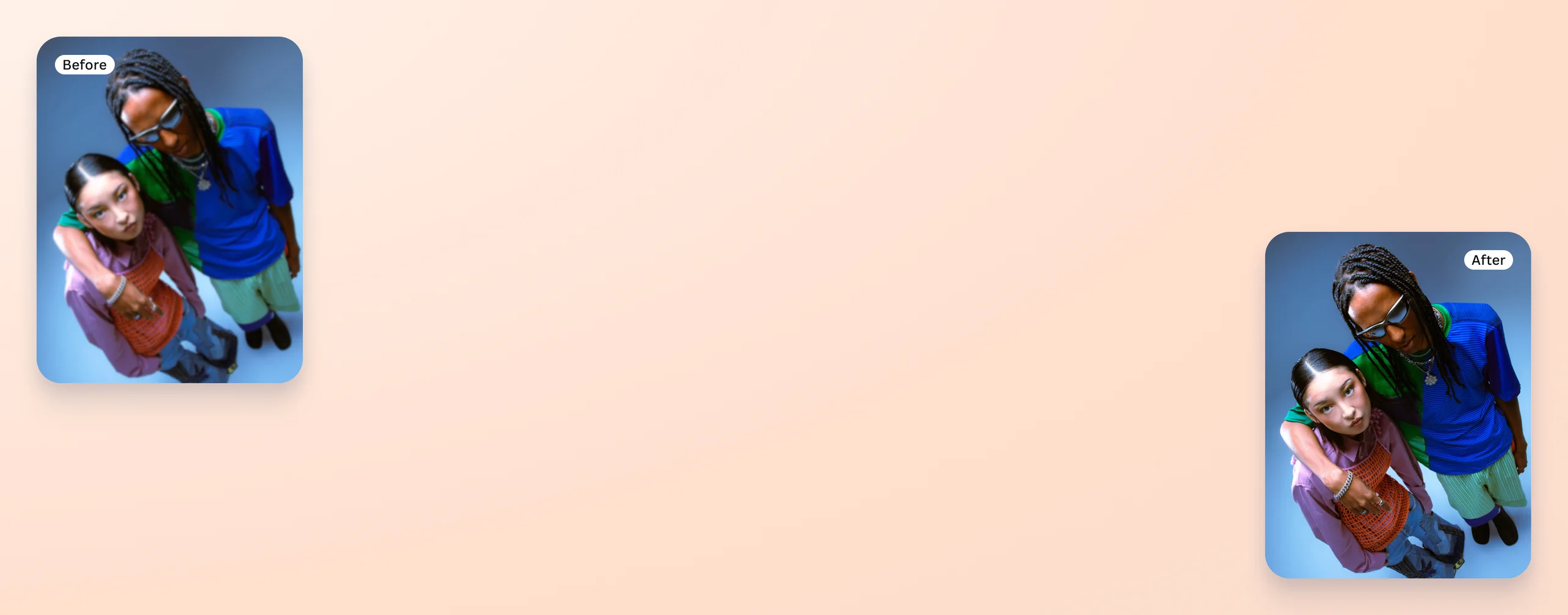
Say goodbye to blurry, pixelated images with Canva’s Upscale feature. The image enlarger tool uses AI to keep your resized photo crisp and sharp. Whether it’s repurposing an old campaign asset for a new billboard or cropping your dad’s profile picture to put on his birthday party banner, get clear results every time with Upscale, available on Canva Pro.
No professional design work needed

Before AI, photo editing and enhancements used to be gruelling, time-consuming work that only professionals could do on expensive design software. Now, anyone can get fantastic results with a click. Pair the image upscaler with the AI photo enhancer(opens in a new tab or window), and your images can look just as polished and professional.
Work smarter, not harder

If anyone knows just how hard photo editing can be, it’s the professionals. Even with AI image enhancers, some projects can be stubborn and still need manual touch-ups. The Upscale feature saves you hours of painstaking, manual work, so you only need to do the finishing touches like tidying up extra grain or adjusting the lights and shadows.
Do everything in one take

Canva’s extensive suite of design tools and resources has everything you need to create stunning design projects. Do your entire workflow, even with different media outputs, and keep everything together in one secured, easy-to-access platform. Worried about last minute revisions or getting a burst of inspiration away from your main setup? Access Canva from anywhere, be it your desktop, laptop, or mobile device.
How to enlarge an image


Frequently asked questions
Enlarging an image can pixelate it, if done incorrectly on a pixel-based image. All pictures taken with cameras are made up of pixels, the smallest unit of a digital image captured by a camera’s image sensor, which are fixed in number. When you resize a picture, you are either adding (upscaling) or removing (downscaling) pixels from the original, which could drastically change the final look: upscaled photos may be blurry because there aren’t enough pixels to fill out the size, while downscaled photos look murky because the pixels have begun to overlap.
Enlarging a pixel-based photo is not a straightforward process. If you want to retain the original quality, you need to fill in the missing pixels to prevent them from becoming blurry. AI image enlargers can do this process automatically by analyzing the photo and making educated guesses on what lines, colors, or details are missing.- Absolutely. Upscaled files can be exported at high-resolution, CMYK (print)-ready formats used by most professional printing services, including Canva’s in-house partners. Produce large posters, banners, or even billboards with confidence, knowing your photos stay crisp from screen to print.

@navneet4