- Unpixelate Image
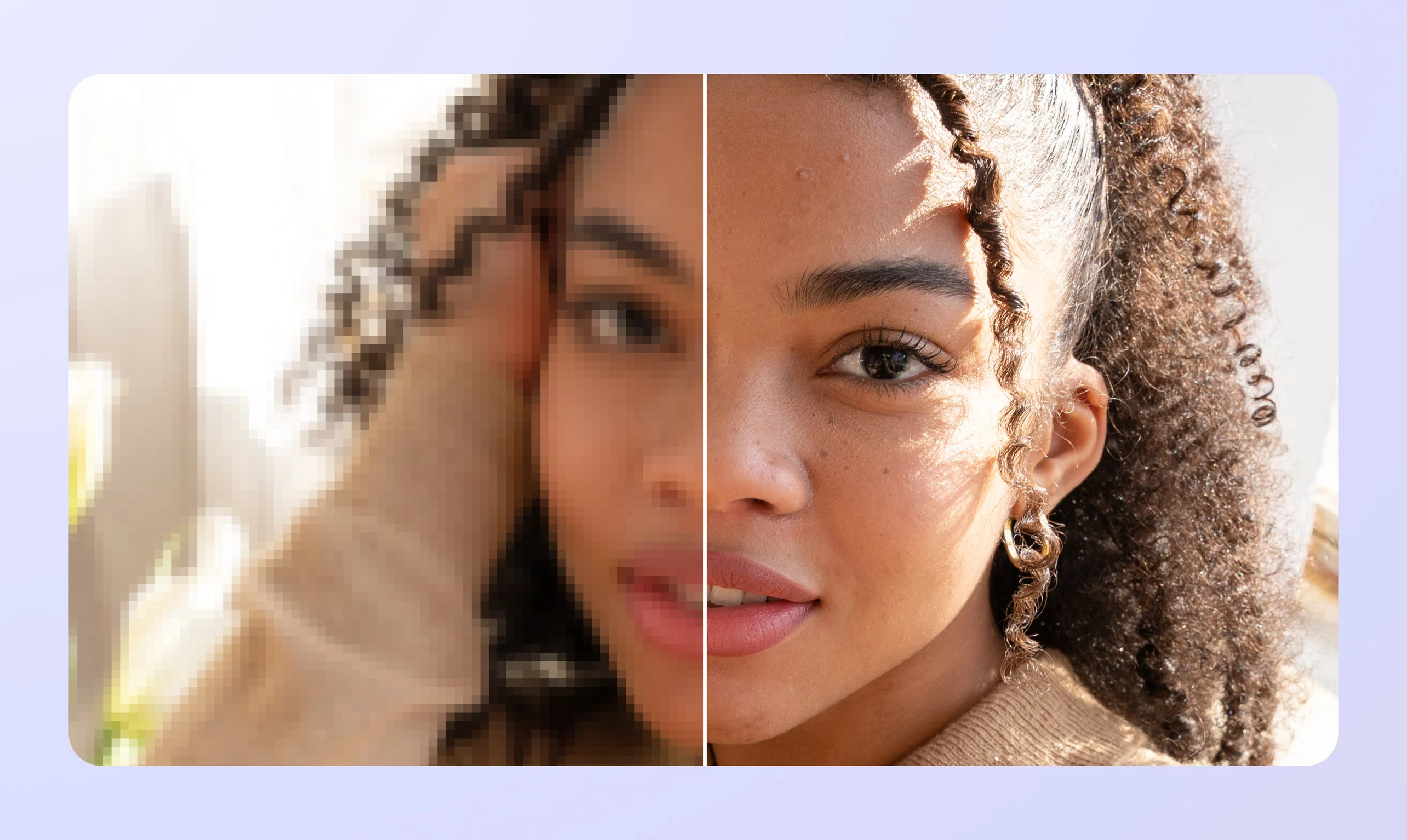
Remove pixelation with an AI unpixelate image tool
Don’t leave your photos stuck in low-res. Sharpen grainy or pixelated pictures in seconds with Upscaler, the AI-powered unpixelate image tool on Canva.
or drop it here
Learn about Canva's upload formats and requirements. See how we use your content in our Privacy Policy.
Unpixelate images and upload confidently

Save pixelated pictures with the Upscaler feature on Canva. Whether you’re adding a logo on prints like posters or banners, recycling years-old product shots for a new campaign, or using candid but low-quality phone photos for a social media post, you can sharpen, revitalize, and unpixelate any image in seconds.
Bring new life to old memories

See old photos as clear as the day they were taken. With AI, the Image Upscaler tool goes beyond unpixelating images; it also touches up blurry details(opens in a new tab or window) and automatically enhances photo features(opens in a new tab or window) like colors, light and shadows, lines, and more. It’s perfect for restoring vintage family albums, blurry shots from low-resolution cameras, and other valuable snapshots.
Make quick work of things

Photo retouching used to be time-consuming, labor-intensive work. Upscaler reduces that process to a few clicks and saves you hundreds of hours of painstaking work trying to depixelate your images. And because the feature is right in Canva’s photo editor(opens in a new tab or window), you don’t have to click out of your current project to do other design work, minimizing disruption and keeping you in the creative zone.
No experience necessary


The Image Upscaler is intuitive and beginner-friendly: no extra tools, specialized skills, or overcomplicated software. Just upload your photo, access the tool, and remove the pixelation instantly. It’s perfect for everyone, from students refining their pictures to social media managers on a tight deadline to folks preserving their family photos.
How to unpixelate an image


Frequently asked questions
- Yes. On Canva, you can access the Upscaler feature to fix pixelated images with a click. The tool also touches up blurry details and enhances photo quality. All you need to do is upload your photo, use the Upscaler, and you can depixelate photos and upload or print them for your project.
AI improves pixelated images by predicting the missing details. Many AI models are trained on libraries of low- and high-resolution image pairs, which teach them how to turn blurry inputs into sharper outputs. AI generates new details that look natural and produces a higher-resolution image.
That said, results aren’t always perfect. Depending on how pixelated the original image is, AI might create details that don’t fully match your vision. That’s why it helps to use an image depixelizer that lets you try multiple passes, and then pair it with a photo editor like Canva, where you could go in and make further refinements.
Common culprits for pixelation are resizing beyond the picture’s original resolution, like expanding an A5-sized photo to a billboard, or compressing a file too much, like downloading a billboard-sized poster as a tiny icon. Sometimes, the photos could've simply been shot at a lower resolution, like in the case of older cameras. Quality loss could also happen when you share an image file on the wrong platform (like a standard messaging app) or when you save it in a different format.
Fortunately, there are tools available that can easily fix the pixelation. If you have pixelated photos, try Upscaler on Canva.

@navneet4