- AI text remover

Remove unwanted text from your images in an instant
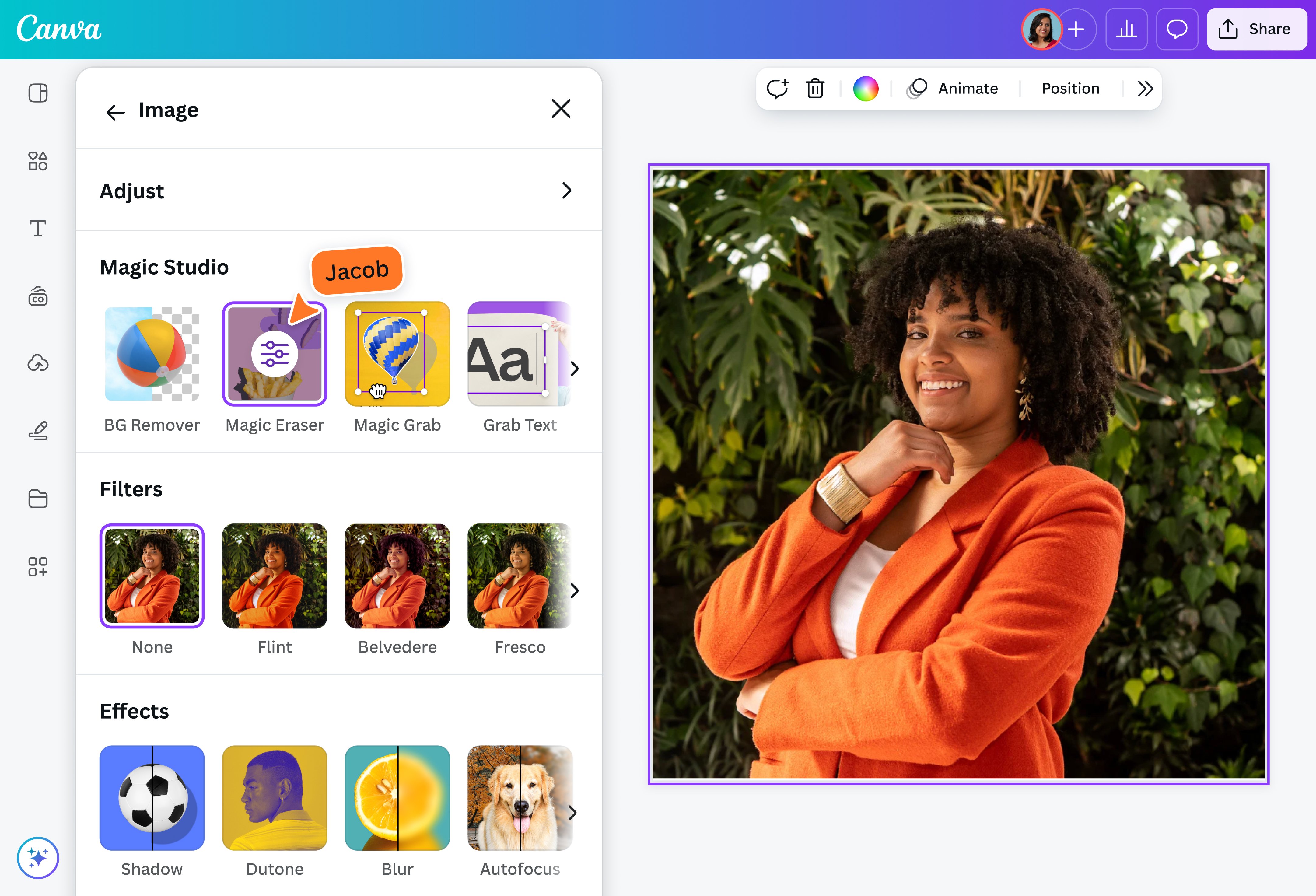
Polish your images of any unwanted text without having to download and learn complex software. Canva’s Grab Text is an AI-powered feature that instantly removes text from images.
or drop it here
Learn about Canva's upload formats and requirements. See how we use your content in our Privacy Policy.
How to remove text from an image
Upload your image
Select the “Upload your image” button or easily drag and drop your files into the section.
Edit your design
Remove the text in your image by using Grab Text, then make some quick touch-ups using our beginner-friendly editor.
Download your design
Finally, download your design as a high-resolution file.
Remove text from images for more professional product photos


Create a catalog of products that will convince shoppers to make a purchase. With Grab Text, you can remove any text from an image, including logos and timestamps. You can also isolate objects in a picture and position them within a better background with Magic Grab. Want to add or replace specific elements? Enjoy one-click transformations with Magic Edit(opens in a new tab or window).
Maintain privacy online

Remove any information you don’t want to share before posting selfies and other personal photos online. You can even change your backdrop completely with our Background Remover(opens in a new tab or window) for a seamless effect.
Get more mileage out of existing pictures

For your next marketing promo, there’s no need to start from scratch. Use the materials you already have and let Canva’s Magic Grab features to make them look and feel like new. Eliminate watermarks, logotypes, outdated captions, price lists, and other elements from images using our object and text remover. Clean photos up further with Magic Eraser(opens in a new tab or window) and use them in your next rebrand.
Refresh your portfolio without stress

Don’t let photos with outdated text go to waste, especially if they have portfolio potential. Remove outdated text from images using Canva’s text-remover tool. Spruce images up further for better visual effect with our other user-friendly editing tools, like the AI-powered Magic Expand(opens in a new tab or window) that can extend photos in any direction without sacrificing details and quality.
How to remove text from images

Frequently asked questions
- With Canva’s Grab Text and Magic Grab, there’s no need to download software to remove text from your pictures. This AI-powered tool lets you edit text out of photos entirely online.
- You can easily remove text from images without affecting the background with an AI tool like Grab Text. Canva’s online text remover is programmed to recognize different kinds of text on photos. After you’ve selected the words you want erased, Grab Text isolates them from the image and then automatically extracts them so you can delete the text without altering the background or changing the image quality.
- No, Magic Grab and Grab Text are not available in Videos, Docs, and the Photo Editor.
- Yes, you can. Grab Text and Magic Grab’s AI capabilities are trained to identify different kinds of text so they can be isolated and erased with precision. Bear in mind, however, that watermarks are often used to indicate that an image is copyrighted material. Removing a watermark without the consent of the owner is generally considered illegal.