- Screenshot Editor
Free screenshot editor
Edit screenshot text, erase clutter instantly, and polish every pixel for the perfect, publish-ready image. Easily customize or transform your screenshots with Canva’s AI screenshot editor.
or drop it here
Learn about Canva's upload formats and requirements. See how we use your content in our Privacy Policy.
How to edit a screenshot
Upload your image
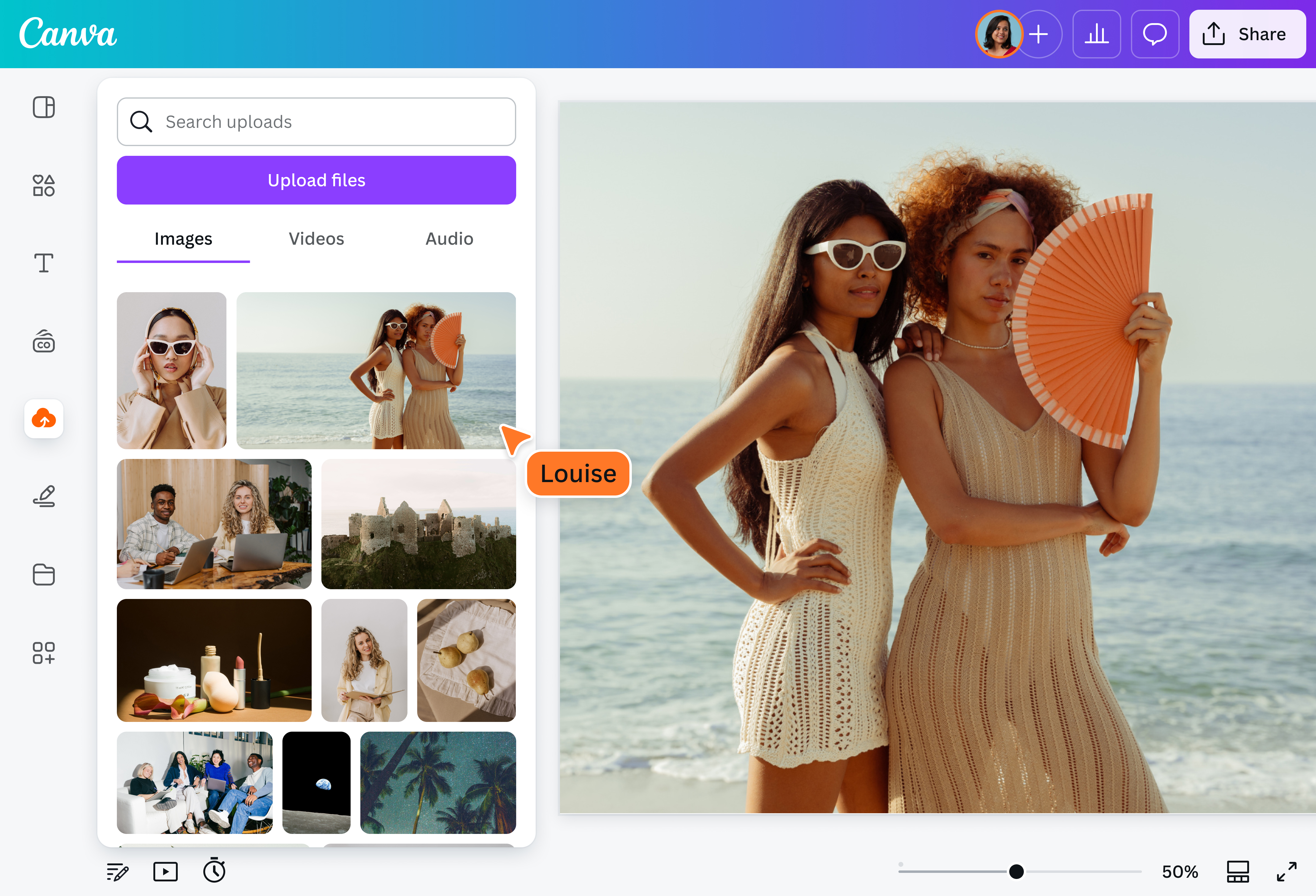
Select the “Upload your image” button or easily drag and drop your screenshot into the section.
Edit your design
Make some quick touch-ups on your screenshot using our beginner-friendly editor.
Download your design
Finally, download your edited screenshot as a high-quality image file.
Edit screenshots effortlessly
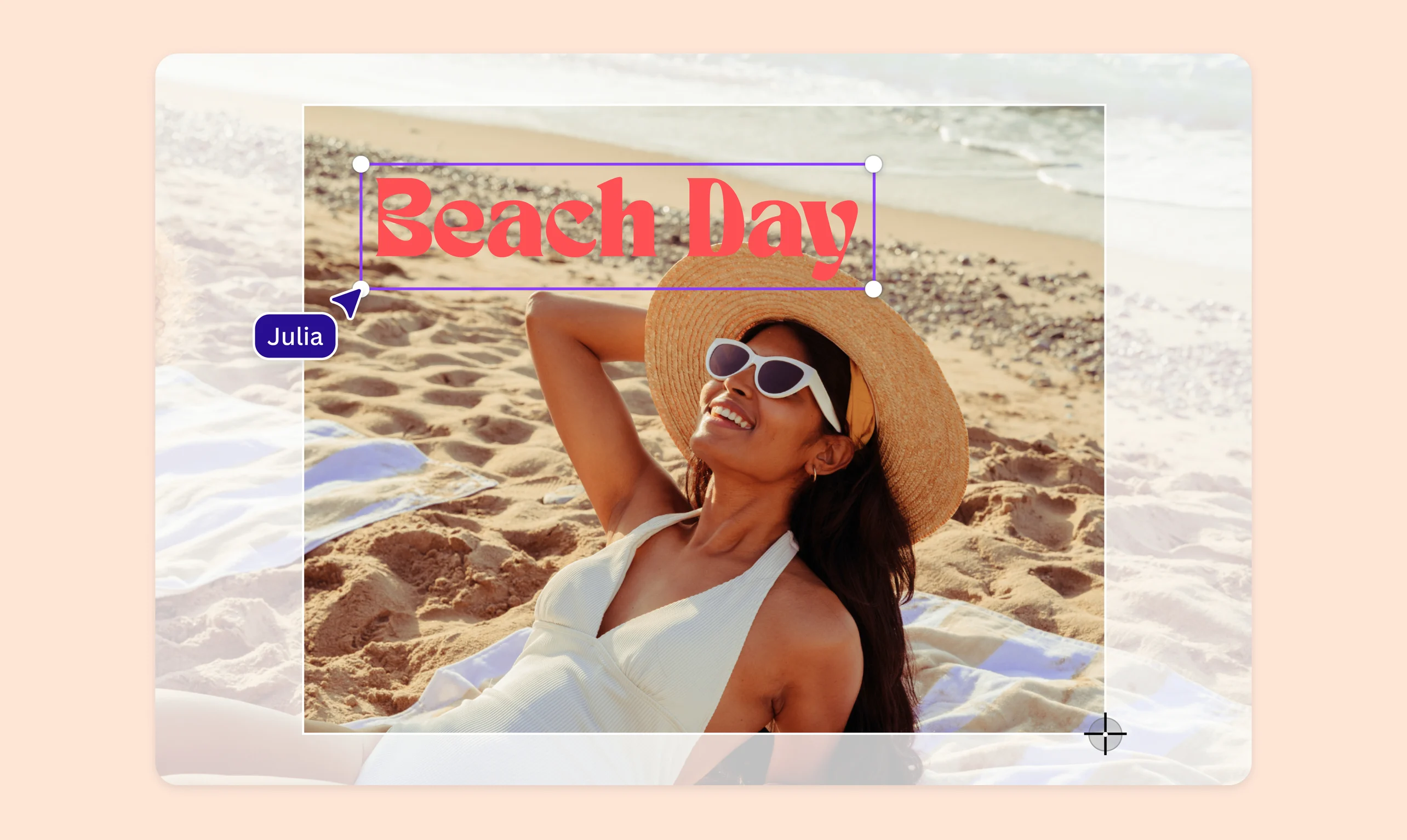
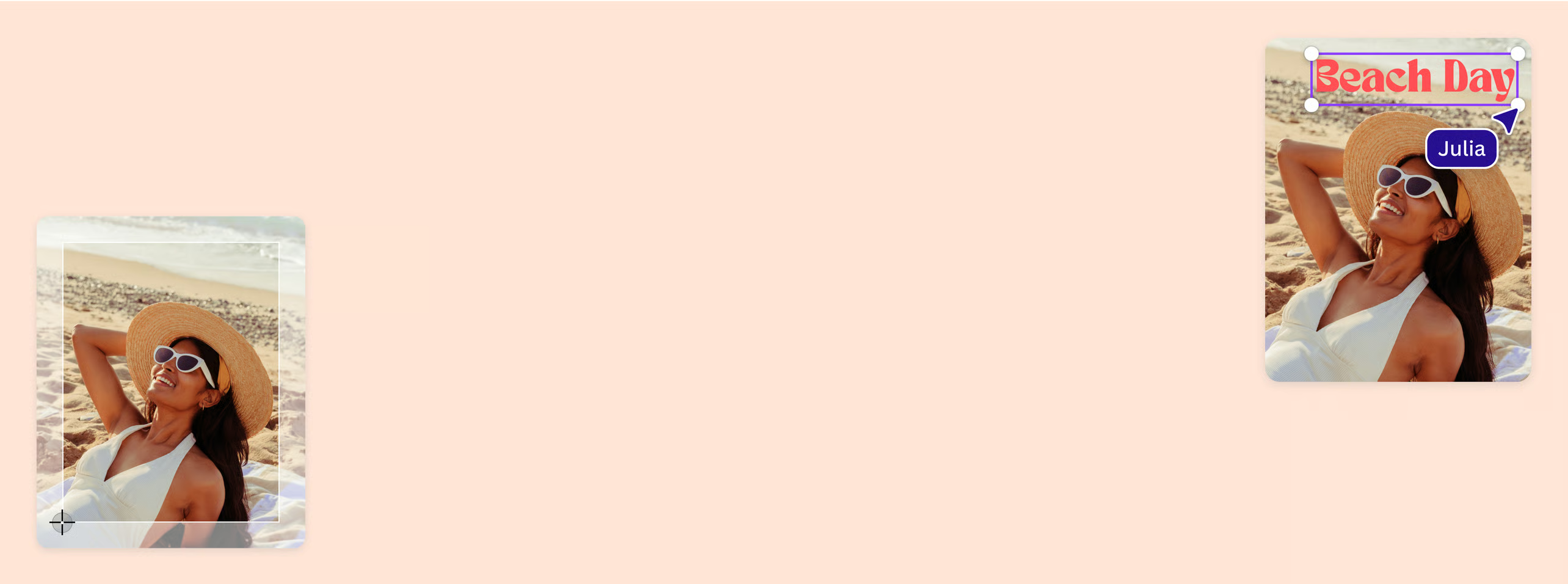
Canva’s screenshot editor has all the tools you need to refine every detail of your screenshot. Add text and labels(opens in a new tab or window) in stylish fonts and matching font colors. Overlay logos, watermarks, stickers, and other images. Apply filters, add trendy photo effects, and adjust the brightness, saturation, and warmth to fine-tune the screenshot. Remove(opens in a new tab or window), change(opens in a new tab or window), or blur the background(opens in a new tab or window). Crop, flip, and create different screenshot versions to reach a wider audience.
Tricky edits made easy with AI

Doing complex edits? Our premium AI photo editing tools(opens in a new tab or window) will save you hours of work. Quickly edit the text in your screenshot with Grab Text (Pro). Use Magic Edit (Pro) to instantly add, replace, or edit a part of the screenshot with a short written prompt. With Magic Grab (Pro), you can select any object from the screenshot to edit, resize, or reposition it. Finally, touch it up and remove unwanted distractions with Magic Eraser (Pro).
Custom screenshots for every project

Edit your screenshot for your business or personal projects with Canva’s screenshot editor. Prepare your screenshots for social media campaigns, product guides, blogs, and content creation. Add design elements to spruce it up or hide sensitive information. If you’re creating learning and training materials, the free screenshot editor ensures that your images are clear, appropriately labeled, and ready to be published and shared.
How to edit a screenshot

Frequently Asked Questions
- A screenshot editor, also called SS editor, allows you to crop, resize, flip, sharpen, blur, and edit the elements of your screenshot. Our screenshot editor enables more complex or artistic edits like removing backgrounds, adding design elements, and changing the text in your image. Try out our AI photo editing tools to refine your screenshot.
- Our screenshot editor allows you to edit the text on images, with the power of AI. Upload your screenshot to our platform and use Grab Text to edit the text on your screenshot.
- Yes, you can access our free screenshot editor and AI tools from your desktop or mobile device. Just download our mobile app, so you can edit screenshots on the go.

@naveet