Extract pages from PDF files and keep only what matters
Cherry-pick multiple PDF pages, fast. With Canva’s free PDF page extractor, you can extract the pages you need and turn them into a neat, new PDF in just a few clicks.
or drop it here
Learn about Canva’s upload formats and requirements. See how we use your content in our Privacy Policy.
Try these document editing tools
Edit, organize, translate PDFs and more. All the PDF editing tools you need!
How to extract pages from PDF
1
Upload your PDF
Select the “Upload your file” button or easily drag and drop your files into the section.
2
Edit your file
Make some quick touch-ups on your PDF file using our beginner-friendly editor.
3
Download your file
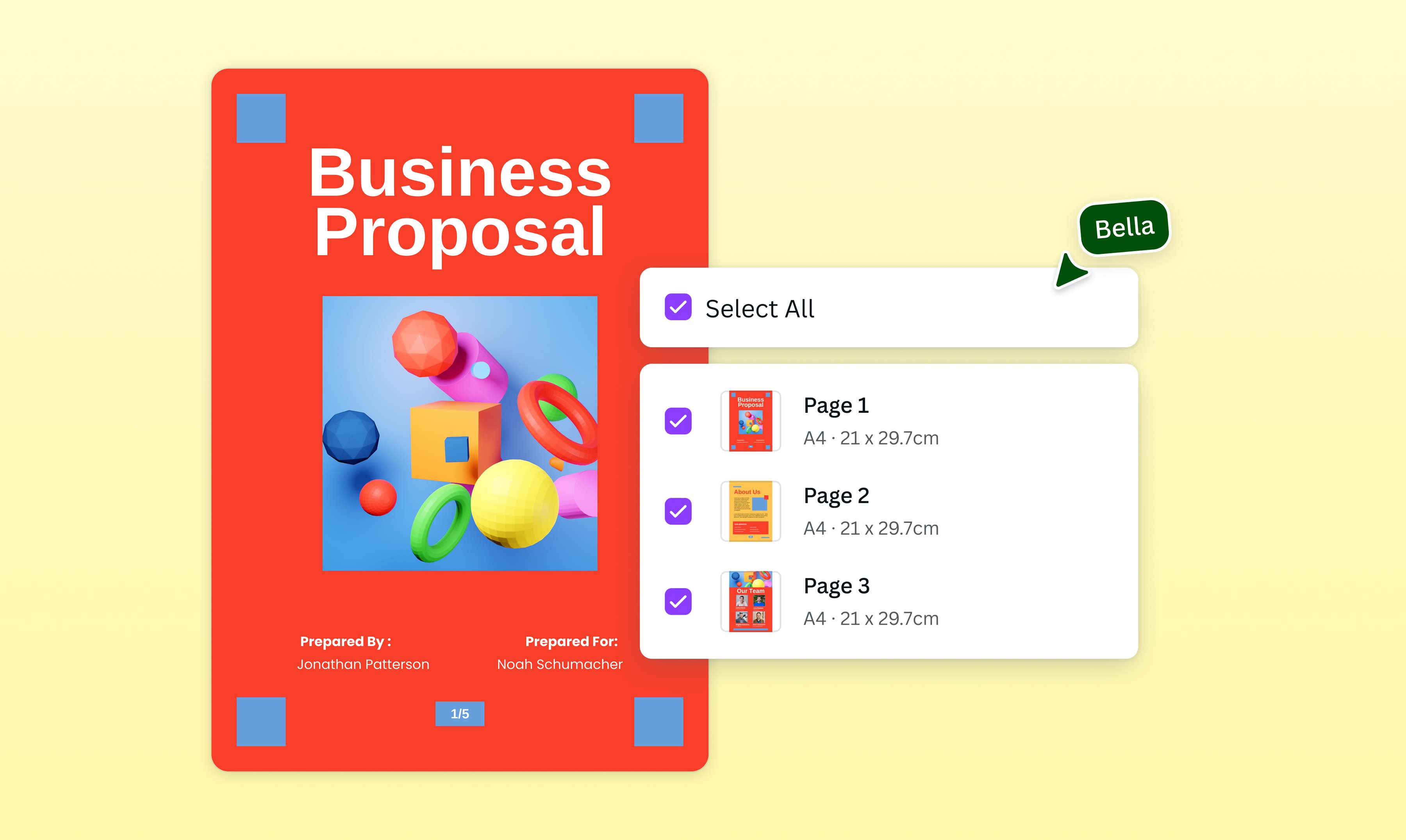
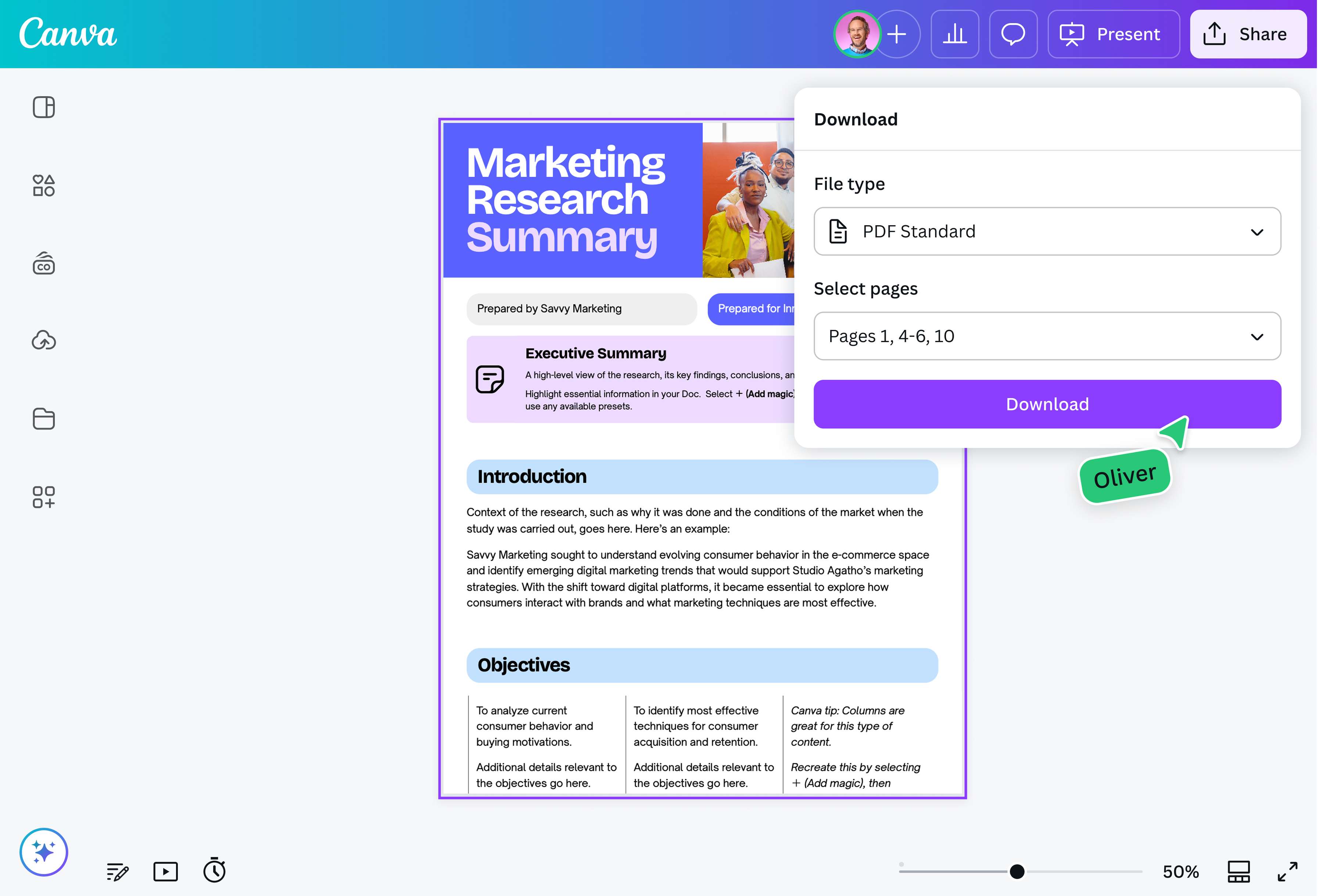
Finally, select the pages you need and download your file as a new PDF document.
Extract PDF pages for free with a secure tool
Manage document content efficiently. Whether you need to share, archive, or edit certain sections from a big PDF document, isolate pages in an instant using Canva’s free PDF editor. Download pertinent pages to create a fresh and updated PDF.
Modify the PDF to match your needs
Beyond extracting PDF pages online, our built-in tool allows you to edit the file to your heart's content. Switch fonts and colors. Sketch your ideas. Insert images. Delete PDF pages or convert to other file types.
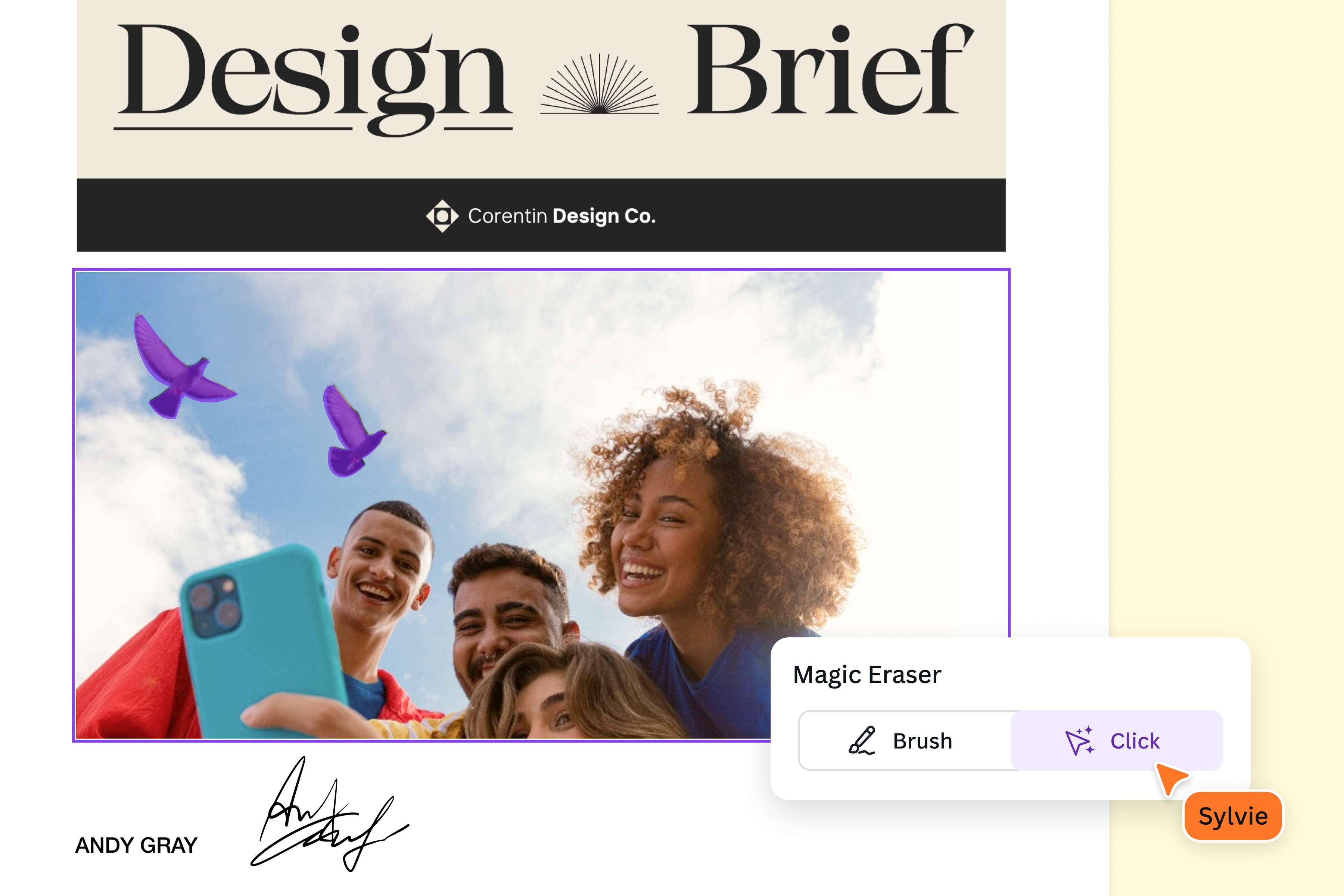
Harness the power of AI with Magic Studio (Canva Pro). Erase unwanted image elements, enhance your visuals, and generate text or graphics from a single prompt. Plus, expand or remove image backgrounds.

Collaborate to make a more manageable doc
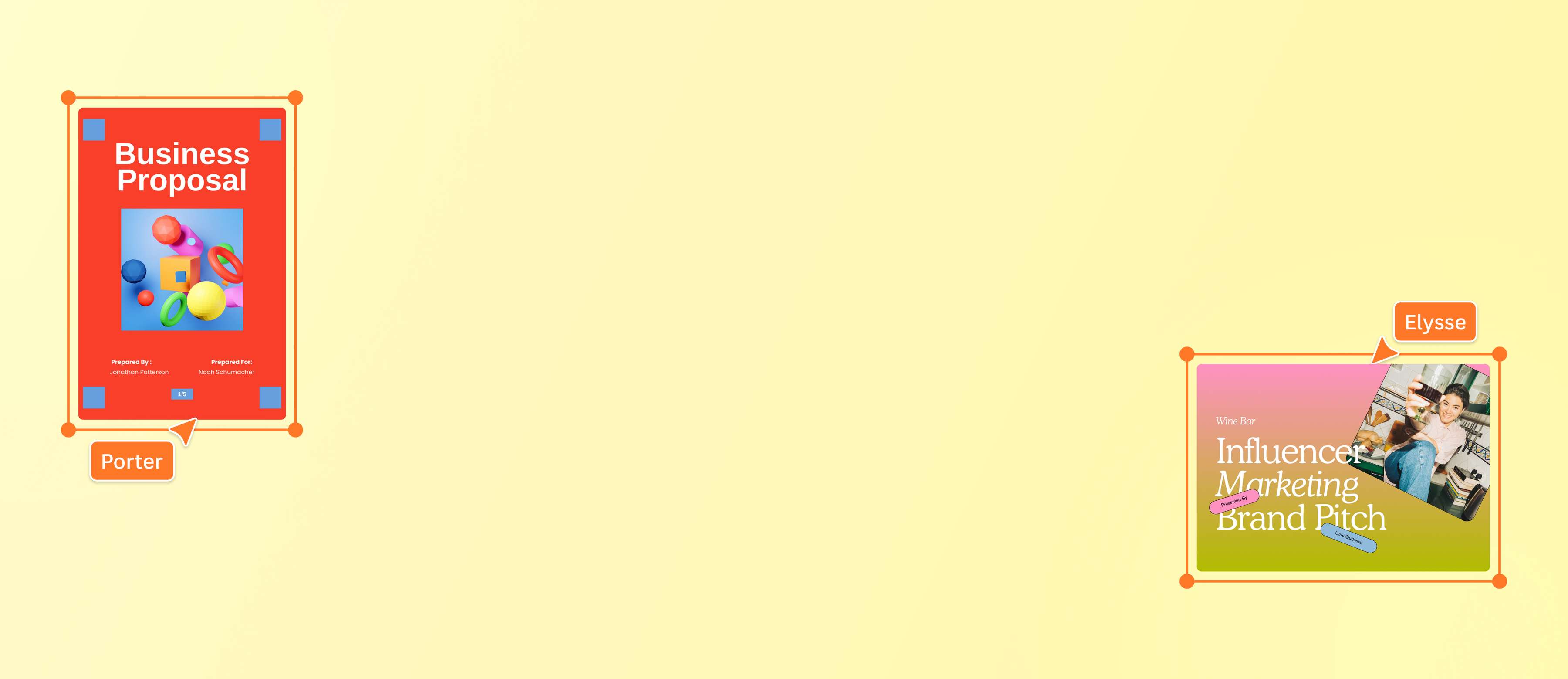
Business contracts, legal documents, and academic papers have one thing in common: they can get large and extensive. With Canva, teams can seamlessly work together to extract specific pages from a PDF and simultaneously improve on them. The result? Downloadable excerpts and samples that are packed with relevant content.
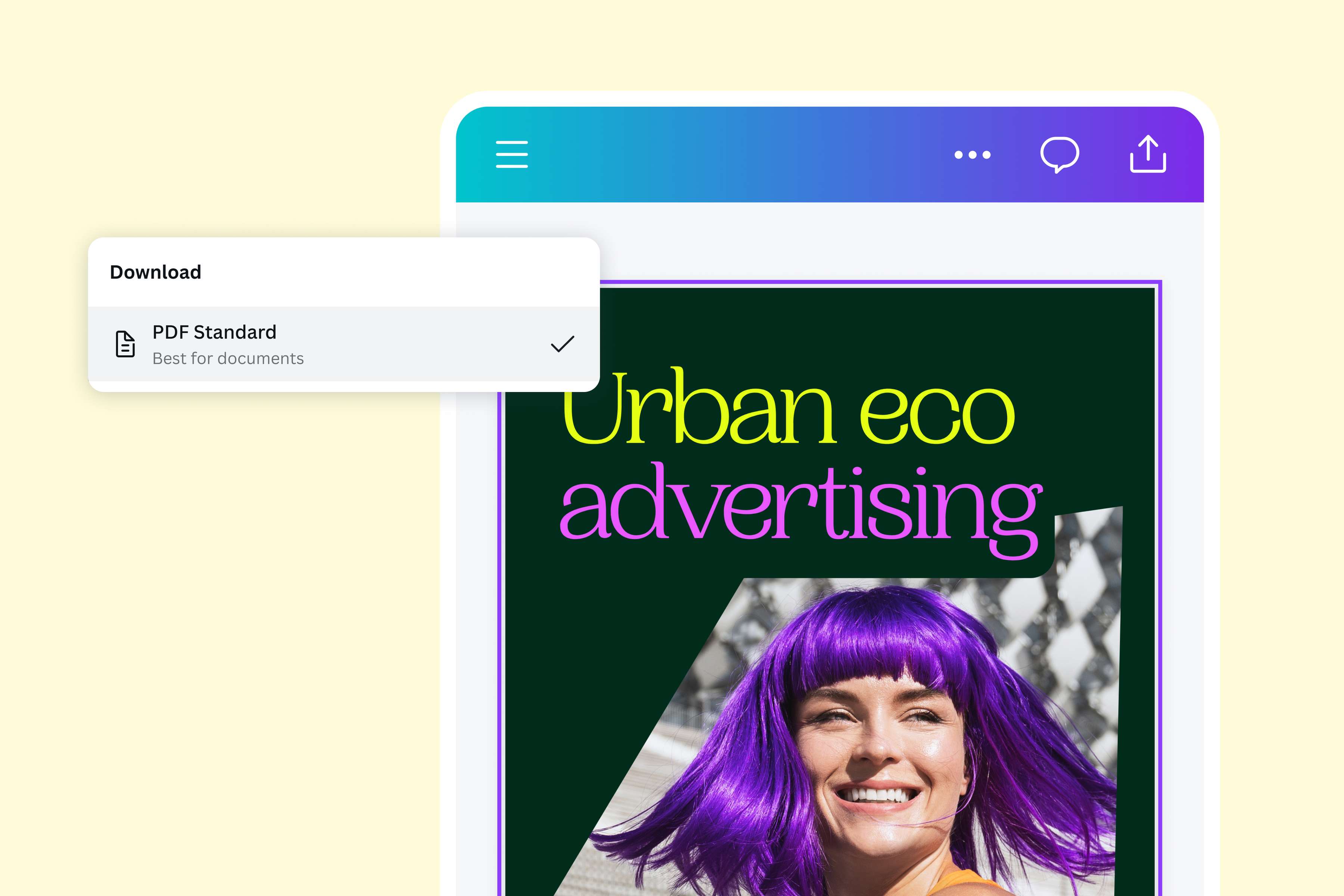
Instantly access and convert your file
You don’t need any design know-how to convert to or from your PDFs on Canva. Just import a PDF or create a new document, then get your newly converted file for free in a few clicks.
The extracted PDF can be accessed anywhere and on any device—making the entire process a breeze. And if needed, you can transform the PDF into other formats, languages, and dimensions with Magic Resize (Pro).
How to extract pages from PDF
Launch Canva
Open Canva on your web browser or via the mobile app to access the online PDF editor(opens in a new tab or window).Upload your PDF file
Upload your PDF document or drag and drop it onto the page. Canva automatically transforms it into customizable elements.Edit the pages
Edit, annotate, organize, or insert pages from multiple PDFs. Split or rearrange the sections. Add graphs and tables. Modify the existing visuals or explore new ones from our media library.Extract and download your PDF
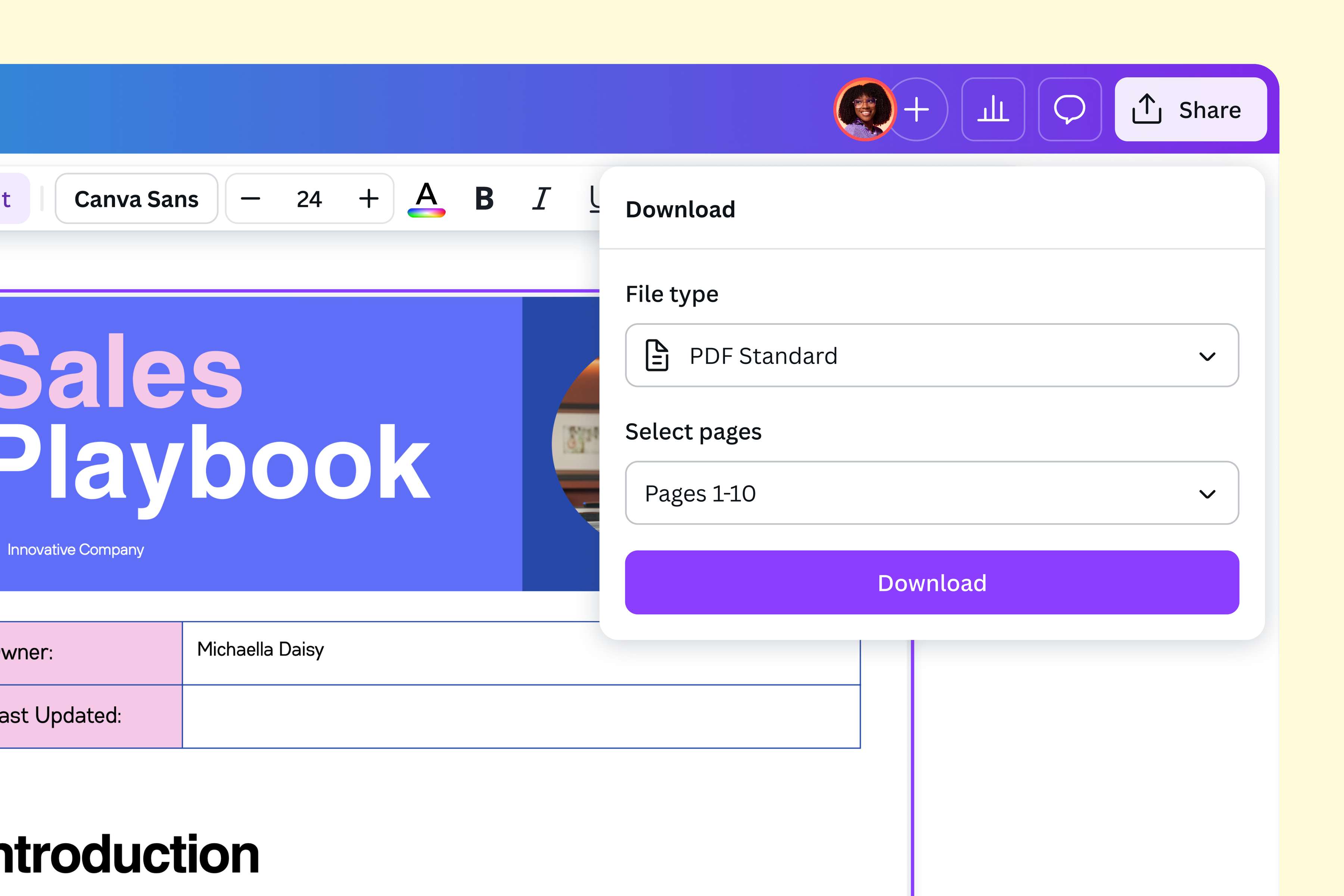
Click the Share button and select Download. Pick the specific pages you want to extract into a new PDF file.Share the PDF file
Send out your new PDF document. Choose PDF Print for high-quality printing, or pick PDF Standard for emailing and quick doc sharing.
Frequently asked questions
- Extracting multiple pages from PDF can be easily done using a free online PDF editor such as ours. Simply upload the file, choose the exact pages you need, and download a new PDF document in seconds. No design skills and complicated tools necessary.