Free CSV to PDF Converter
or drop it here
Learn about Canva’s upload formats and requirements. See how we use your content in our Privacy Policy.
Seamlessly change a CSV to a PDF with Canva’s easy-to-use converter. It only takes a few clicks to convert your CSV file into a polished and easily shareable PDF.
Try these document editing tools
Edit and convert PDFs and more. All the PDF editing tools you need!
How to convert CSV to PDF
1
Upload your CSV file
Select the “Upload your file” button or easily drag and drop your files into the section.
2
Edit your design
Make some quick touch-ups on your CSV file using our beginner-friendly editor.
3
Download your design
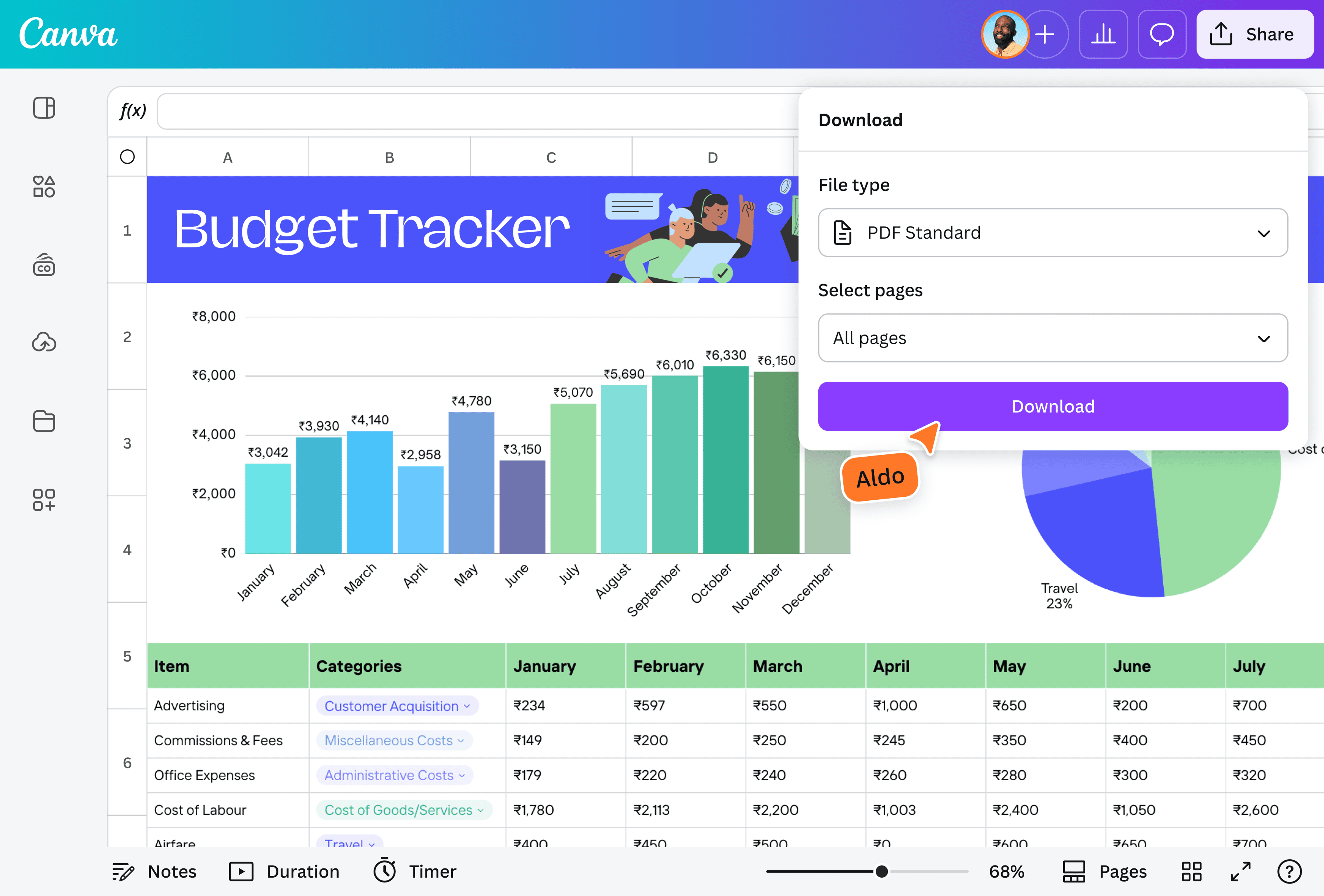
Finally, convert the CSV file to PDF for free by downloading your design as a PDF document.
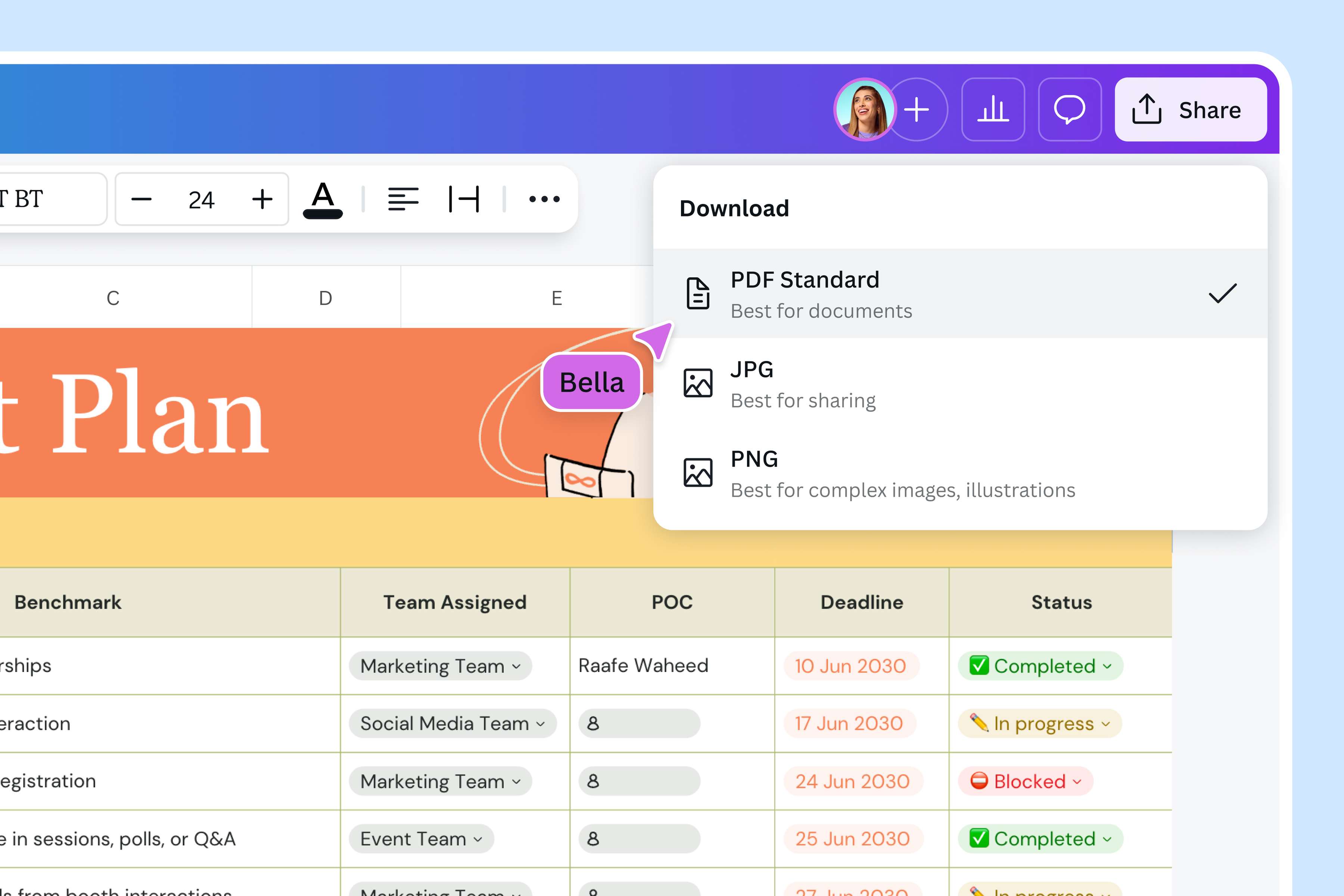
Instantly transform your CSV file to a PDF
Ensure that your CSV data is clear, consistent, and easy to share with Canva’s CSV to PDF converter. Simply upload your file, make any necessary edits, and save it as a PDF—no complicated software of expensive tools needed.
Whether you’re preparing reports, invoices, or research papers, you can showcase your data in a reliable and professional format, all while making sure information stays intact.
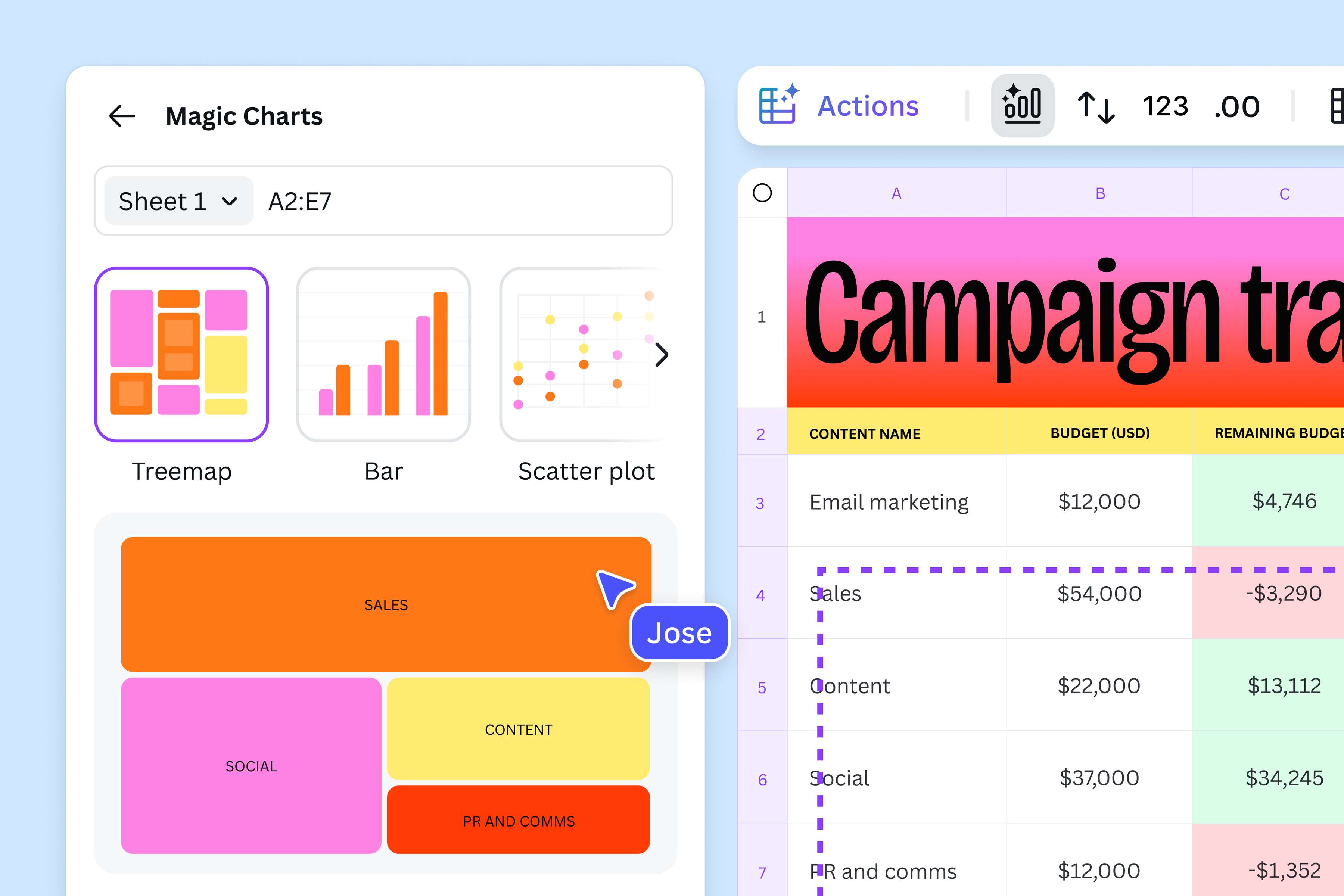
Customize before you convert
Do more than just CSV to PDF conversion with Canva’s intuitive editor and extensive library of elements. Add a personal touch with our freehand drawing tool, or use Canva charts to create visual representations of your data. You can also play around with Magic Media™ to generate stunning images using text prompts. With Canva, everything happens in one place—no need to switch between multiple apps.
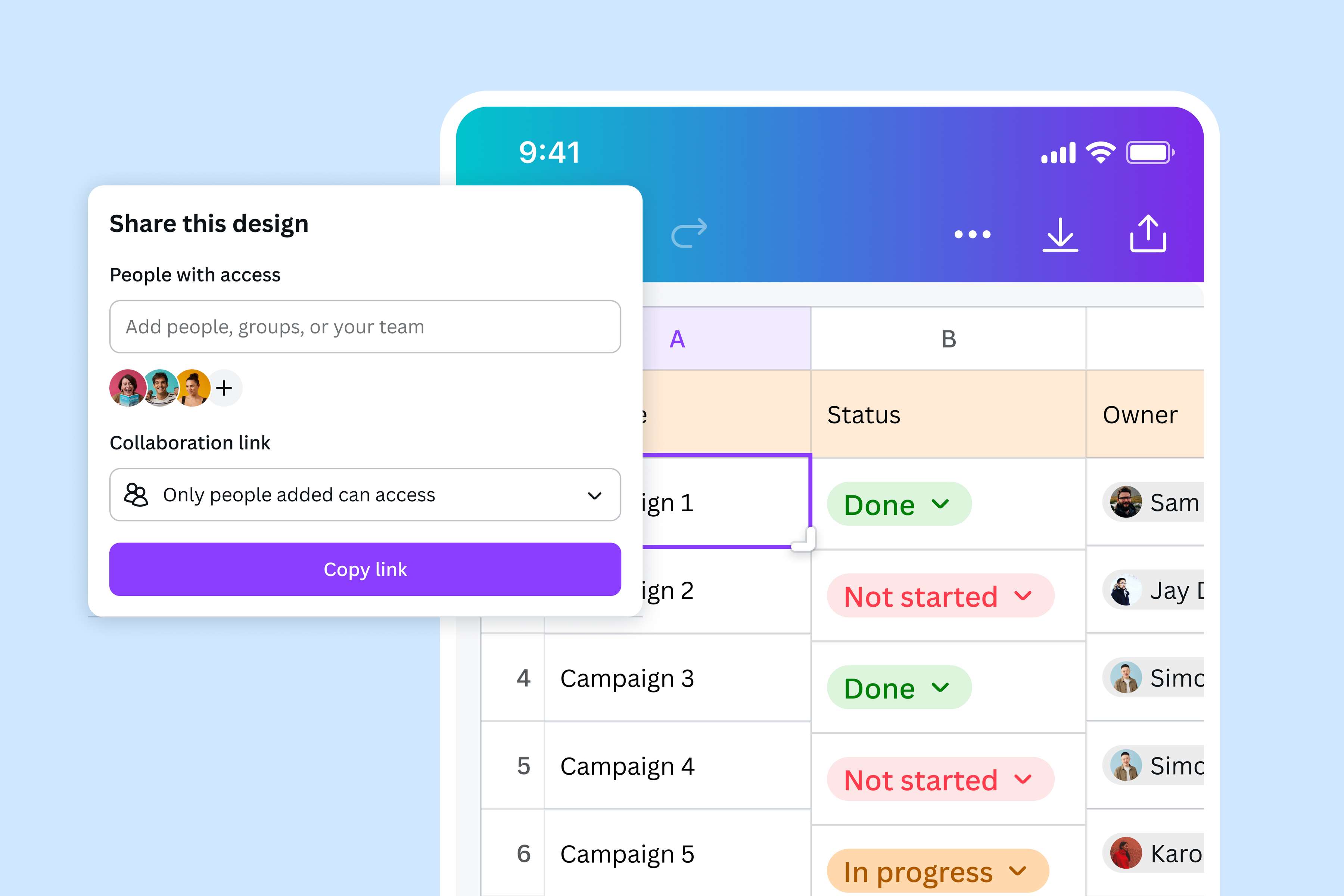
Collaborate and and share with ease
Need another set of eyes to check your CSV file before hitting convert? Invite your classmates, colleagues, or fellow researchers to refine your design together. Leave comments for each other, add in your thoughts, and see edits in real time. Once you’re happy with your design, save it as a PDF and share it through a link or via email.
How to convert CSV to PDF
Open Canva
Launch Canva on the app or your preferred web browser to access our CSV to PDF converter online.Upload your CSV file
Select the CSV file you want to convert from your device, or quickly drag and drop it onto the page. Canva will automatically create an editable design out of your CSV file.Edit your file
Before converting from CSV to PDF, you can tweak your file by changing font colors, editing text, or inserting graphics. You can even use Magic Write(opens in a new tab or window) to add some insights to your data.Convert CSV to PDF
Finalize your work by clicking Share on the upper right corner of the editor. Select Download, then choose between PDF Standard or PDF Print before downloading your file.Share your PDF
Use your newly converted PDF file however you want. You can send it as an email attachment, share it on cloud platforms, or store it locally on your device to access it offline.
Frequently asked questions
- With our PDF Converter, it’s easy and simple to convert a .CSV to a PDF file. All you have to do is Upload your CSV file, edit it however you want, and click Share to download it as a PDF. No need for any design experience or expensive applications.