Flatten PDF
PDF
or drop it here
Learn about Canva’s upload formats and requirements. See how we use your content in our Privacy Policy.
Keep your files secure yet accessible once they’ve been finalized. Flatten PDFs on Canva so you can share them across various platforms while keeping their contents safe from unauthorized changes.
Try these document editing tools
Edit, organize, translate PDFs and more. All the PDF editing tools you need!
How to flatten PDFs
1
Upload your PDF
Select the “Upload your file” button or easily drag and drop your files into the section.
2
Edit your design
Make some quick touch-ups on your PDF using our beginner-friendly editor.
3
Download your file
Finally, check “Flatten PDF” before downloading your design.
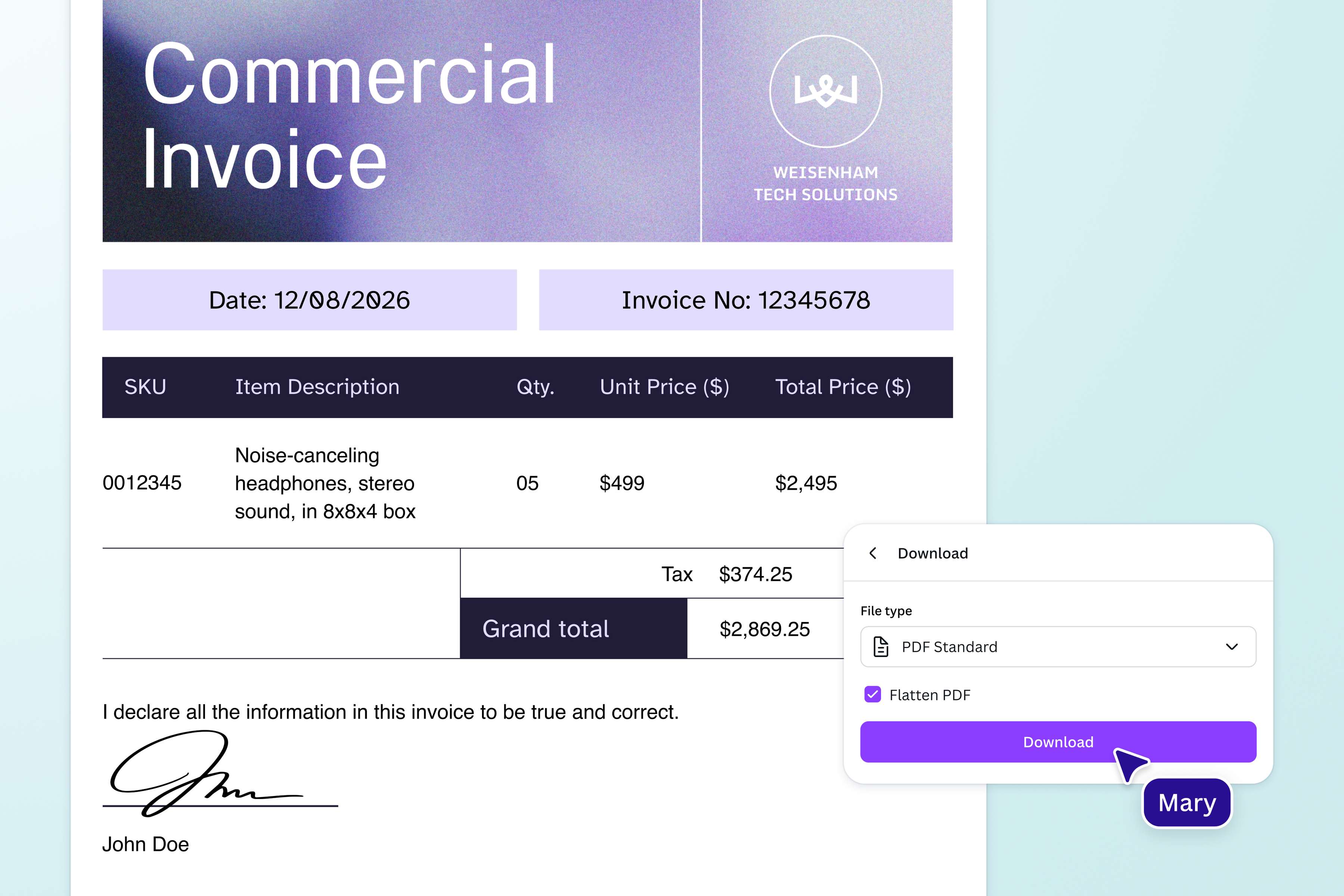
Keep vital information in documents safe
Maintain the integrity of your business records and contracts while documenting them. Flatten PDFs online with Canva to prevent data manipulation or extraction and signature alteration—especially important when multiple users are accessing the same files.
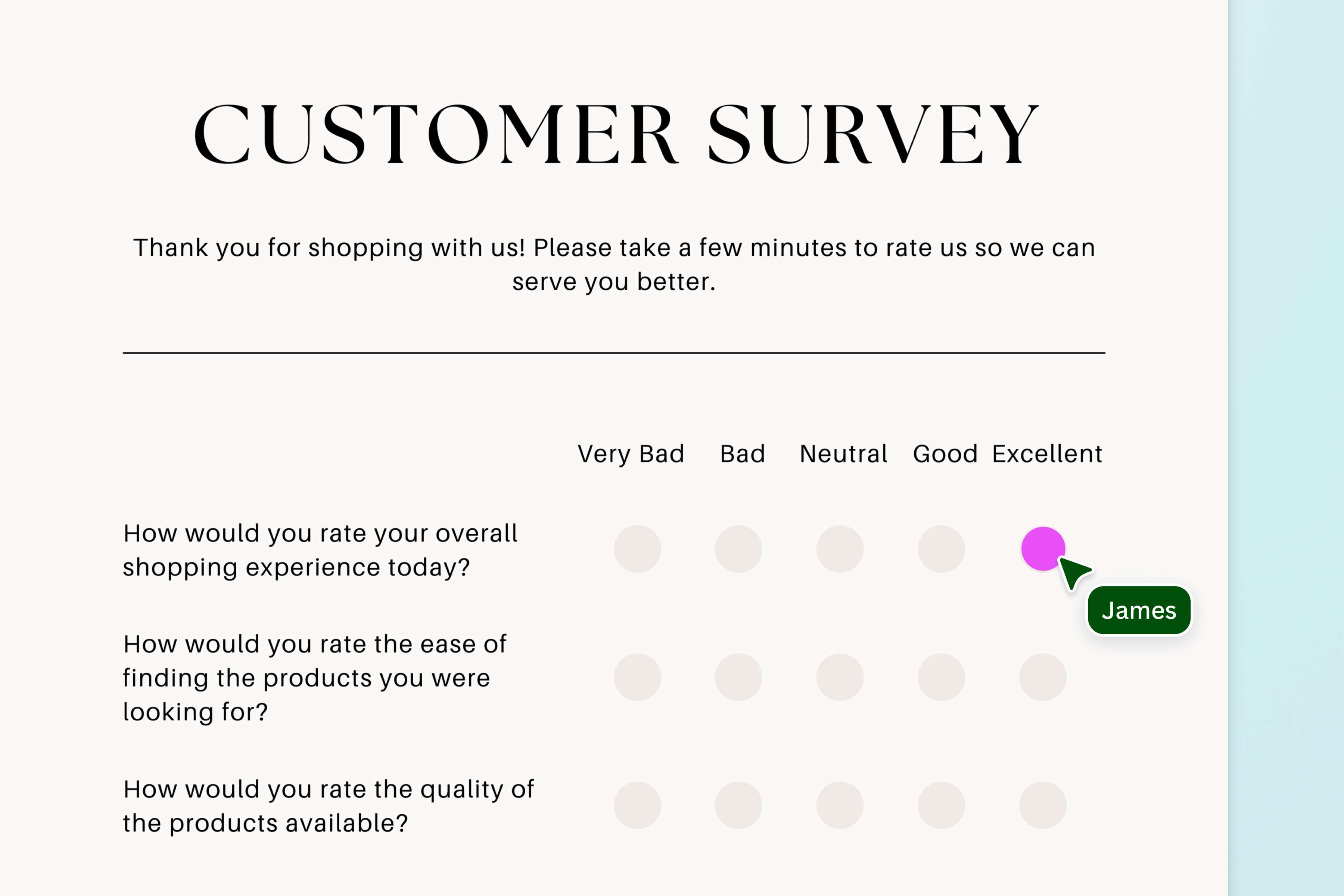
Safekeep forms from tampering
Guarantee the credibility of the forms and surveys you distribute. Use Canva to flatten PDFs before printing and emailing questionnaires. This ensures that respondents can’t change text fields and can only fill out the portions they need to answer.
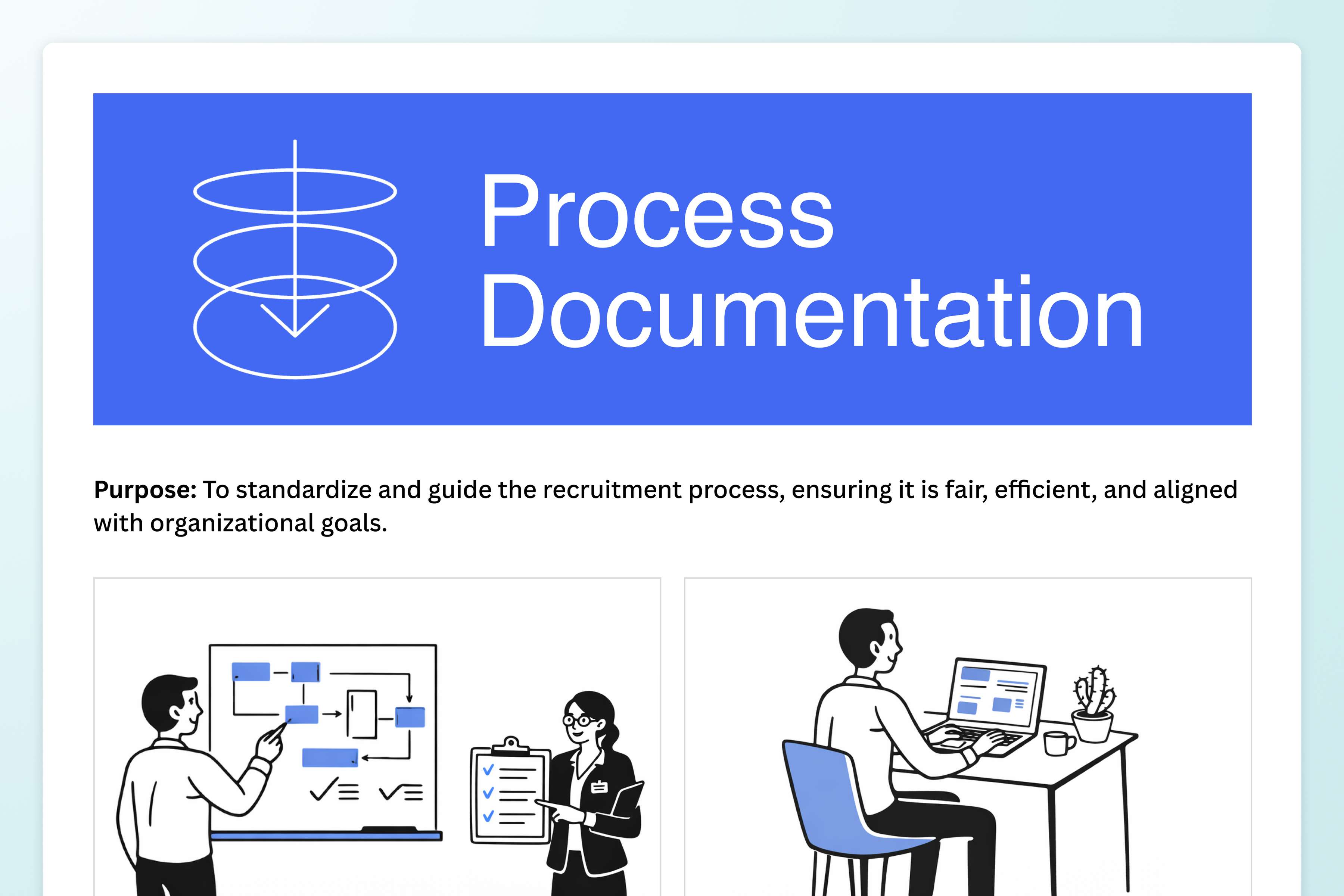
Print files in their final versions without a hitch
Add sketches to your files with Canva’s freehand drawing and Shape Assist tools and make any edits you need with our PDF Editor. Before sending documents, layouts, and other graphic design projects to a printer, protect the placements of each element by flattening PDFs into a single layer. Your docs will be printed and viewed the way you intended them to be.
Make your docs more accessible
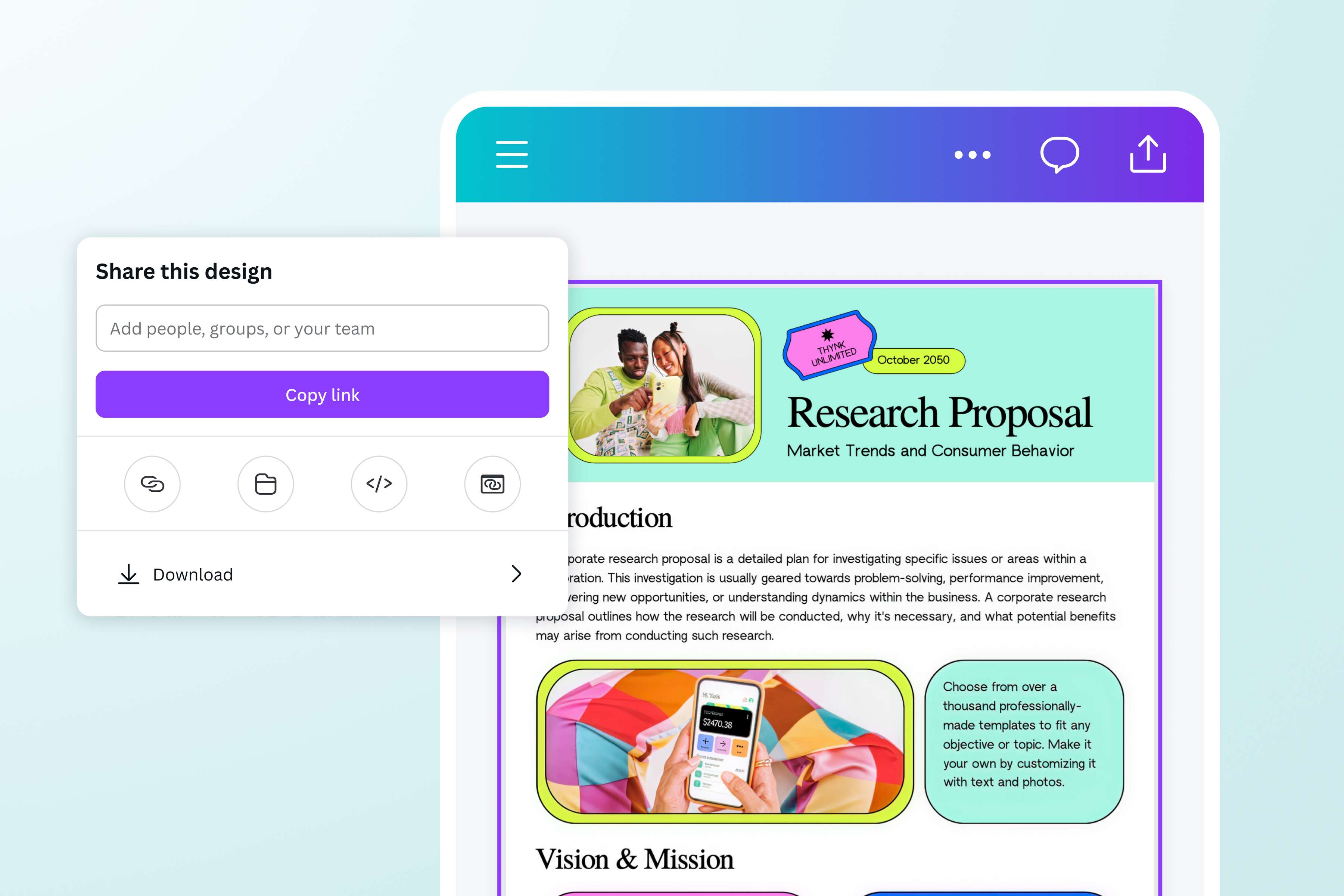
Keep files not only consistent and error-free but also viewable across all platforms. Use Canva’s PDF flattener so they have a more simplified document structure and are quicker to share and open, no matter what device the recipient is using.
How to flatten a PDF
Launch Canva
Open Canva to start a design project and use the flatten PDF tool.Upload PDF
Upload your PDF and place it in your layout.Edit and customize
Add or remove text, images, or even entire pages using our PDF Editor(opens in a new tab or window). You can also refine the visual elements using Magic Edit (Pro)(opens in a new tab or window).Flatten PDF and download
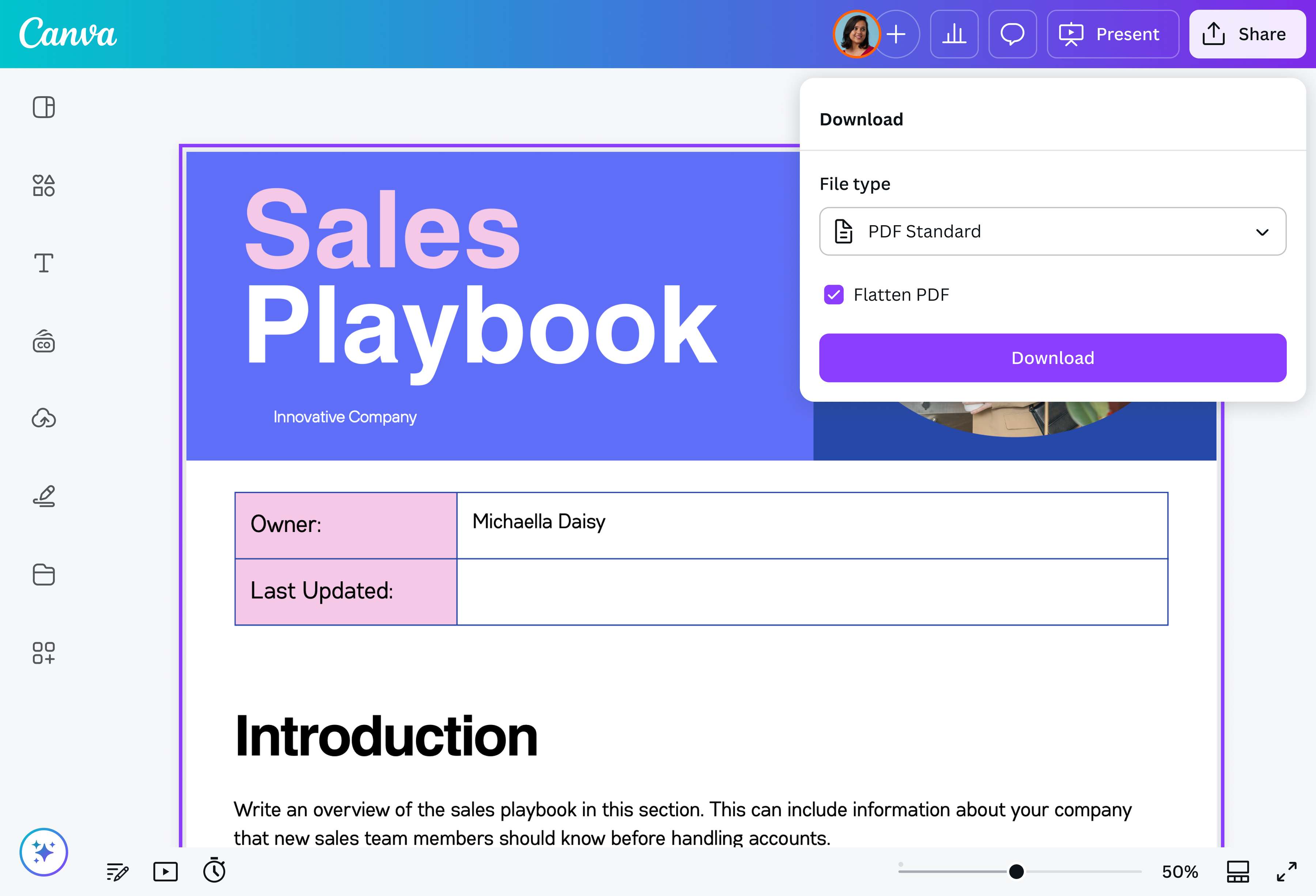
Click Share, then Download. Select PDF Standard or PDF Print, then check the box for Flatten PDF to begin the download.Share your flattened PDF
Send your flattened PDF via email or convert it(opens in a new tab or window) to other formats. Add it to your presentations(opens in a new tab or window), too, or simply keep it on your device for other design projects.
Frequently asked questions
- To flatten a PDF means to merge all of a document’s layers, including annotations, into a single layer, simplifying its structure. This way, the content is presented as a single, uneditable image, and people who view the file won’t be able to edit its elements.