- GIF Background Remover
GIF Background Remover
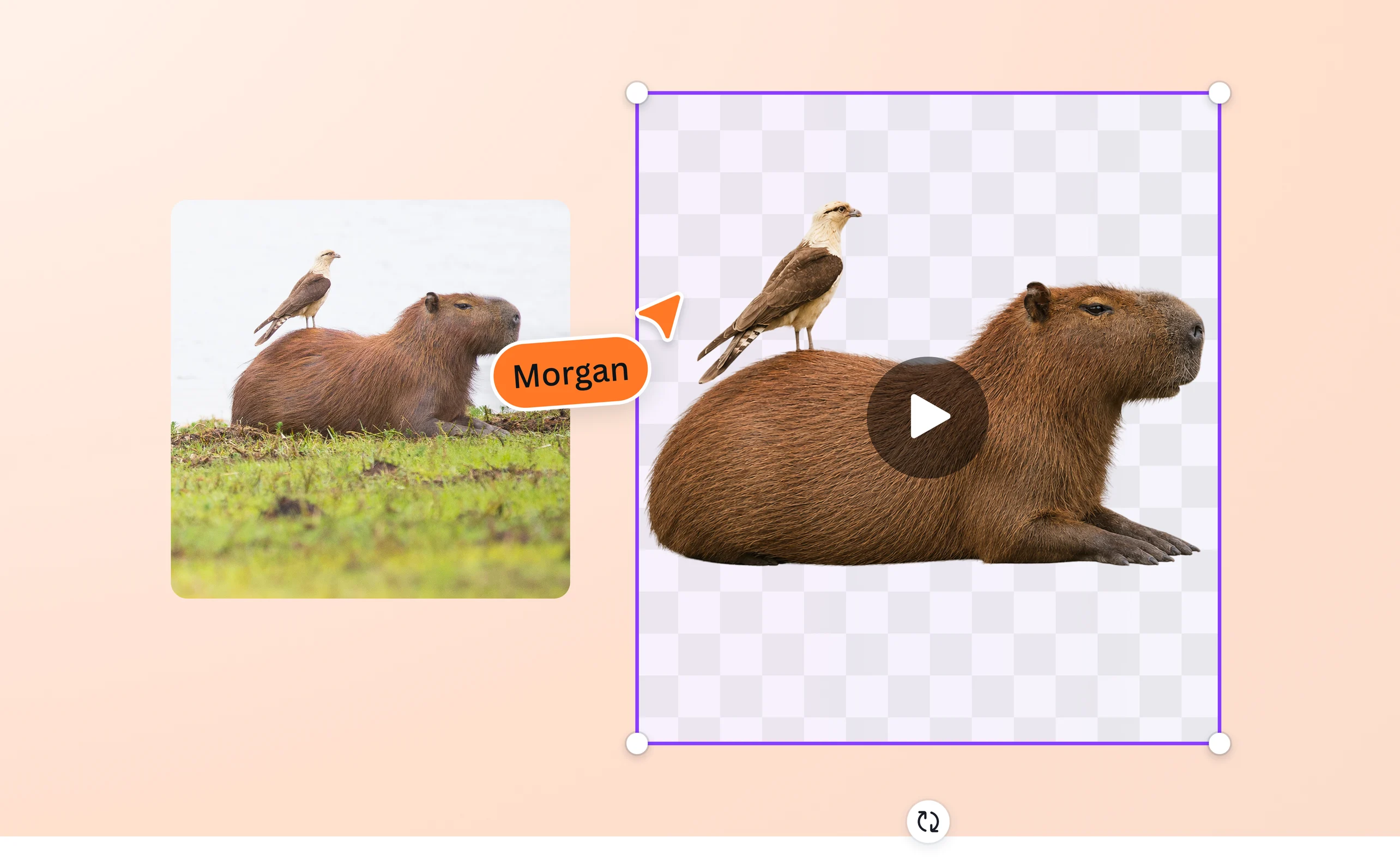
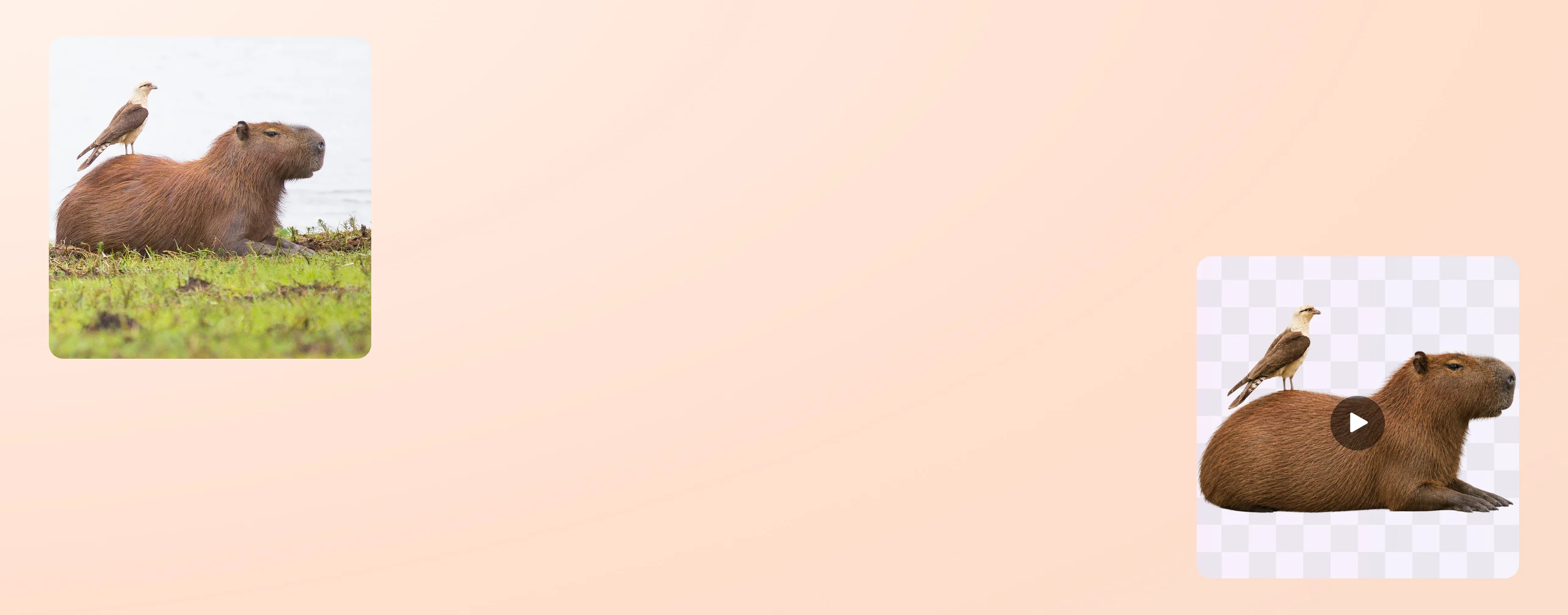
Get a see-through background on your GIF without losing a single frame of motion. The GIF background remover wipes the background, giving you a transparent GIF you can download or keep editing.
or drop it here
Learn about Canva's upload formats and requirements. See how we use your content in our Privacy Policy.
Remove GIF backgrounds in a click


Automatic BG cleanup in every frame

More than a transparent GIF

Safe and secure GIF background removal

The AI tools on Canva run on several layers of safeguards, so your uploaded content stays secure, and the content they help you create stays appropriate for the people you share it with. We ask everyone to create responsibly and be a good human, keeping other people's work and likeness in mind. For the full picture on what's allowed, take a look at Canva’s Terms of Use(opens in a new tab or window) and AI Product Terms(opens in a new tab or window).
How to remove a GIF background

Frequently asked questions
- A GIF background remover strips the background out of an animated GIF, leaving your subject on a clean, transparent backdrop. The background remover for GIFs runs automatically: you upload the GIF, it detects the subject, and it erases the background across every frame so the motion stays smooth. The result is a transparent GIF you can download or drop into a design, social post, or video. It’s simple, fast, and effortless; there’s no manual masking or green screen required.
- The GIF background remover on Canva processes each frame, so the animation stays crisp, and timing remains intact. Because every frame is handled separately, you avoid the flicker and ghosting that come from editing a GIF by hand. It’s quick and keeps the quality of your GIFs.
- Yes. Download the Canva app on iOS and Android, so you can make GIFs transparent on your phone the same way you would on a laptop. Upload the animated GIF, let the online GIF background remover clear the backdrop, preview the frames, and download your transparent GIF, all from your mobile device.
- Canva’s online GIF background remover is a great way to make transparent animated stickers. Just upload any moving GIF and erase the background, which leaves the subject on a transparent backdrop. Then, download the transparent GIF. Or you can keep editing in Canva to add effects, graphics, and text. The finished sticker is now ready for chats, posts, presentations, or anywhere an animated sticker would add a little fun.

@mahimagirdhar