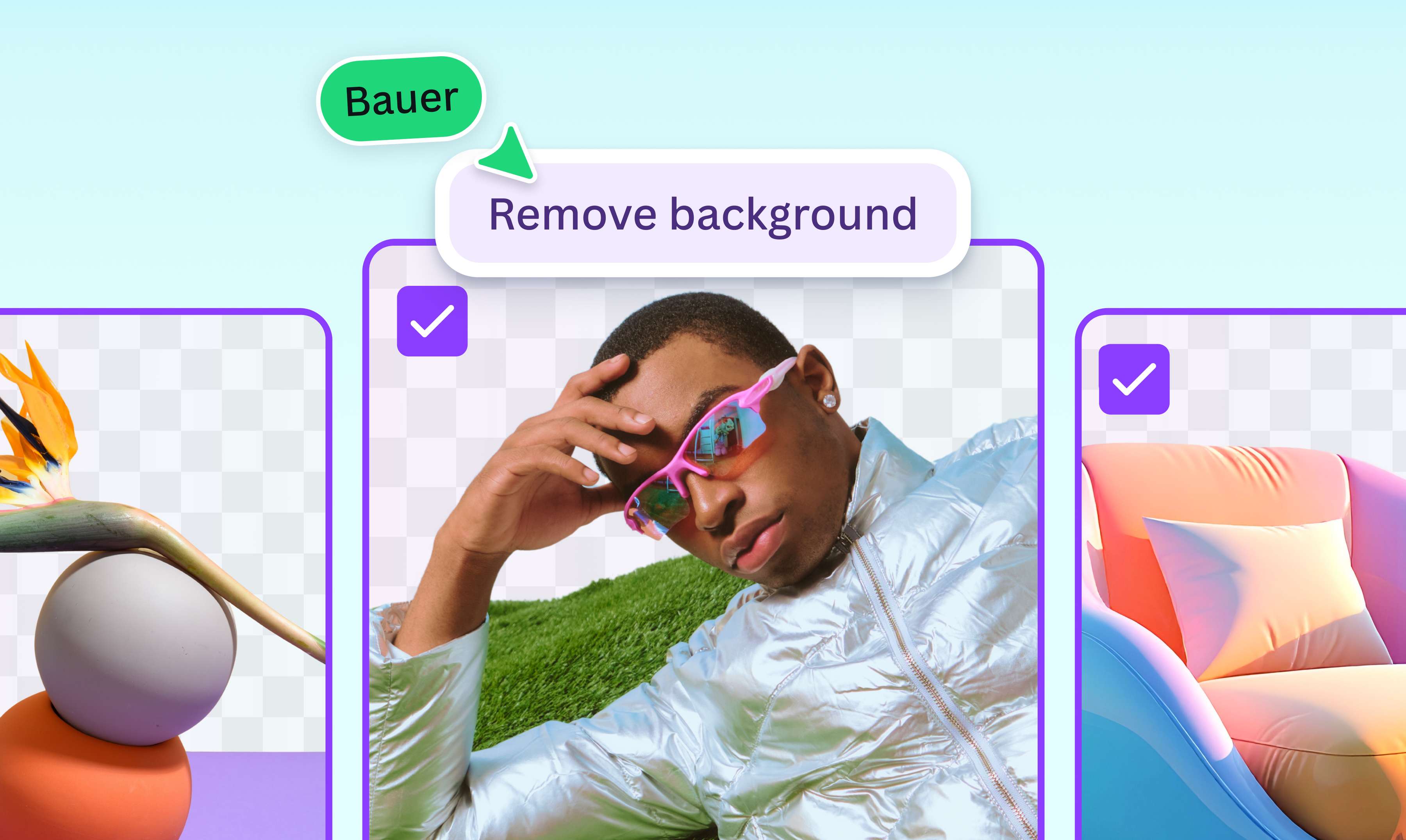
Bulk background remover
Up to 50 images in one pass. Canva's bulk background remover cuts them all out at once and leaves the transparent PNGs right where your templates and mockups already live.
or drop it here
Learn about Canva’s upload formats and requirements. See how we use your content in our Privacy Policy.
Meet Canva's bulk background remover
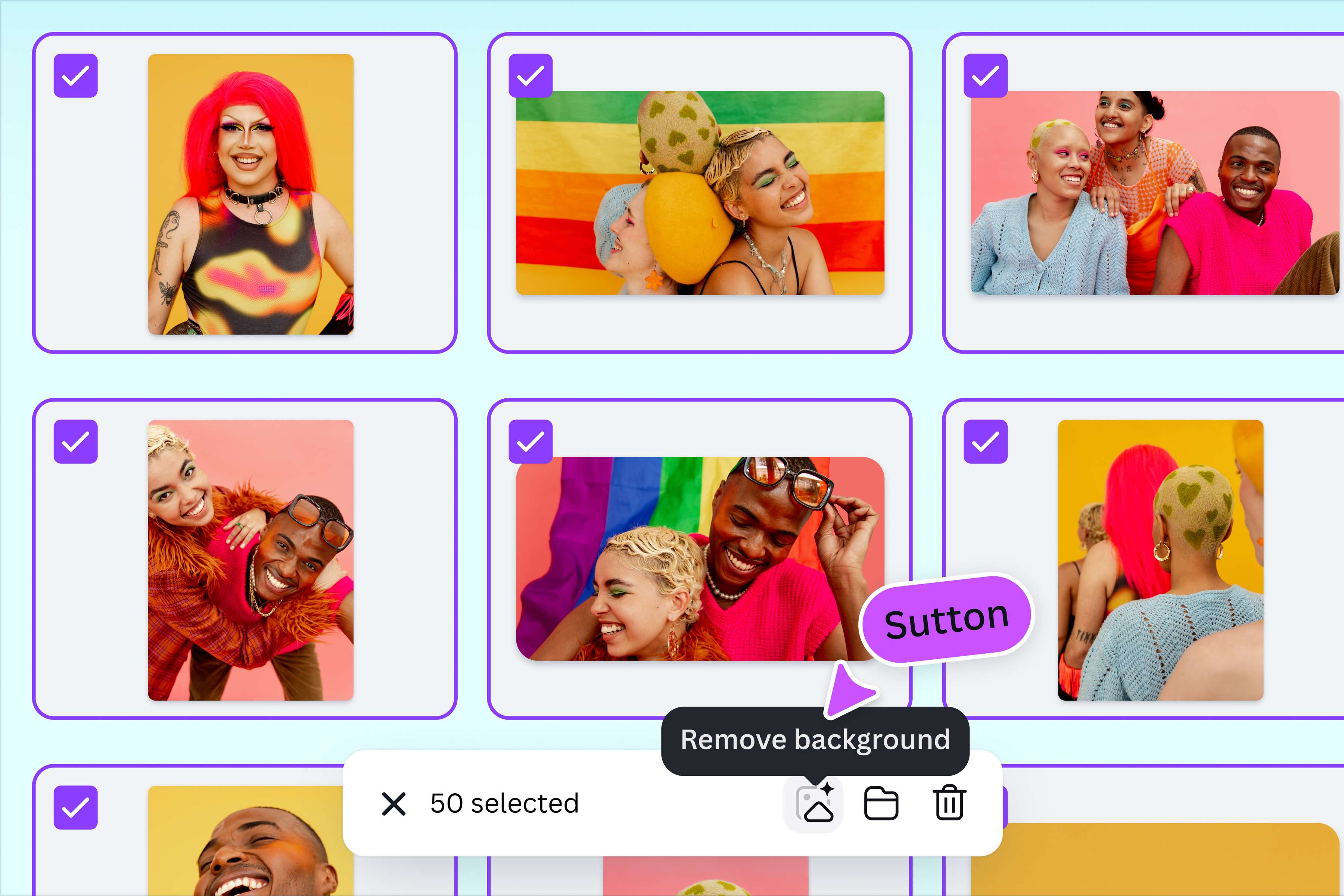
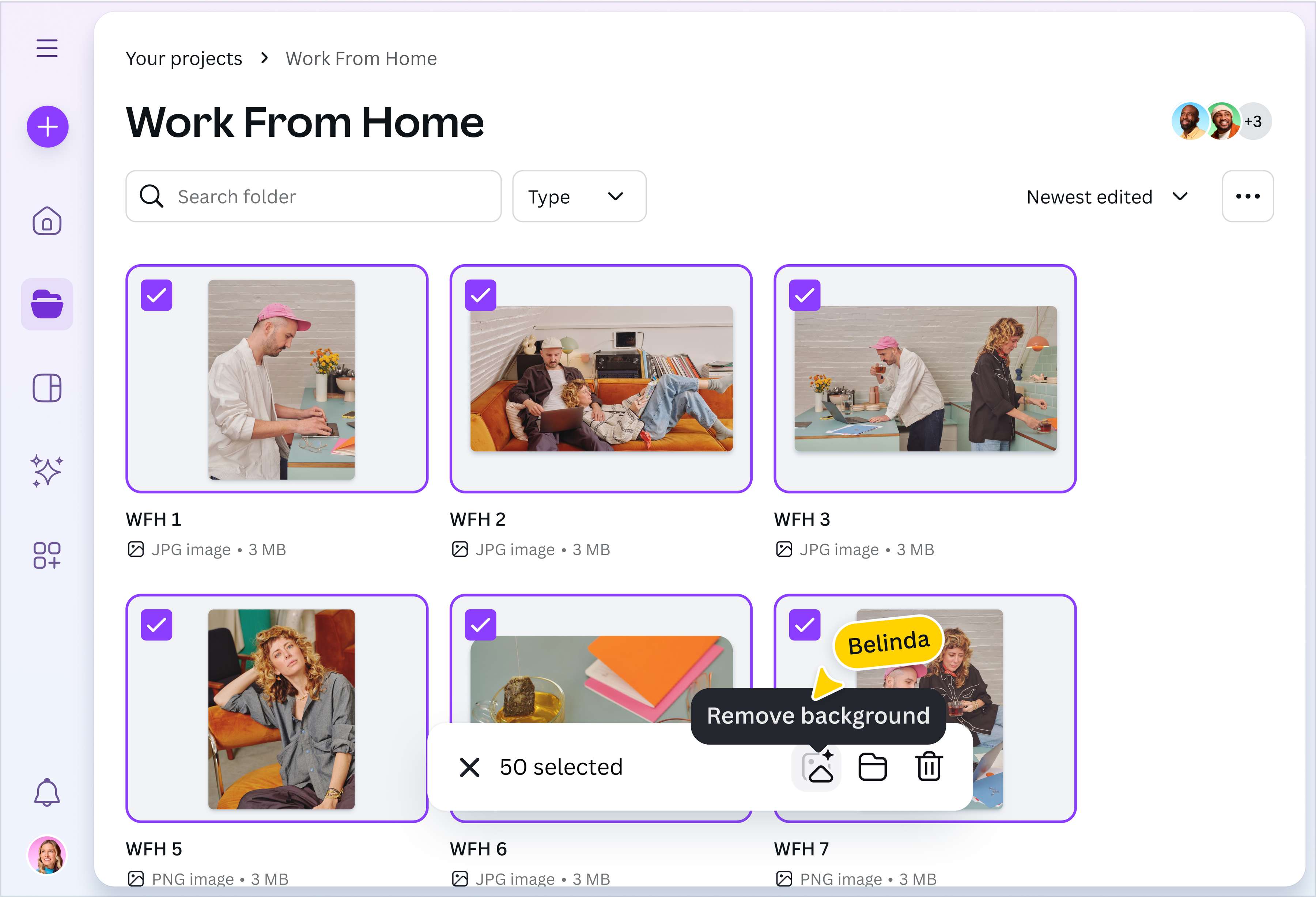
Forget erasing the backgrounds from your images one by one. With Canva's bulk background remover, all you need to do is upload your folder and activate the tool in a few clicks. It works through up to 50 images per batch, so you can save time from doing tedious work and move ahead to designing. It's that easy!
Skip the export, import, repeat loop
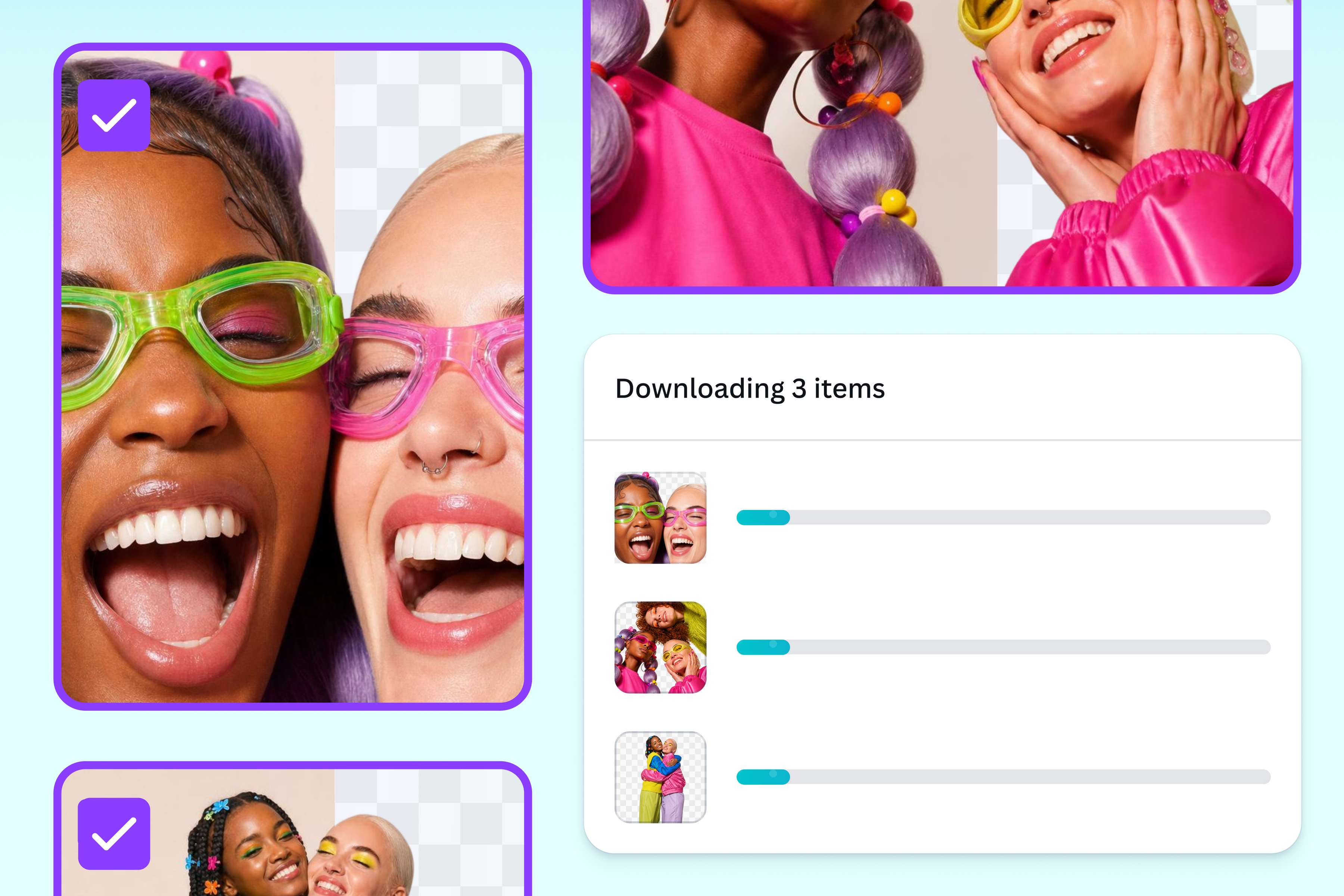
Most batch background remover tools hand back a ZIP and stop there. You'll have to re-import every cutout into your design tool, making the jump from background removal to editing a chore. Here the transparent background happens inside Canva: your photos are a click away, ready to edit or add to designs. Drop them onto a clean backdrop, into a mockup, or straight into one of our free photo templates, and every item in your shop lines up with the same look.
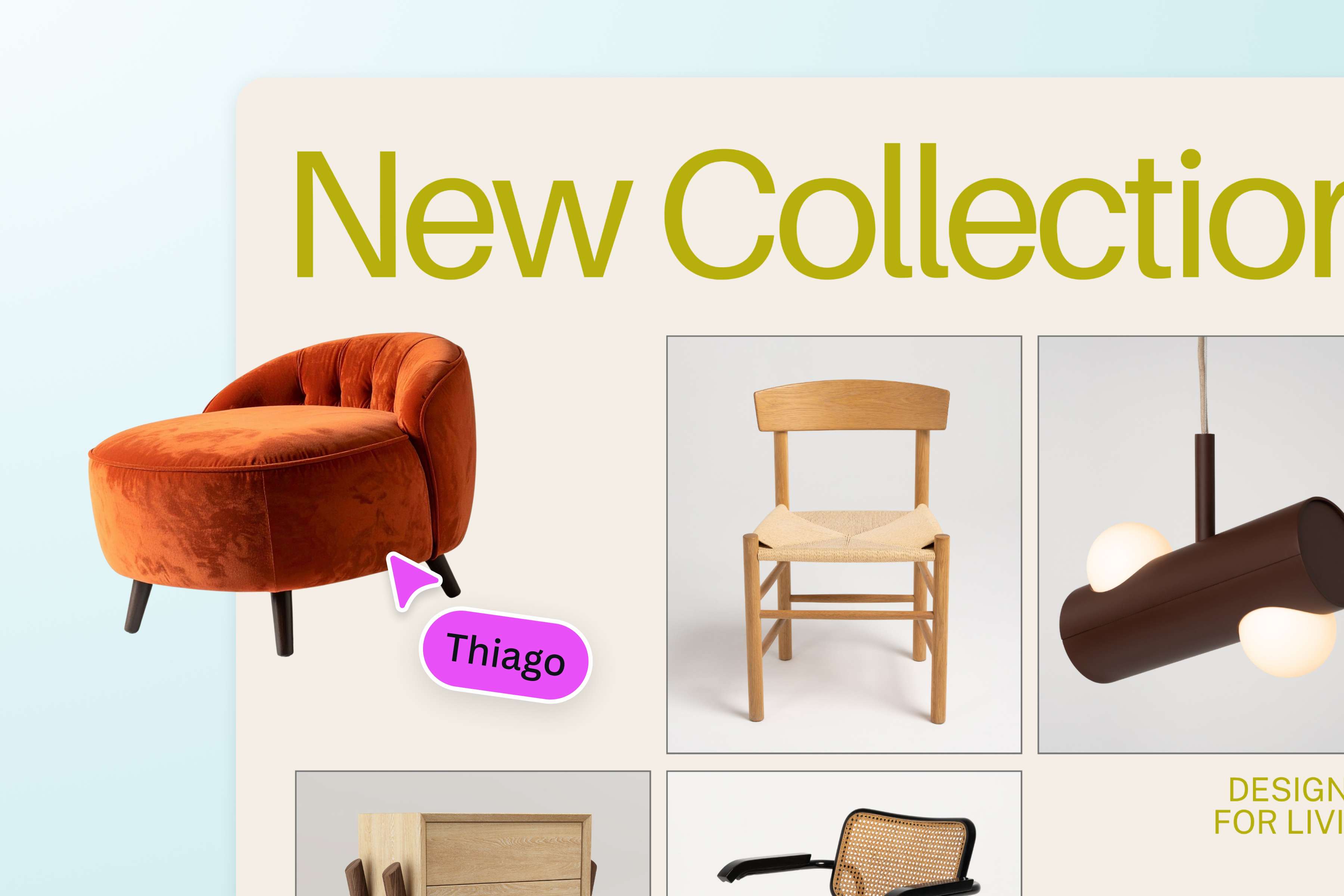
BG removal for e-commerce and resellers
Showcase your products in the perfect online listing. Edit your images in our photo editor to batch tiny edges, tweak the lighting, and add filters. Generate your own backgrounds so your product photos match your vision exactly, or drop it into a mockup template. Once you’re done, you can repurpose your images to other assets and materials with Magic Resize, all while keeping them consistent with your very own Brand Kit.

Go beyond 50 images
If you're working on a higher volume of images, Leonardo.Ai can do the job for you, now with background removal available through its API. Also part of Canva, it can process any number of images programmatically, plus add upscaling, scene generation, and more in the same call. Try out the API now.
How to remove backgrounds in bulk
Start uploading your images
Click “Upload your images” from this page, or go to the Canva homepage and select “Upload”.Select images or a folder
Multi-select your photos, or grab everything at once by selecting the entire folder.Run BG Remover on the batch
Choose “BG Remover” to start erasing backgrounds. The tool duplicates your images, so a copy of your originals is saved.Check your cutout images
Look through your images and make sure all their backgrounds are removed. The tool works best on clearly defined objects like people, animals, or products.Download or keep designing
Download your images as transparent PNGs, or open any single photo to start editing.
Frequently Asked Questions
- Our tool works on multiple images at once instead of one at a time. To use it, open a folder in Canva, upload your photos, and choose BG Remover to start the batch. Once they're done, you can either keep them in your Canva folder for later editing, or download the set as transparent PNGs.