White Background
Instantly add a white background to your photo.
Drop files here or

By uploading, you agree to Canva’s Terms of Use. Read our Privacy Policy.
With Canva’s background remover, upload an image, remove the background in one click, and download it as a JPG file to effortlessly add a solid white background.

Easy white background photo edits
No need to be a pro designer to get that perfect headshot or product photo! Use Canva to make your background white and let your subject shine. Our Background Remover intuitively detects your photo’s subject and removes the background in seconds. Download as a JPG file and the image will automatically have a solid white background.
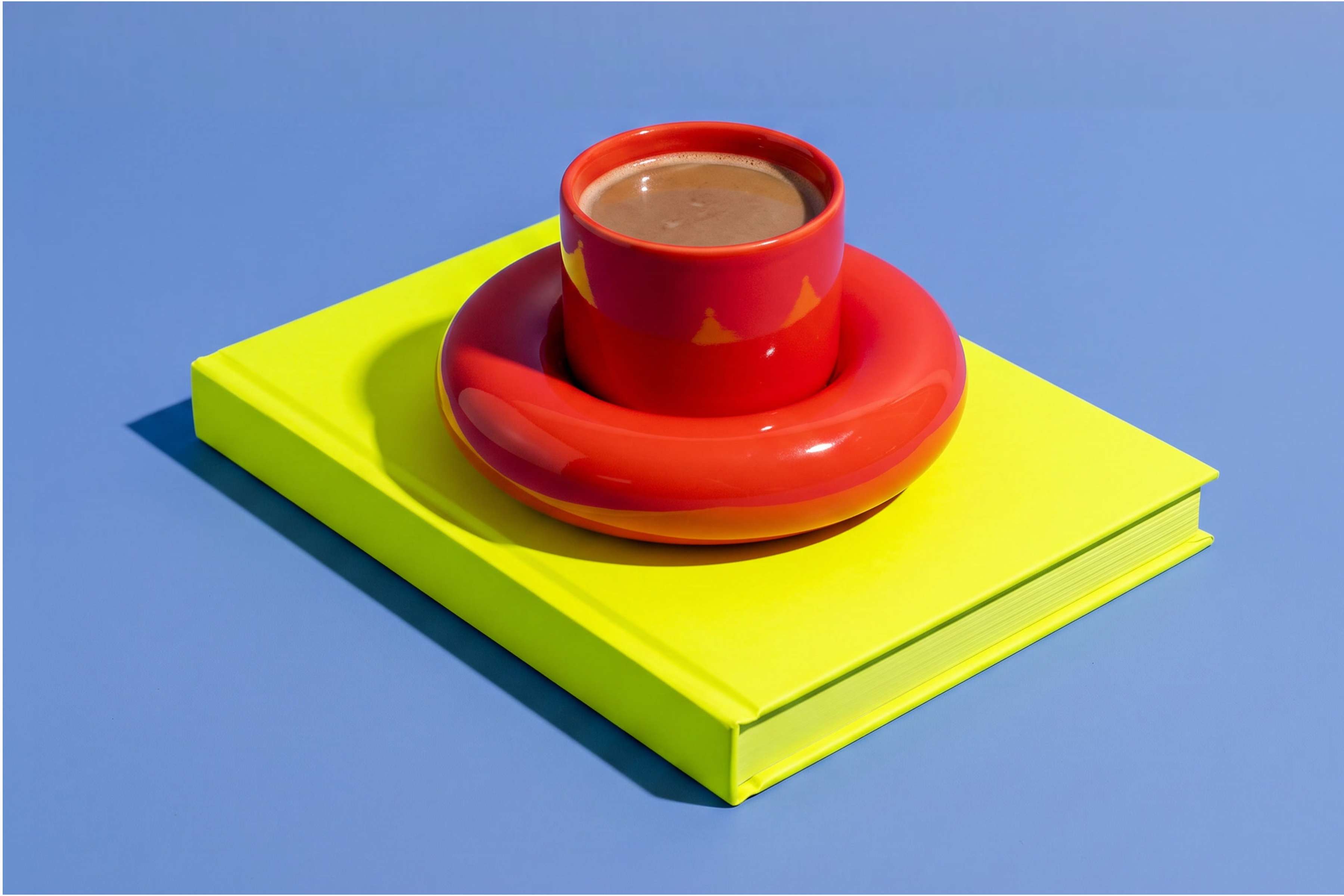
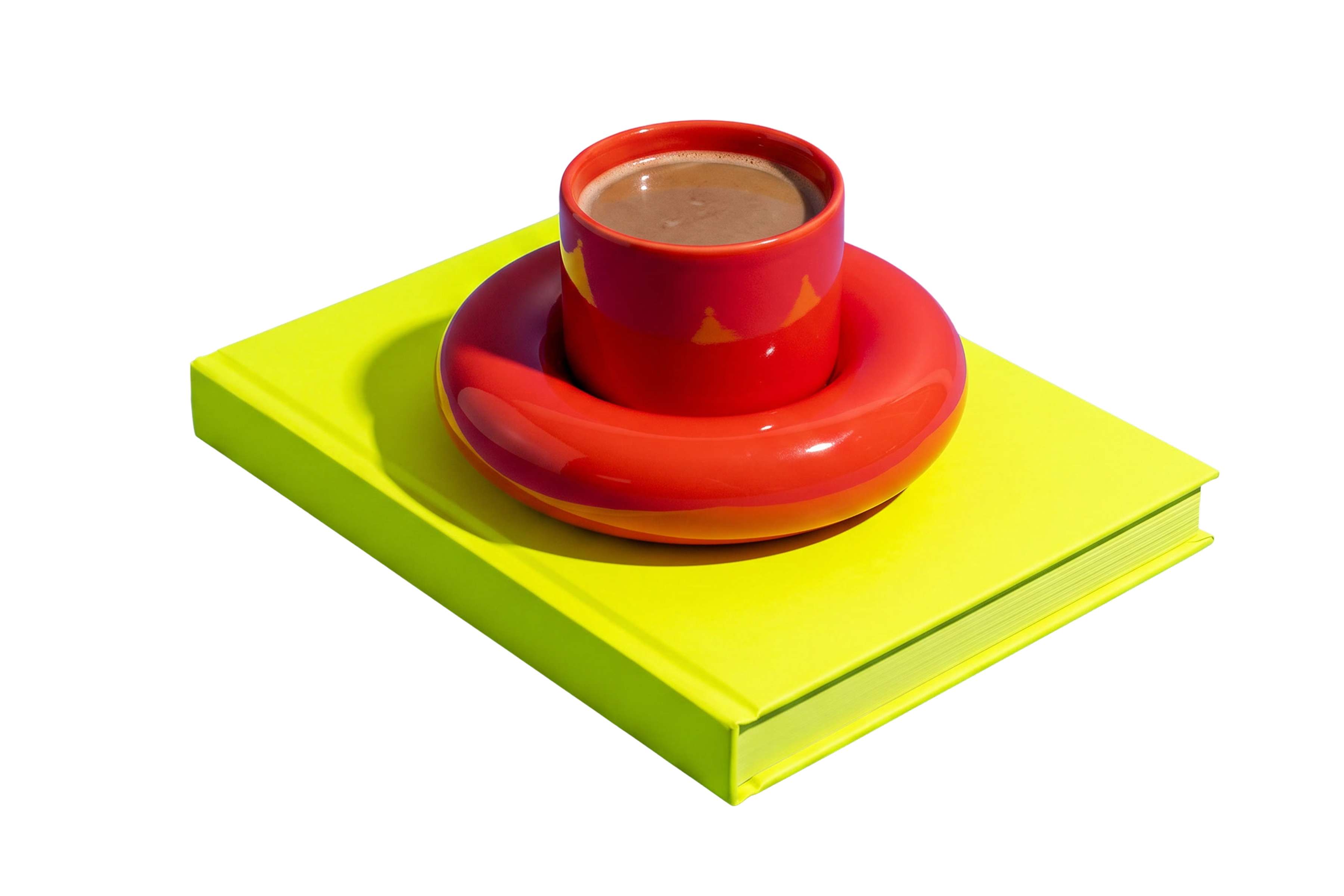
Produce high-quality images that sell
Elevate your e-commerce site with listings that meet your standards. Snap a photo of your product up for sale, then use Canva to change the photo background to white. After removing the background, your image automatically fills the empty space with white, keeping it high-quality even when zoomed in. Now, your future customers can see all the visual details they need to make that purchase.

Perfectly polished to a T
White doesn’t need to be boring, especially for your profile pictures, ID photos, or portfolios. Open our online photo editor, change the background color to white, and polish away! Add subtle effects to fit your aesthetic, enhance your image in one click, or wrap up your project with more elements from our library. With Canva, you can achieve flawless pictures you’ll proudly showcase anywhere.

Add a little magic to your workflow
Take your creativity further with AI-powered tools built into our full editor. Erase distractions and clean up your image with Magic Eraser, extend it to fix awkward framing using Magic Expand, or replace elements with Magic Edit. You can also use Magic Animate to bring your design to life with instant animations and transitions. Make the most of our built-in AI tools and watch the magic happen in seconds.
How to add white background to photo
Upload your photo
Click the “Upload your image” button, or drag and drop your file here. JPG, PNG, HEIC, and SVG files up to 50MB in size are supported.Log in your Canva account
If you aren’t logged in to your Canva account, you’ll be prompted to log in or sign up for a free one to access our Background Remover.Remove the background
Watch Canva’s Background Remover intuitively remove your photo's original background in just a few seconds.Download your photo
Once done, download your photo as a JPG and Canva fills the transparent area with solid white automatically.Edit further in the Canva editor
If you want to make more changes, open your image in the Canva editor(opens in a new tab or window) to add filters, text, or other design elements before saving.

Frequently Asked Questions
You can change the background of a photo to white using our one-click Background Remover. When saved, the image’s background is automatically set to white.