- Resize GIF
Resize GIF
Change GIF dimensions in seconds without sacrificing quality. Easily resize GIFs on Canva with Magic Switch (Pro), no design experience necessary.
or drop it here
Learn about Canva's upload formats and requirements. See how we use your content in our Privacy Policy.
How to resize GIF
Upload your file
Select the “Upload your file” button or easily drag and drop your GIF into the section.
Edit your design
Make some quick touch-ups on your GIF using our beginner-friendly editor.
Download your design
Finally, resize your GIF using Magic Switch then download your design.
Resize GIFs into different formats

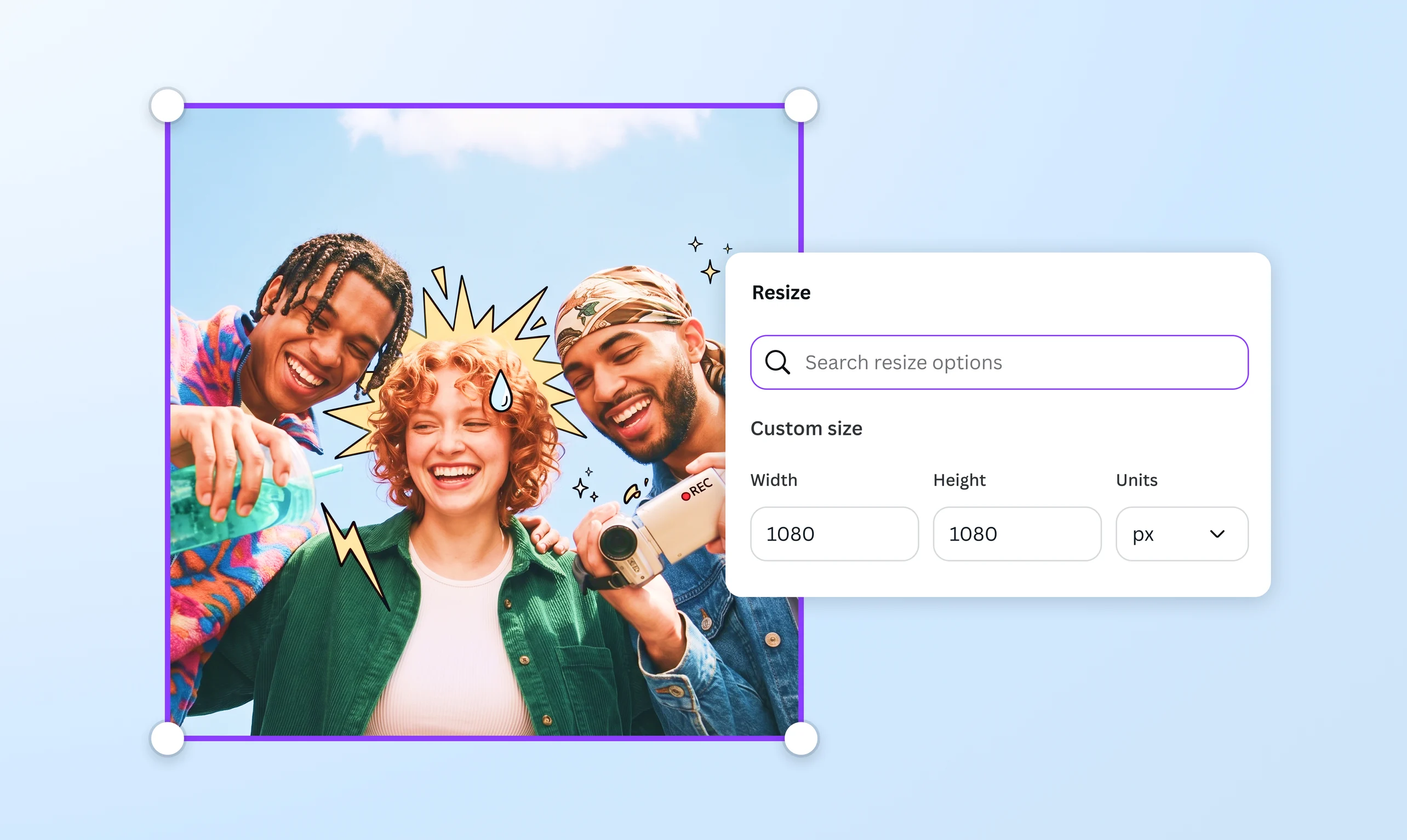
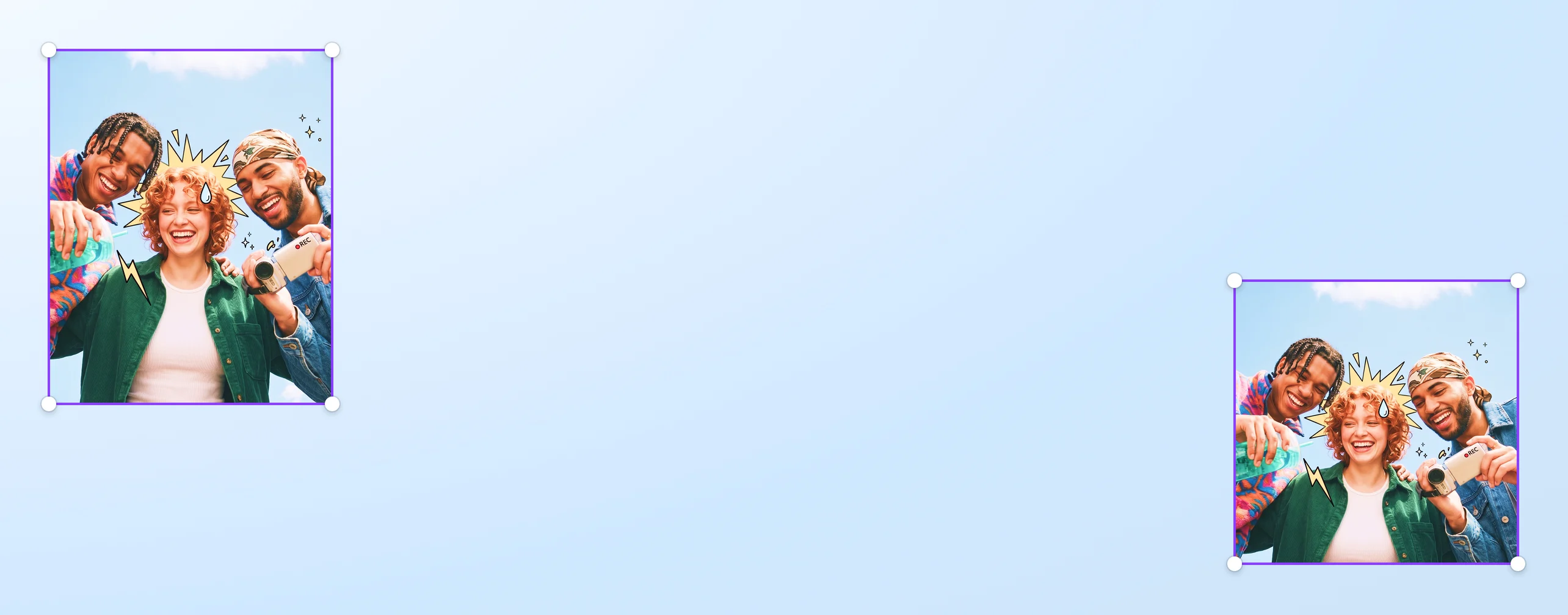
Resize GIFs and make them shareable on various social media platforms using Canva’s Magic Switch(opens in a new tab or window) (Pro). Adjust a GIF’s dimensions in just a few clicks, and easily change its orientation from vertical to landscape or vice-versa—no design experience or additional software needed!
Present dynamic and fast-loading content

Give your posts, newsletters, and digital ads more pizzazz without slowing down their loading time. Canva makes it easy to create GIFs(opens in a new tab or window) from your own images and videos, or from our extensive library of elements. Once you’re happy with your design, resize the GIF’s file size so it loads quickly on websites, banners, and emails.
Polish GIFs for greater impact

Don’t just stop at resizing your GIFs online; use Canva’s intuitive editor to add creative details to them. Generate captions and effects with the AI Video Editor(opens in a new tab or window), or add polished AI images to your GIF using Magic Media(opens in a new tab or window) (Pro). You can even remove your GIF’s background(opens in a new tab or window) and replace it with something more eye-catching. With Canva, the creative possibilities are endless.
Keep GIFs clear and crisp

With Magic Switch (Pro), you don’t have to worry about losing visual quality when resizing GIFs. No matter its new aspect ratio, whether customized or chosen from a preset selection, your GIF’s colors remain vivid and the movements stay crisp. This makes for an engaging visual once you download or share your resized GIF.
How to resize a GIF


Frequently Asked Questions
- You can resize GIFs and retain their visual quality by maintaining the animated clip’s aspect ratio. Be mindful of the proportion between the GIF’s height and width to keep it from stretching or getting distorted. You can also reduce its resolution, limit the number of colors used, and remove redundant frames so the file size is smaller. For fast and high-quality results, you can use our online GIF resizer.
- Yes, it is! You can download our platform’s mobile app on your phone and edit your GIFs even when you’re on-the-go. The best part? All the changes you make will be saved instantly.
- To change the aspect ratio of your GIF, simply upload your file to our platform and use our GIF resizer. Unlock the GIF’s aspect ratio and type in your desired new width and height, keeping in mind that they must be similar in proportion to the GIF’s original size. Our GIF resizer also offers preset dimensions for popular social media apps like Instagram, Facebook, and TikTok.

@navneet4