- Pixelate Image
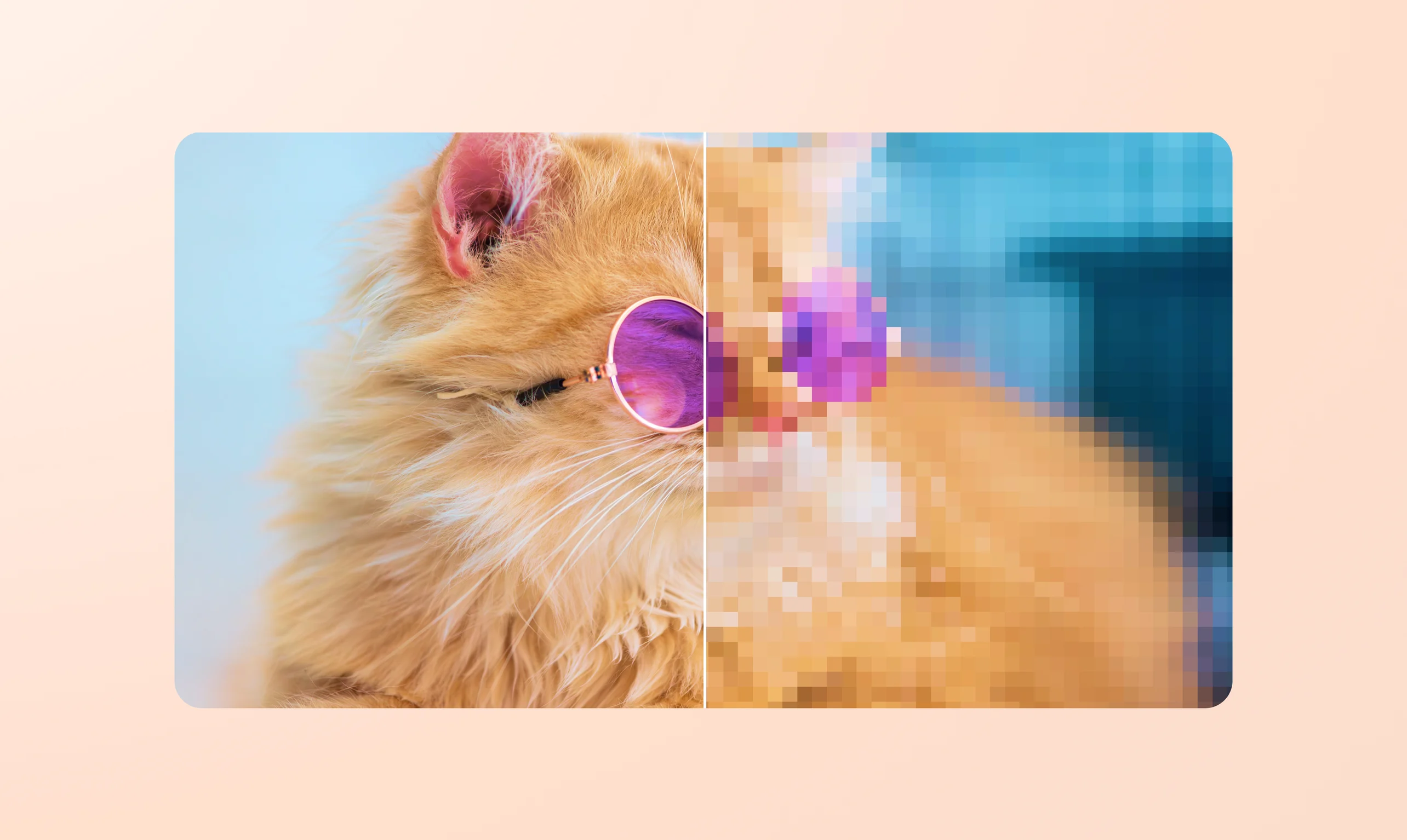
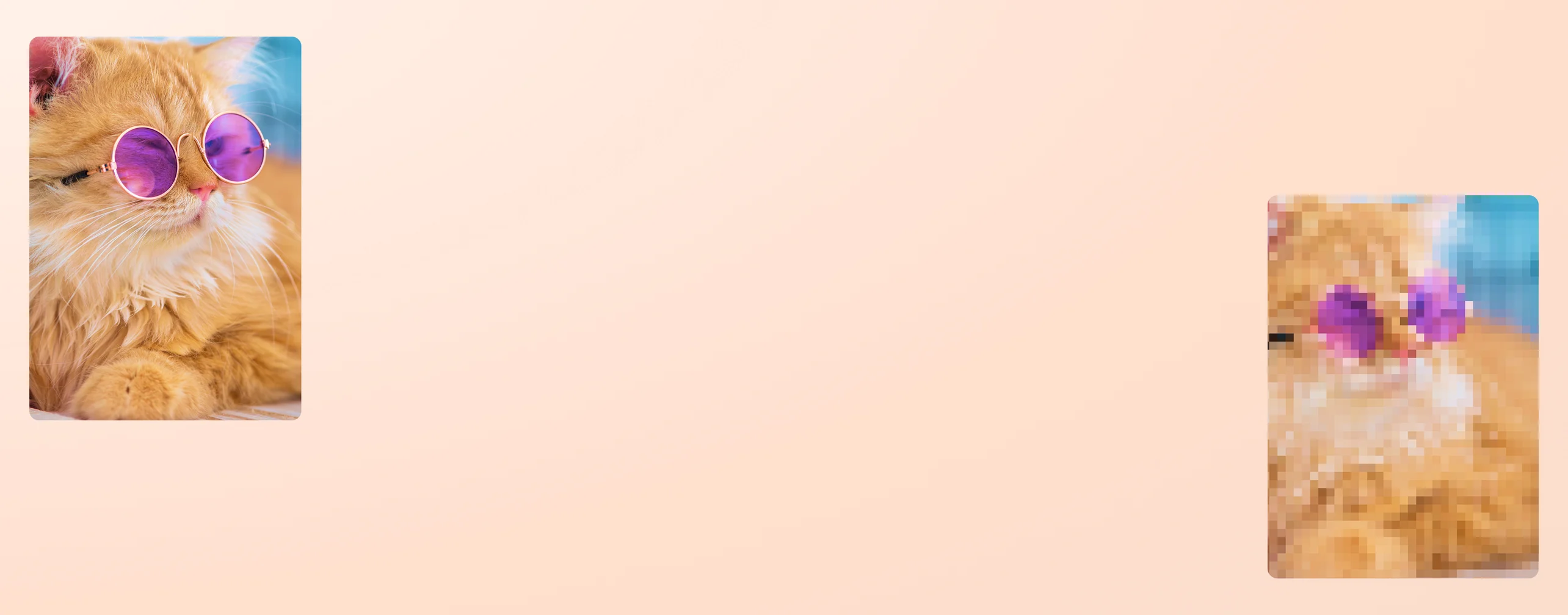
Quickly pixelate your image to hide, highlight, or style
Hide something fast or create a striking visual effect in a jiffy. Canva makes it easy to pixelate your image and gives you the control to do it properly.
or drop it here
Learn about Canva's upload formats and requirements. See how we use your content in our Privacy Policy.
Protect important details instantly

Before an image goes live, make sure it’s safe to share. Pixelate images to blur faces, license plates, and private details in seconds. Select the exact area, adjust the pixel size, and check the result in real time. This simple step makes a real difference, especially for privacy-conscious users and journalists who need to censor sensitive or graphic content in media or broadcasts.
Pixelate exactly where it’s needed

Worried that some images contain sensitive details that shouldn’t be shown as-is? Canva’s pixelating feature makes handling them fast and effortless. Now, journalists can quickly anonymize sources, content moderation teams can censor graphic material, and legal or corporate professionals can securely blur restricted information.
Turn photos into pixel art

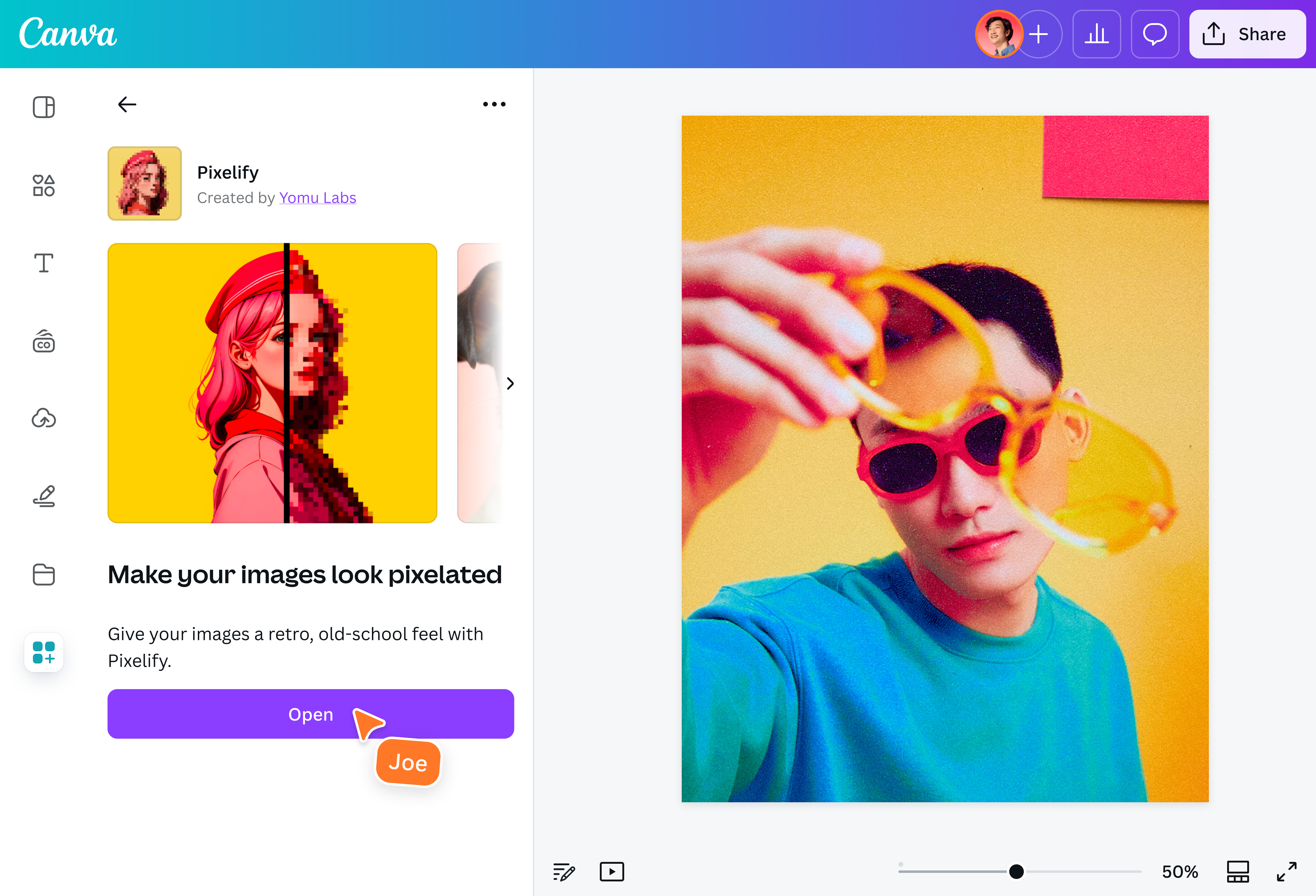
Go beyond basic edits and pixelate your image as a creative tool. Pixelate to build bold 8-bit retro styles, add textured finishes to your digital art, boost branded visuals into something bold and unique, and even create beading or cross-stitch patterns. The effect is easy to apply, simple to adjust, and flexible enough to match the style you’re going for.
Edit everything in one place

Pixelation is only the first step. Once your image is pixelated, continue shaping it straight away in Canva’s photo editor(opens in a new tab or window). Use Magic Grab to move key elements to improve composition, or make quick, targeted changes with Magic Edit. Use the Background Remover(opens in a new tab or window) to isolate your subject and create a cleaner layout.
How to pixelate an image
Frequently asked questions
- To pixelate only the selected parts of an image, use the selection or brush tool to mark the exact area you want to alter. Apply the effect, then adjust the pixel levels until you are satisfied.
- Pixelation is a visual effect where a digital image is broken into larger, visible squares. This reduces detail and sharpness, creating a distinct, low-resolution style.