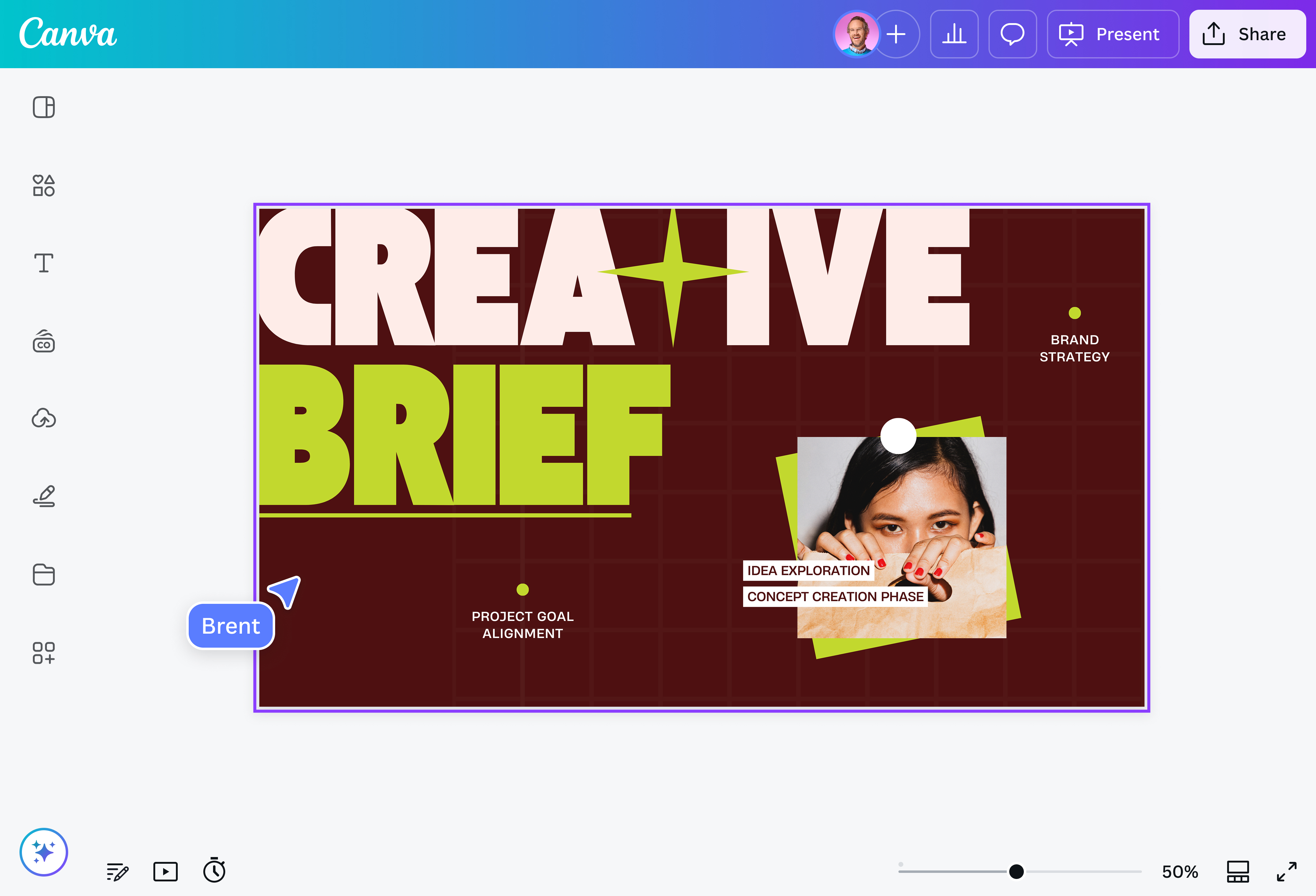
Select the “Upload your file” button or easily drag and drop your files into the section.
Edit your design
Make some quick touch-ups on your PowerPoint file using our beginner-friendly editor.
Download your design
Finally, convert from PPT slides to PNG for free by downloading your design as a PNG.
From PPT to PNG in a snap
Turn PowerPoint presentations into PNG files in an instant for any need. Whether you’re a content creator looking to share key moments from BTS decks across your socials, a graphic designer wanting to reuse slides for other projects in their original resolution, or a business owner seeking to make it easier for clients to view your presentations, you can easily accomplish that with Canva’s PPT to PNG converter.
Reduce work, reuse assets
Design work can be hard enough as it is, so why make it harder for yourself or your team recreating charts, graphs, and other assets when you can just repurpose the perfectly good ones sitting inside your deck? Converting PPT slides into PNG elements can save you hours of work, especially if you do it on Canva where design work is made simpler and faster, no experience needed.
On Canva, it’s easy to work on your deck with your team. Just share your design link with your colleagues and watch them edit in real time. Assign tasks, tag team members, and leave comments before saving your slides as PNG images. And keep your work protected with features like element locking(opens in a new tab or window) and auto-save.
How to convert PPT to PNG
Frequently asked questions
The Portable Network Graphic (PNG) file type is a raster-based image format, which “saves” photograph data as tiny dots of colors known as pixels. Unlike the traditional JPG file format, the PNG allows images to be saved without any background at all, making it a popular choice for saving logos, headers, icons, and other similar images.
PPT to PNG converters are widely available online, with the most common tools offering a straightforward process where you upload the PPT file then download a series of PNG images. Some converters also allow you to choose specific slides to save.
With our PPT to PNG converter, you can save your slides as images in their original quality completely for free. The PNG format itself uses lossless compression, so anything converted into it should be able to retain all original data and, by extension, keep its original quality.
Yes, you can convert the entire deck in one go, or choose multiple slides for download with our PPT to PNG converter. Just go to Share > Download > File type > select PNG > Select Pages > Custom > pick slides for download > Download.
Yes, it is! All core design functions and features, including access to thousands of templates and content resources, are also free.
@canva is simply outstanding as a tool to create designs. Using Canva is such a seamless experience that once you sit down to design, you don't feel like getting up. It's addictive and useful. Keep going Canva.
@navneet4
@canva is an incredible app for designing pretty much anything you need! A huge selection of templates, fonts and colours; endless choices at the tip of your fingers; easy editing and sending/sharing. Best app I’ve used for a long time. If you haven’t tried it... try it!
@SpotOnDomain
I don’t know where I was without @canva They have absolutely great graphics for any social media platform. Whether it be a YouTube thumbnail, an Instagram Post or whatever you want to create. Let @canva make the design process easier for you.
@IGchef_andrewb
Omg I love you guys! Thanks for making it so easy for me to use your templates. There’s so many selections and your site and app are very easy to use and navigate !!! 🥇💓💓💓💓💓💓
@curlyfrosista
@canva is such a life changing tool! One of the most well thought out websites I've ever seen. I use it to showcase my work with the community and it never ceases to amaze me! Kudos for all the love and effort you've put into it's development! #canvadesigns