Free Favicon Generator Online

Easy drag-and-drop editor
3M+ free stock photos and graphics
Design from any device
Download or share designs easily
Design a real favicon with a generator from Canva. Ensure your brand makes a professional first (and lasting) impression, no matter where potential customers and site visitors interact with you on the web.

Increase brand visibility
Set your website apart from competitors and increase your chances of being revisited by your online audience with a memorable favicon logo. Use our generator to create a custom website favicon that represents your brand and is easily recognizable among a sea of tabs and bookmarks.
How to create a favicon

Collaborate with your team
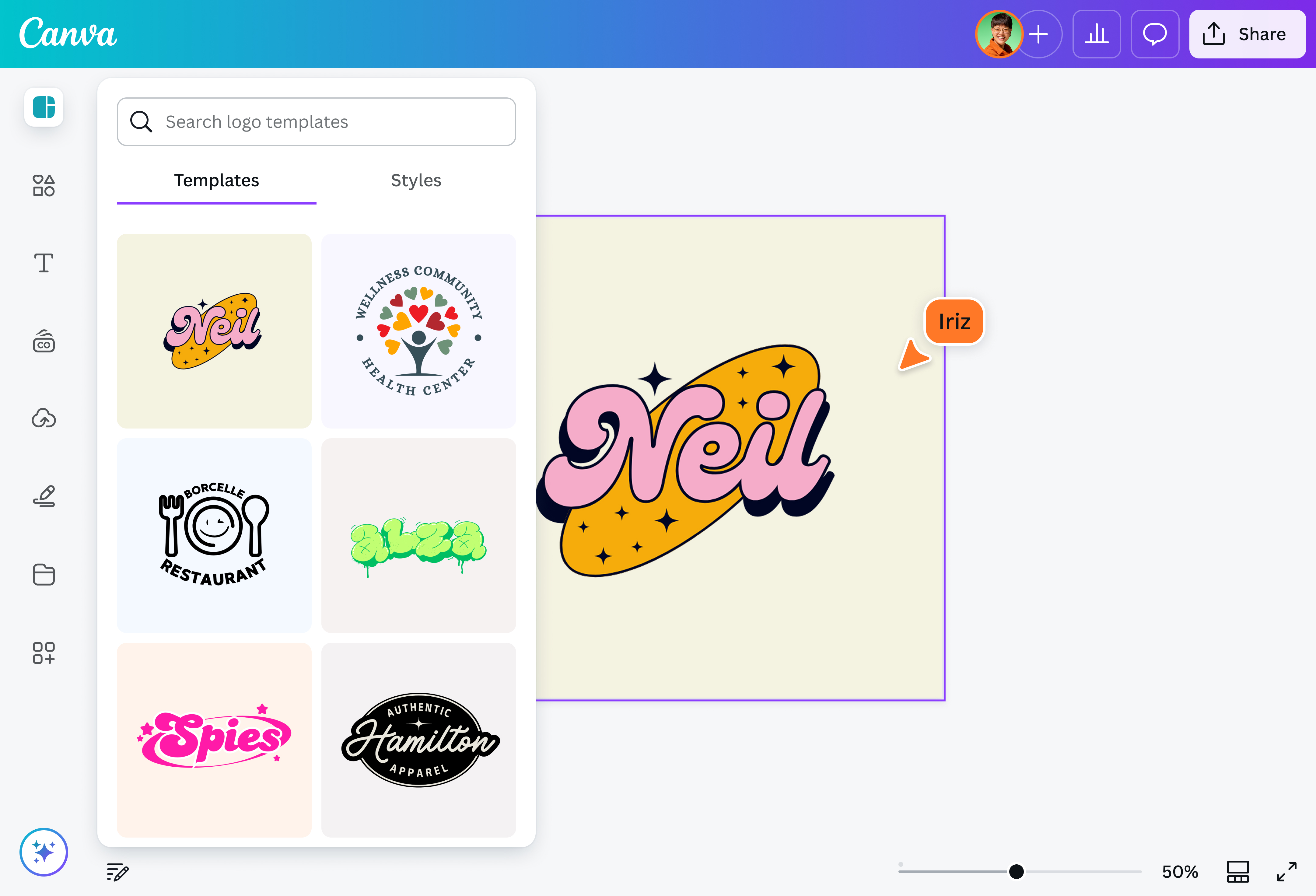
It’s so simple, anyone can create a favicon on their own. But that doesn’t mean you have to. With our favicon icon generator, you can involve and collaborate with your team. Brainstorm favicon designs using the Draw(opens in a new tab or window) tool, assign tasks, leave comments, and get a second (or third, or fourth) pair of eyes and hands to improve the final look of your design.
Generate a high-quality favicon in minutes
Great design is at your fingertips, even without any design experience. With Canva’s favicon creator, you can generate favicons easily and quickly with our many free icon templates, drag-and-drop graphics, and the Brand Kit (Pro)(opens in a new tab or window), which has everything you need to make your design cohesive. Even better, once you’re finished, you can save your design in any file format you need—SVG, PNG, JPG, and more—to upload to your business website(opens in a new tab or window).
Leverage AI tools
Need to edit an existing favicon image? Subscribe to Canva Pro and access awesome AI tools that will polish it like no other. With Magic Edit(opens in a new tab or window), you can add to, replace, or edit your image with a short written prompt. Need small adjustments? Use Magic Grab(opens in a new tab or window) to select and separate any element in your favicon image so that you can edit, reposition, or resize it. Lastly, Magic Eraser(opens in a new tab or window) deletes unwanted details from your favicon photo. Just brush over the area and watch as the distraction is magically removed. With Canva, creating and refining favicons has never been easier.
FAQ

@navneet4


