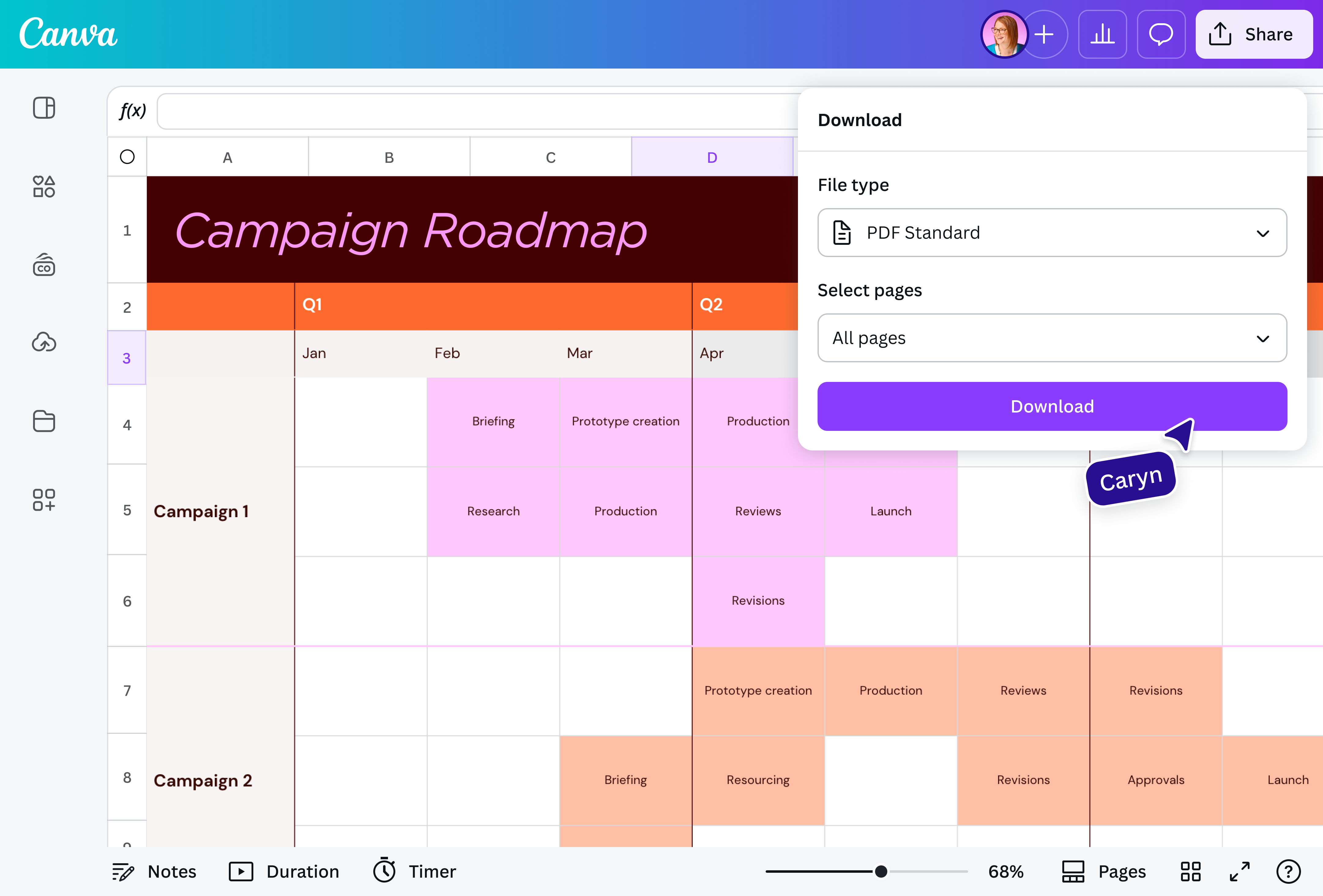
Turn financial reports, invoices, or schedules into polished PDFs that anyone can open. With Canva’s Excel to PDF converter online, your Sheets(opens in a new tab or window) stay consistent across devices, even without Excel installed. Share files that are easy to view, non-editable, and always appear exactly as you designed them.
Keep your spreadsheets safe and organized
Worried about data shifting or accidental edits? PDFs lock everything in place. Canva even lets you add password protection for sensitive files. You can safely store compliance reports, invoices, or project trackers knowing they’ll stay intact and uncompromised.
Turn Excel data into polished, print-ready files
Avoid cut-off rows or messy layouts when printing. Canva makes it easy to keep everything aligned, neat, and ready to print. Flip page orientation, tweak margins, or merge multiple tabs into one document without worrying how it’ll come out. Financial summaries, class lists, project plans, or whatever else it is you’re working on—your files will be clean and professional.
Saving your Excel spreadsheet as a PDF is simpler than it sounds. Go to the File menu of your spreadsheet software, choose “Save As” or “Export”, and pick PDF as the format. A few clicks, and your workbook is ready to share or print.
The common issues with converting Excel to PDF include:
Columns or rows being cut off
Misaligned charts or images
Print scaling or margins causing text overflow
Hidden sheets not included or extra blank pages appearing
Unsupported elements like macros or special formatting
Most problems can be avoided by checking the layout, print preview, and page settings before saving the file as PDF.
To convert Excel to PDF without losing formatting, glance over your spreadsheet before converting. Adjust column widths, row heights, and page breaks. “Print Preview” or “Page Layout” is your friend here. When saving or exporting, choose options that include the whole workbook or selected sheets. If you're working with the modern XLSX format, the same principles apply. Check scaling, margins, and orientation so everything stays exactly where it should.
To set the page to Portrait or Landscape, go to “Page Layout” or “Print Setup” in Excel, pick your orientation, adjust margins, and scale content to fit the page. Once that’s done, export or save the file as PDF, and your layout will stay exactly as you planned.
If you want all of your tabs in a single PDF, most tools will turn each sheet into its own page. Just open or upload your workbook, select PDF as the output, and all tabs will appear as individual pages in the final document.
Pro tip: Check the order of your tabs first; the PDF will follow it. If you need to rearrange pages later, you can always organize your PDF after conversion.
@canva is simply outstanding as a tool to create designs. Using Canva is such a seamless experience that once you sit down to design, you don't feel like getting up. It's addictive and useful. Keep going Canva.
@navneet4
@canva is an incredible app for designing pretty much anything you need! A huge selection of templates, fonts and colours; endless choices at the tip of your fingers; easy editing and sending/sharing. Best app I’ve used for a long time. If you haven’t tried it... try it!
@SpotOnDomain
I don’t know where I was without @canva They have absolutely great graphics for any social media platform. Whether it be a YouTube thumbnail, an Instagram Post or whatever you want to create. Let @canva make the design process easier for you.
@IGchef_andrewb
Omg I love you guys! Thanks for making it so easy for me to use your templates. There’s so many selections and your site and app are very easy to use and navigate !!! 🥇💓💓💓💓💓💓
@curlyfrosista
@canva is such a life changing tool! One of the most well thought out websites I've ever seen. I use it to showcase my work with the community and it never ceases to amaze me! Kudos for all the love and effort you've put into it's development! #canvadesigns