
Password protect a PDF file effortlessly
Get superior protection for your contracts, reports, and private data. The password protect PDF feature on Canva lets you keep sensitive and exclusive content under lock and key.
or drop it here
Learn about Canva’s upload formats and requirements. See how we use your content in our Privacy Policy.
Try these document editing tools
Edit, organize, translate PDFs and more. All the PDF editing tools you need!
How to password protect a PDF file
1
Upload your PDF
Select the “Upload your file” button or easily drag and drop your files into the section.
2
Edit your design
Make some quick touch-ups on your PDF using our beginner-friendly editor.
3
Protect your PDF
Finally, password protect your PDF for free by downloading your design and checking the “Password protection” box.
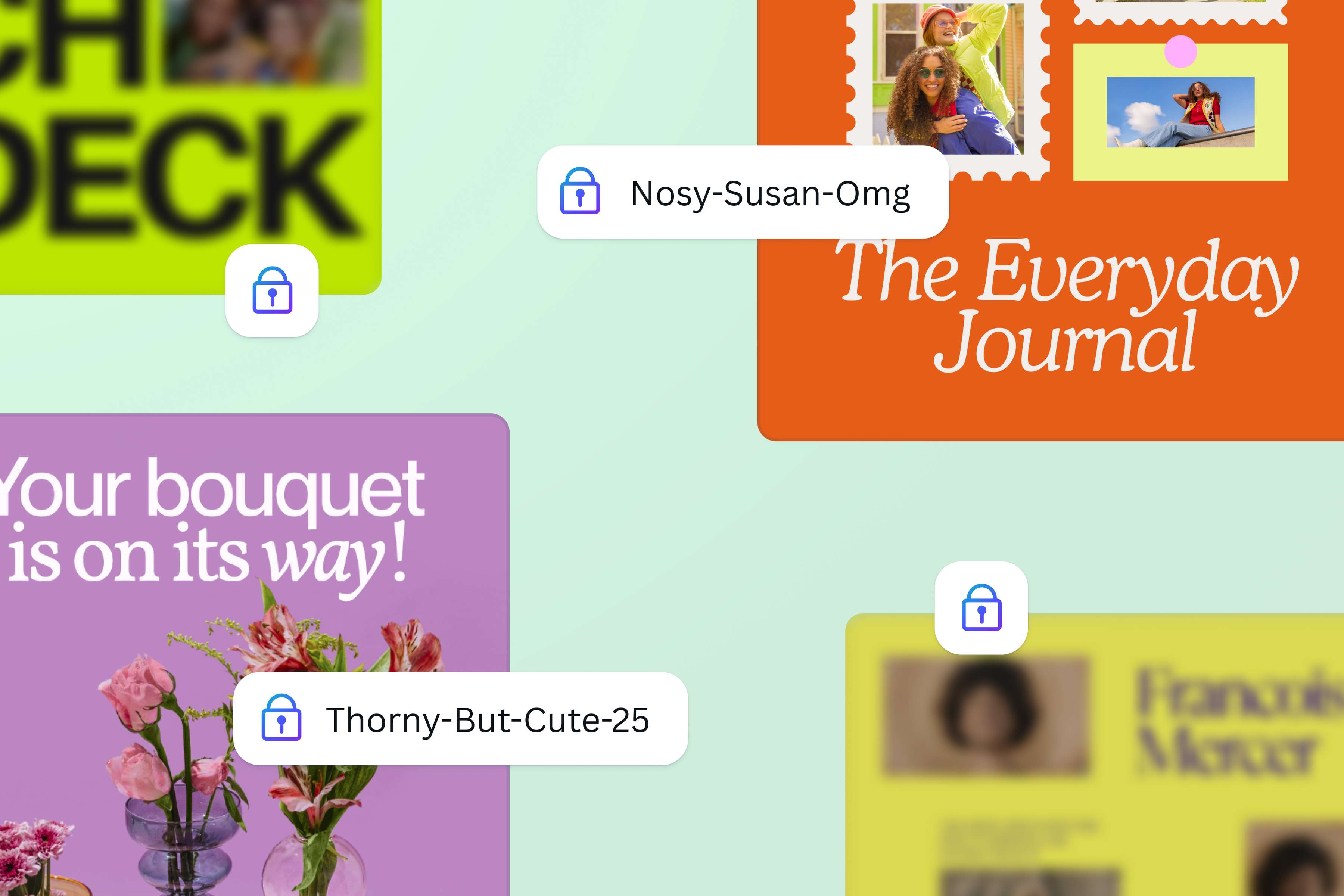
Keep important information safe
Secure your important documents in seconds. Adding a password to your personal files, financial reports, or contract agreements is easy to do and essential to have. This way, you can share your documents with total confidence and enjoy complete peace of mind.
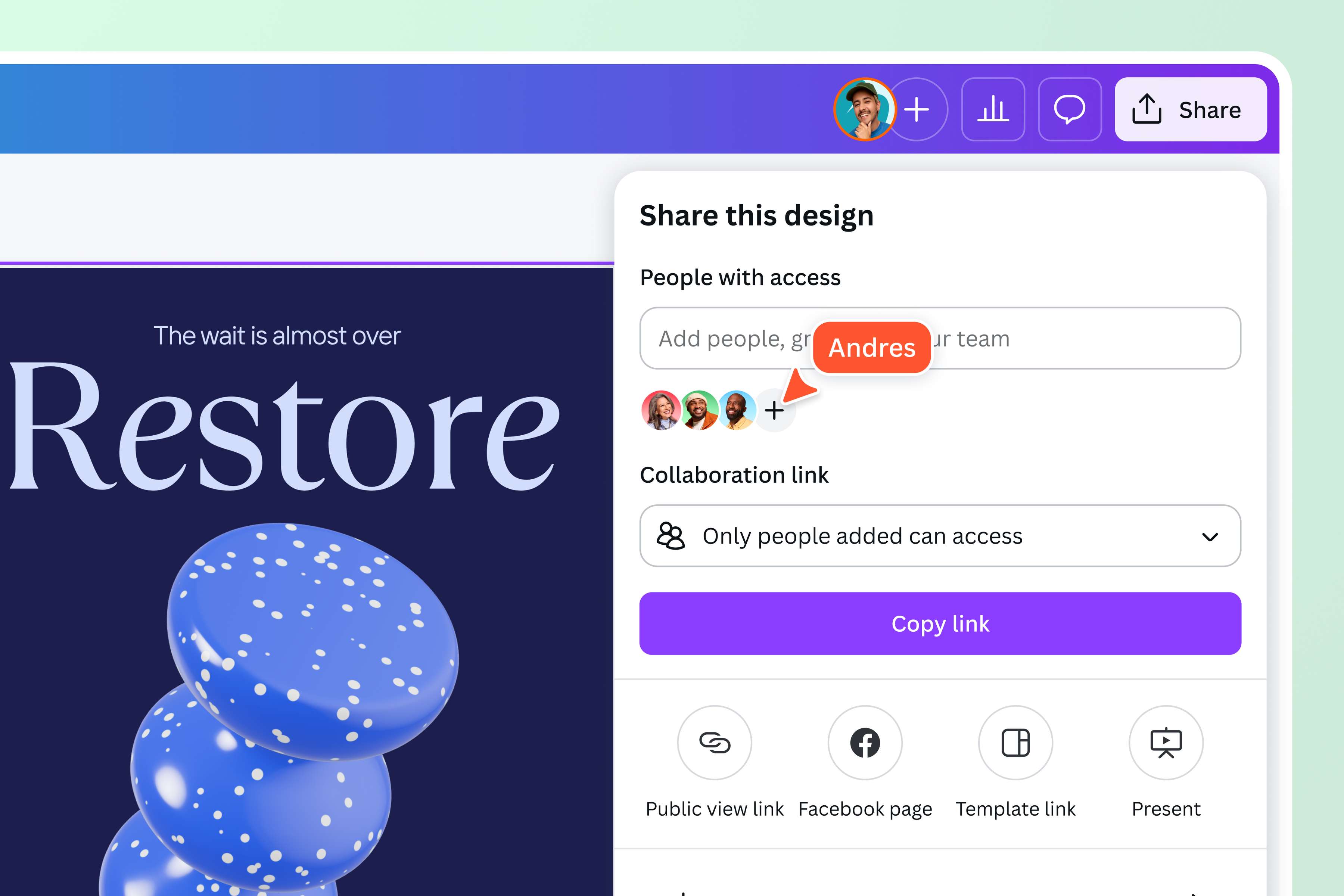
Control access to your PDFs
Don't let your documents fall into the wrong hands. Decide who gets to open your file, delete pages, or modify with the Brand Kit (Pro). Set your own custom password or choose a suggested one for maximum strength. Share your client presentations, internal projects, and other confidential materials exclusively with your trusted circle.
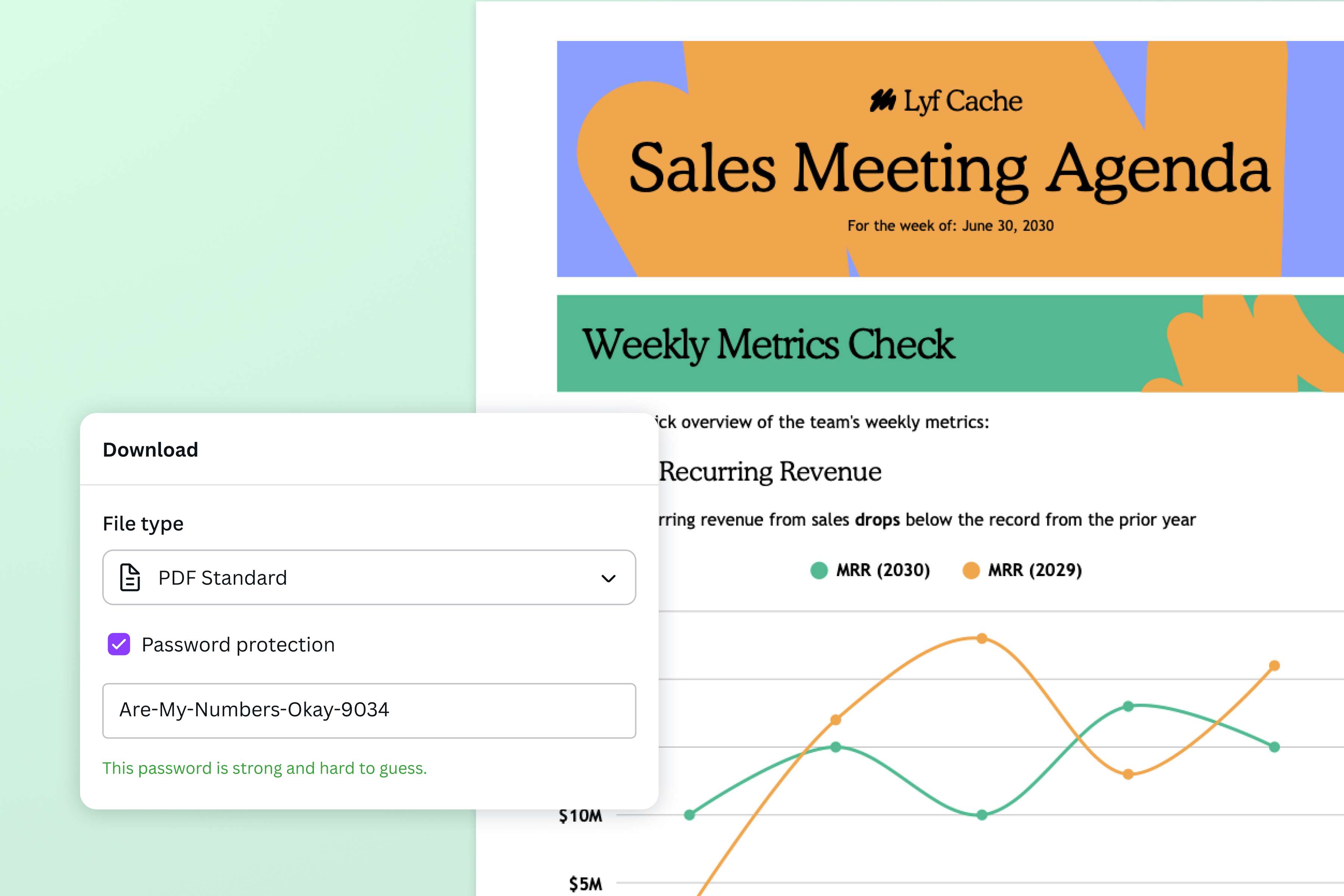
Ironclad PDF security, built right in
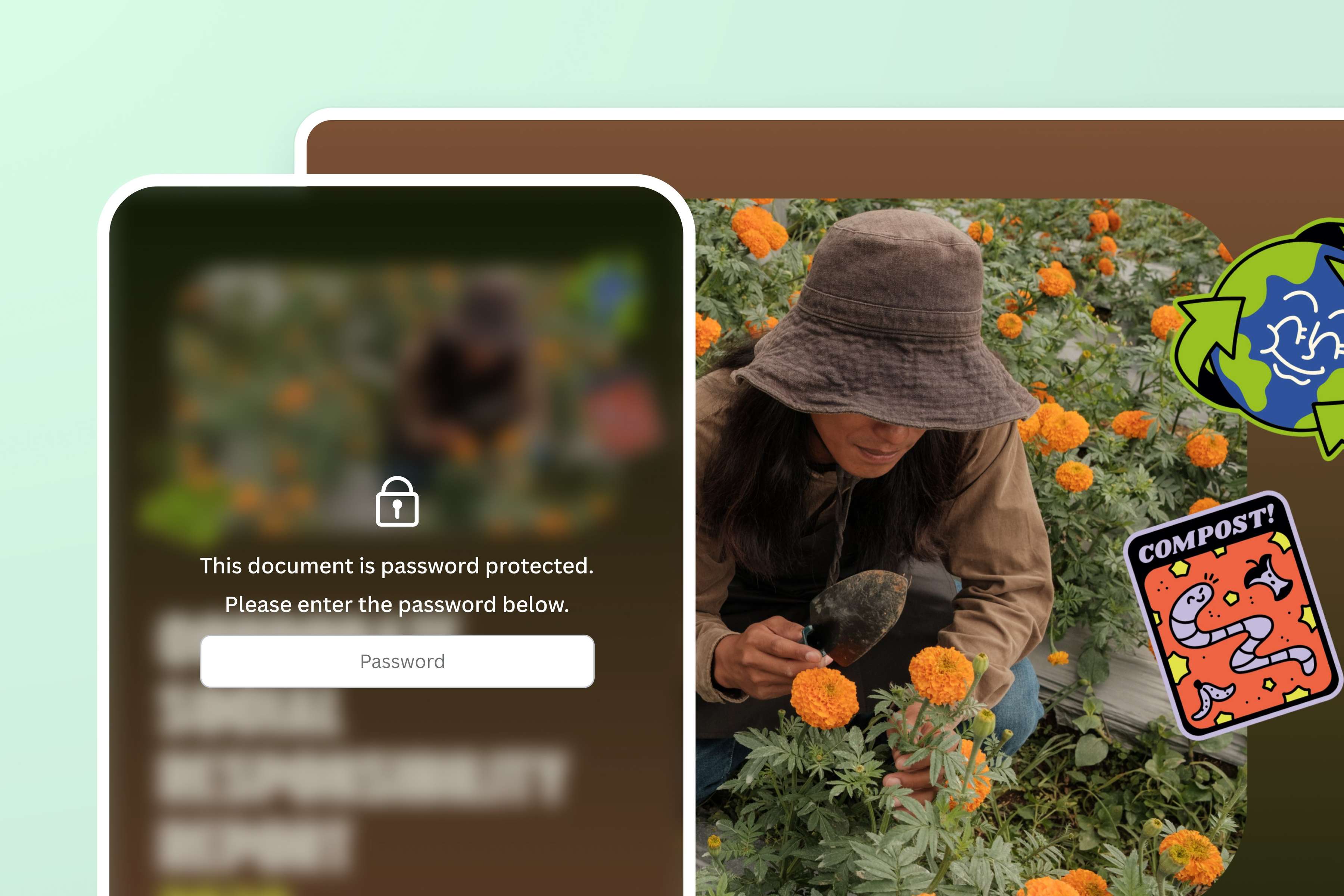
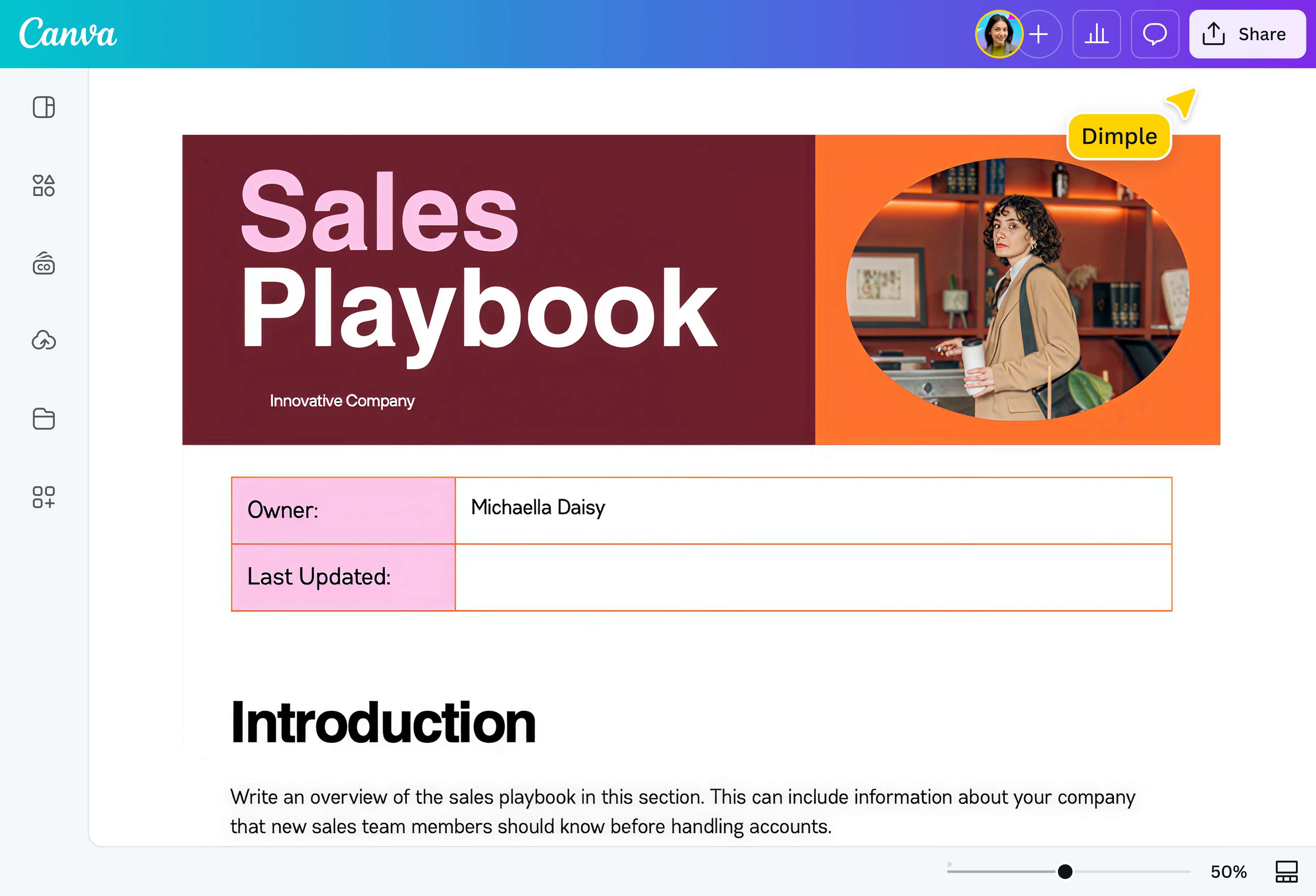
Experience a layer of protection built directly into your workflow. Create a password for your file right from Canva's PDF Editor. Create or upload your document, make necessary updates and changes, and add a password before downloading. No need to install additional software. No need to switch between apps.
Work and share securely, anywhere
Keep your documents secure, wherever you are, whatever device you use. The password protect feature works well on both desktop and mobile—perfect for professionals, marketers, and students who need privacy on the go. Sharing your file to an overseas colleague or team? Use Translate (Pro) for effective global collaboration in real time.
How to password protect a PDF
Launch Canva
Open the Canva app on your desktop or mobile to access the PDF editor.Upload your file
Upload the PDF file you want to secure with a password.Enhance or update your content
Before safeguarding your PDF, you can delete outdated pages(opens in a new tab or window), enhance it with built-in Magic Studio (Pro)(opens in a new tab or window) tools, or modify the template as you wish.Add password protection
Click on Share, select Download, and choose PDF Standard from the drop-down. Check the Password protection box, and Canva will suggest a secure password for you. You can use it or create your own. You will see indicators if your chosen password meets all security requirements. Save and store it to avoid locking yourself out of your own file.Download and share
Download and store the password-protected PDF to your device or cloud folders, or attach it to emails for sharing.
Frequently asked questions
- To lock a PDF, you can add a secure password when you download, save, or export a PDF file through a PDF editor.