- Create Animated Presentations
Free animated presentation maker

Design from any device
1M+ professionally-designed templates
Easy drag-and-drop editor
Download or share designs easily
Transform your presentations from dull to dynamic using Canva’s free animated presentation maker. Whether you’re pitching to potential investors or upskilling employees, create animated presentations that impress your audience with ease.

Move your audience with dynamic presentations
Canva’s animation presentation maker helps you captivate your audience and get them hooked — no skills needed. Browse our library of ready-made presentation templates for the perfect canvas for your ideas. Choose from various cinematic effects you can use individually or together to create customized and smooth transitions. With animated presentations, easily elevate your slideshow and bring impact to your content.
How to create an animated presentation

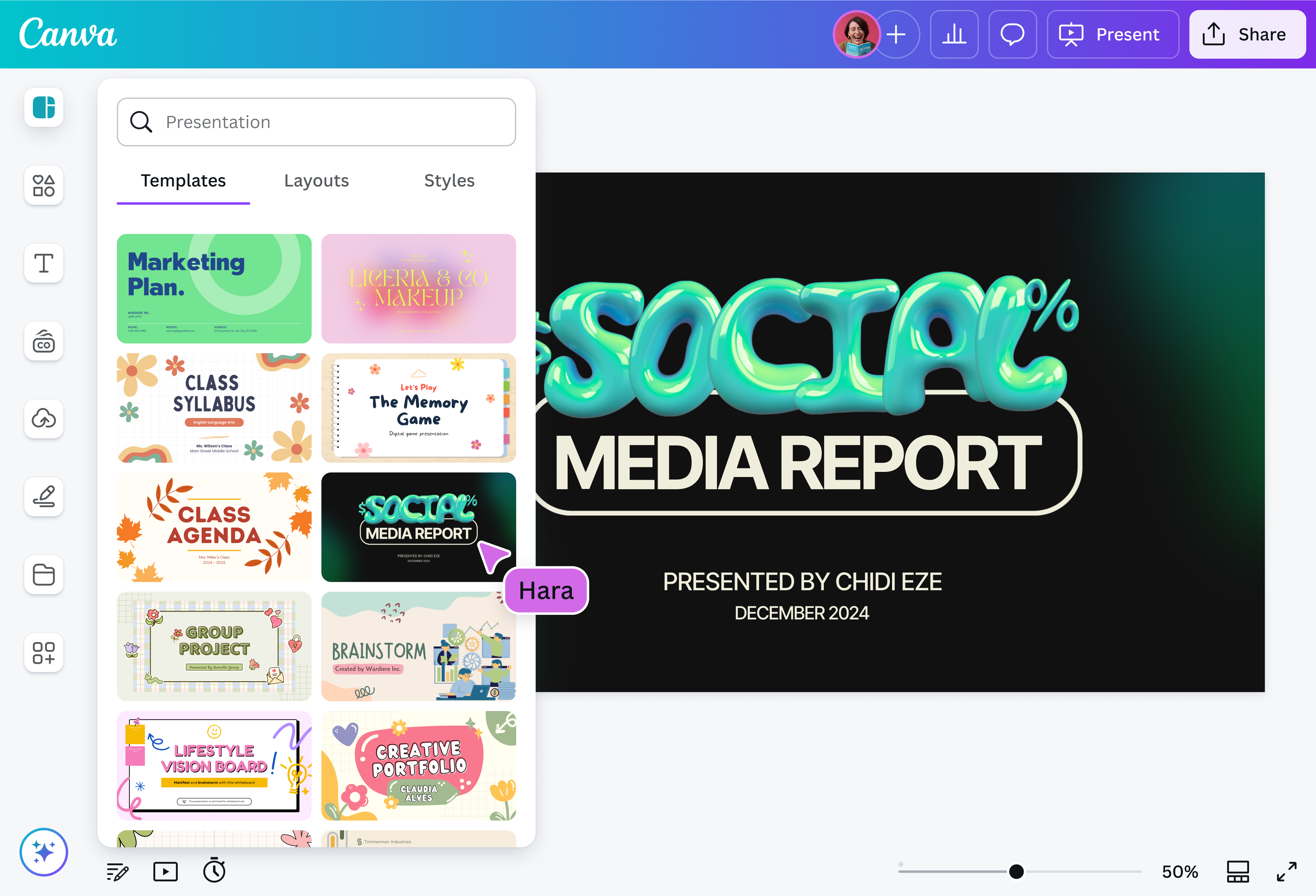
Set your vision into motion
Unleash your creativity and craft an animated presentation that leaves a lasting impression. Breathe life to your deck by adding a wide range of movements to your slides or design elements, from Basic animations that let them pop or fade to Exaggerate animations that have them tumbling or stomping on screen. Alternatively, make important details pop with custom motion paths using our Create an Animation tool.
AI-powered pitch in minutes
Work smarter with AI-powered tools right inside our editor to speed up your design process. Use Magic Design™ for Presentations(opens in a new tab or window) to generate an on-brand draft presentation or Magic Write™(opens in a new tab or window) to create an initial draft or edit your existing text. If you’re short on time, Magic Animate™ (Pro)(opens in a new tab or window) is a nifty tool for instantly enhancing your entire design with sleek animations and seamless transitions.
Collaborate and present anytime, anywhere
With your team, create and design a captivating animated presentation seamlessly. Share a link to your design and grant members editing access so they can view, edit, and comment on any device, no matter where they are. You can also transform your presentation into a brainstorming session. Simply expand a slide into an online Whiteboard(opens in a new tab or window) and empower everyone to bring out their best ideas.
Create more fun ways to engage
Move your audience with your animated presentation in more ways than one. On Canva, highlight special moments using Magic Shortcuts™(opens in a new tab or window) like “C” for confetti, “D” for drumroll, or “M” for a mic drop animation.
Additionally, encourage participation in your presentation with Canva Live(opens in a new tab or window). Let your audience join the discussion with a QR code scan so they can send questions or comments as you present.
FAQ
Choose a presentation template from our library of pre-made professional decks. Once you have your presentation ready, use our free animated presentation maker to inject energy to your slides. Animate a specific page or element by clicking Animate on the toolbar above the editor and choosing the kind of animation you want.
To animate a specific page, choose animation options from the Page Animations tab, which includes Combinations, Basic, Exaggerate, and Photo Movement.
To animate a specific element, choose from Basic, Exaggerate, and Add Motion Effects from the Element Animations tab.
Magic Animate is an AI-powered tool that chooses eye-catching animation that matches your design in seconds. It’s available on Canva Pro, Canva Teams, Canva for Education, and Canva for Nonprofits.
To use Magic Animate, click Animate on the toolbar above the editor and choose Magic Animate from the animation options that appear on the side panel. Click on the recommended style to apply it to your entire presentation. Or, choose from the alternative styles available.
Use Magic Shortcuts while presenting on a computer to add some fun animations. Here are the keyboard shortcuts you can use:
- Press B to blur current slide
- Press C for confetti rain
- Press D for drumroll
- Press M for a mic drop animation
- Press O for floating bubbles
- Press Q for quiet
- Press U for a curtain call animation
- Press any number from 1-9 to start a countdown timer
You can also press Shift + / or ? on your keyboard to open the Magic Shortcuts menu.
Presenter notes can help you stay confident throughout your pitch and ensure you’re not missing out on important key points.
To add notes, click Notes at the bottom left of the editor screen. A blank note will open up where you can type your script for the specific slide.
To view your notes, go to Presenter View by clicking Present. Choose Presenter View and hit Present. The Presenter Window will pop up and will show the timer, your notes, and a preview of your presentation.

@navneet4


